
Your first project
This walkthrough takes a short document from import to delivery. Use a file you can easily check, such as a one-page document. Keep the original so you can compare the exported translation with it.
Quick steps
Add the files, check the languages, enter the project details, and attach a memory. After creating the project, open a file, translate and confirm its segments, run QA, and export the translation.
1. Open the translation projects page
Open Projects → Translation in the sidebar, then choose New. The translation project wizard has five steps: Files, Project details, Memories, Glossaries, and Settings.
You may see Create project before the final step. For this first project, continue through every step so you understand the choices.
2. Add files and check the languages
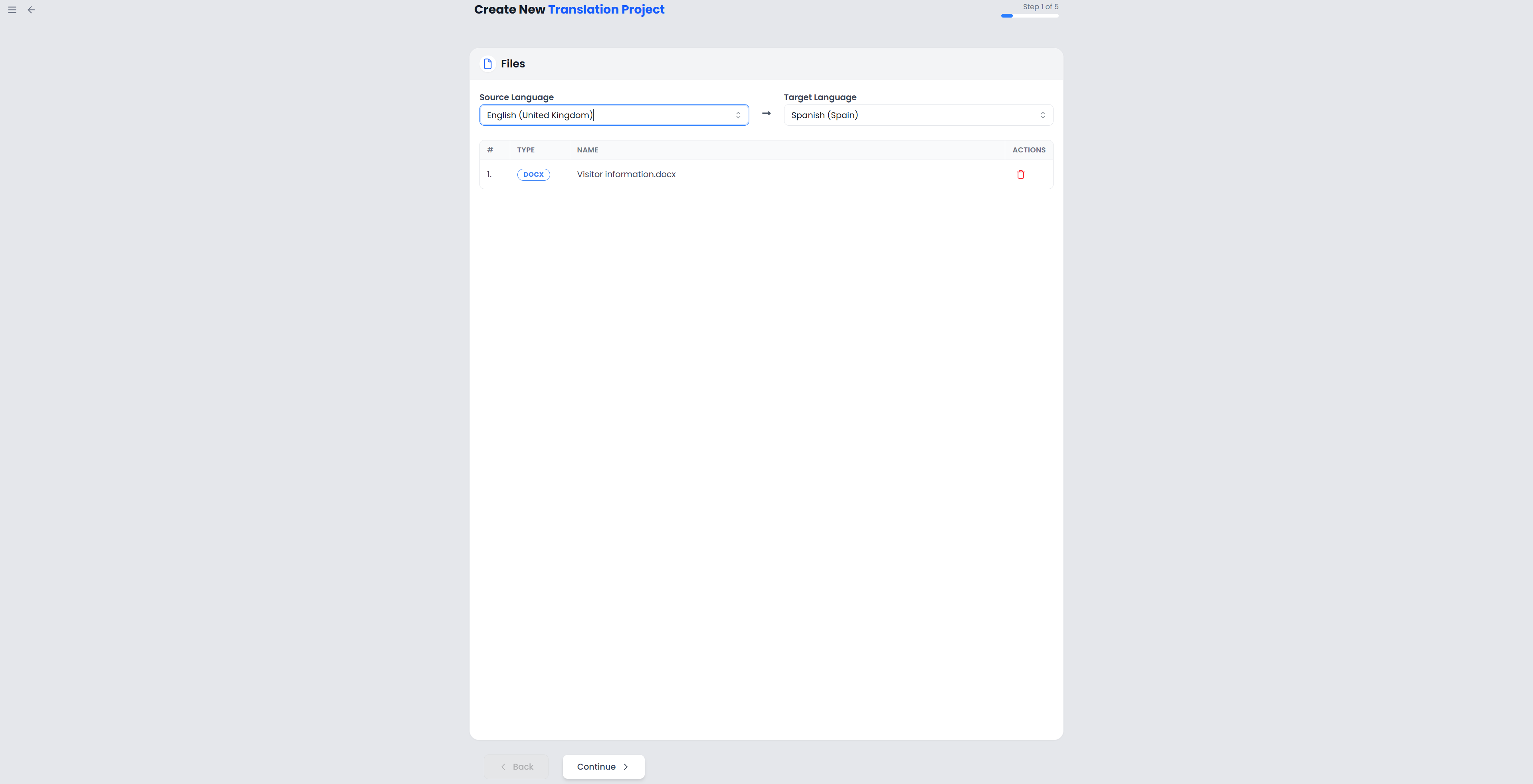
On Files, browse for a supported file or drag it into the upload area. You can include more than one file in the same job.
Set Source language to the language of the original and Target language to the language you need to deliver. If the file already contains language information, check the detected pair. If Searchspeare asks you to add a language to your working languages, review that choice before continuing.
For plain text files, check the encoding if accented characters appear wrong. For a CSV file, check the delimiter if the content is divided incorrectly. See Files and export for supported formats and import choices.
Do not group documents with different translation directions into the same project. For example, English → Portuguese and Portuguese → English are different jobs.
3. Give the project useful details
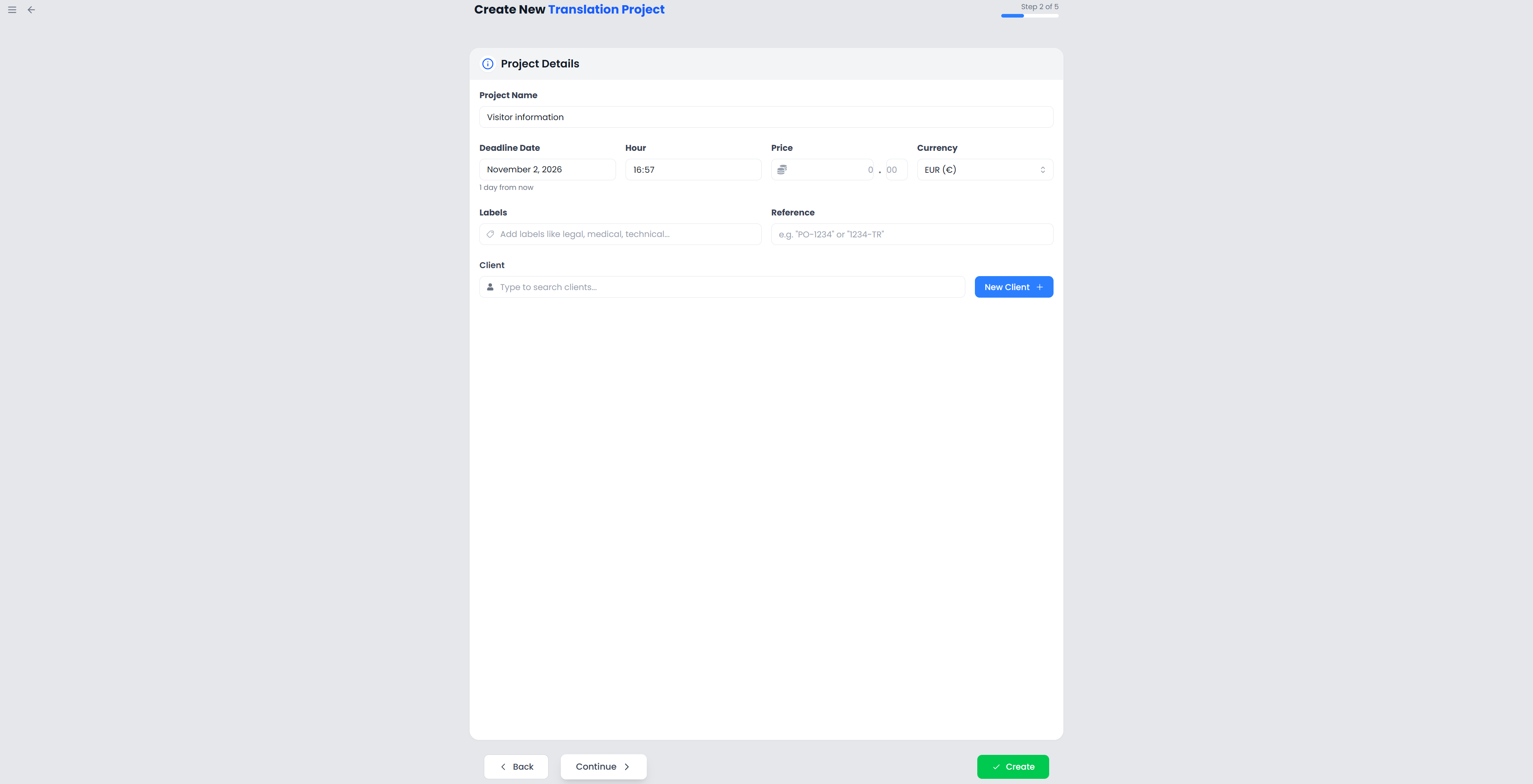
On Project details, use a name that will still make sense when the project list grows, such as “Acme — pump manual — October”.
You can also record a deadline and time, client, reference, labels, price, and currency. These are job details, not translation instructions. A label such as “engineering” helps organize related work; a reference can store the client's purchase order or job number.
You can create a client from this step if the client is not listed. You can edit project details later in Project Home.
4. Attach a translation memory
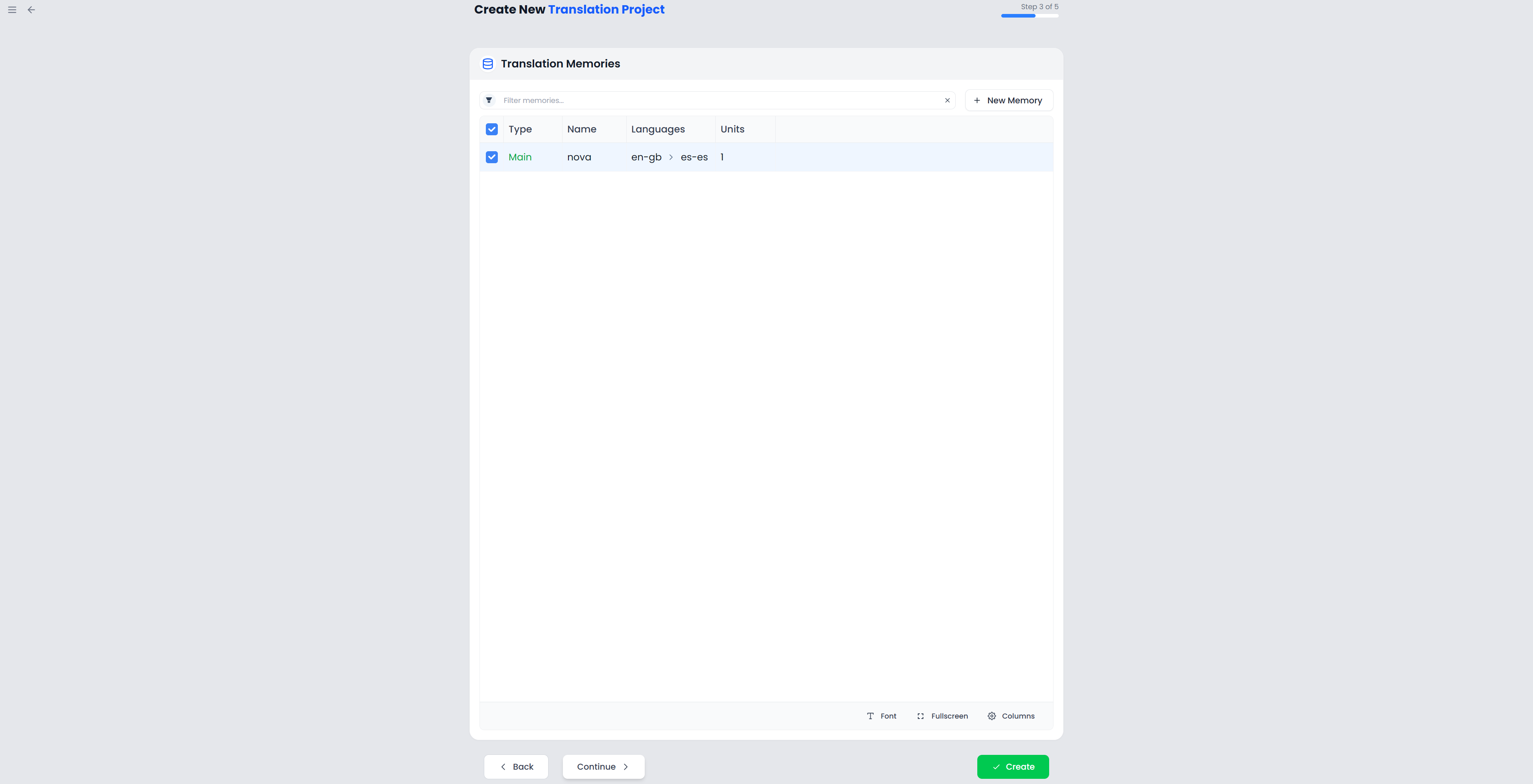
On Memories, select a suitable memory or choose New Memory to create one. For your first project, give it a clear name, such as “Acme — English to Portuguese”.
A memory does not have to contain previous translations to be useful. An empty memory starts collecting the segments you confirm in this job. Keeping a dedicated client or subject memory also helps you avoid reusing an unsuitable translation from unrelated work.
You can create a project without choosing a memory, but bilingual confirmation and pretranslation need an attached memory. Attaching one now avoids an interruption later.
5. Attach a glossary if you have one
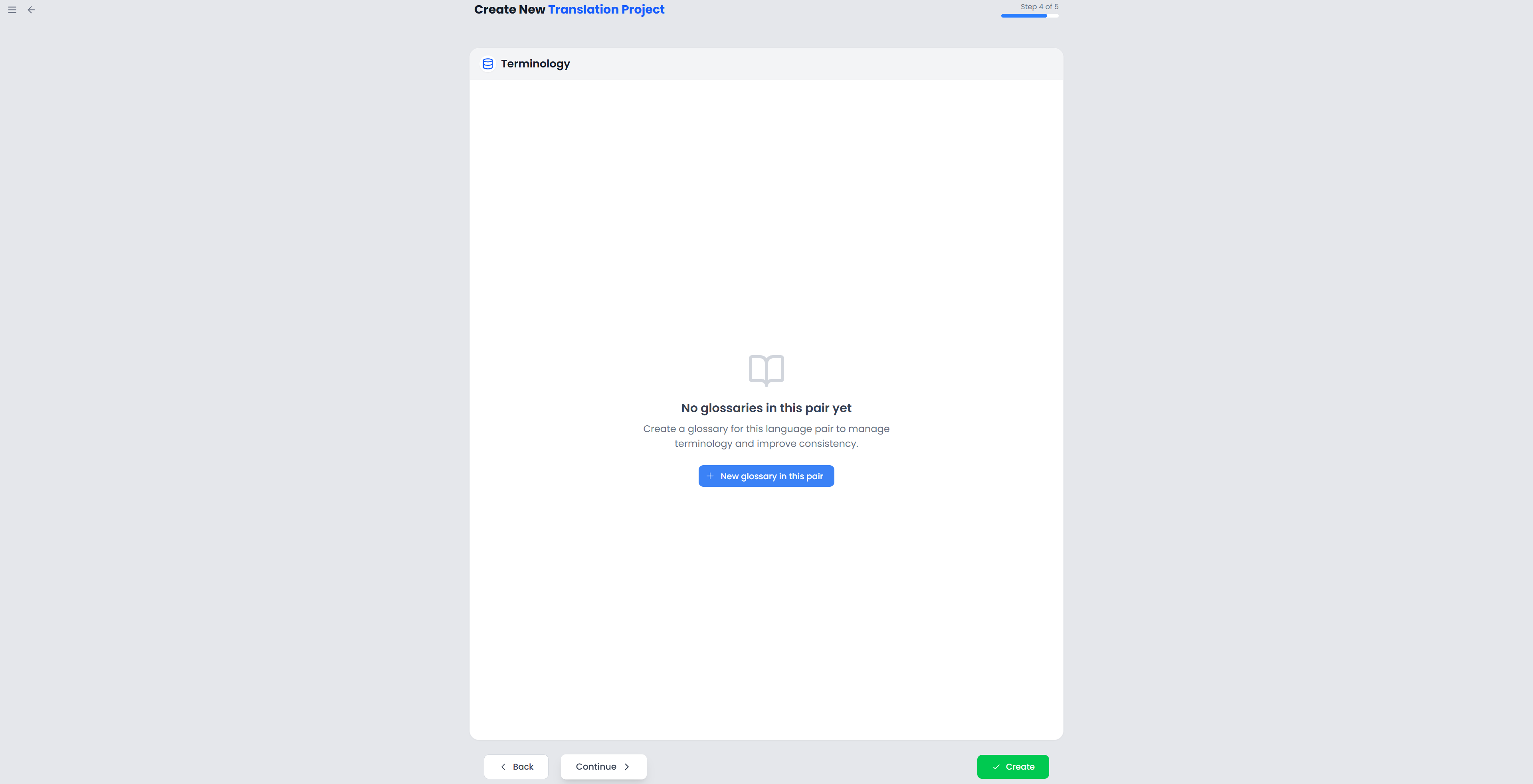
On Glossaries, select relevant terminology resources or create a new glossary. This is useful for product names, repeated technical terms, and client preferences.
You can continue without a glossary. If you create an empty one, add terms while translating. A glossary supplies terms; a translation memory supplies whole translation units. See Glossaries and terms for the difference in practice.
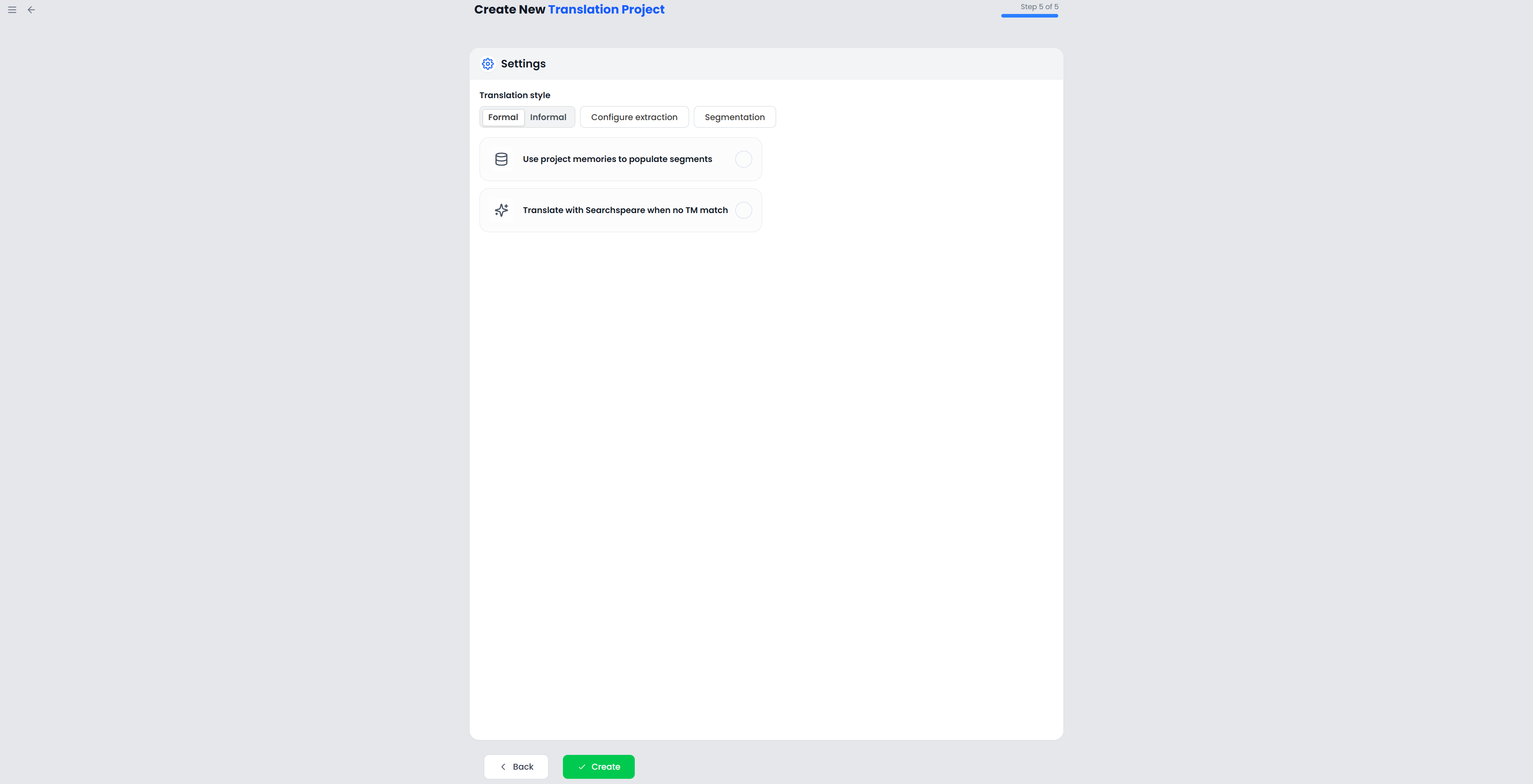
6. Choose the project settings
On Settings, review the following choices.
| Choice | What to decide |
|---|---|
| Translation style | Choose formal or informal wording to suit the audience. Still check the resulting text against the client's instructions. |
| Segmentation | Decide how sentence boundaries should be handled. The default is a good starting point for a first job. |
| Configure extraction | For supported office documents, decide whether hidden or selected highlighted text should be translated or protected. |
| Configure IDML extraction | For an IDML file, decide which story content and special elements belong in the job. |
| Use project memories to populate segments | Reuse available translations during creation. |
| Translate with Searchspeare when no TM match | Request AI drafts for remaining eligible segments. This uses the selected AI service and its available allowance. |
For a first manual exercise, leave automatic AI translation off. This makes it easier to learn the difference between a blank target, a memory match, and an AI draft.
Extraction choices affect which text enters the project. Inspect them before creation if a client has marked content that must stay unchanged. Segmentation and Files and export explain the consequences.
7. Create the project and open a file
Choose Create project and let processing finish. Searchspeare prepares the files, creates the project, and opens Project Home.
Open Files, then click the file name to enter the editor. If you requested pretranslation, inspect the targets rather than treating them as approved translations.
8. Translate and confirm your first segment
- Click a row to make it active.
- Read the source and its surrounding context.
- Enter the translation in the target.
- Keep required tags around the corresponding translated text.
- Check the terms and memory suggestions when available.
- Run Confirm when you are satisfied.
Confirmation approves the segment and stores the pair in the attached memory. With one segment selected, Searchspeare moves to another segment that needs confirmation when one remains. Confirmation can also fill later identical source segments, so check those repetitions in context.
If confirmation asks for a memory, attach one through the offered action and confirm again. If it reports an empty target, write the target text first.
9. Check the work and export
Before delivery, run QA, check spelling where appropriate, and inspect tags and comments. Review AI drafts as carefully as any other unreviewed text.
Use Export and choose the translated output. For an imported document with supported reconstruction, this produces the translated document format. A bilingual exchange file is a different export intended for continued work.
Open the downloaded file and check layout, headings, tables, and any content you chose to protect. You have now completed the full cycle: project setup, translation, review, delivery, and reuse through your memory.