
Apply AI rules to projects
Searchspeare automatically chooses AI rules using their enabled state, languages, and project labels. There is no separate list of rules to attach to each project.
Opening Searchspeare → Rules from a project lets you inspect your saved rules in that context. Rules whose languages or labels do not fit are dimmed and have an unavailable switch there. A dimmed rule may still be enabled for other projects.
Check the three requirements
- The saved rule must be enabled.
- Its specified source and target languages must be compatible with the request's language pair.
- Its labels must satisfy the project-label matching behavior described below.
The project and file language information is used to resolve the relevant pair. Check regional varieties when they matter to a requirement.
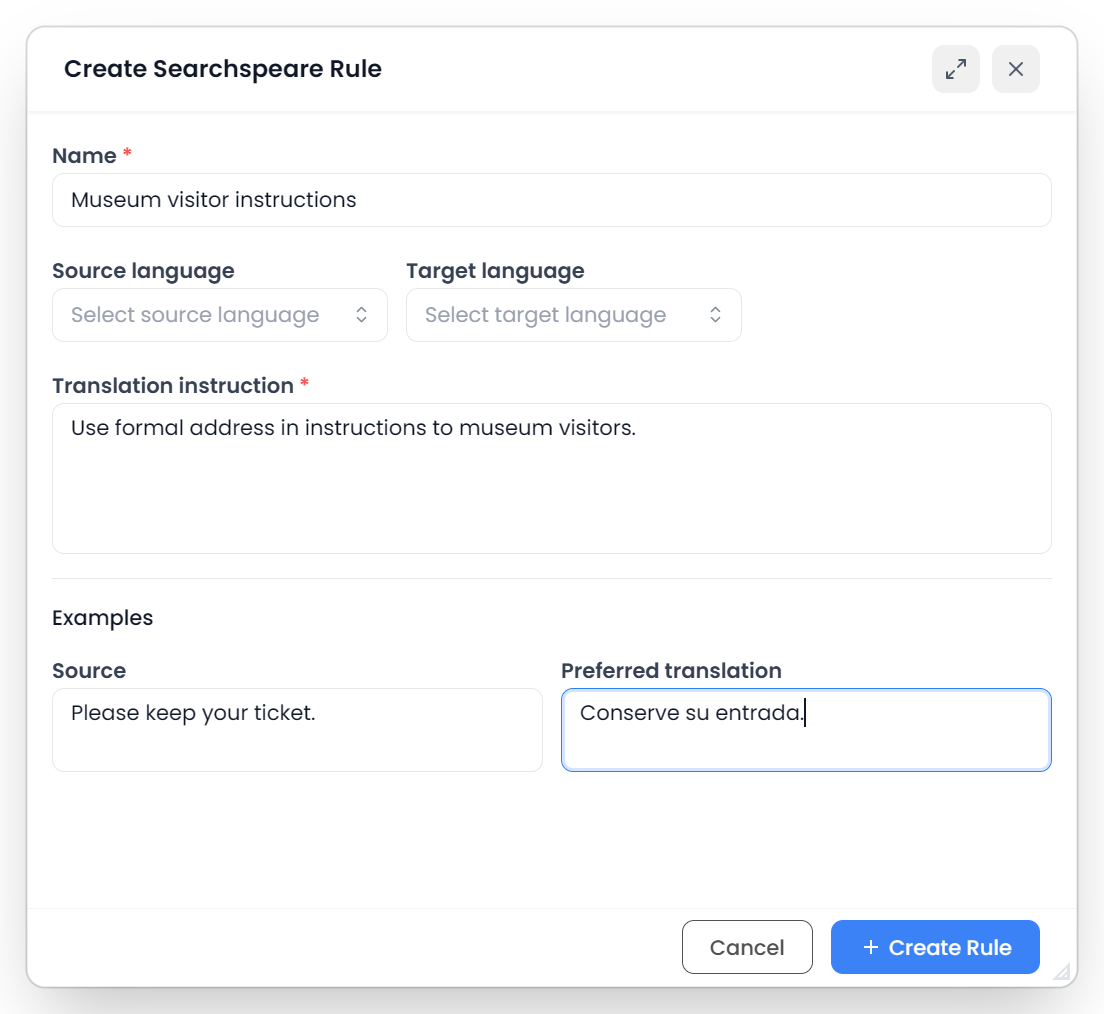
Choose the source and target languages
An empty source or target field is unrestricted on that side. Both empty makes the rule general by language. A source language alone can cover translations from that language into different targets; a target language alone can express a target-language convention.
Language matching understands general and regional codes. For example, a general English rule can match English (United States), while a rule specifically for English (United Kingdom) does not match a project specifically using English (United States). A general project language may also match a more specific rule, so use explicit project varieties when distinguishing them is important.
Source and target languages are directional: an English → Portuguese rule does not automatically apply to Portuguese → English. Set the language fields for the direction you need.
How project labels select rules
When both a rule and a project have labels, at least one shared label makes the rule eligible on the label criterion. Labels are compared without regard to capitalization or surrounding spaces.
| Rule labels | Project labels | Label result |
|---|---|---|
| None | Any labels, or none | Eligible by labels |
| Atlas | Atlas | Eligible by labels |
| Atlas, Legal | Legal | Eligible by labels; one shared label is enough |
| Atlas | Boreal | Ineligible by labels |
| Atlas | None | Eligible by labels; an unlabeled project does not restrict rules by label |
Language compatibility and Enabled still apply in every eligible row of this table.
In particular, a client label on a rule does not isolate it from unlabeled projects. Label the projects you work on consistently and inspect applicable rules before an important request. When a rule has several labels, one shared label is enough.
Example: use a client requirement
- Open Project Home and check the project's source, target, and labels in its details.
- Add the intended client or subject label to the project.
- Create the rule with the relevant languages and that label.
- Keep the rule enabled.
- Open Rules from the project and inspect its applicability.
- Test a selected translation or a chat request containing a sample example.
For another labeled client project with no matching labels, this rule will be excluded. For an unlabeled project, review the table above before assuming it is excluded.
What changes affect other projects
Disabling a rule affects other projects too
Editing a rule changes that reusable rule. Disabling it excludes it from future applicable requests across projects; it does not merely turn it off for the project currently open. Deleting it removes the saved rule.
Changing a project's labels can change which rules match that project. Searching or filtering the rule-manager table only changes the displayed list.
These changes apply to future requests. Existing translations and saved memory units stay unchanged.
Why a rule is not being used
Check the saved Enabled state, both language fields, regional varieties, and both sets of labels. Then check the action you are running: not every review or correction action loads AI rules. For translation chat, also check its AI Rules attachment choice.