Handling tags
Tags are a common source of pain in CAT workflows.
They can look like noise—but they’re usually the thing standing between a clean export and a broken layout.
What are tags in XLIFF, and why do they matter?
In XLIFF (and other CAT-friendly formats), tags represent non-text elements that must survive translation, such as:
- inline formatting (bold/italic),
- links,
- placeholders/variables,
- structural markers.
They’re necessary because the exported target file must preserve the original structure and formatting.
That’s the catch: tags are a pain, but they’re not optional. Searchspeare is built to make them manageable.
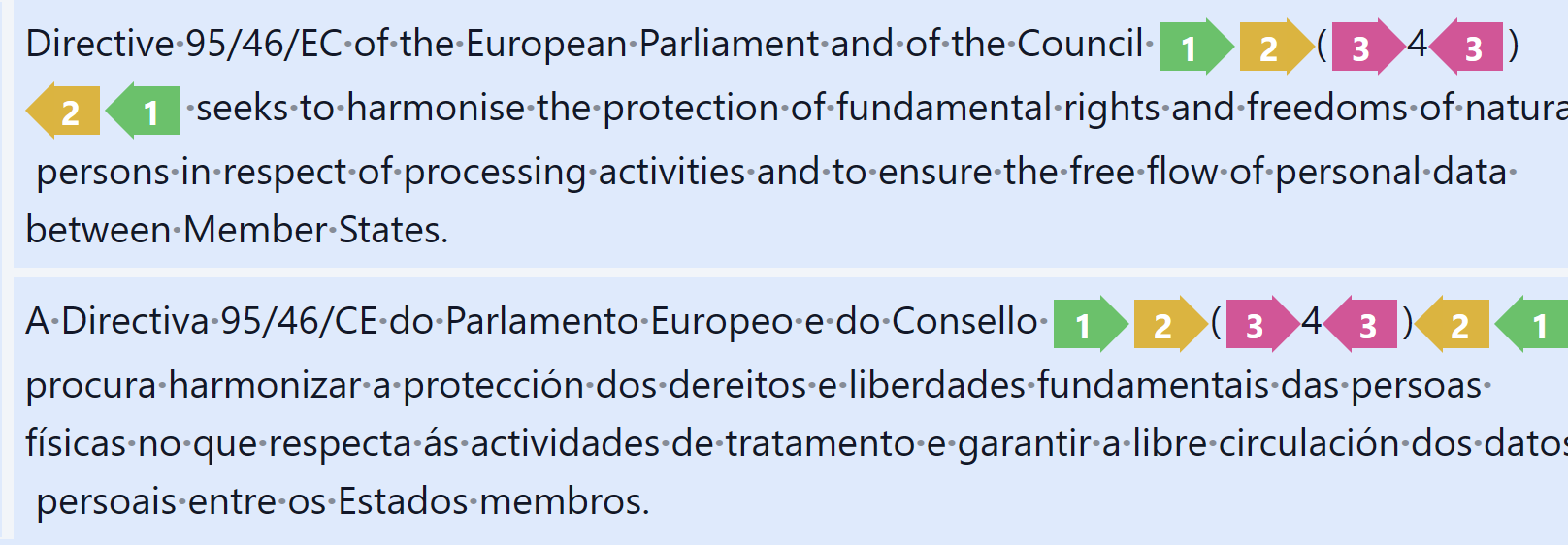
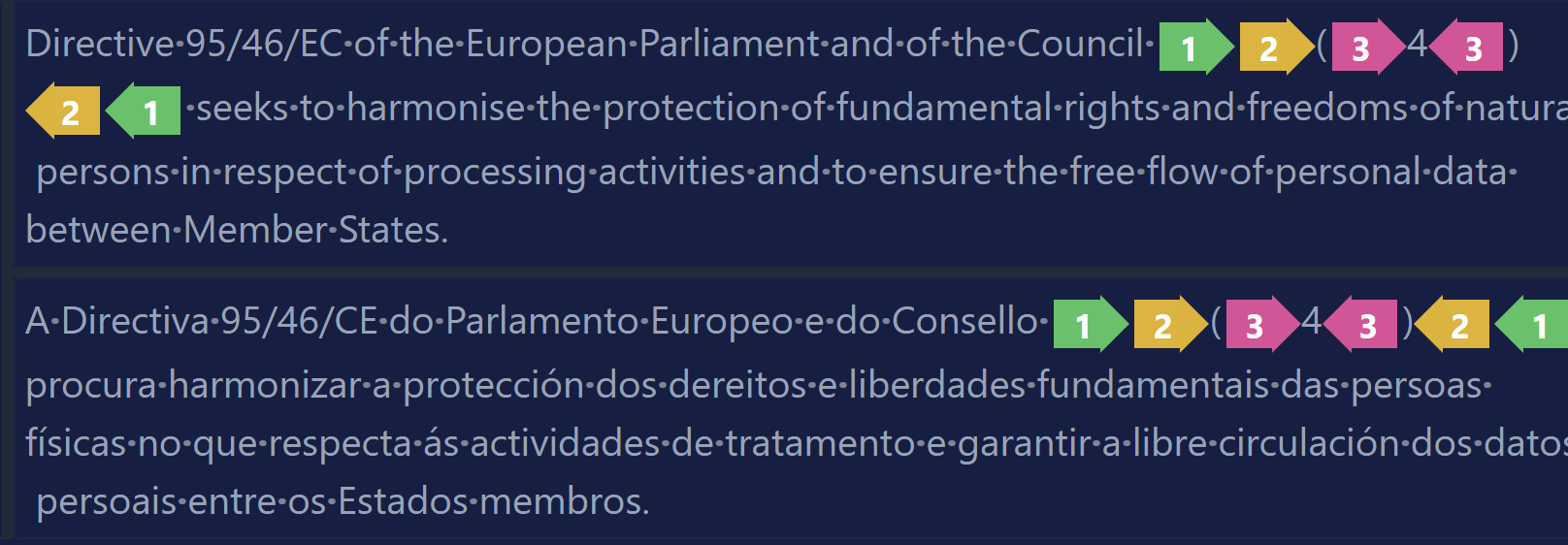
Seeing tags clearly (colors + matching)
Searchspeare colors tags so you can quickly spot:
- which tags are present,
- which tags are missing,
- and which tags correspond to each other.
With color cues, it’s much easier to glance at a segment and know whether everything is aligned before you move on.
Tools that make tag handling easier
Searchspeare includes dedicated tools to reduce manual tag juggling.


1) The green icon: insert the first missing tag
Click the green tag icon to insert the first missing tag into your translation.
The icon updates (color/number) depending on which tag is currently missing, so you can keep clicking to bring the segment back into a valid state.
2) The red icon with a number: how many tags are missing
The red icon shows the number of missing tags.
It’s a quick health indicator: if the number is non-zero, the segment needs attention before you finalize.
3) Auto-fix tags
Searchspeare can fix tags automatically for you.
In the screenshot below, you’re seeing a preview of the changes: the tags Searchspeare adds are highlighted in green (they’re insertions), so you can immediately verify what was fixed.


Insert tags via dropdown (hold Ctrl)
Tags are also available in a dropdown so you can insert the exact tag you need exactly where it belongs.
To open the dropdown, press and hold Ctrl.


Extra commands in the ribbon (Tags tab)
In the ribbon, open the Tags tab to access a few extra commands.


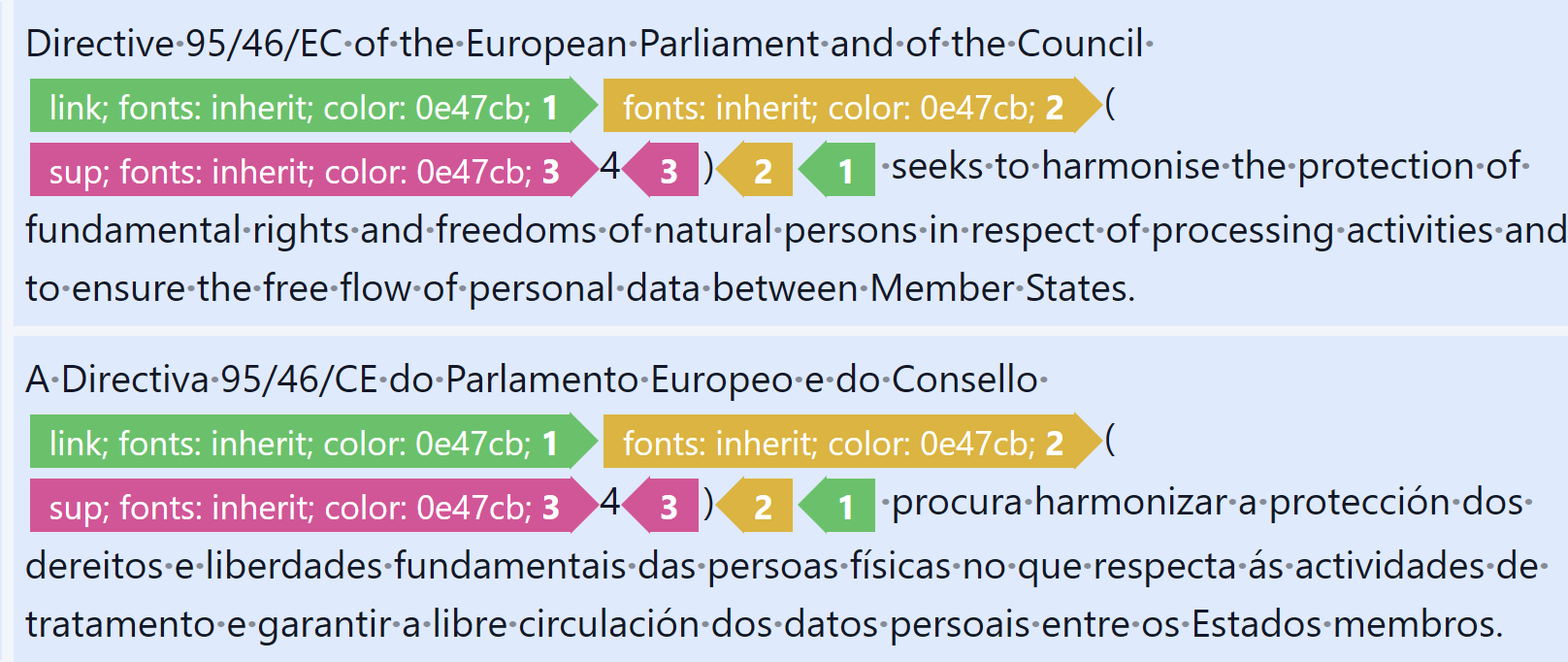
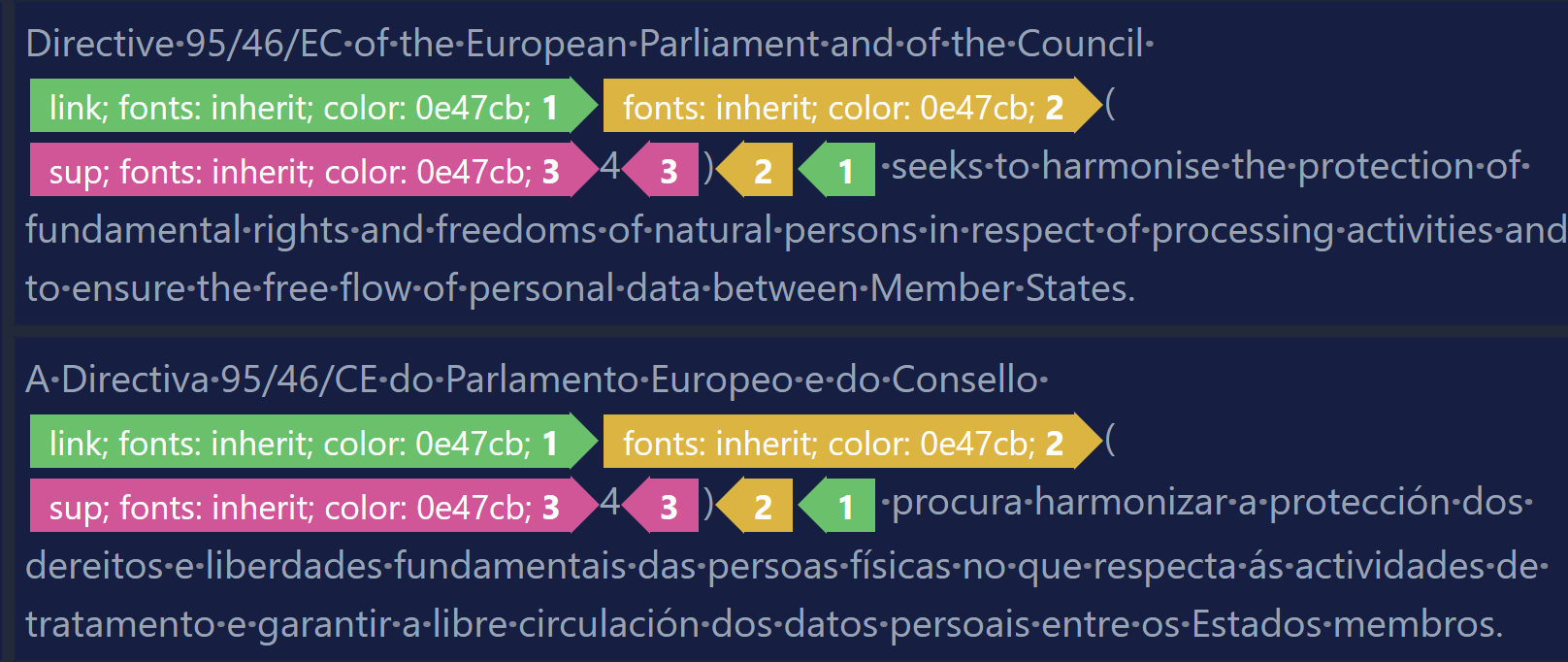
Make tags bigger (reveal what they contain)
Increase the size of tags to make them easier to work with—and to reveal the format/information contained inside them.
Hide tags (reduce clutter)
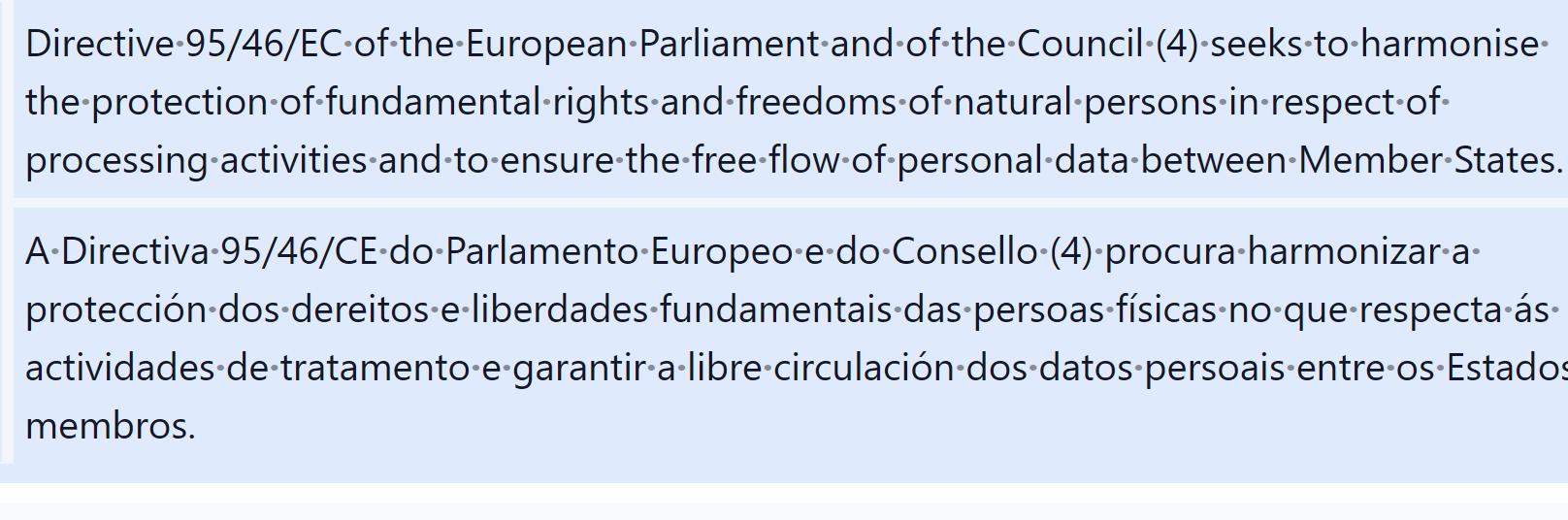
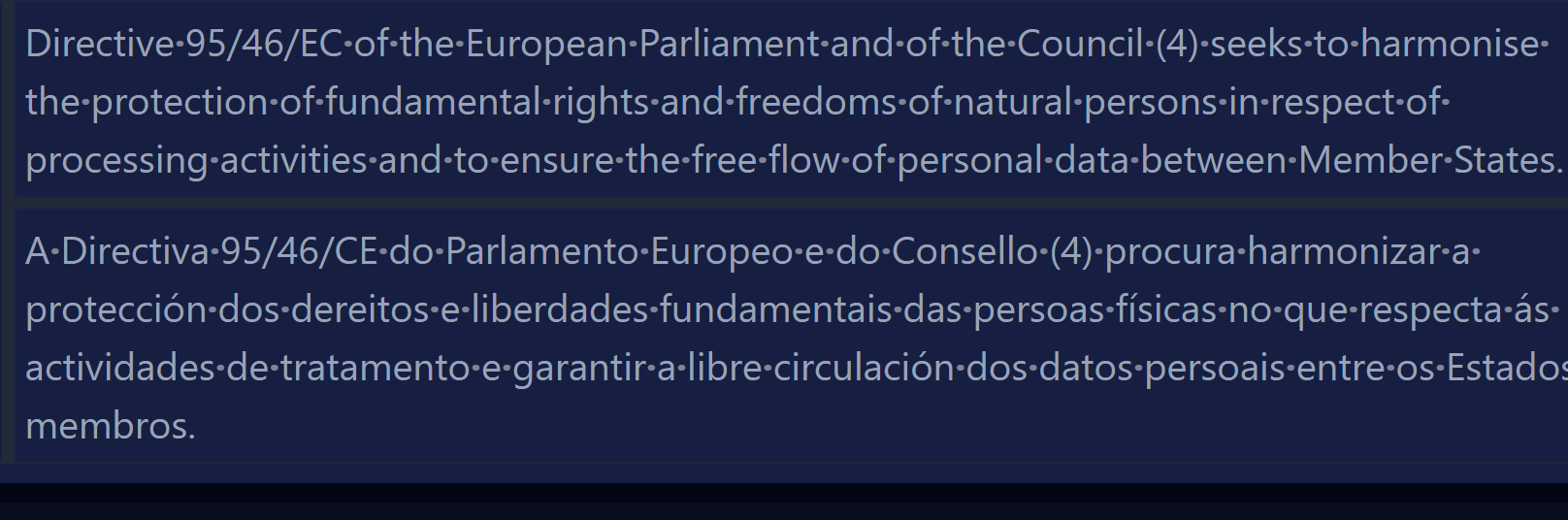
Hide tags temporarily to focus on the text without visual clutter.
This is especially useful for review passes when you want to read smoothly and only check tags when needed.
Translate without tags (then restore them)
Some translation engines struggle when lots of inline tags interrupt the sentence.
Searchspeare lets you translate the text without tags to get a cleaner, more accurate suggestion—and then lets you restore/fix the tags afterwards.
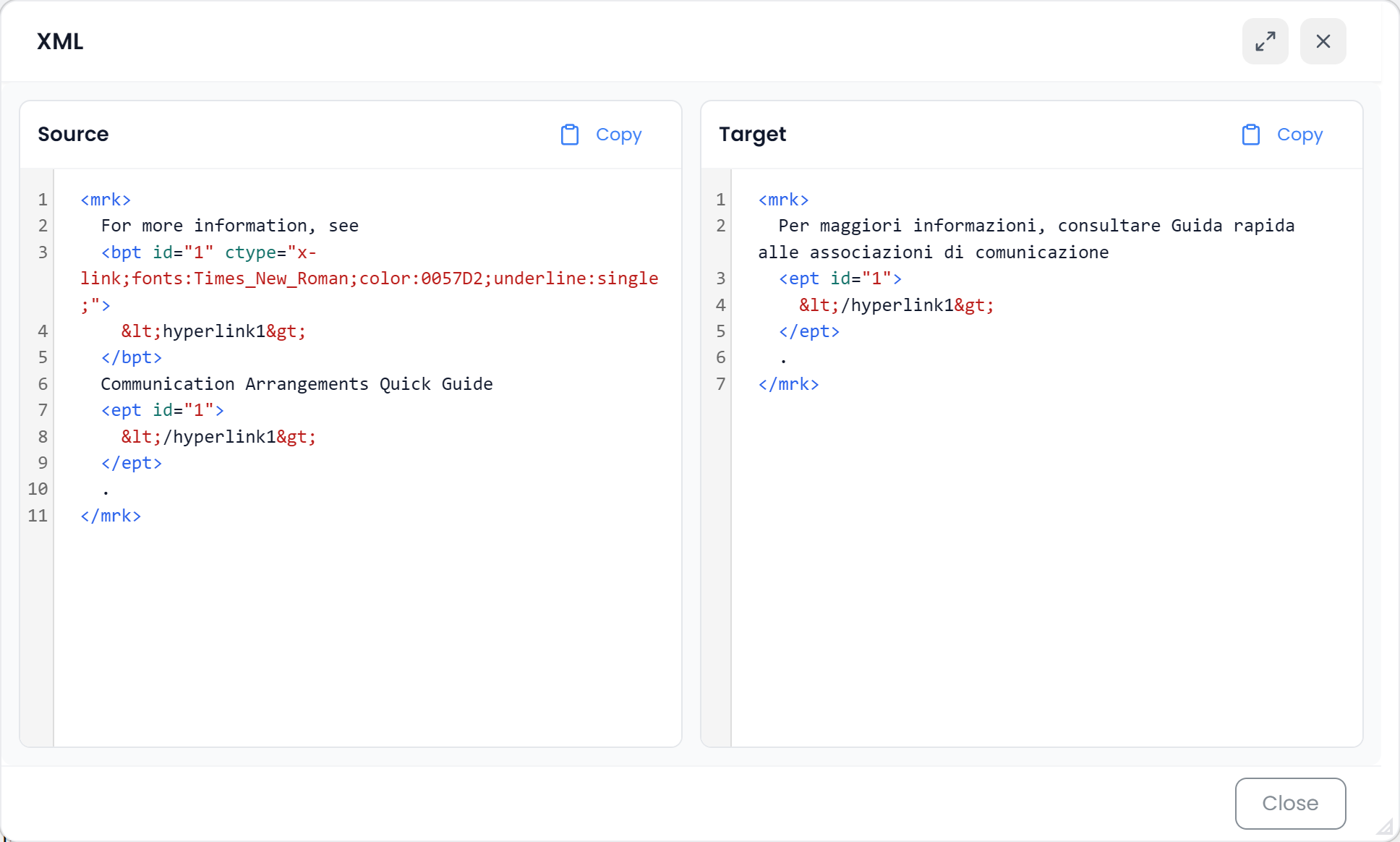
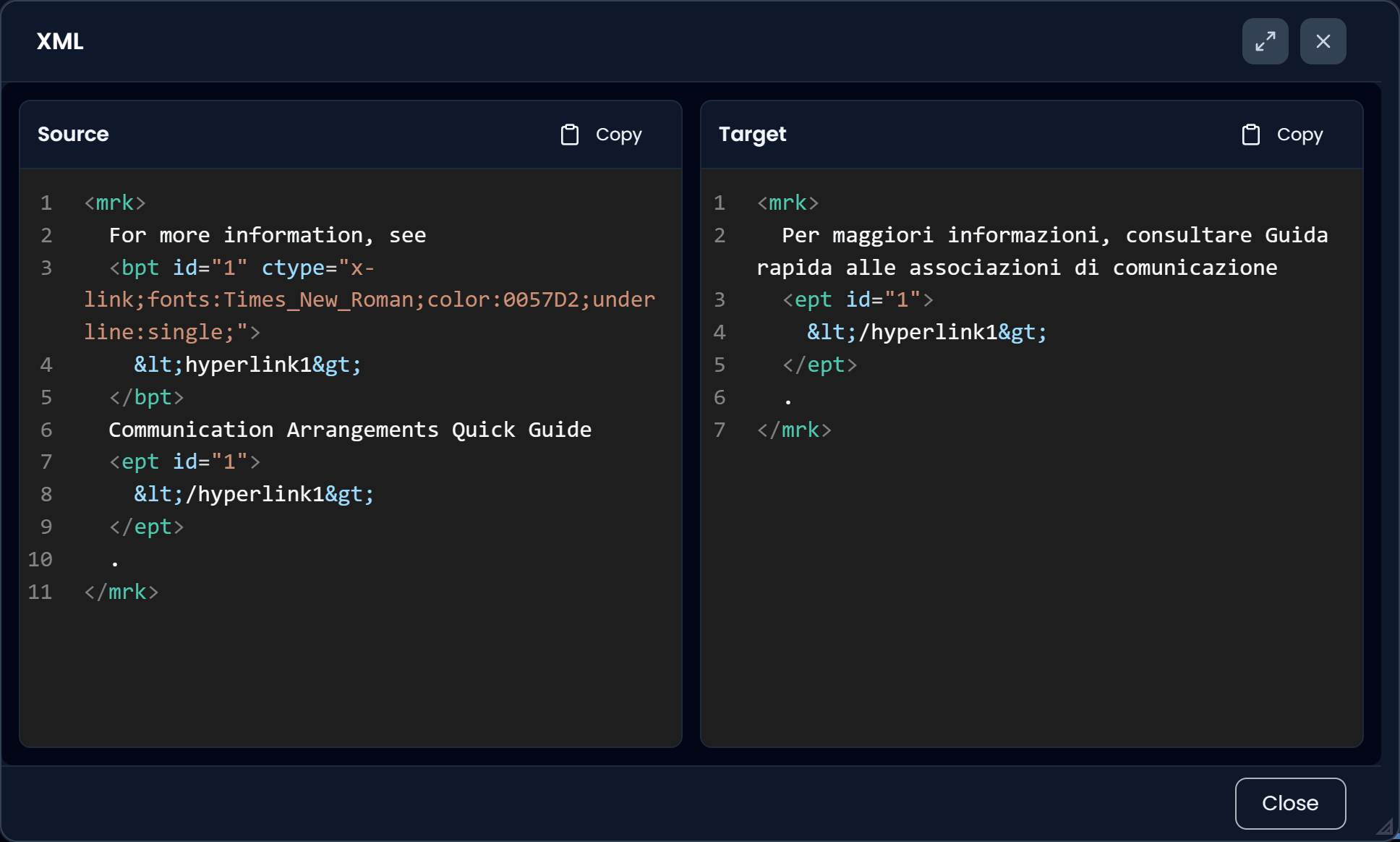
XLIFF preview (a tool for nerds)
Sometimes you don’t just want to see tags — you want to verify the exact markup that will be written to the final file.
The XLIFF preview modal shows the exact code that Searchspeare will insert into the exported XLIFF.
It’s a power-user tool (a.k.a. “just for nerds”), but it’s extremely useful when you want to be 100% sure the tags are correct before delivery.