
Find & Replace
Searchspeare’s Find & Replace works across the segments currently visible on screen.
Before anything is applied, Searchspeare shows a Changes Preview dialog so you can accept or reject changes.
And if you apply something you didn’t want, you can always revert with Undo (Undo also works for actions like confirming segments).
If you’re not a regex person, no problem: you can ask the pattern assistant to generate the regex for you.
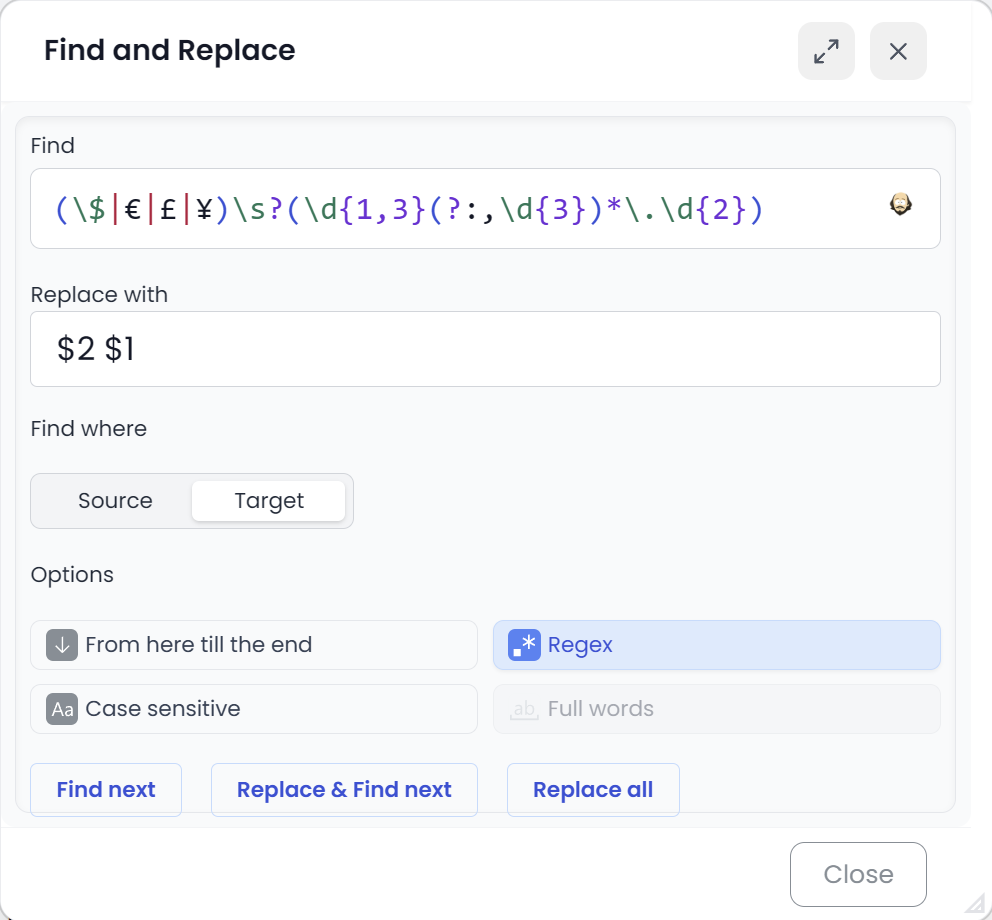
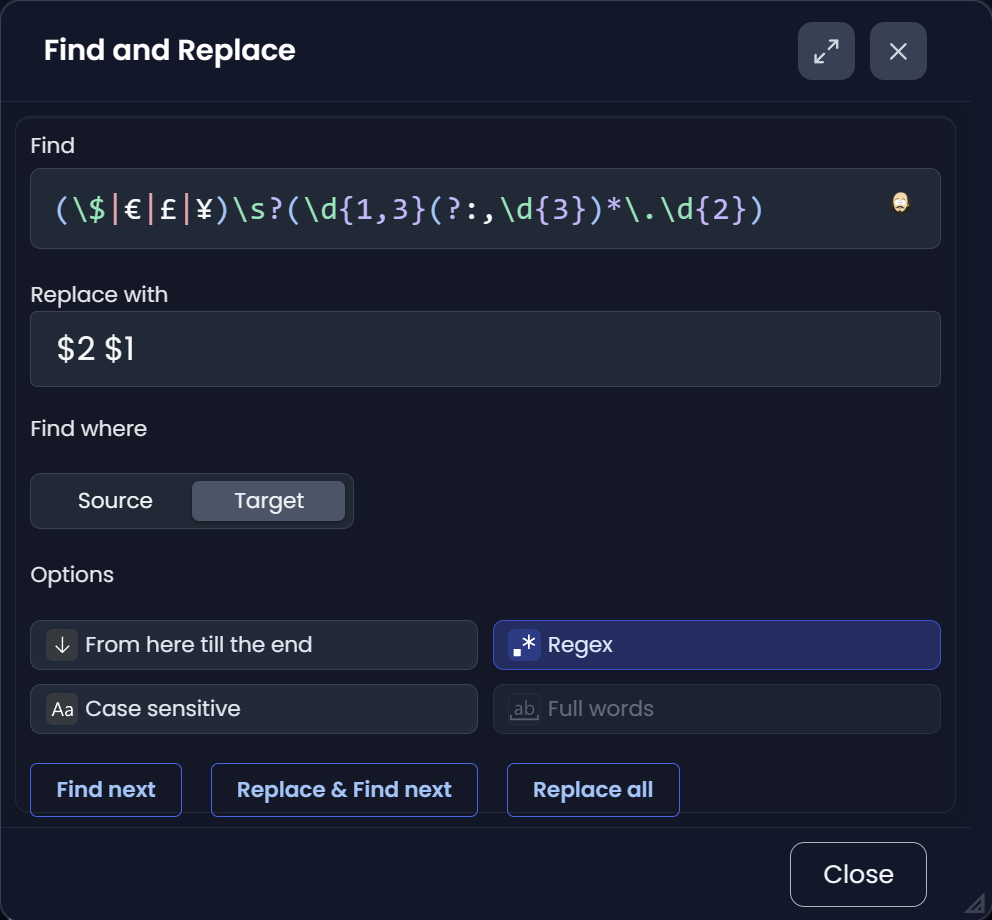
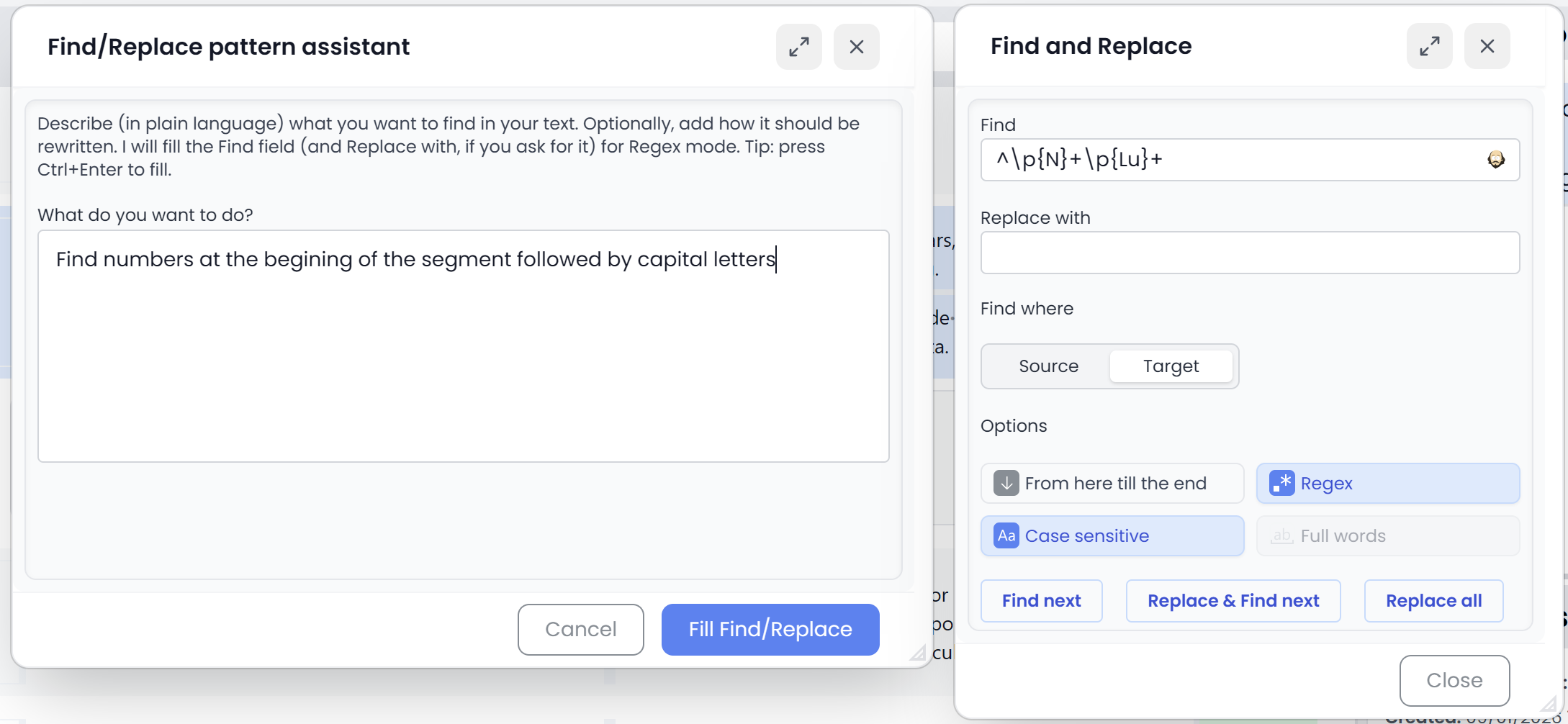
Find & Replace dialog
Fields
- Find: what Searchspeare should look for.
- This can be plain text.
- Or a regex pattern (for example,
\d+to match numbers).
- Replace with: what the matches should become.
- Find where: choose whether Searchspeare searches in Source or Target.
Options
- From here till the end: limits the operation to the range starting at the current segment.
- Regex: interprets the Find field as a regular expression.
- Aa / Case sensitive: only matches text with the same capitalization.
- ab / Full words: matches whole words only (so searching for
catwon’t matchconcatenate).
Actions
- Find next: jumps to the next match.
- Replace & Find next: replaces the current match, then moves to the next one.
- Replace all: prepares a bulk replace. (You’ll see a preview before anything is committed.)
- Close: closes the dialog.
Preview changes before applying
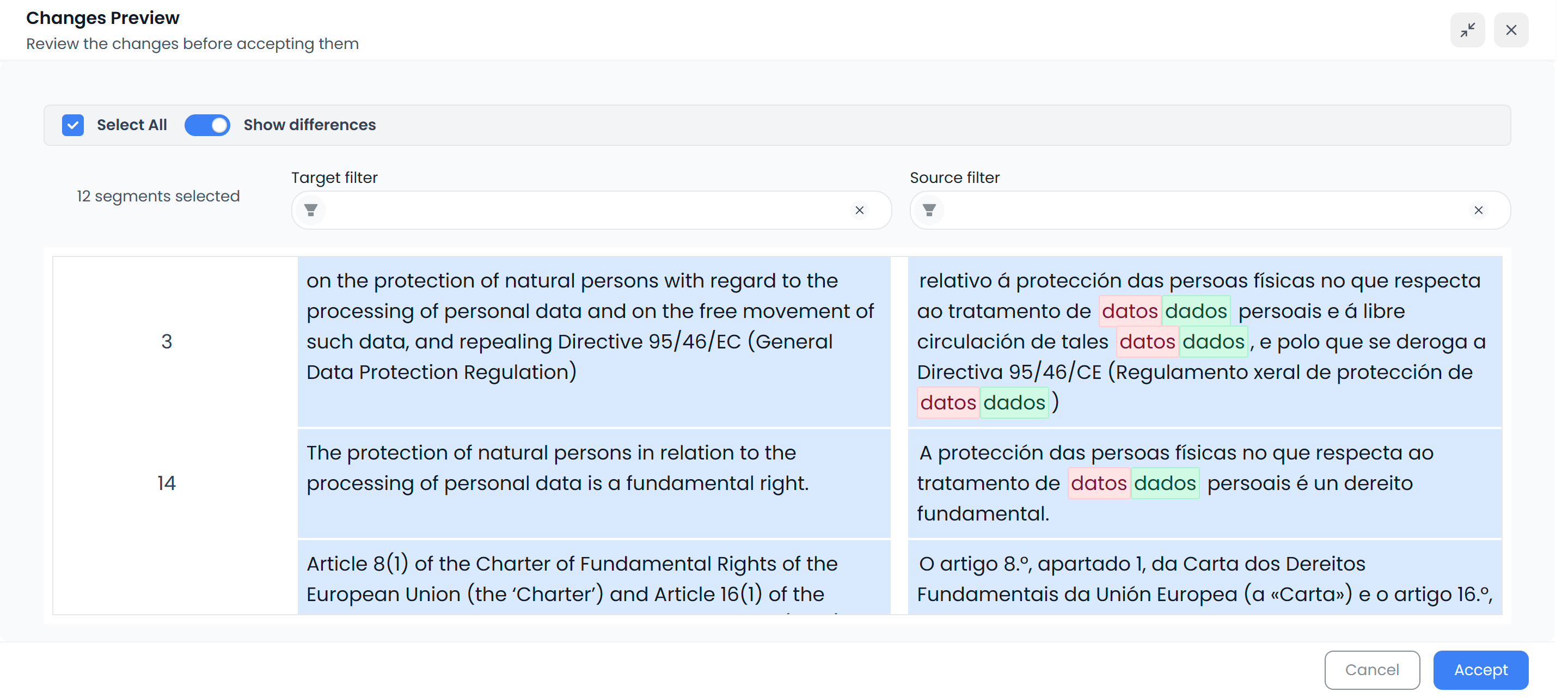
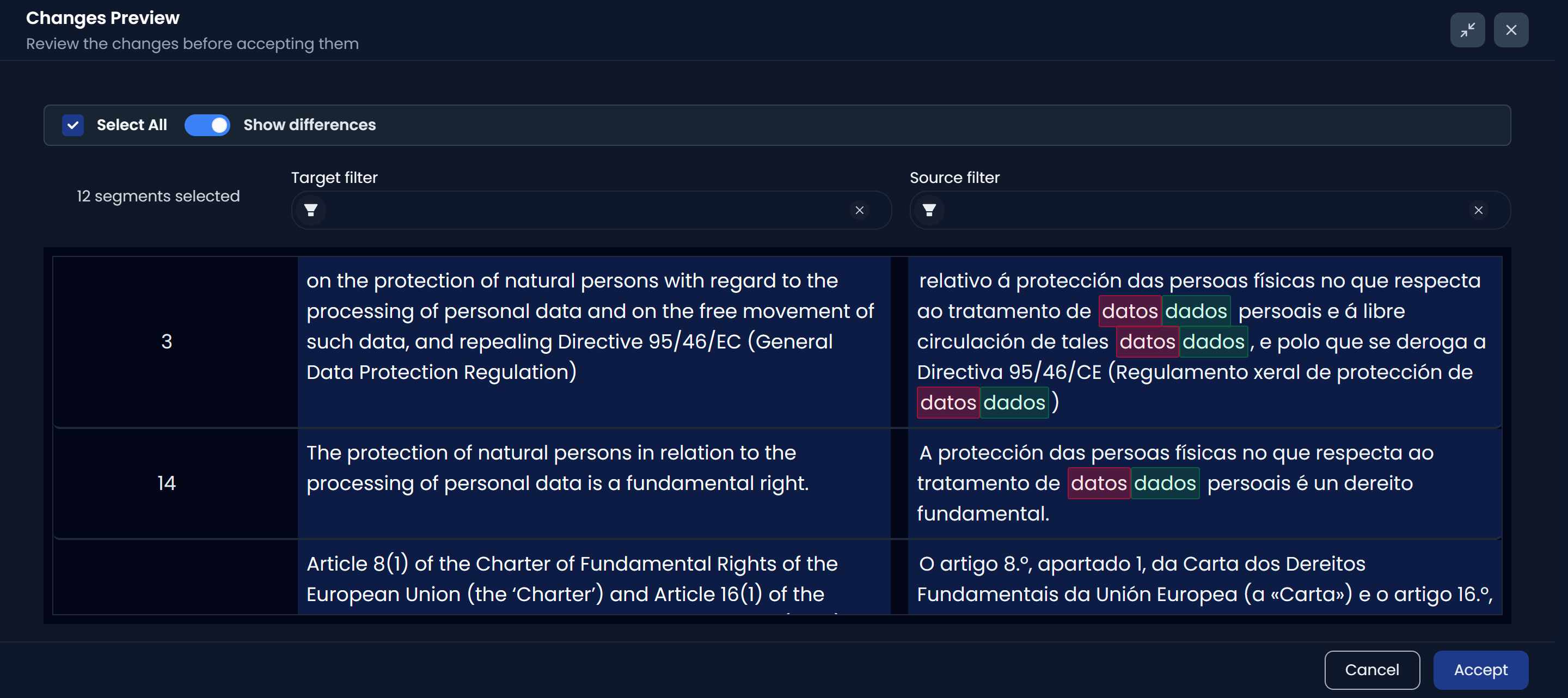
When you run a bulk replace, Searchspeare shows a preview dialog first so you can review what will happen.
In the preview you can:
- Select All (or select individual segments)
- Toggle show differences to see exactly what is changing
- Use Target filter / Source filter to narrow the list
- Confirm with Accept or back out with Cancel
This workflow makes Find & Replace safe for real projects: you’re not applying blind global edits.
Undo is your safety net
If you accept changes and later decide you didn’t want them, use Undo to revert.
Undo isn’t limited to typing: it also works for actions such as Confirm segment(s), so you can confidently use batch tools while staying reversible.
Regex without writing regex: the pattern assistant
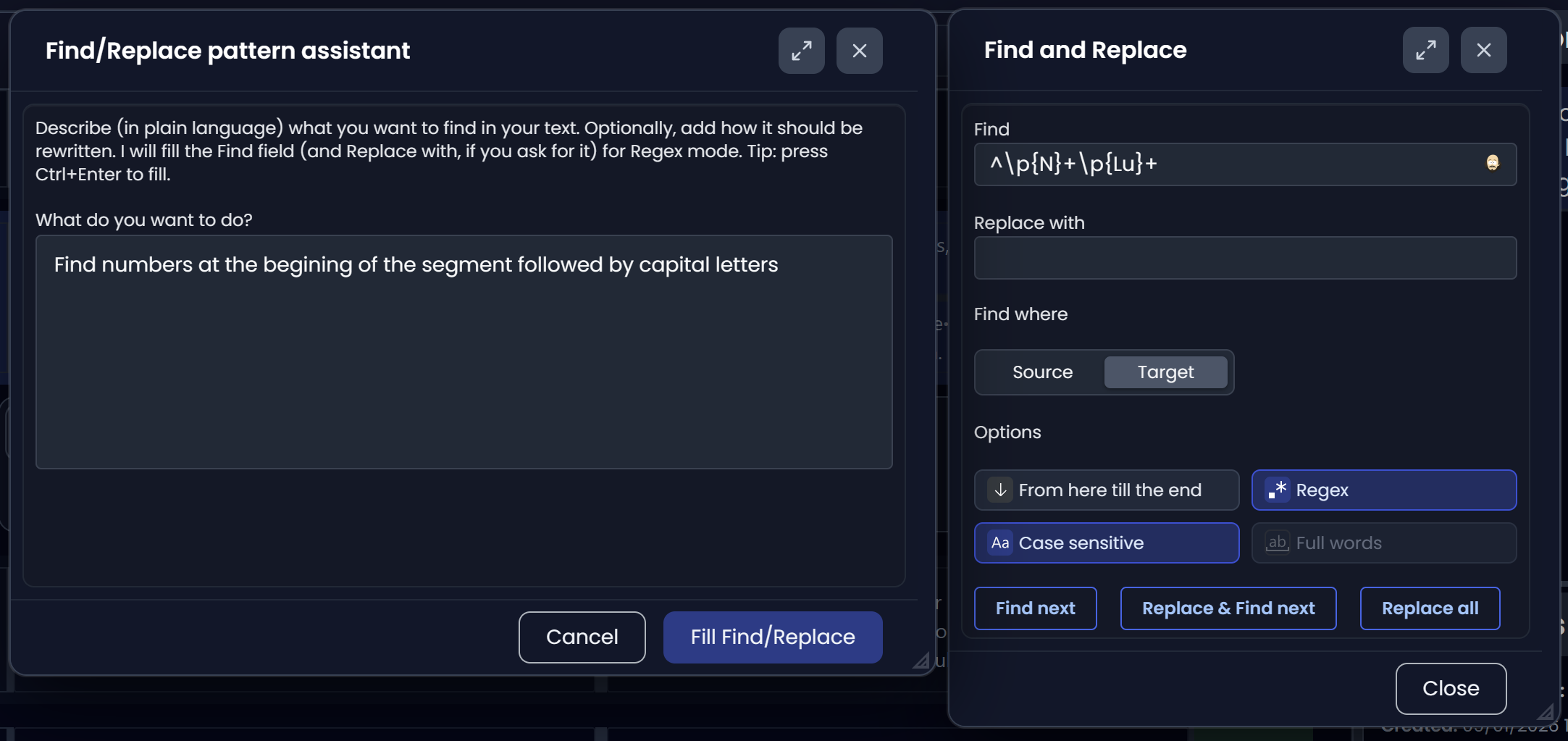
You can generate a regex by describing what you want in plain language.
Here’s how it works:
- In Describe, write what you want to find (and optionally how it should be replaced).
- The assistant proposes a pattern in the Find field.
- Use Ctrl+Enter to fill or click Fill Find/Replace to copy the generated pattern into the main dialog.
This gives you the power of regex without needing to memorize syntax.