
The translation table
Each row is a translation unit: the source and its target. The table lets you work through a file in order or narrow the visible text to a particular review task.
Key points
Each row contains a source and target. Row selection identifies segments for batch actions; selecting words identifies text for editing or research. Use Clear all in the filter bar to show every segment in the open file or View.
Read the row information
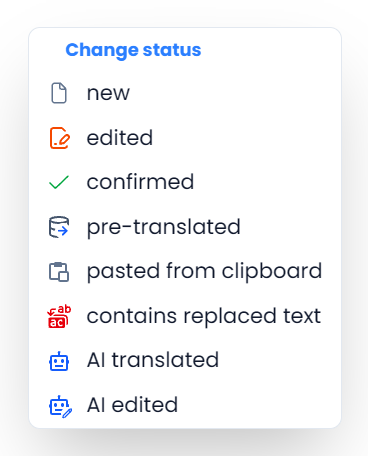
The row number helps you return to a segment. The status tells you how the text has been processed. Other indicators can show a lock, comments, memory-match information, or missing tags.
| Status | How to interpret it |
|---|---|
| New | The segment has not yet moved into an edited or approved state. |
| Edited | Text has been changed and needs your approval. |
| Pre-translated | A memory translation has been used as a starting point. |
| AI translated | AI translation has supplied a draft. |
| AI edited | An AI editing action has changed the working text. |
| Pasted or Replaced | The text was changed through that operation. |
| Confirmed | The segment is marked approved. This can also come from imported status or a strong memory match during pretranslation. |
These statuses describe workflow, not an independent assessment of translation quality. A match percentage measures similarity or match context, not how correct the target is. A 100% match can still be inappropriate for the current context.
A lock is separate from status. Use it to protect text from operations that respect locked segments. A locked row can still be unconfirmed; locked segments are treated differently by completion checks.

Select one or several rows
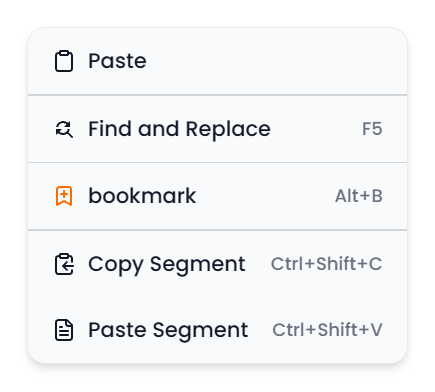
Click a row to make it active. Use Shift-click to select a contiguous range, or Ctrl-click to add or remove individual rows. Command-click is also supported for this mouse action. Use the segment Select all command when you intend to select the segments that pass the current filters, including matching rows outside the screen.
After selecting a group, inspect the selection before clearing targets, translating, locking, or changing status. The toolbar may now act on several rows.
Selecting text inside an editor serves a different purpose. For example, selecting “pressure valve” prepares that phrase for a terminology or research command; it does not select every segment containing the phrase.
Selecting segments and batch actions gives the complete selection instructions and tables showing which commands use selected rows, filtered rows, or the whole open file or View. Set your filters first, then make a fresh selection for the batch you intend to run.
Work with a file, a View, or filtered rows
Opening a file loads that file's segments. Opening a View loads the segments belonging to that View. Applying filters then narrows what appears in the table.
The scope depends on the command. Pretranslate → All units, Replace All, and dictionary Spellcheck use the filtered set. QA profiles and the ribbon's document translation choices use the whole open file or View, including rows hidden by filters. Merely selecting one row does not narrow those broader operations.
Sorting changes how the rows are presented. If you need to read the document in its original sequence, restore the normal segment order after a sorted inspection.
Choose where confirmation moves the cursor
Use Go to for a known segment number, navigation commands to move sequentially, or the next unconfirmed command to continue unfinished work. Confirmation with one row selected also advances when another eligible segment remains.
If a segment seems missing, use the filter bar's Clear all X control to clear searches, filter conditions, and any automatic result-set restriction, and restore normal sorting. Then check whether you opened the full file or a saved View. Tools such as File Index and Adaptive Learning can apply filters when you click their entries; closing their tabs does not provide a general filter reset.
See Filtering for focused passes and Comments and tracked changes for review indicators.