
Comments and tracked changes
Comments record information about the text. Tracked changes record revisions to the text. An AI preview shows a proposed revision before you choose to apply it. These three tools support review in different ways.
Key points
Comments record questions or notes. Track Changes records revisions already made. A change preview shows proposals before application. Accepting a tracked change, applying a proposal, and confirming a segment are separate actions.
Add or edit a comment
Select the relevant wording and choose Review → Comment, or use the comment command on the active segment. You can also use New comment in the text context menu or an assigned shortcut.
Write the reason for the note and the action needed. For example, “The source uses two names for this component. Confirm which one the client prefers” is more useful than “Check term”.
Use the comment indicator and comment overview to revisit notes. When an existing comment is available through the context menu, open it to edit the note. A comment is a review record; it does not automatically change the translation.

Record revisions with Track changes
Enable Track changes before making revisions you want to inspect later. Insertions and deletions remain visible so you can compare the wording before and after the edit.
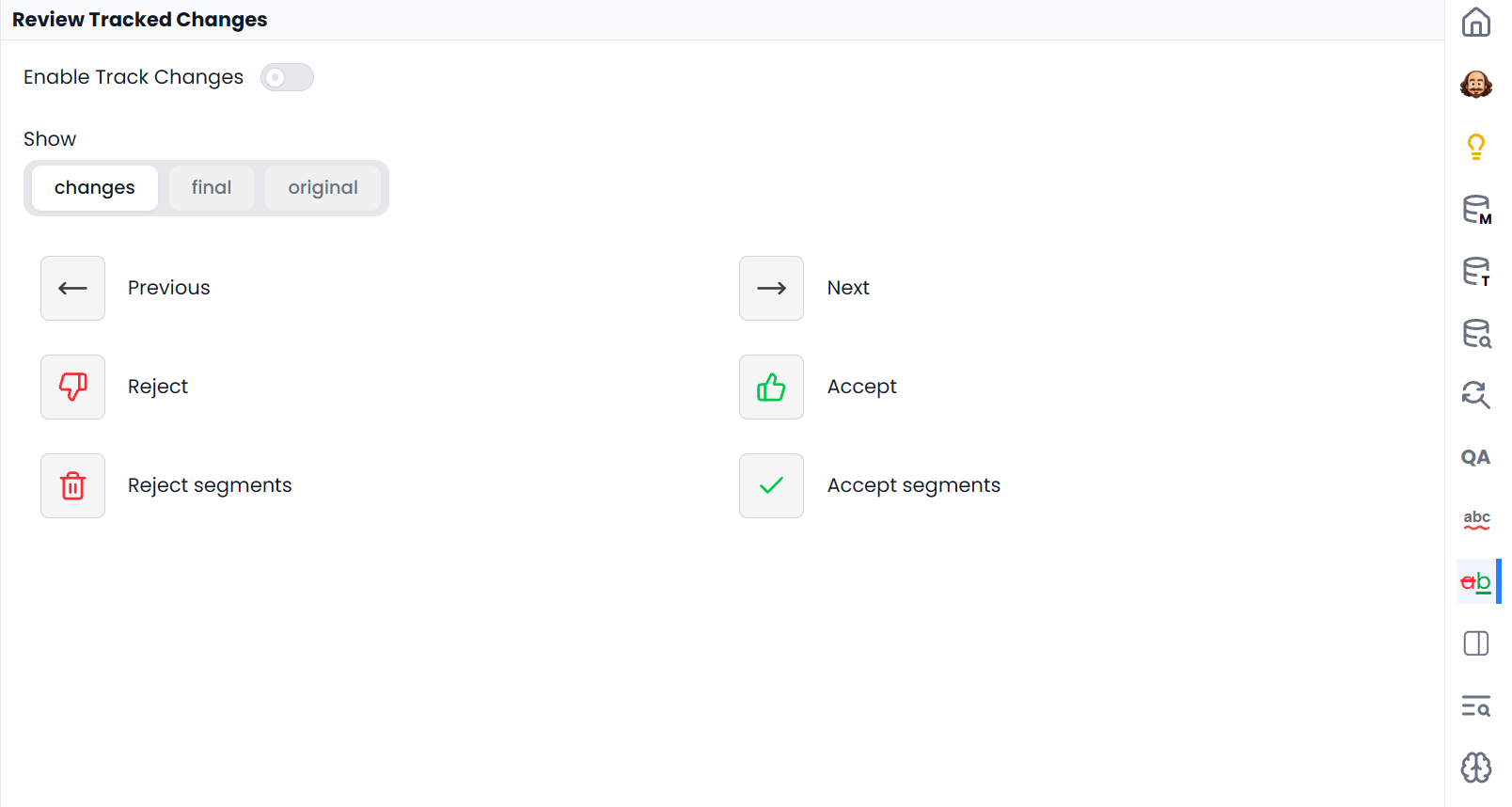
Use the change controls to accept a revision you want to keep or reject a revision you want to undo. Pay attention to whether the action targets one change, the selected segments, or a larger set.
Accepting a deletion removes the deleted text from the accepted result. Rejecting it keeps that text. Accepting an insertion keeps the inserted text; rejecting it removes it.
Accept a revision and confirm a segment
| Action | Your decision |
|---|---|
| Apply an AI proposal | Use this suggested wording in the working text |
| Accept a tracked change | Keep this recorded revision |
| Confirm a segment | Approve the segment for the translation workflow |
| Mark a project complete | Finish the job-level workflow after its completion checks |
A setting can confirm a segment after you apply an individual preview row. Check this preference if accepting a proposal also changes its status.
Review changes in several segments
Filter for With comments or With changes to make a focused pass. Read the neighboring content where needed; a filtered list can hide the sentence that explains a reference.
Resolve each question and change. Before a whole-selection accept or reject, inspect the selected rows and clear temporary filters if you intend to include the complete file.
Export comments and tracked changes
The available export formats handle comments and revisions differently. If another translator will continue reviewing, choose the appropriate bilingual format. If the client needs a revised document, choose the supported document output and verify it in its normal application.
Keep a working bilingual copy when you need a record of the review. Do not assume that a plain text or other simple format can preserve all the review information shown in Searchspeare.