
Quality assurance
Quality assurance, or QA, looks for possible problems that are easy to miss during translation. It complements meaning review: a sentence can pass a number check and still say the wrong thing.
Quick steps
Open Quality Assurance, choose a profile, and run the checks. Review each finding, correct errors or ignore valid exceptions, then recheck. QA uses unlocked segments across the whole open file or View, including rows hidden by filters.
Run QA during work to catch recurring issues, then make a final pass before exporting. The dedicated guides below explain how to configure the checks, investigate findings, and make corrections.
QA guides
| What you need to do | Guide |
|---|---|
| Choose checks for a job and save their settings | QA profiles and settings |
| Understand a built-in rule or its result code | Built-in QA checks |
| Navigate, filter, ignore, recheck, or reset findings | Reviewing QA results |
| Apply a supported correction or assess false positives | QA fixes and false positives |
| Add a requirement based on text patterns or source–target relationships | Custom pattern-based QA rules |
| Evaluate a meaning or style requirement described in words | Searchspeare QA rules |
| Check preferred and forbidden terminology | Terminology checks |
| Run and review spelling separately | Spellcheck |
The Quality Assurance tab guide explains where these tools appear in the editor's side panel.
QA rules, profiles, results, and fixes
- A rule describes a condition that should be reported.
- A profile chooses rules and stores their available settings for a particular kind of job.
- A result is a finding from a QA run that needs investigation.
- A fix changes the document text.
- Ignore records your decision to accept an exception without correcting the text.
For example, “the target must preserve this identifier” is a requirement. A custom check can detect an identifier mismatch. A profile enables that check alongside number and tag checks. Running the profile produces findings; you then decide how to resolve each one.
Run a QA profile
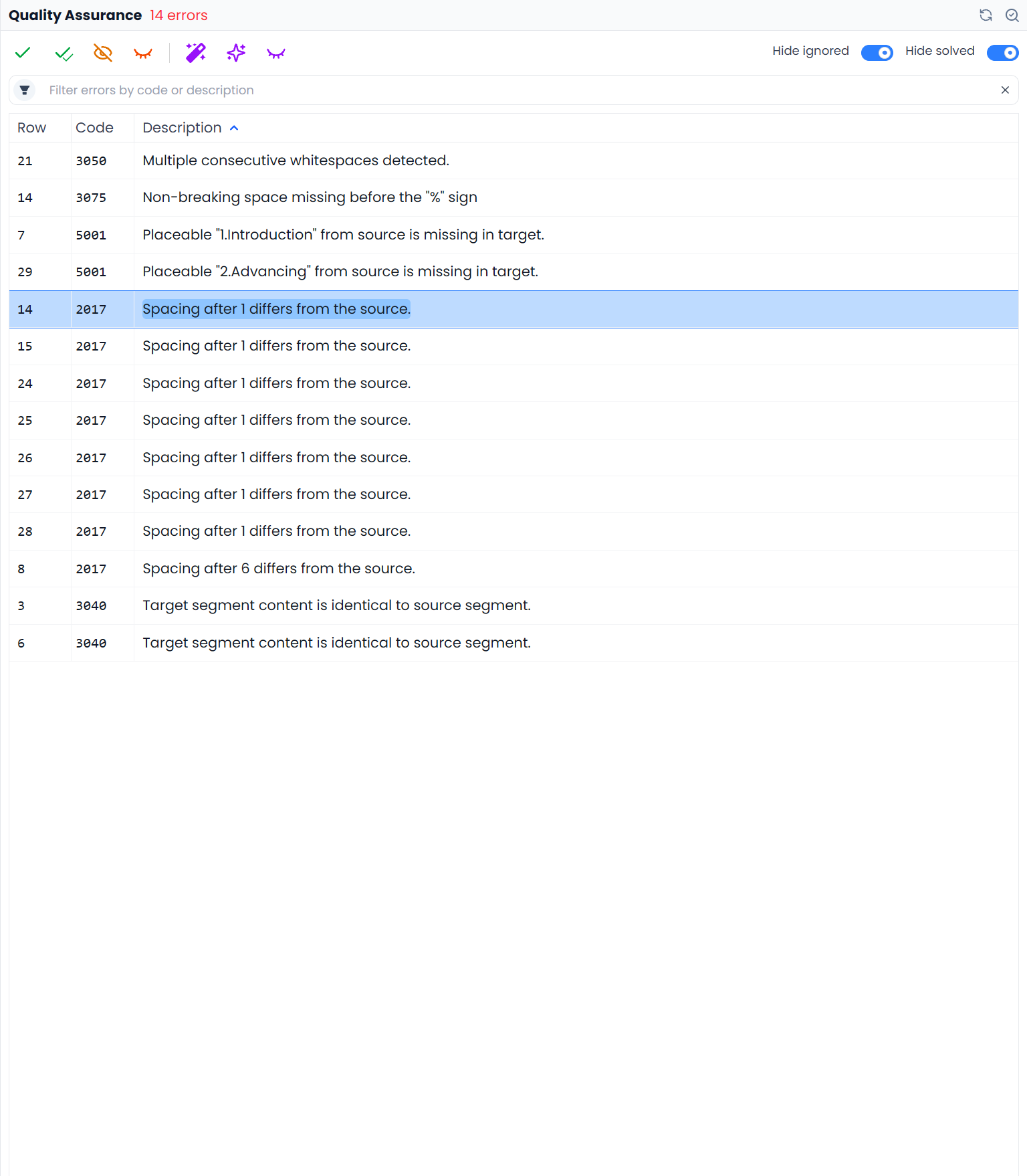
- Open the Quality Assurance tab in the editor's right-side panel.
- Choose a profile, such as All rules or a profile suited to the job.
- Run the check and wait for the results.
- Select a result to locate the affected segment and wording.
- Correct it, apply a suitable fix, or ignore a valid exception.
- Use Recheck QA after the review pass.
A profile lets you run relevant rules together rather than repeatedly configuring individual checks. The built-in All Rules profile is protected and includes available custom checks as well as built-in checks. Use a custom profile for your own selection and requirements. QA profiles explains creating, saving, editing, and deleting profiles.
A QA profile checks unlocked segments across the whole open file or View, including rows hidden by table filters. Selecting a few rows or applying a filter does not limit the QA run to those rows. To check a smaller saved worklist, open an appropriate View. Other files outside that loaded scope are not automatically checked.
Dictionary Spellcheck has a different scope: it uses the filtered unlocked segments. See Selecting segments and batch actions for the comparison with translation, replacement, and other batch operations.
Know what the checks are looking for
| Area | Examples of possible problems |
|---|---|
| Tags | Missing, unpaired, overlapping, or otherwise inconsistent tags |
| Numbers | Missing values or different number sequences |
| Punctuation and spacing | Repeated punctuation, bracket imbalance, quotation or spacing problems |
| Text consistency | Repeated source wording translated inconsistently |
| Terminology | An expected target term missing, or forbidden wording present |
| Formatting | Differences in formatting that need inspection |
| Custom requirements | A pattern or project-specific condition you have defined |
Some checks use language-specific behavior. Confirm the project's languages and the rule settings before assuming that a result is appropriate for every target variety.
Built-in QA checks lists the current codes and explains their detection conditions, including the different length checks. Use those built-in checks before duplicating their purpose in a custom rule.
Decide whether a result is an error
A result means “investigate this condition”, not “replace the wording automatically”. Read the source, target, and relevant instruction.
For example, a brand name may correctly remain unchanged, a number may legitimately be reformatted, or a short heading may differ greatly in length between languages. Ignore a result only after you understand why it is acceptable.
Use Ignore for one deliberate exception. Ignore All follows the active segment, code, or message context and can affect matching findings beyond the visible QA search. Hide ignored and Hide solved control which review states you see; hiding a finding does not change its state.
Clicking a result's Row, Code, or Description can also filter the document table to relevant passages. Use the table filter bar's Clear all X control when you want the full open file or View again. Reviewing QA results explains these click behaviors and the separate filters in the QA list.
Apply and check corrections
Where an automatic fix is available, inspect what it will change. Some issues have more than one reasonable correction; consistency problems may need you to choose the preferred translation.
AI-assisted correction and false-positive detection can help review a long result list. Inspect their proposed decisions before applying them. Dismissing a result as a false positive is a review decision, not a change to the source text.
With tracked changes enabled, inspect the recorded target revisions as well as the accepted wording after fixes. Applying a proposed correction, accepting a tracked change, and confirming a segment are separate decisions.
QA fixes and false positives compares Auto-fix, Auto-fix all, the two Searchspeare correction scopes, and the candidate review used before dismissing false positives.
Create a custom QA check
Use Custom Rules → New Custom Rule. Choose Regex QA for pattern comparisons or Searchspeare QA for a requirement evaluated through AI during the run.
Custom pattern rules explains all Warning types, matching options, sample tests, captured values, and optional automatic fixes. The Create rule with Searchspeare assistant in that form helps author a pattern rule; it is different from choosing the Searchspeare QA rule type.
Searchspeare QA rules explains writing the requirement, providing a failing example, inspecting the prepared question, and testing through a small file or View. Enable a saved custom rule in the profile you intend to run.
Keep three ideas separate:
- AI rules guide translation behavior.
- QA rules detect conditions to investigate.
- Replacement presets change matching text when you run them.
See AI rules and Find and replace for those other workflows.
Check spelling separately
Open the Spellcheck tab for a dictionary-based pass. Download the relevant language dictionary when prompted; a missing dictionary is different from a file containing no spelling mistakes.
The dedicated Spellcheck section explains installation, engine selection, result actions, automatic word filtering, shortcuts, and rerunning a complete pass.
This pass uses eligible text in the filtered unlocked rows. Use the table filter bar's Clear all control before running it when you want the full open file or View checked. Merely selecting several rows does not restrict the spelling pass to that selection.
Options let you decide whether to check uppercase words, initial capitals, mixed letters and numbers, single letters, and source wording. For example, exclude uppercase words if the file contains many valid uppercase product codes.
Inspect suggestions before replacing a word. A correctly spelled alternative can still be the wrong term. The AI spelling review and its false-positive options are additional assistance, not a substitute for checking specialized vocabulary.
Finish the quality pass
Review unresolved results, show tags again if you hid them, and inspect comments and tracked changes. Clear temporary filters and check any files outside the current scope.
Before treating the pass as complete:
- Check that the QA run finished successfully with the intended profile.
- Review new findings and audit ignored exceptions where needed.
- Recheck after the last corrections or terminology-resource changes.
- Clear document filters for a full dictionary spelling pass.
- Resolve comments and tracked changes required by the handoff.
- Confirm reviewed segments according to the translation workflow.
- Check other project files that were outside the loaded scope.
Finally, export and open the deliverable. Check that long translated headings fit in the exported document.
An empty QA list means no visible findings for the completed checks and current result-list settings. It does not prove that every possible rule ran, that ignored findings were corrected, or that the translation preserves every nuance. Meaning review and final-format inspection remain part of delivery.