
Memory editor toolbar
The memory toolbar works with the saved source–target pairs in the open memory. Its commands resemble the translation segment toolbar, but memory corrections have an explicit unlock → edit → Confirm workflow.
Open the toolbar's gear to choose memory commands. See Toolbar controls for configuration, scrolling, and command shortcuts.
Protect and save pairs
| Command | What it affects and how to use it |
|---|---|
| Lock/Unlock | The selected units. Unlock before editing. A mixed selection becomes locked together; use the command again to unlock the group. It is unavailable when selected units have pending edits. |
| Confirm | The selected edited units. Saves usable source–target pairs to the open memory and locks the saved units again. |
| Select all | All units in the current filtered set, including rows outside the screen |
| Undo / Redo | Available editing history. Review the resulting wording before confirming. |
| Delete units | Deletes the selected saved units after the deletion confirmation. A lock does not prevent deliberate deletion. |
Confirm saves pending corrections
Confirm saves memory corrections. Clicking the lock or leaving the text cell does not save pending wording edits. The locks and saving guide explains pending edits and the choices offered when leaving the editor.
Edit wording and formatting
Highlight text inside an unlocked source or target cell to use the memory segment toolbar's Toggle case, Bold, Italic, Underline, Superscript, or Subscript. These toolbar commands use the selected wording on the active side.
The Edit ribbon's formatting buttons use the target editor. To format source wording, highlight it and use the memory segment toolbar. You can also type wording corrections on either side after unlocking. Inspect the result and Confirm the pending correction.
Toggle segment case and Toggle end punctuation are selected-unit target adjustments, rather than character formatting on a highlighted source phrase. Fix quotations normalizes supported quotation marks, and Symbols opens the character tool. Read back the affected wording, then confirm the edited pairs.
For tag-bearing units, Clear tags removes tags and Fix tags requests tag repair. Inspect both sides afterward; formatting markers can affect how a future translation is reused. The tag guide explains the difference between removing, hiding, and repairing tags.
Research a phrase and prepare a correction
| Command | Use |
|---|---|
| Filter | Highlight source or target wording to narrow the memory table around it |
| Find and Replace | Highlight the expression to prepare a search, then check the side, filters, and replacement scope in the panel |
| Quick add term | Select suitable source and target phrases to add a terminology pair to a glossary |
| Synonyms | Research alternatives for selected wording; check their meaning in context |
| Start chat | Discuss selected memory content and review any proposed correction |
| Visit link | Open a link present in the active passage |
| Dictaphone, in the desktop app | Enter dictated wording, then review the recognized text |
Replacement and accepted editing proposals can leave memory edits pending. Review and Confirm those pairs before treating the resource correction as saved. Use Bulk editing and maintenance for replacement, deletion, and export scopes.
Example: correct an imported expression
- Search the target column for the old expression.
- Select the units you want to change and unlock them.
- Check that the filters show the units to change, then use Find and Replace.
- Inspect every changed pair, including its source and tags.
- Select the edited units and Confirm them.
- Use the filter bar's Clear all to return to the loaded memory.
If Delete is the intended action, check the selected rows separately. Deletion removes saved pairs directly; it is different from leaving an edit unconfirmed.
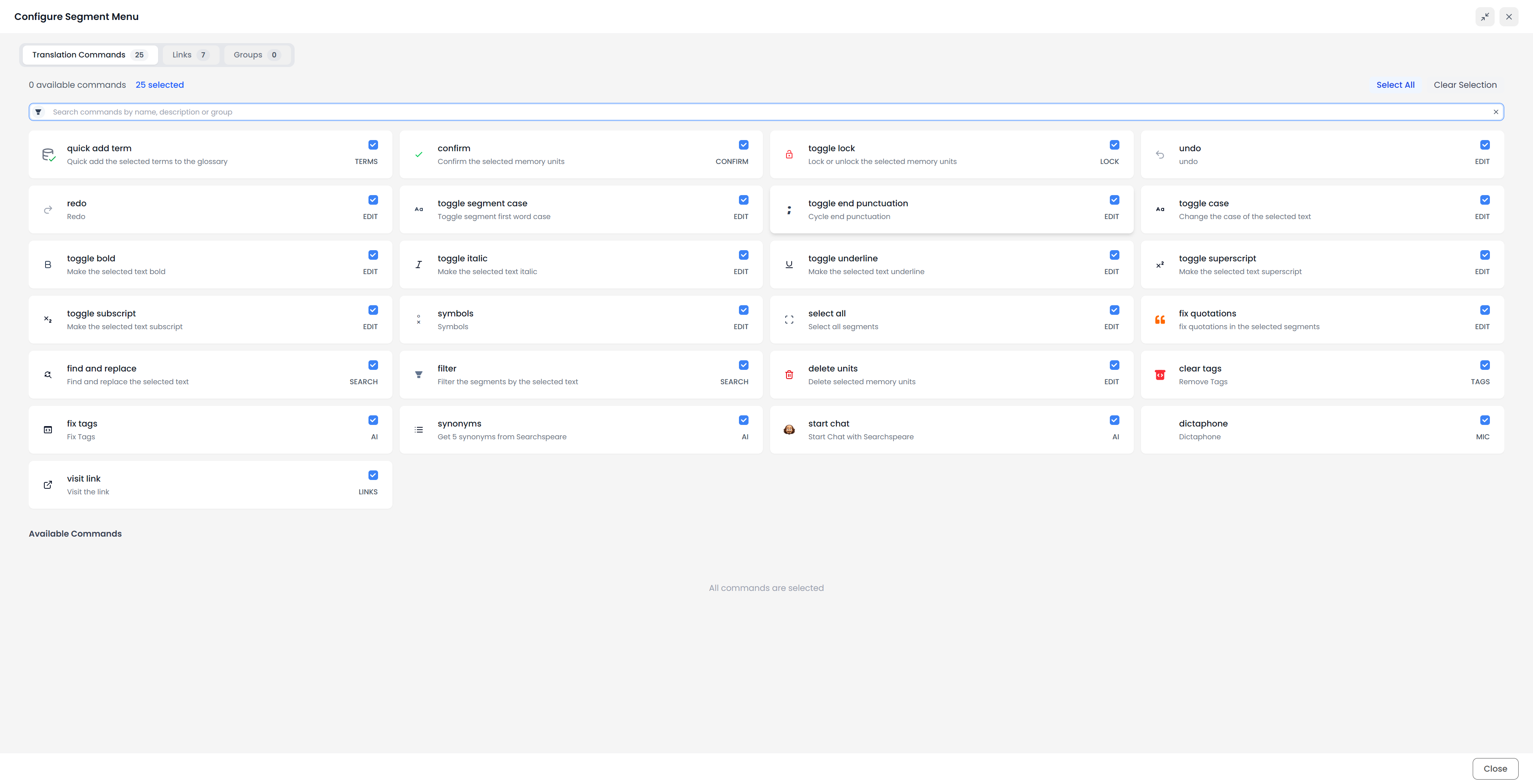
Identify the command icons
These cards show the commands in the memory toolbar's gear menu. The checkbox chooses which commands appear in the toolbar. Unlock the intended units before editing, and Confirm pending corrections when they are ready to save.
Quick add term

Highlight a source expression and its target equivalent, then use Quick add term to save the pair in a glossary. Selecting whole rows does not select the two term expressions.
Check the destination glossary and the two selected wordings. Use the term editor instead when you need examples, matching settings, or a forbidden-term flag.
Confirm

Select edited memory units and Confirm to save usable source–target pairs to the open memory. Successfully saved units become locked again.
Leaving a cell or clicking its lock does not replace this confirmation step for pending wording edits.
Lock or unlock

Select the saved pairs you want to edit and unlock them. A mixed selection becomes locked together; run the command again to unlock that group.
The command is unavailable when selected units have pending edits. Review and Confirm those corrections first.
Undo

Return to an earlier available editing state. Read the affected wording or rows after undoing; the change may involve more than the cell containing the cursor.
Undo is unavailable when there is no earlier state in the current editing history.
Redo

Reapply a change you previously undid. Inspect the resulting text or row arrangement before continuing.
Redo is unavailable when there is no later state to restore.
Toggle segment case

Select the intended rows to change the capitalization of the first word in their targets. This is useful for sentence openings.
To change a phrase in the middle of a sentence, highlight that phrase and use Toggle case instead.
Toggle end punctuation

Select the targets whose ending punctuation you want to change, then run the command to cycle the supported endings. Read the result in context, especially for abbreviations and quotations.
Toggle case

Highlight source or target wording in an unlocked memory unit, then use the memory segment toolbar to cycle its capitalization. Confirm the pending correction afterward.
The Edit ribbon uses the target editor. Use the memory segment toolbar when changing selected source wording.
Bold

Highlight source or target text in an unlocked memory unit, then use this segment-toolbar command to apply or remove bold formatting. Select characters in one cell, rather than several rows.
The Edit ribbon uses the target editor. Inspect the result and Confirm the pending correction to save it to the memory.
Italic

Highlight source or target text in an unlocked memory unit, then use the memory segment toolbar to apply or remove italic formatting. Check the selection and Confirm the corrected pair. The Edit ribbon uses the target editor.
Underline

Highlight source or target text in an unlocked memory unit, then use the memory segment toolbar to apply or remove underlining. Review and Confirm the pending correction. The Edit ribbon uses the target editor.
Superscript

Highlight the source or target characters to raise, such as an exponent, in an unlocked memory unit. Use the memory segment toolbar, inspect the result, and Confirm the pending correction. The Edit ribbon uses the target editor.
Subscript

Highlight the source or target characters to lower, such as part of a chemical formula, in an unlocked memory unit. Use the memory segment toolbar, inspect the result, and Confirm the pending correction. The Edit ribbon uses the target editor.
Symbols

Place the cursor in the unlocked memory target where the character belongs, then open Symbols and choose it. Inspect the inserted character and Confirm the pending correction.
Select all

Select all memory units in the current filtered table, including units outside the screen. Clear the table filters first if you intend to select the whole loaded memory.
Fix quotations

Select the rows whose target quotation marks need normalization and run Fix quotations. Check the chosen quotation style and inspect nested quotations and apostrophes afterward.
Find and Replace

Highlight an expression to prepare a search, or open the panel and enter it there. Choose the source or target side and matching options before Next, Replace, or Replace All.
Replace All follows the replacement panel’s scope and the filtered table; it does not simply mean the rows selected for another toolbar operation.
Filter

Highlight wording on the source or target side and run Filter to narrow the table around that expression. Use the result to inspect repeated wording in context.
Use Clear all in the document filter bar to restore the full loaded table. Closing a side panel does not clear these filters.
Delete units

Select the saved pairs to remove, review the selection, and read the deletion confirmation. Deletion removes those memory units directly; it is different from leaving an edit unconfirmed.
A row lock protects wording edits but does not prevent deliberate deletion.
Clear tags

Select the relevant unlocked rows and use Clear tags to remove their target tags. This changes the target content; it does not merely hide the tag markers.
Compare the source and target before continuing. Required formatting tags may need to be restored.
Fix tags

Select tag-bearing rows and request Searchspeare’s tag repair. Inspect both the required tags and their positions in the resulting translation.
Correct tag counts alone do not prove correct placement around the corresponding wording.
Synonyms

Highlight a source or target expression to investigate alternative wording. Read the suggested alternatives against the complete sentence before using one.
An alternative can fit the topic while changing the meaning, register, or grammatical construction.
Start chat

Select the memory content you need to discuss and open Searchspeare. State the question or correction you want, then inspect any proposed changes.
Accepted corrections can remain pending memory edits. Review and Confirm the affected pairs to save them.
Dictaphone

In the desktop application, set up dictation, place the cursor in an unlocked editable cell, and use the dictation command or its shortcut. Review the recognized text before confirming the row.
The desktop dictation guide explains model installation, language selection, and recording controls. Availability differs from the browser PWA.
Visit link

Use this when the active passage contains a web address you want to inspect. It opens that address; it does not translate or replace it.
Check whether the address itself must remain unchanged in the delivered document.