
Review tab
Review contains the controls for tracked changes already recorded in the text. Use it to see what was edited, navigate between revisions, and decide which edits to keep.
This differs from reviewing a pending AI proposal. A proposal in Suggestions or Changes preview has its own application controls. The Review tab deals with the document's recorded insertions and deletions.
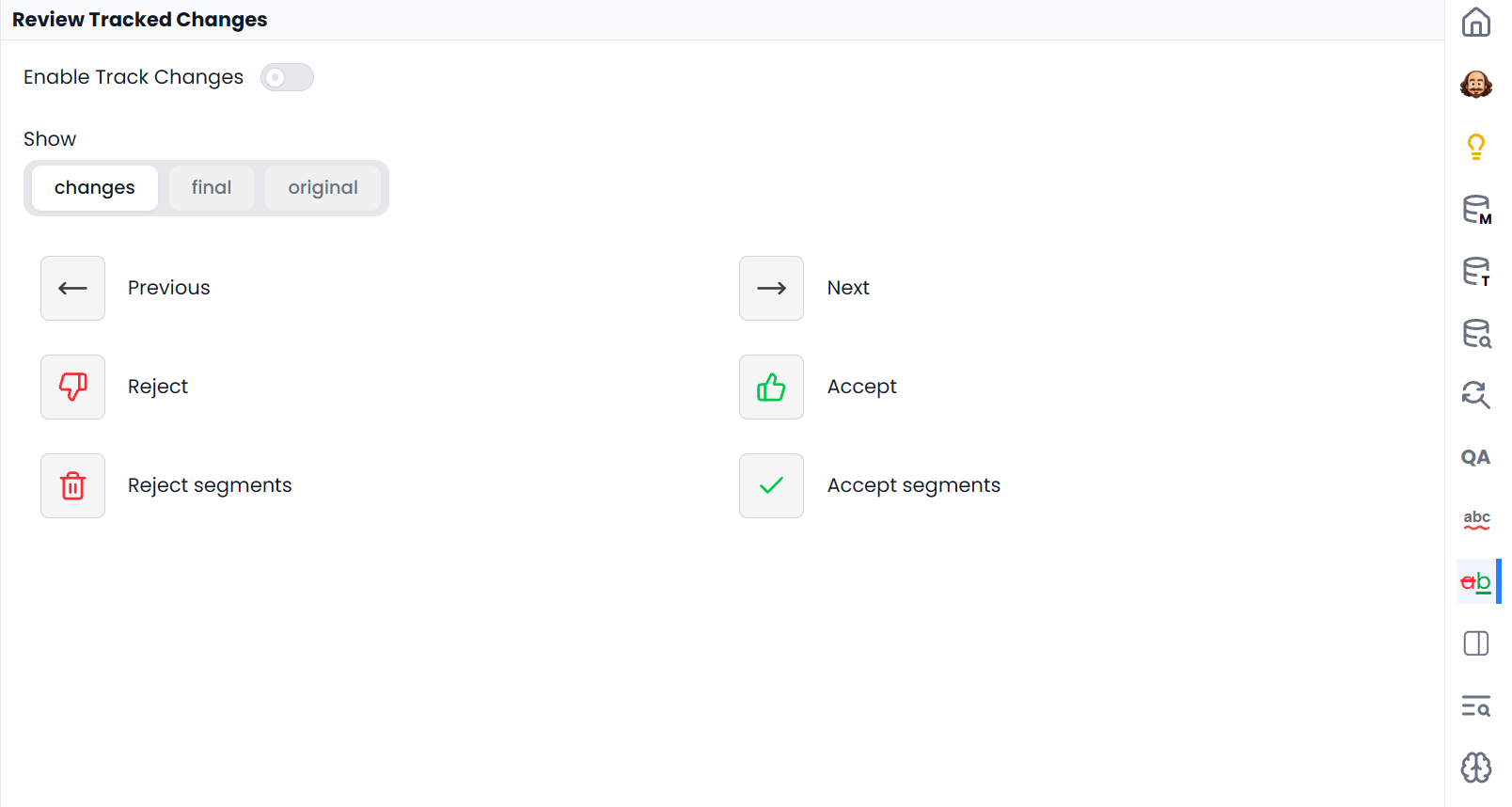
Enable Track Changes
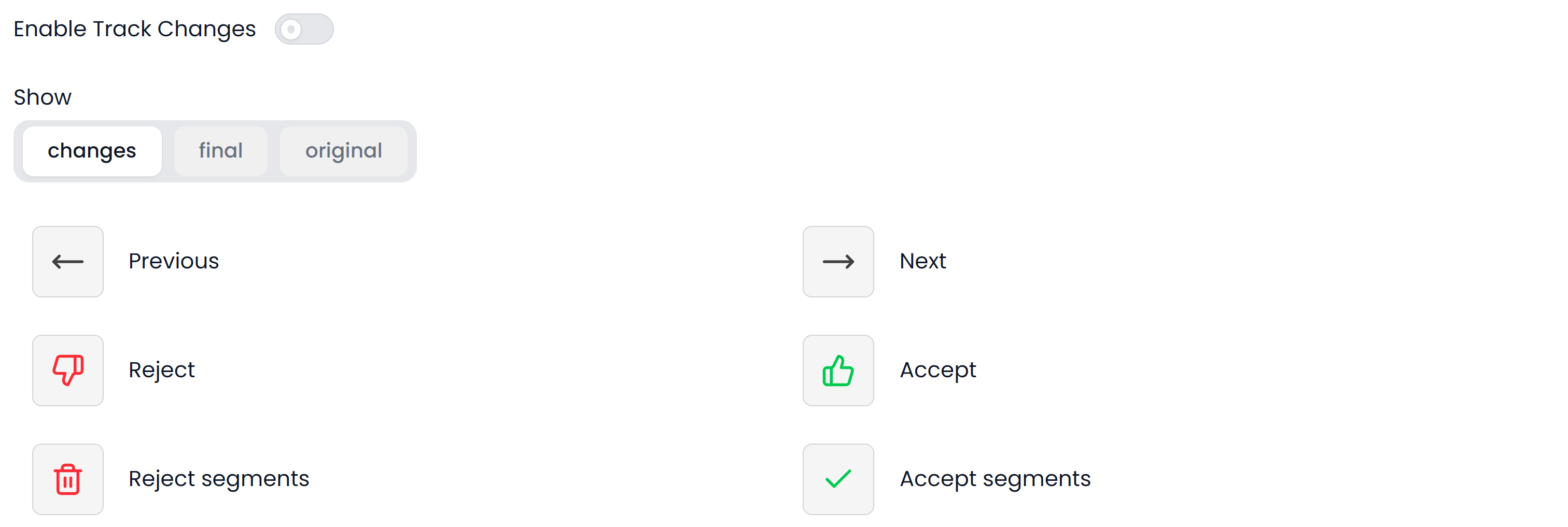
Use Enable Track Changes when you want subsequent supported edits to be recorded as revisions that can be accepted or rejected later.
Turning tracking off does not decide existing revisions for you. Inspect them and use the accept or reject controls when you want to resolve them.
Choose a display
| Display | What you see |
|---|---|
| Changes | Recorded insertions and deletions together |
| Final | The reading view with the proposed edits included |
| Original | The reading view before those tracked edits |
Changing the display does not accept or reject revisions. Final is useful for checking flow, but a clean-looking paragraph can still contain unresolved changes hidden by that display.
Resolve one change at a time
- Open Review and choose Changes.
- Use Next or Previous to select a tracked change.
- Read the surrounding sentence and, in bilingual work, compare the source.
- Choose Accept to keep the edit or Reject to restore its original wording.
- Continue to the next change and finish with a reading pass in Final view.
The selected change matters. If you intended to resolve a different revision, navigate to it before using Accept or Reject.
Resolve changes in selected segments
Accept segments and Reject segments affect every tracked change
Accept segments accepts all tracked changes in the selected segments. Reject segments rejects all tracked changes in those segments. These are broader decisions than accepting or rejecting the current change.
Check the row selection first. Selecting a few words in the target and selecting several segment rows are different scopes. Use the segment actions when you have already reviewed all revisions in those rows.
Separate revision approval from segment confirmation
Accepting a tracked change decides which wording remains. Confirming a segment records approval of that segment in the translation workflow. Exporting produces a deliverable. Complete each step required by the job; one does not stand in for all the others.
For comments, review exchange files, and a complete revision pass, see Comments and tracked changes.