
Spellcheck commands and troubleshooting
The Spellcheck tab combines editor settings, dictionary setup, and a review workflow. Use the command that matches the step you want to perform.
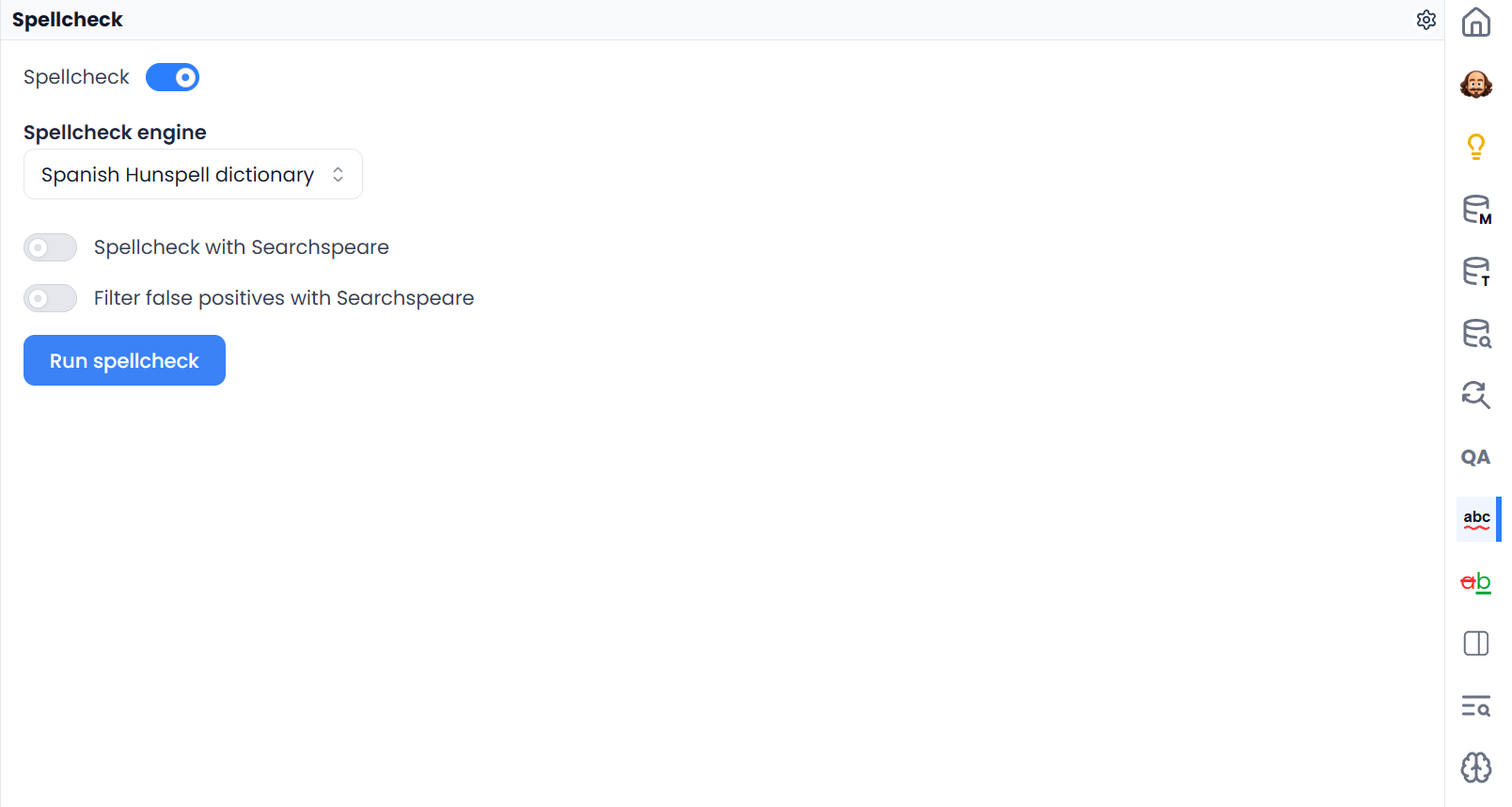
Commands and shortcuts
| Control or command | What it does |
|---|---|
| Spellcheck tab or Spellcheck command | Opens or toggles the spelling tools; it does not start a pass |
| F6 | Default shortcut for toggling the Spellcheck tab in translation work |
| Spellcheck switch inside setup | Enables or disables spelling feedback in the editor |
| Spellcheck engine | Chooses browser spelling or the installed Hunspell dictionary |
| Install dictionary | Downloads an available language dictionary |
| Run spellcheck | Starts the dictionary pass or Searchspeare correction, depending on the selected options |
| Spellcheck options | Configures word types and the optional false-positive assessment |
| Alt+Down | Moves to the next unresolved spelling result while the spelling review is open |
| Alt+Up | Moves to the previous listed spelling result while the spelling review is open |
| Reset spellcheck tab | Clears the current panel's result state and returns to setup controls |
| Document filter bar → Clear all | Restores all segments in the open file or View and normal sorting |
F6 is the supplied binding; your saved shortcut may differ. Right-click the Spellcheck tab for its supported shortcut controls, or inspect Settings → Shortcuts. If the browser or operating system takes a key, assign another suitable binding. See Keyboard shortcuts.
The segment toolbar's Fix errors is another language-assistance command. It uses eligible selected segments, whereas the Spellcheck panel's Searchspeare pass uses filtered unlocked segments. Similar spelling-related icons do not guarantee the same scope.
Run a fresh pass
- If the Spellcheck tab is showing old results, use Reset spellcheck tab in its header.
- Use the document filter bar's Clear all when you want the full open file or View checked.
- Reapply only the document filters you intentionally want for a smaller pass.
- Check the engine, installed language dictionary, AI switches, and word-type options.
- Choose Run spellcheck and wait for completion.
- Inspect the new results or proposals.
Resetting spellcheck does not clear document filters
Resetting the panel does not remove its installed dictionary, clear accepted dictionary words, or undo text corrections. It is also not the same as clearing document filters. A reset can restore earlier search settings from a word inspection, which is why the full-table reset comes afterward when you need it.
The table only shows one misspelled word
This is the word-occurrence filter applied when you clicked a spelling result. It can show several target segments containing that word. Use Clear all in the document filter bar to show all segments in the open file or View.
Clearing the search inside the Spellcheck list only changes which returned reports are visible. Closing a panel is not a reliable way to request the completely unfiltered table. Reviewing spelling results explains both sets of controls.
There is no Run spellcheck button
Check Spellcheck engine. Browser native supplies editor spelling but not the Hunspell result-list pass. If Searchspeare correction is also off, install an available dictionary and choose its Hunspell option.
If no dictionary is offered, check the target language. If setup is still loading, wait for the dictionary information. A disabled or hidden AI option may reflect Non-AI mode or unavailable assistance; it does not install the missing language resource.
Dictionary installation fails
Check the connection and retry Install dictionary. Wait for the success message, then inspect the engine label. An empty result list is not a substitute for a successful dictionary installation.
When moving to another device or browser profile, check installation there again. Do not clear existing local work as an initial attempt to repair dictionary setup. See Dictionaries and installation.
A word I expected is not reported
Check the following conditions:
- The segment belongs to the file or View you checked and was included by the filters at the start of the pass.
- The segment is unlocked and has target text.
- The target language has an installed dictionary for dictionary checking.
- Word-type options include that capitalization, identifier, single-letter form, or source-word case.
- The word has not been accepted through dictionary or editor exception actions.
- The result-list search has not hidden the report.
A valid dictionary spelling can still be the wrong word in the sentence. Use meaning review and QA for problems beyond unknown spellings.
A valid technical word keeps being reported
Verify the spelling, context, and language variety first. Use Add to the dictionary for valid reusable vocabulary, or a result-list ignore action for a current-review exception.
Adding a word does not create a glossary concept or a required translation. If the issue concerns preferred terminology, maintain the relevant glossary and run terminology QA.
Suggestions are missing or a correction does not apply
There may be no useful dictionary alternative, or the text may have changed since the finding was created. Select the report's segment, inspect the actual occurrence, and correct it manually if needed. Run a fresh pass after substantial edits.
For Hunspell underlines, use the target editor's spelling context menu. Browser-native feedback does not supply Searchspeare's Hunspell correction menu. The spelling result list is a separate workflow with its own run and selection controls.