Editor preferences
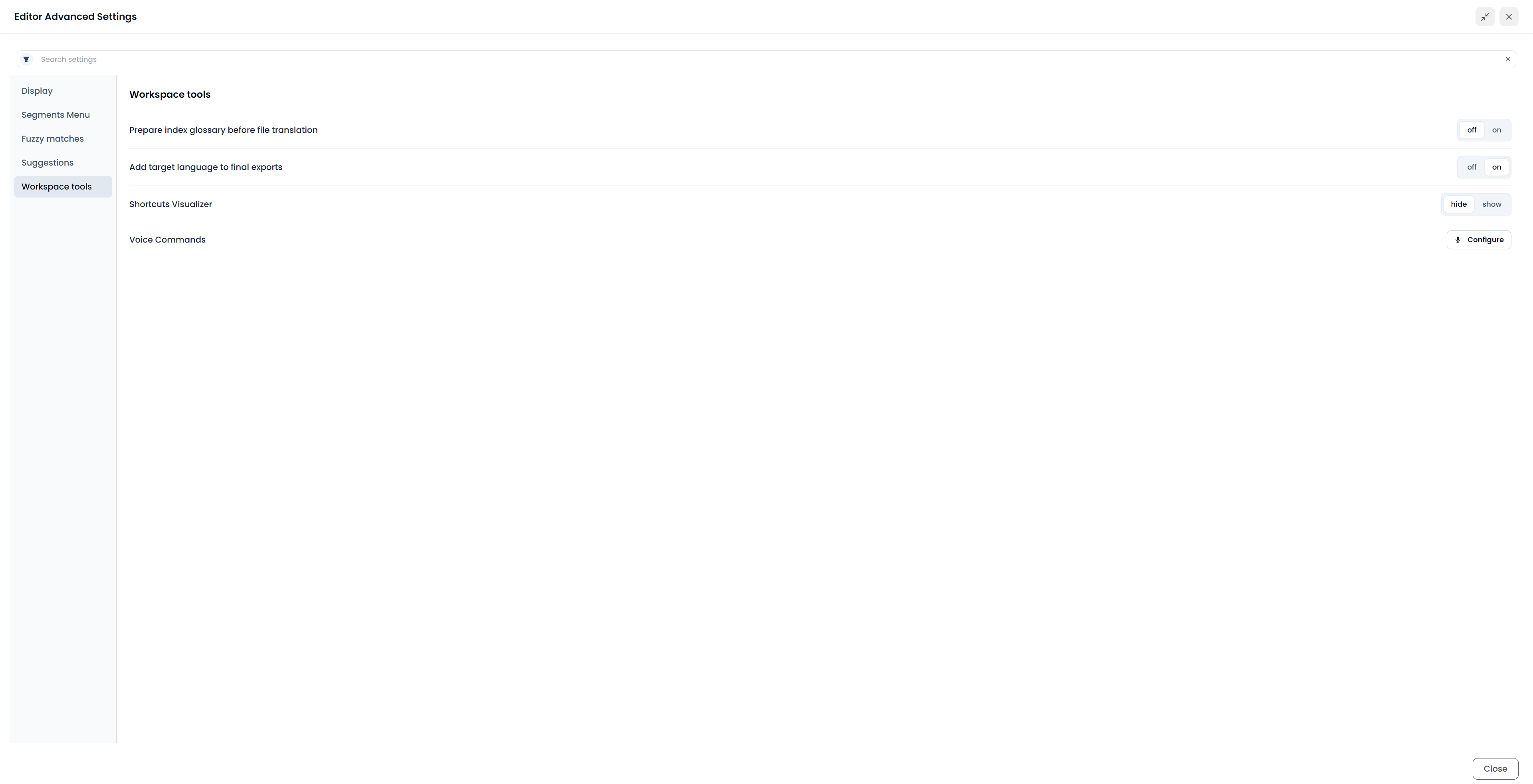
Open the editor's Settings → Advanced. The dialog groups the current controls into Display, Segments Menu, Fuzzy matches, Suggestions, and Workspace tools.
Key points
Editor preferences save when changed. Generating a suggestion, inserting it, and confirming a segment are separate behaviors. Check the automatic insertion and complete-row confirmation settings before using them together.
Preferences save when you change them and can remain in use the next time you edit on this installation.
Find a setting
Use Search settings to search the control labels. The list shows only sections containing matching controls. Clear the search if a section seems missing. The search field's opposite-match choice reverses which labels are included; it does not change the settings themselves.
For fonts, segment layout, whitespace visibility, scrolling position, and tooltip placement, also see the View ribbon.
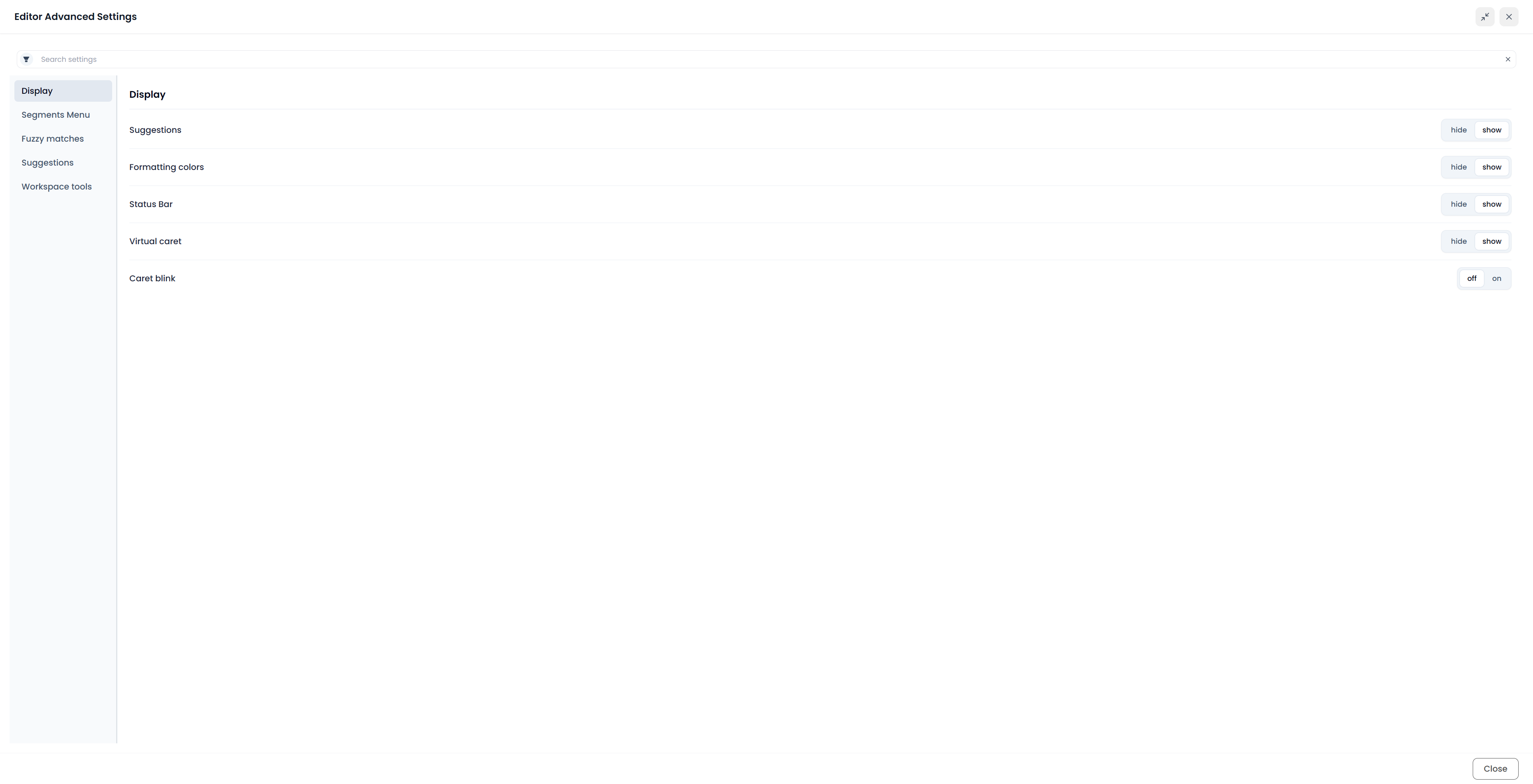
Display
| Setting | Effect |
|---|---|
| Suggestions | Shows or hides the supported Suggestions area. This display choice is separate from enabling the assistance that produces its contents |
| Formatting colors | Shows or hides supported text/highlight colors in the working editor without deleting the document's formatting |
| Status Bar | Shows or hides the editor's details/status area, including the applicable recorded metrics |
| Virtual caret | Shows or hides the additional caret indicator used by the working editor |
| Caret blink | Enables or disables blinking for that indicator |
Changing display preferences does not reformat the final translated document. Inspect the exported file separately when checking delivery layout.
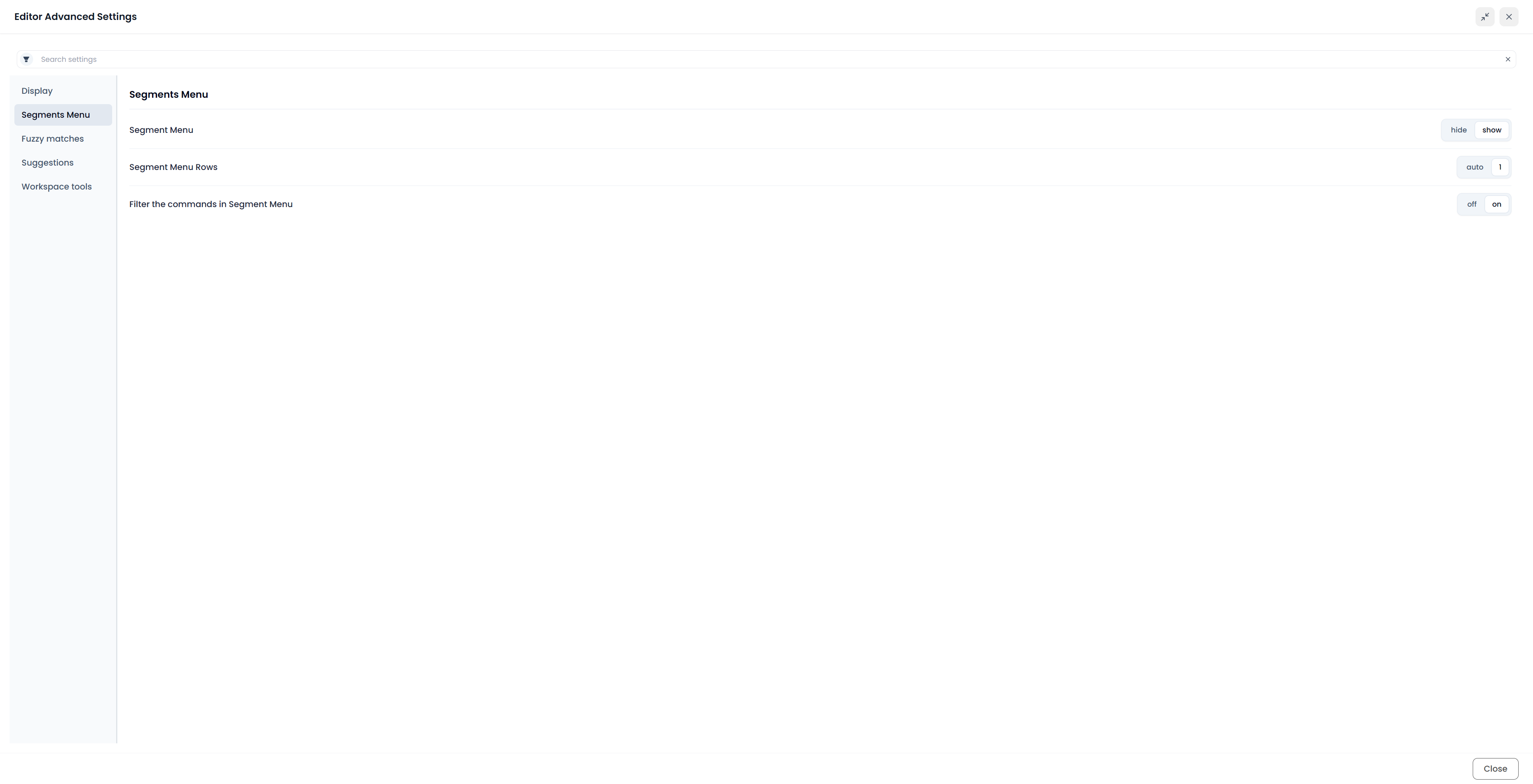
Segments Menu
| Setting | Effect |
|---|---|
| Segment Menu | Shows or hides the command toolbar beside the active text |
| Segment Menu Rows | Choose automatic layout or a compact single row; use the toolbar's horizontal scrolling when commands exceed the space |
| Filter the commands in Segment Menu | Filters command visibility according to the current editing context; it does not filter document segments |
Use the toolbar's gear to choose which commands, links, and groups it contains. Inclusion in its configuration and temporary availability for the current selection are different conditions. See Show and customize toolbars.
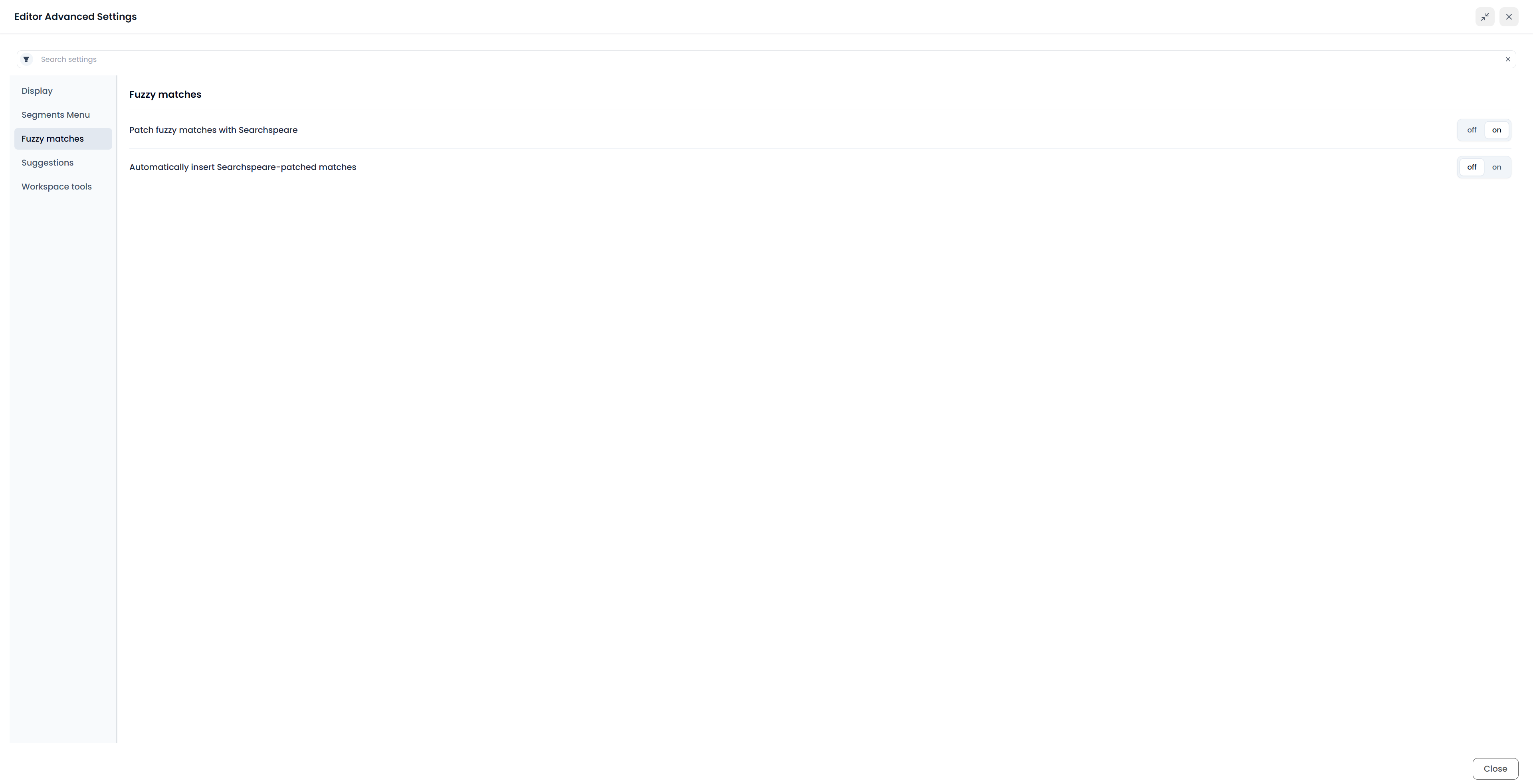
Fuzzy matches
| Setting | Effect |
|---|---|
| Patch fuzzy matches with Searchspeare | Requests an adapted translation based on an eligible similar memory match |
| Automatically insert Searchspeare-patched matches | Allows eligible adapted results to be inserted automatically instead of requiring manual insertion each time |
Generating an adapted match, inserting it, and approving it are separate operations. Automatic insertion remains subject to the current segment's eligibility and editing state. Read the target afterward; a memory-derived draft can still contain a wrong name, number, or contextual choice.
Related switches also appear in the Suggestions tab and match options. Some automatic controls are disabled when the selected assistance cannot run or the relevant allowance is exhausted. Turning a stored switch on does not override those availability checks.
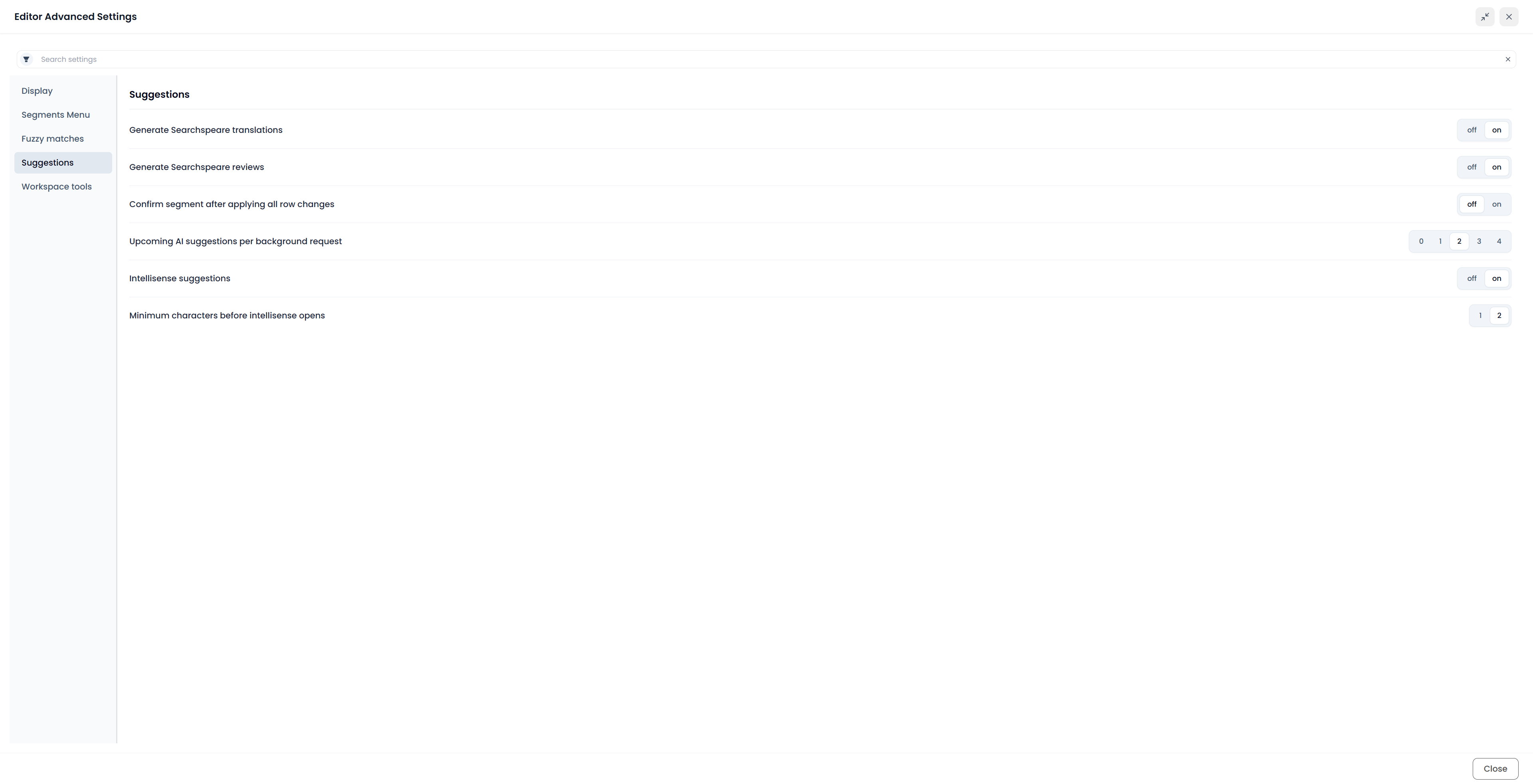
Suggestions
| Setting | Effect |
|---|---|
| Generate Searchspeare translations | Enables applicable automatic translation suggestions |
| Generate Searchspeare reviews | Enables applicable automatic review suggestions for existing wording |
| Confirm segment after applying all row changes | Requests confirmation when you apply the complete proposed changes for one row in a change preview. Leave off when applying the row should remain separate from final segment approval |
| Upcoming AI suggestions per background request | Choose 0–4 upcoming candidates for background preparation. Zero disables the upcoming batch; an eligible current segment can still request its own suggestion |
| Intellisense suggestions | Enables the typing-completion list |
| Minimum characters before intellisense opens | Choose one or two typed characters; the control is disabled when Intellisense is off |
Preparing upcoming suggestions can use AI activity even before you open those rows. It is not a command to translate the entire file or confirm that future content.
The confirmation setting applies to accepting a complete preview row. Accepting an isolated word-level difference is not the same action. Read Change previews and Selecting segments and batch actions before combining automatic insertion or confirmation with larger operations.
Disabling automatic translation/review suggestions is different from running an explicit File → Translate or Review command. Use Non-AI mode for the broader AI-control preference.
Workspace tools
| Setting | Effect |
|---|---|
| Prepare index glossary before file translation | Adds an optional Index preparation step to the applicable AI translation workflow. It can prepare recurring terminology/context before translation; it is not the switch that simply opens the File Index tab |
| Add target language to final exports | Adds the applicable target-language suffix to final exported filenames; it changes naming rather than translating content into another language |
| Shortcuts Visualizer | Shows or hides the on-screen shortcut feedback tool |
Index preparation is initially off and can add work before translation. Review the project's maintained terminology too: an Index candidate is not the same as a confirmed glossary entry. See File Index and AI context.
Check the effect of a setting
After changing a setting, try it on a segment. For an automatic assistance setting, check whether it generates a suggestion, inserts text, or confirms the segment. Change it back if that behavior is unsuitable for your work.
See Autocomplete for typing behavior and Keyboard shortcuts for key assignments.