
Review proposed AI changes
A change preview lets you inspect an AI revision before using it. This is especially useful when you want a precise correction rather than a complete rewrite.
Key points
Read each proposed difference against the source before applying it. Applying changes and confirming the segment are separate steps, except when complete preview-row acceptance is configured to request confirmation.
The editor can open this review in the right-side panel's Changes preview tab. Segment-level proposals also appear in Suggestions. The Review tab has a different purpose: resolving tracked changes already recorded in the document.
For example, you may want to change one repeated expression across selected segments while preserving the rest of the translation.
Describe the changes you want
Choose the relevant segments and, for a phrase-level task, select the wording you want to discuss. Use an appropriate action or give chat a specific instruction.
State the limit explicitly: “Change only the way this warning addresses the reader” is easier to review than “improve this”. Include the required tone or terminology when it matters.
Read the differences, not only the final sentence
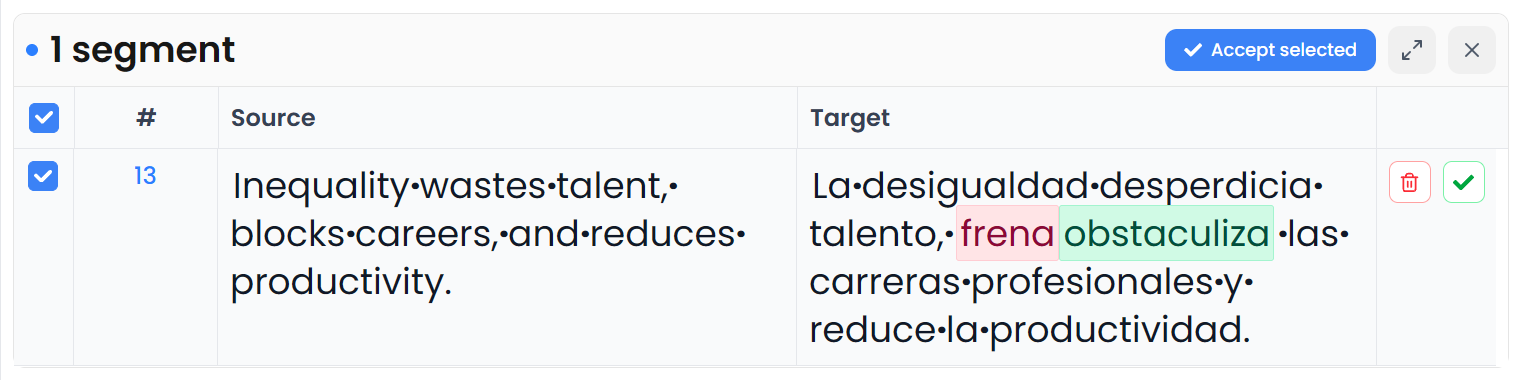
The preview compares the current text with the proposal. Inspect inserted, deleted, and changed wording. Ask whether each difference is necessary for the requested task.
Check at least these points:
- The meaning and logical relationships are preserved.
- No qualification, negation, warning, or instruction has disappeared.
- Numbers, units, names, and placeholders still mean the same thing.
- Required terms and tags are retained in suitable positions.
- The revised wording fits the surrounding text.
A smoother sentence is useful only if it still expresses the intended content.
Apply only what you want
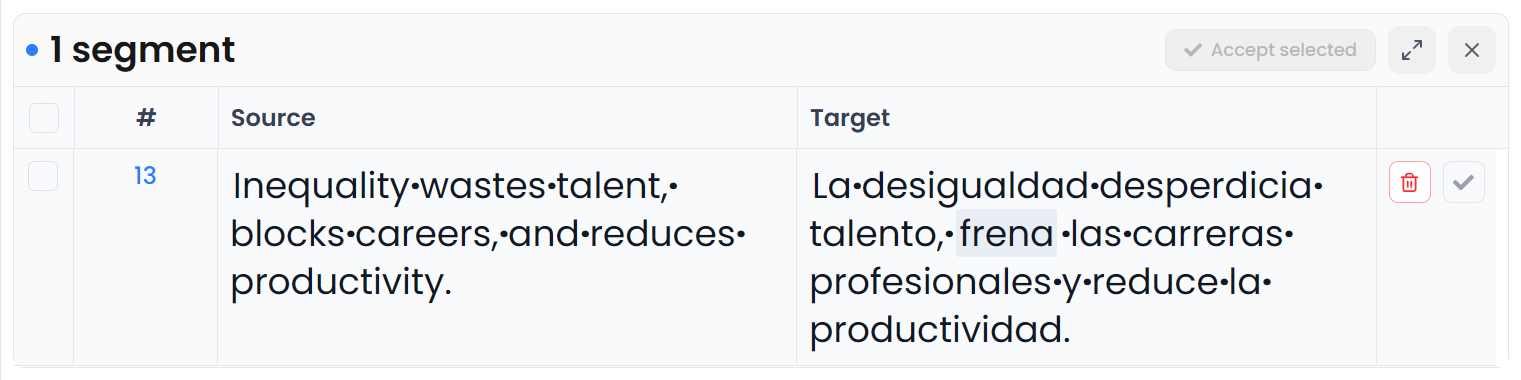
Use the available preview controls to apply a row or a selected group. Where individual differences can be accepted or dismissed, review them before applying the remaining proposal.
If the proposal needs another attempt, refine the request. If you prefer to edit manually, leave it unapplied and change the target yourself. Check the working target afterward so you know which version is now in the file.
Apply a proposal and confirm the segment
Applying an AI proposal changes the working text. It is not inherently the same as confirming the segment, and it is not the same as resolving all tracked changes in that segment.
The setting to confirm after applying an individual preview row can combine two decisions. Enable it only if row acceptance means final approval in your workflow. Otherwise, inspect the applied result and confirm separately.
If Track changes is active, inspect the recorded revisions too. A proposed change preview and the document's tracked-change record are different views of the work.
Review a few segments at a time
Start with a sample. If the result is useful, continue with the next meaningful group of segments. Large batches make it harder to notice one changed number or a subtle shift in obligation.
For rule-based mechanical changes, Find and replace may be more suitable. For job-wide guidance, maintain AI rules rather than repeatedly rewriting the same chat instruction.