
View ribbon
The View tab controls text size, font, visible formatting marks, segment layout, and navigation behavior. These settings change the working display. Choosing a larger editor font or a different segment layout does not reformat the delivered document.
Open View, then use the horizontal ribbon arrows if some controls are outside the available width. Changes to these display preferences take effect as you choose them.
Text size and font
| Control | How to use it |
|---|---|
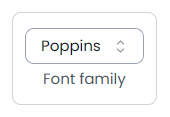
| Font family | Choose Monospace, System, or Poppins for the editor's working text. Monospace gives characters equal width, which can help when comparing spacing. |
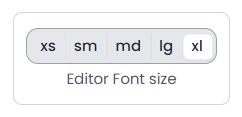
| Editor Font size | Choose from XS through XL to change the segment text size |
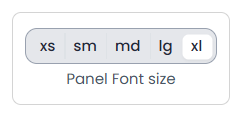
| Panel Font size | Adjust the text size used by supported right-side content independently of the editor |
Set the segment text size first, then adjust the panel text size for its content. The two areas can use different sizes.
Reveal spaces and document formatting
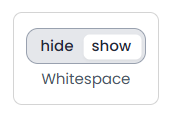
Whitespace → Show reveals spaces and other supported hidden-character markers. Use it to investigate a suspected double space, tab, line break, or non-breaking space. The markers help distinguish characters that look similar when hidden.
Showing a marker does not insert that marker as a new character in the document. To fix an actual spacing problem, edit the target text or use a suitable correction command.
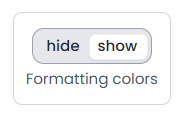
Formatting colors → Show displays supported text and highlight colors carried by the content's formatting. Hide them when those colors make the working text harder to read. The document keeps its formatting when you hide these colors in the editor.
Formatting colors is offered in the translation/review file workspace; other editors can have a smaller set of View controls. Inline tag visibility and size have their own controls in Tags.
Arrange segments and movement
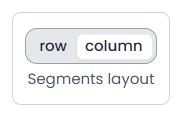
Segments layout → Row / Column changes the arrangement of source and target content. Choose the layout that makes comparison easiest for your text and available screen width. Single-language review does not need the bilingual layout choice.
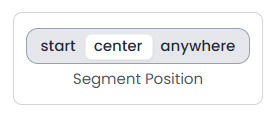
Segment Position controls how the active segment is positioned as you navigate:
| Choice | Purpose |
|---|---|
| start | Keep the active segment toward the start of the working viewport |
| center | Bring the active segment toward the center, leaving context around it |
| anywhere | Avoid enforcing a fixed start or center position |
Try center when you want neighboring context around the active row, or anywhere when repeated repositioning interrupts your reading. This preference changes navigation behavior, not row order or table filters.
Choose where tooltips appear
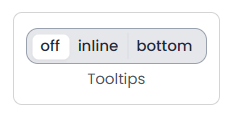
Tooltips has three choices:
- off: hide the command-tooltip display.
- inline: show it near the command.
- bottom: show it in the bottom tooltip area.
Keep a tooltip display available while learning commands so you can read their descriptions and shortcut hints. Right-click supported command buttons to edit their shortcuts.
Give the segment toolbar enough room
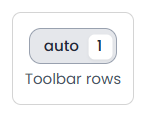
Toolbar rows → auto / 1 controls the segment menu's layout. Auto lets it use multiple rows; 1 keeps a compact horizontal row that can scroll when commands do not fit.
Use 1 when you want more vertical space for the document. Use auto when you want more commands visible together. To choose the buttons themselves, use the segment toolbar's gear. In the translation-file editor, Settings → Advanced provides the Segment menu display choice for showing or hiding the toolbar.

Check display settings and the exported layout
Display settings do not clear filters
Return to a sample segment and check text, neighboring rows, and the right-side results. If rows are missing, inspect filters; changing View settings does not clear them. Use the right-side panel controls to choose or resize tabs, and Review → Zen Mode for distraction-free reading.