
Translation memories
A translation memory stores source passages together with their translations. When a new segment resembles a stored source, Searchspeare can offer the earlier target as a starting point.
Key points
A memory stores source passages and their translations for reuse. Attach it to a project for matches, Concordance, and pretranslation. To correct saved memory units, unlock → edit → Confirm; typing alone leaves the corrections pending.
A memory is especially useful for recurring manuals, product updates, and repeated client wording. Its usefulness depends on the quality and relevance of the translations you put into it.
Memory editing guides
The dedicated memory guides explain how to maintain the resource, not just use its matches:
| Task | Guide |
|---|---|
| Edit source and target pairs with familiar segment tools | The memory editor |
| Unlock individual units or a selection and save corrections | Memory locks and saving |
| Perform replacements, bulk maintenance, deletion, or export | Memory bulk editing and maintenance |
Saved units normally open locked to protect them from unwanted editing. Unlock one unit or a group, edit the text, then Confirm to save it and lock it again. Changes typed in the memory editor remain pending until confirmation.
Create and attach a memory
Open Memories in the sidebar and choose New Memory. Enter a name and the source and target languages. A name such as “Acme manuals — EN to PT” explains both its subject and direction.
You can also create or select a memory during project creation or from the project's Memories controls. Attachment is important: the project uses the selected memories for matches, concordance, pretranslation, and saving confirmed bilingual segments.
Use separate memories when client preferences or subject matter would make cross-reuse misleading. Attaching several memories makes more previous work available, but it also means confirmed translations can be written to those attached resources.
Build a memory from approved work
Confirming a bilingual segment saves the approved pair to the attached memories. Typing a target alone is not the same as approving it for reuse.
Confirmation can also copy a target to later segments with exactly identical source content in the open file or View. After confirming a repeated heading or instruction, inspect the later occurrences. Identical wording may need a different translation when the subject or grammatical context changes.
You can import supported bilingual material, including TMX, through the memory tools. Choose the destination memory and verify the language direction before importing. The memory import accepts formats that are not all available as normal translation-project inputs; use the file chooser for that operation as your guide.
If you have separate original and translated documents, align them first. A collection of plausible-looking pairs is not yet a trustworthy memory: review the alignment before adding it.
Use a match in the editor
- Attach the relevant memory to the project.
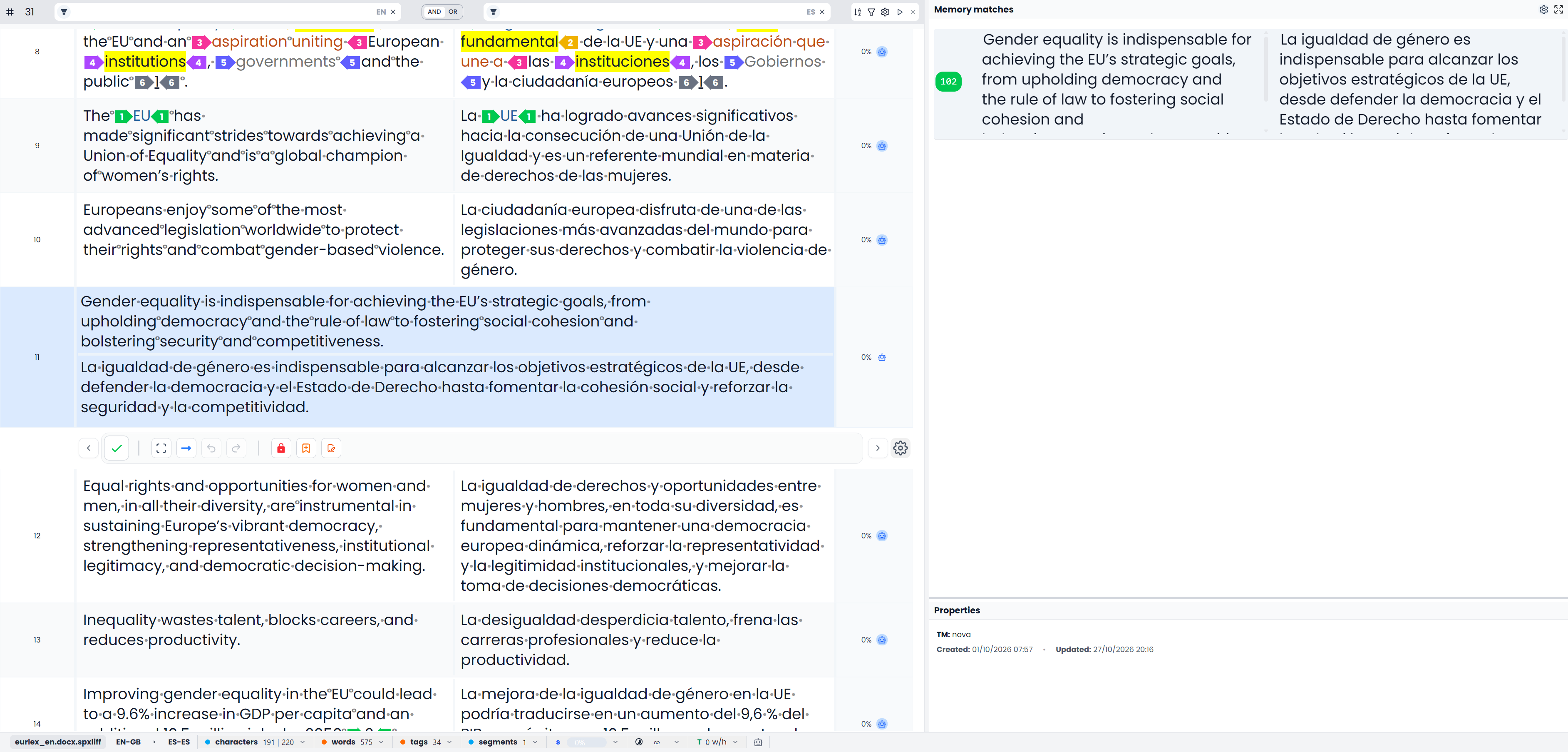
- Open a segment and inspect the Matches panel.
- Compare the stored source with the current source.
- Insert the suitable target using the match's action.
- Adapt changed names, numbers, grammar, terminology, and tags.
- Confirm only when the current segment is correct.
A fuzzy match means the source passages are similar rather than identical. Higher scores can reflect closer matches or additional context. The score is not a probability that the translation is correct.
For example, a previous sentence about “12 months” may closely match a new sentence about “24 months”. Reusing the sentence is helpful only if you also update the number and inspect the rest of the wording.
Pretranslate a group of segments
Use Pretranslation to fill several segments from the attached memories. Choose the segments to process and the minimum match score.
Memory pretranslation can mark matches of 100 or above as confirmed, while lower-scoring reused matches are marked pre-translated. Inspect the results, including already confirmed matches, before delivery.
Maintain and export memories
Open a memory to inspect and edit its units. You can maintain both source and target, use selection and filters, and work with replacement, formatting, tags, or Chat where supported. Correct errors that would otherwise keep returning as suggestions, then confirm the edited units. See the editor guide for the complete workflow.
Export selected memory resources as TMX when you need to exchange reusable translations or keep a separate copy. This exports their saved content, not merely the rows visible through an editor filter. Confirm pending corrections before exporting the maintained version.
A TMX export is a collection of translation pairs. It is not the translated document and does not replace a full backup of projects and files.
Use Concordance to search saved source or target phrases and read their bilingual examples. Project attachments restrict its search when present; without that restriction, the current search can use available memories for the language pair. Use Troubleshooting if expected matches do not appear.