
The glossary and termbase editor
Searchspeare uses glossary for a terminology resource, also called a termbase. Its editor lets you work directly with term rows, maintain examples and matching behavior, research usage, and prepare changes across several entries.
A term row shows the source and target expressions for a concept in the selected language pair. A multilingual glossary can contain other language forms too; the visible pair is the part you are currently maintaining.
Open the termbase and read the table
Open Terminology → Glossaries, then open the glossary you want to maintain. Check the resource name and the displayed languages in Details before editing.
Use the language-pair controls to choose the available source and target languages or swap the direction. This changes which language forms you are viewing; it does not translate the entries into a new language. Resolve pending work before changing context.
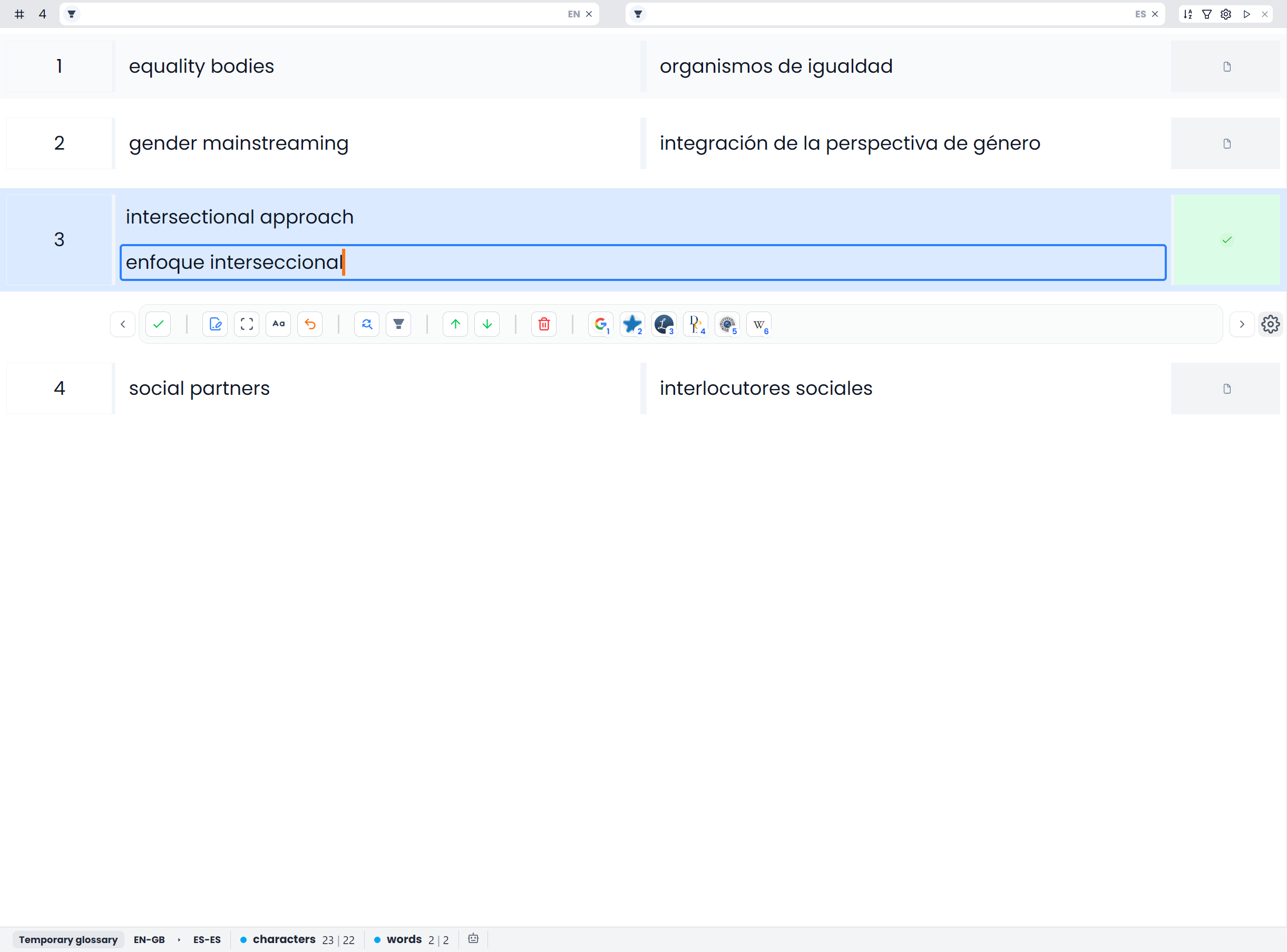
Saved entries normally open confirmed and locked. You can read, select, and research a locked term. Unlock it before typing a correction directly into its source or target cell.
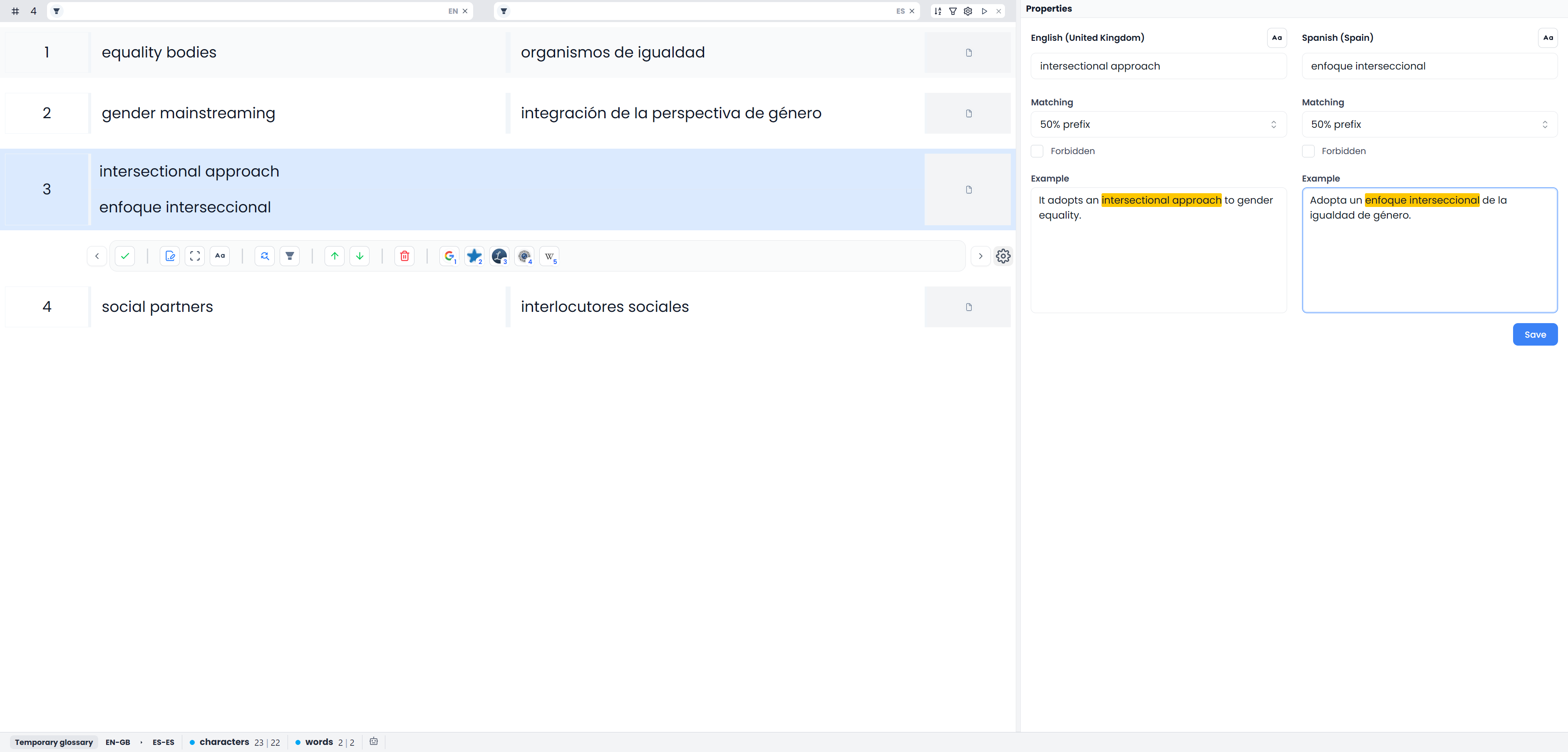
Edit one term pair
- Find the entry with the source or target search.
- Click its row so it is the only selected entry.
- Click the row's lock control to unlock it.
- Edit the relevant source or target cell.
- Check that both expressions still refer to the intended concept.
- Use Confirm to save the pending change and lock the entry again.
Both language sides can be edited. Ordinary term typing remains pending until confirmation; it is not the same save behavior as editing a project document. See Term locks and saving.
Select and unlock several entries
Use Shift-click for a range in the current table order, or Ctrl/Command-click for separate rows. Select all selects the current filtered term set, including rows outside the screen.
With locked entries selected, use the toolbar's Unlock command to unlock the selection. To type, activate one row again. To edit several entries, run a command that uses the selection.
Filters and selected rows are different scopes. Set the working view first, then make a fresh selection for the operation. Bulk editing and maintenance compares the relevant scopes.
Use the Termbase editor toolbar guide for the individual commands, active-side cleanup, navigation, Properties, and deletion.
Previous term and Next term also put the destination term's wording in the source and target search fields. Confirming one entry can do this when the editor advances to another unconfirmed entry. If the table then shows fewer entries, use Clear all in the filter bar to restore the loaded language-pair view. Confirming a selected group does not use that single-entry advance.

Edit term properties and examples
The Properties tab maintains the selected entries' source/target wording, examples, matching controls, and Forbidden flags.
- Select the intended entry or group.
- Open Properties and inspect the current values.
- Change only the fields you intend to update.
- Check that examples contain their corresponding terms.
- Choose Save to apply the changes to the editor's working entries.
- Review the edited rows and Confirm them to save the pending changes.
Properties can unlock affected locked entries when applying a deliberate edit. This differs from typing directly into a locked table cell. Its Save button applies the property edit in the workspace; it does not replace the final confirmation step.
With multiple entries selected, the panel displays the first selected entry's values. Only fields you edit are applied across the selection; untouched fields keep each entry's own values. The displayed checkbox or matching choice is therefore not proof that every selected entry already has that setting. Follow Apply properties to several entries for a complete example and the warnings about changing shared wording or examples.
Use the right-side tabs
| Tab | Purpose |
|---|---|
| Details | Resource information, language-pair selection, and available dates and term information |
| Concordance | Memory examples for the selected term and language pair |
| Context | Example segment pairs available with the terminology material |
| Searchspeare (Chat) | Questions and proposals using terminology context |
| Find and Replace Terms | Search and replacement within the displayed term entries |
| Properties | Wording, examples, matching, and Forbidden settings |
| Changes preview, when opened | Review proposed terminology changes or removals |
The side-panel guide explains these tabs individually. Research and proposals are different from committing a term correction.
Use a term cell's context menu
Right-click source or target wording to open the cell's menu. Highlight a phrase first when you want to copy, cut, filter, or prepare replacement for only that phrase. With no text range highlighted, these actions use the clicked term's wording.
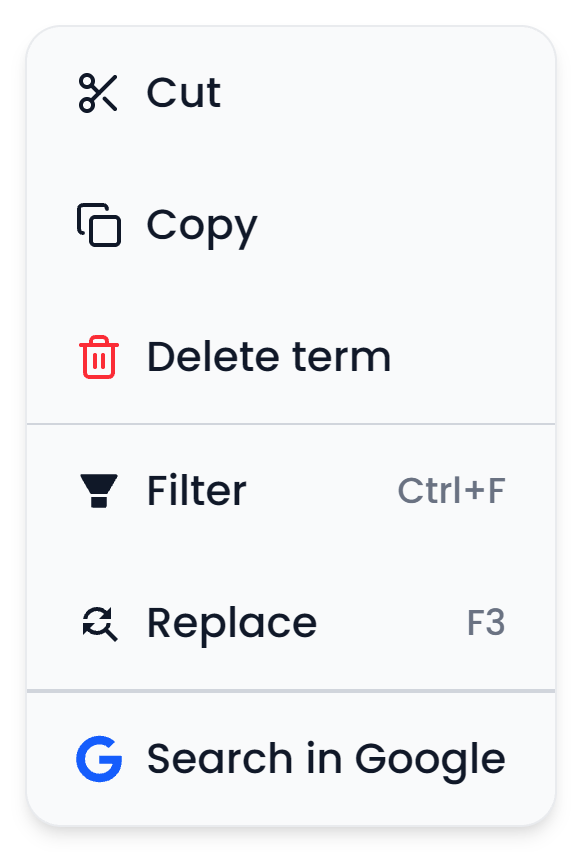
Cut requires editable wording. Before Delete term, check the selected rows: right-clicking an already selected term can retain a group deletion scope. A single-entry deletion can proceed directly, while deleting several asks for confirmation. See Maintenance before removing a concept.
Match terms for future translation
Maintained matching settings determine how terms are recognized when the glossary is used in a project. Exact, 50% prefix, Fuzzy, and Custom have different purposes. A Forbidden flag records wording to avoid on the relevant language side.
Read Matching behavior before broadening recognition. Examples should explain the concept, not just repeat an isolated word. After saving resource changes, check relevant terminology QA in the project where you use them.
Restore the full term table
Clear filters without changing pending edits
Use the term filter bar's X labeled Clear all to clear source/target term searches, filter conditions, options, and sorting. This restores the currently loaded language-pair view; it does not switch languages or save pending edits.
For temporary extracted terminology, review the entries and use the available save-to-glossary workflow when you want a permanent resource. Confirming temporary rows and choosing a destination glossary are separate steps.