
Matches tab
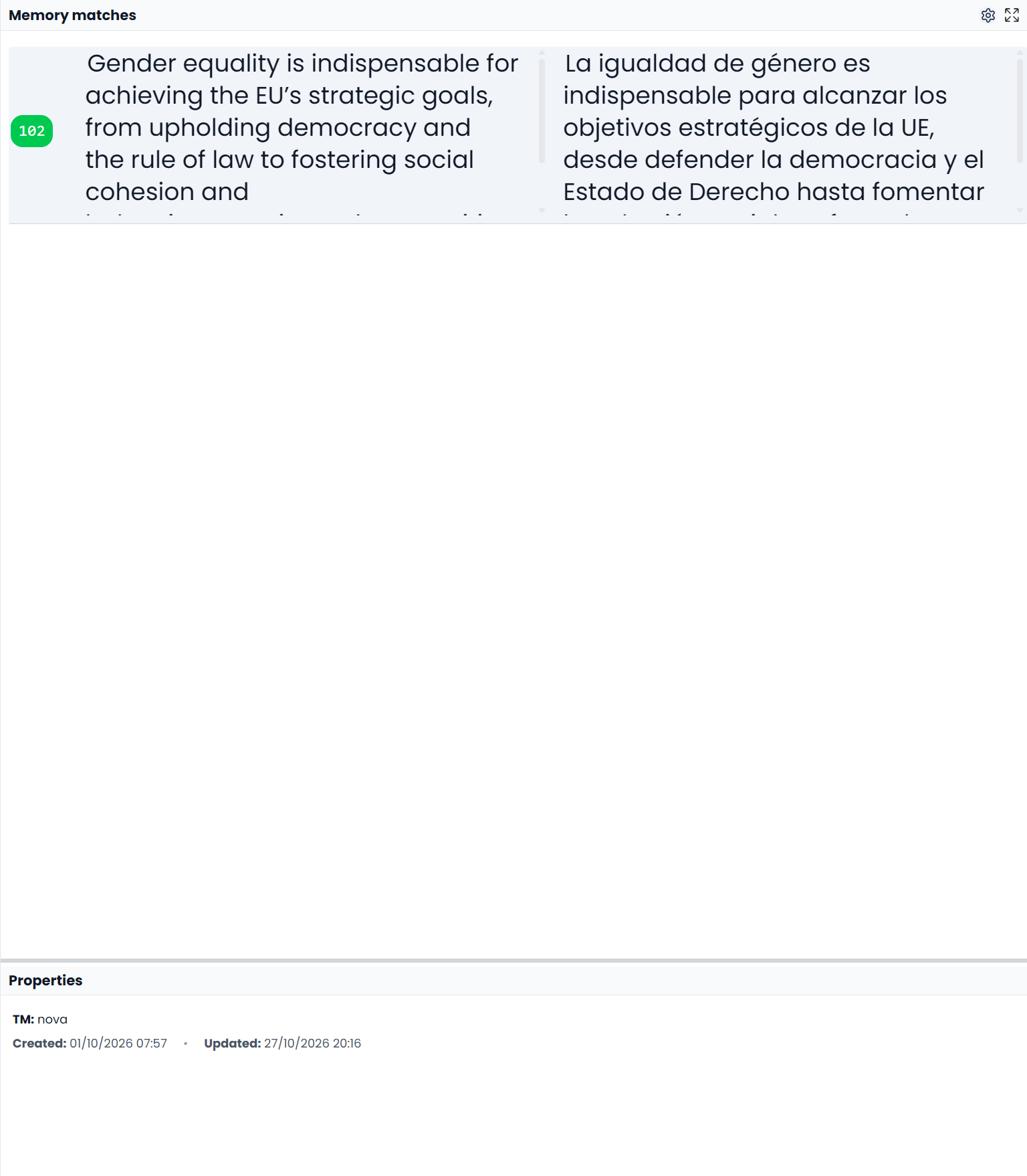
Matches shows previous source and target pairs found in the translation memories attached to the project. It helps answer: “Have I translated this sentence, or something similar, before?”
The tab is labeled Matches; the content heading is Memory matches. Glossary results have their own Term Matches tab.
Read the list
Each match shows a score and the saved source and target. The score describes how closely the saved source matches the current source. Read the target to decide whether it fits the current sentence.
Click a row once to select it. Inspect its difference comparison and any mismatch indicators. Changes involving a number, name, tag, or qualification can require substantial attention even when the sentences look almost identical.
Where the selected match has saved memory information, the Properties area below the list shows its memory, available user information, and creation and update dates. Drag the divider inside this tab if you need more room for either matches or properties.
Insert and adapt a match
- Select the segment to translate.
- Open Matches and single-click a promising match.
- Compare the old source with the current source.
- Double-click the match to insert its target, or use Ctrl+1, Ctrl+2, and so on for the corresponding listed match.
- Edit the inserted wording to account for the differences.
- Check the complete target and confirm it when you approve it.
Insertion updates the target. It is not merely a copy to the clipboard. Check an existing target before replacing it with a different match. Do not infer approval solely from the fact that a target was populated; confirmation and status behavior are explained in Translation memories.
Use the settings menu
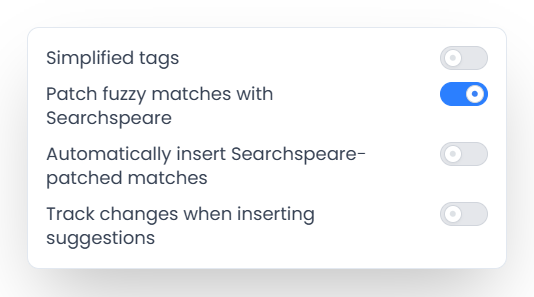
The header's settings menu offers:
- Simplified tags, to change how tags are displayed in matches.
- Patch fuzzy matches with Searchspeare, to request adaptation of a similar saved translation.
- Automatically insert Searchspeare-patched matches, for automatic insertion when that assistance is enabled and available.
- Track changes when inserting suggestions, to control whether applicable insertions record revisions.
The adapted proposal belongs to Suggestions, while Matches remains the place to inspect the saved translation. Automatic insertion is a preference with an editing effect, so read the actual target rather than assuming every displayed suggestion is still pending.
Work in a separate window
Use the header's detached Matches action when you want the list on another screen. While that window is open, the inline panel can show a notice instead of duplicating the lookup. Keep the main workspace open and select a segment there. Close the detached window to return matches to the editor.
Investigate an empty list
Check resources when matches are missing
Check that a segment is selected, a suitable memory is attached, and the language pair is correct. No relevant result is different from a lookup-unavailable message; use the retry action when the app reports a lookup failure. For a phrase that does not produce a useful whole-sentence match, try Concordance.