
Create a custom search link
A search link is a saved instruction for looking up new wording on a website. You start with a search that already works, then mark the part of its address that should change for each lookup.
Quick steps
Run an example search on the website and copy its result address. Use the link wizard to turn the search text into a placeholder, check any language placeholders, then name, save, and test the link.
For example, a website address might contain your example query, pressure valve. A reusable link replaces that fixed wording with a search text placeholder. When you later research safety switch, Searchspeare inserts that new wording instead.
The link opens a website search. It does not copy a result into your translation or save a term automatically.
1. Copy the address of a search result
- Open the reference website in your browser.
- Use its own search to look up a distinctive example word or phrase.
- If it is a bilingual resource, choose the appropriate language direction there.
- Wait for the results, then copy the complete address from the browser's address bar.
- Keep a note of the exact wording you entered in the search field.
Copy the results address rather than the website's home page. A home-page link can open the site, but usually does not contain enough information to repeat the search with different wording.
Use an ordinary phrase, such as pressure valve, for the example-query field. If the address displays it as pressure%20valve, still enter the readable phrase rather than copying %20 as part of your query.
2. Start the link wizard
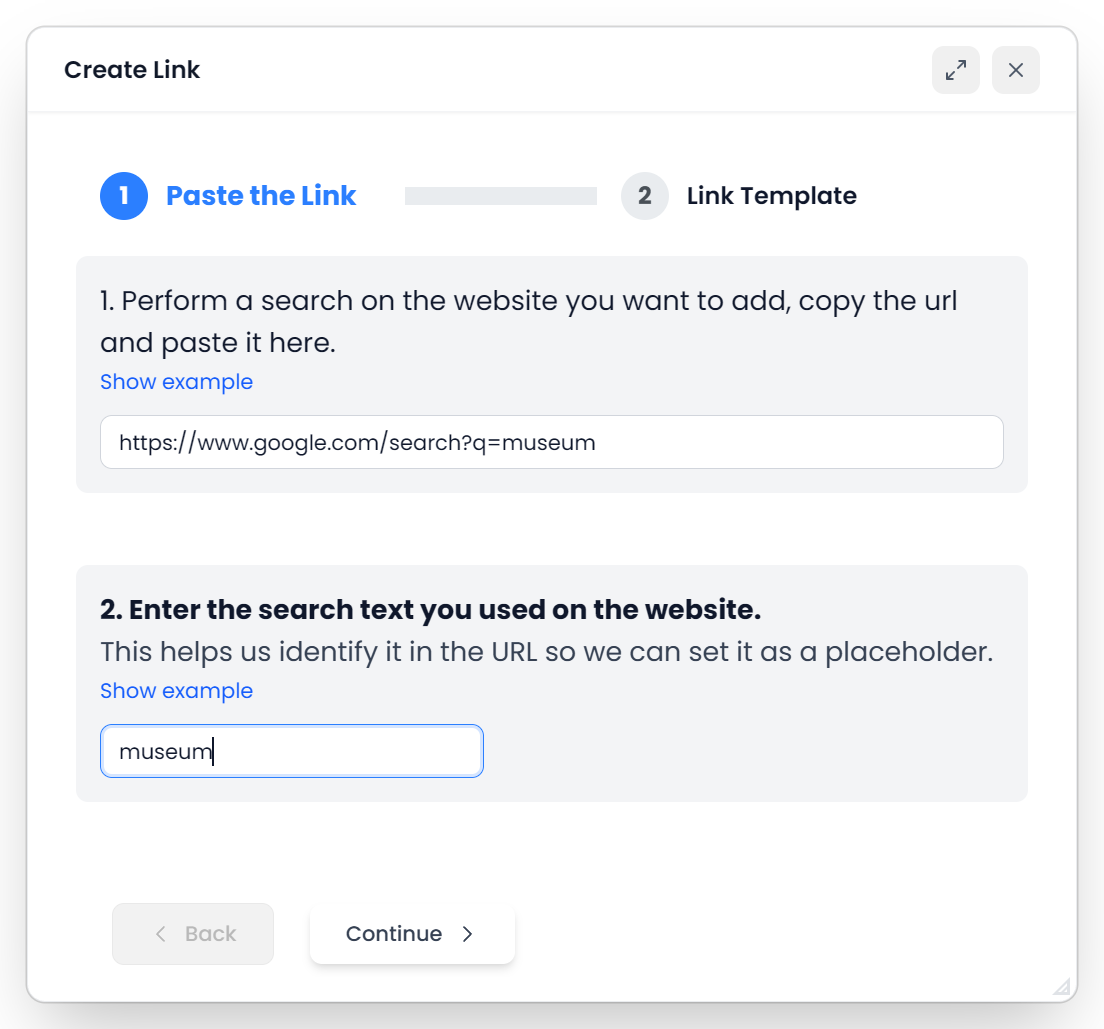
Open Multi Search → Links Store, then choose New. The dialog is titled Create Link.
In the first step, Paste the Link:
- Paste the result-page address.
- Enter the exact example search text in the query field.
- Continue to Link Template.
Both fields are needed. The example text tells Searchspeare which part of the address should become reusable. The wizard can recognize ordinary encoded spaces and common separators, as well as supported language names or codes.
You can also start Create New Link inside a search group. That creates the link in the Links Store and adds it to the group. See Create search groups.
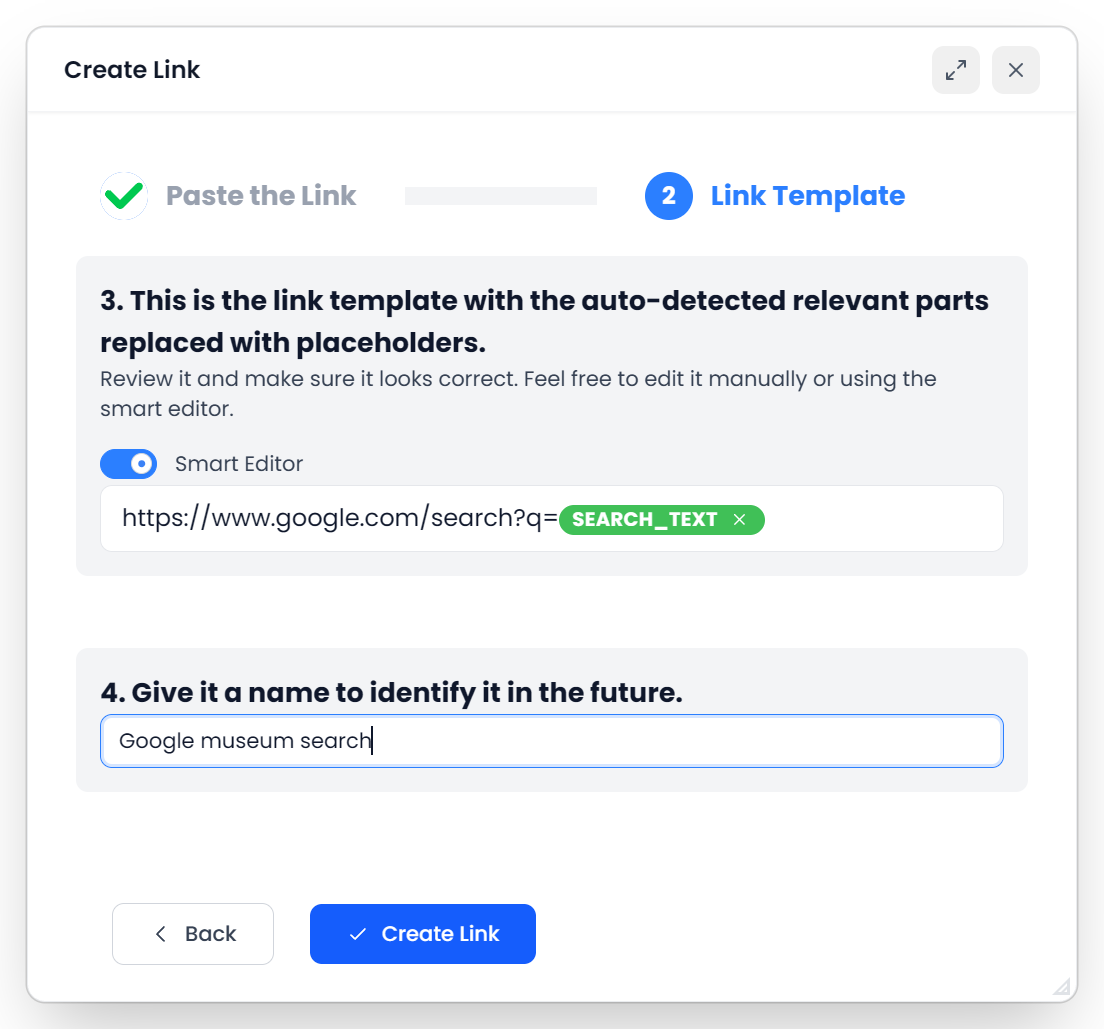
3. Inspect the generated template
A placeholder is a part of the link that Searchspeare fills in at lookup time. In Smart Editor, placeholders appear as labeled chips, such as search_text or source_language_code. The rest of the address remains fixed.
Check that:
- The example query became a search-text placeholder.
- The website address and the surrounding search settings are still correct.
- Any detected source and target language positions have the intended roles.
- Values that should stay fixed have not accidentally become placeholders.
Automatic detection recognizes patterns in the address; it does not know the meaning of every website's settings. A detected language code may need correction, and some sites use a fixed language or a different code convention.
A worked template example
These addresses are illustrative. Use the address from your own working reference website.
Example result address:
https://reference.example/dictionary/en-pt?query=pressure%20valve

Example query:
pressure valve

Reusable template:
https://reference.example/dictionary/{S2L}-{T2L}?query={ST}
Here, {ST} is the new lookup text, while {S2L} and {T2L} supply the lookup's language codes. The fixed /dictionary/ path and query= setting stay in place.
If you always want this link to search one fixed direction, keep those website language values fixed instead. A placeholder is useful only for a value you want Searchspeare to change.
4. Correct a placeholder if necessary
In Smart Editor, select the literal text in the address that should change. Choose a suitable placeholder from the list that appears. The choices depend on the selected text: a recognized language code offers language choices, while wording with a separator offers the corresponding search-text choice.
Use Simple Editor when you want to inspect or type the complete template as plain text. Preserve the braces and exact placeholder spelling. You can switch back to Smart Editor to inspect the labeled chips.
| Smart Editor label | Simple Editor form | Meaning |
|---|---|---|
search_text | {ST} | The selected lookup wording, preserving its case and accents |
search_text_with_plus_signs | {STP} | Lookup wording with spaces changed to plus signs |
search_text_with_hyphens | {STD} | Lookup wording with spaces changed to hyphens |
search_text_with_underscores | {STL} | Lookup wording with spaces changed to underscores |
search_text_without_accents | {ST_ASCII} | Lowercase lookup wording with accents removed and spaces changed to plus signs |
source_language_code / target_language_code | {S2L} / {T2L} | Two-letter language codes, such as en and pt |
source_language / target_language | {SL} / {TL} | Lowercase language names, such as english and portuguese |
Choose the search-text form that fits the website's working address. An underscore-based page title and a search field using normal spaces can need different templates. Searchspeare encodes inserted values for a web address; enter readable lookup text rather than pre-encoding it yourself.
The language placeholders follow the lookup direction. When you research a selected target-language phrase, Searchspeare uses that phrase's language as the lookup source and the other language as the lookup target. Using research links gives an example.
5. Name, save, and test the link
Give the link a name that identifies the resource and purpose, such as Technical dictionary or Manufacturer manuals. Finish with Create Link.
Then add it to the segment toolbar and test it from a real language pair:
- Select wording different from your original example query.
- Run the link and check that the new wording reaches the website.
- Try a phrase containing a space.
- Check accents or punctuation if you expect to research them.
- Check the language direction, including a target-side lookup if relevant.
The Links Store's Open URL action opens the resource's home page. Use an editor lookup to test whether the saved search template substitutes text and languages correctly.
If Searchspeare reports that the link already exists, find the saved link and edit or reuse it. Renaming the same address is not a way to create a different search.
Edit the saved link and set its languages
In Links Store, use the link's Edit action. You can change Name, Languages, and Link Template, then choose Accept.
Leave Languages empty for a general-purpose link. For a language-specific resource, select the languages it supports. An individual toolbar link is offered according to the language of the active source or target text. These language choices control availability; they do not add missing language placeholders or change the website's search direction.
Language choices come from your working languages. Check Settings if the language you need is not available.
Editing a link inside a group changes that group's version. Editing its Links Store entry changes the library version. Do not assume one edit updates every group that already contains the link; check the groups where you use it.
Create a site-specific Google search
If a site does not offer a reusable search address, you can create a Google search restricted to that site:
- Choose Google Search in Links Store, or Create Google Search Link inside a group.
- Enter the site's address.
- Give the link a recognizable name.
- Choose Create Link.
This creates a search containing a site restriction and the lookup phrase in quotation marks, with a language restriction based on the active lookup language. It uses Google results for the specified site rather than the site's own search form. Test its results with the wording you expect to research.
Troubleshoot a custom link
| Symptom | What to check |
|---|---|
| Every lookup repeats the example query | Inspect the template: the example text may still be fixed instead of a search-text placeholder |
| The template did not change in the wizard | Check the exact example query and result address. Use Smart Editor or Simple Editor to correct the changing part manually. |
| A language or placeholder appears literally on the opened page | Test from an editor with a real language pair; check placeholder spelling and the site's required language format |
| A multiword phrase behaves incorrectly | Compare the website's working address with the saved search-text placeholder and separator style |
| The link is missing from the toolbar | Check toolbar inclusion, the active phrase selection, and the link's Languages field |
| The website changed its search layout | Run a fresh search there, copy the new result address, and revise the template |
Some sites keep search state outside the address. If changing the address does not reproduce a new search, the normal link-template workflow may not suit that site. Use a suitable site-specific search link or consult the site directly.