
Term Matches tab
Term Matches shows relevant source and target terminology for the active segment. Its content heading is Terms. Use it to check the approved or forbidden wording recorded in your glossaries while translating a sentence.
A term inserts wording for part of the segment
Unlike a memory match, a term entry usually represents a concept or expression rather than a complete sentence. Inserting it does not translate the rest of the segment.

Read an entry
Read the source term and its target together. A Forbidden label identifies wording recorded as disallowed on that side. Check that the term represents the same concept in the current sentence before using it.
Recognition can be broader than literal identity. A result found through fuzzy matching still needs contextual inspection. Do not assume that every displayed result must be inserted into the target.
Insert the target term
- Select the relevant segment and place the caret where the target term belongs, or select wording you want to replace.
- Open Term Matches.
- Check the entry and any Forbidden label.
- Use the entry's insert arrow, where offered, to insert the target term at the current target selection.
- Adjust surrounding grammar and spacing in the sentence.
The arrow is offered when a permitted target term is missing from the current target. A forbidden target is not offered for insertion. The entry's right-click menu also provides Insert target for permitted wording.
Adjust “Override match type”
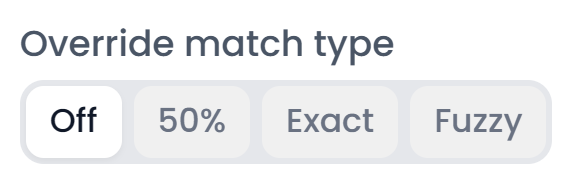
The control above the entries overrides how term matching is chosen across the lookup:
| Choice | Meaning |
|---|---|
| Off | Use the matching behavior saved with the terms |
| 50% | Use the initial-half matching mode to recognize word beginnings |
| Exact | Require exact matching |
| Fuzzy | Allow approximate matching |
Off turns off the override; it does not turn off terminology lookup. Use it when you want each entry's own matching settings to govern recognition. Glossaries and terms explains exact, prefix, fuzzy, and explicitly marked forms in more detail.
If results become too broad, try Exact and check the stored entry. If an expected inflected form is missed, inspect the intended matching mode before adding duplicate entries for every spelling variation.
Edit or delete an entry
Right-click an entry and choose Edit to open its term editor. Check the wording, matching settings, examples, and forbidden status, then save the entry.
Delete term deletes the concept from the glossary. To change how a valid entry is recognized in the current text, use Override match type instead.
For an empty tab, check the active segment, attached glossaries, and languages. If lookup is reported unavailable, retry it. To investigate recurring wording that is not yet in a glossary, use File Index; to inspect extracted pairs from confirmed translations, use Adaptive Learning.