
Create search groups
A search group brings several search links together so you can research the same wording in several resources with one command. Each member keeps its own search template. The group opens their results; it does not combine them into one Searchspeare result list or decide which answer is correct.
Quick steps
Create a group, add existing links or create a link inside it, check the members, and finish. Add the group to the editor toolbar to open its resources together for selected text.
For example, Engineering references could contain a specialist dictionary, a manufacturer's reference search, and a site-specific search of a standards resource. Choose a few sources that answer different research questions.
Create and test the individual search links first, or create them while editing the group.
1. Create the group
- Open Multi Search → Search Groups.
- Choose New, or use the group-creation button on an empty page.
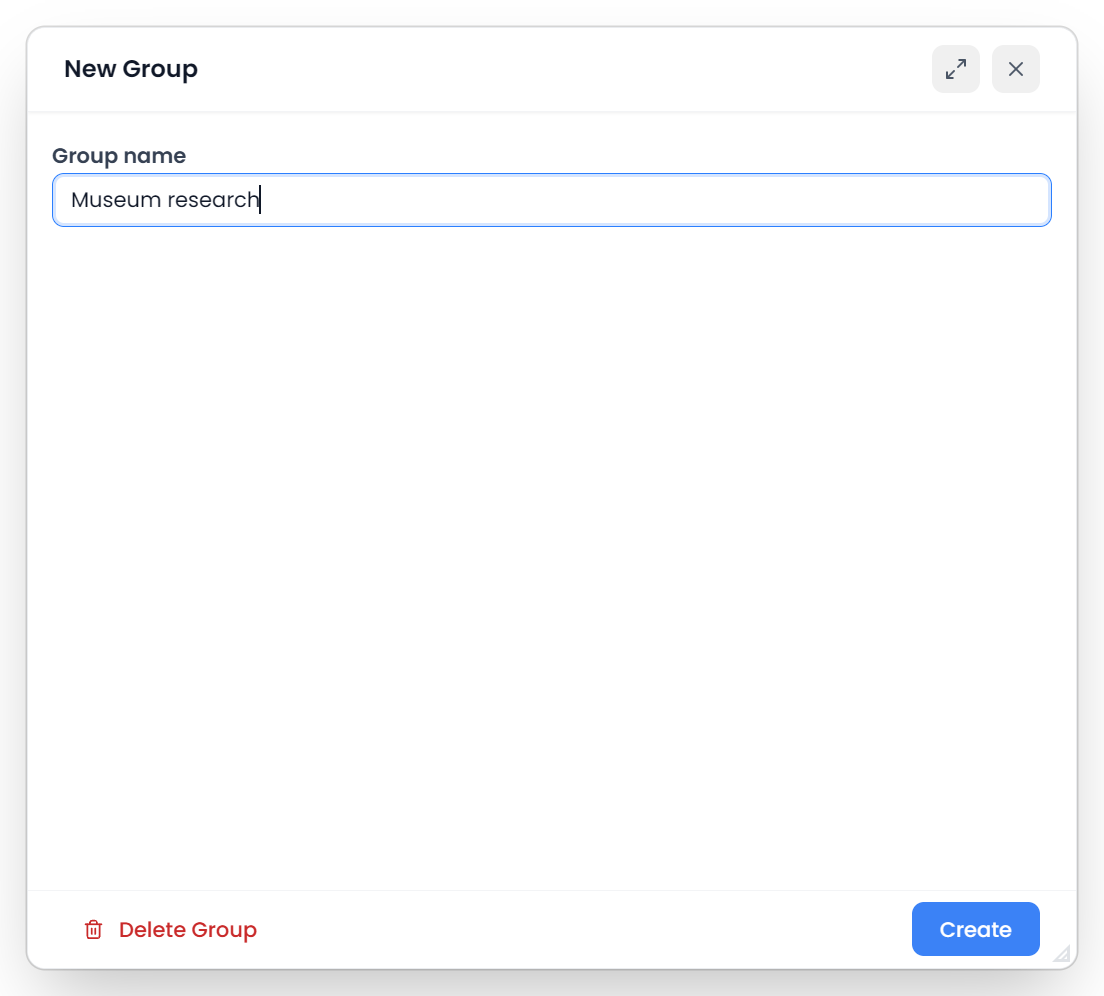
- Enter a Group name that explains its purpose.
- Choose Create.
The created group's editor remains available so you can add links. Naming a group does not add any resources to it automatically.
Use names such as Legal research or Portuguese terminology that will be recognizable in the segment toolbar. Separate groups by subject, client, language, or the kind of evidence you need.
2. Add existing links
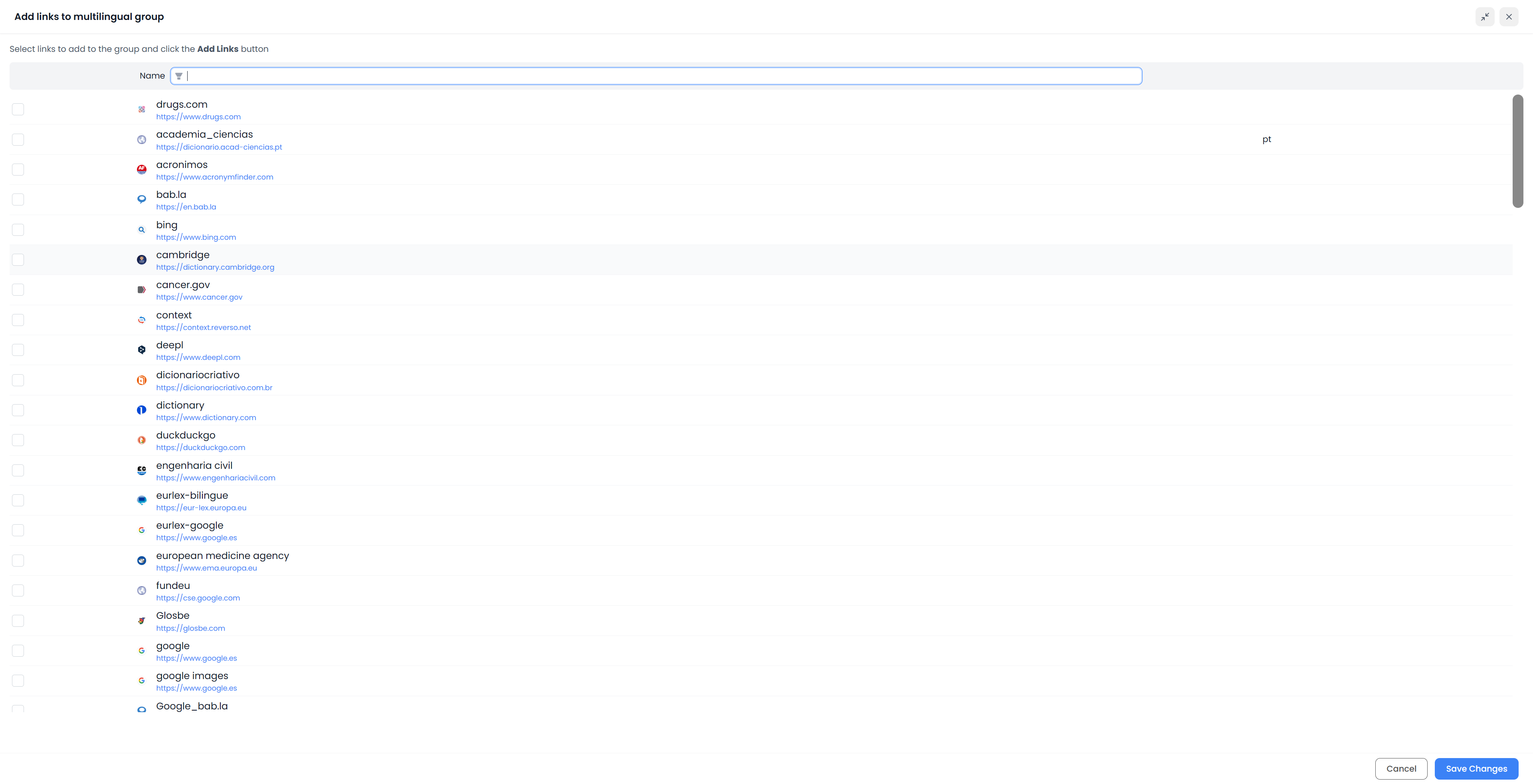
Inside the group, choose Add Links from the Store.
- Find the saved links you want to include.
- Check the intended links. Existing members are already checked.
- Keep existing members checked if you still want them.
- Choose Save Changes.
This is a membership editor: unchecking a displayed existing member removes it from the group when you save. A member hidden by the current picker filter is preserved. Clear the picker search if you want to review the complete set before saving.
Adding the same search template more than once does not create useful additional searches; the group avoids duplicate templates. Check the group's Links list after saving.
3. Create a link directly in the group
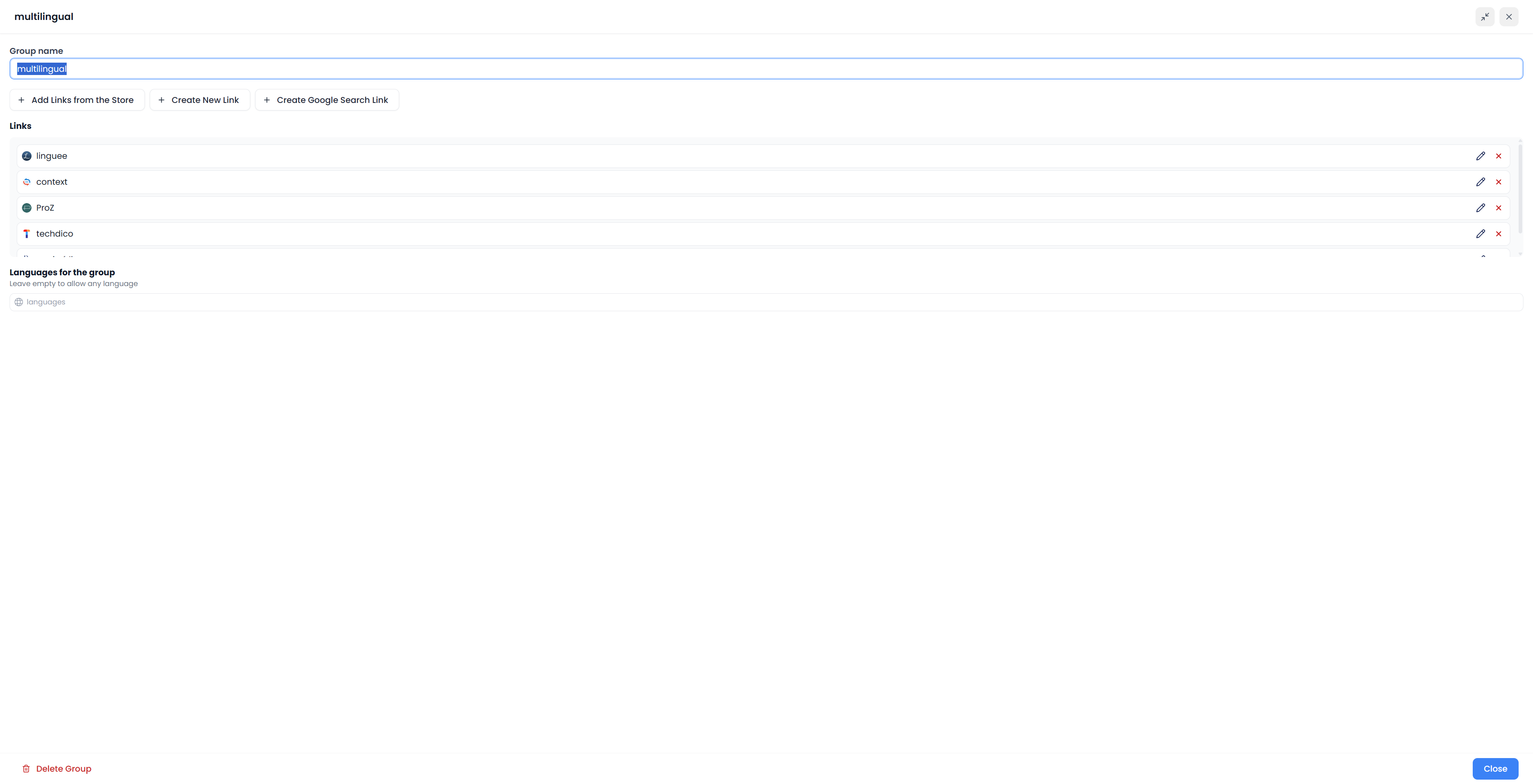
The group editor offers three routes:
| Action | Use it when |
|---|---|
| Add Links from the Store | The reusable link already exists |
| Create New Link | You have a working website result address and example query |
| Create Google Search Link | You want a site-specific search through Google |
The two creation actions save the new link in Links Store and then add it to the current group. Follow the custom search-link guide for the address, placeholder, and testing steps.
If a message says the link was saved but could not be added to the group, find it in Links Store and add it through Add Links from the Store. Check membership before creating another copy.
4. Check the group and finish
Inspect the member names and templates. Use a member's Edit link action to adjust its name, template, or supported languages, then Accept the link edit.
Languages for the group records its intended working languages; leave it empty for a general-purpose collection. This does not translate a member's fixed address or repair its language direction. When running a group, Searchspeare opens all links included in it, so choose members that suit the lookup you intend to make.
Choose Close to finish editing the group. Membership changes save when you use their controls, and an existing group's name saves as you edit it. Close also saves the group's current settings, including language choices. Closing is not a general rollback of changes already saved.
5. Put the group in the editor toolbar
- Open a translation, alignment, memory, or termbase editor.
- Open the segment toolbar's gear.
- Choose Groups and search for your group.
- Select it and close the configuration.
- Select the wording to research, then run the group button.
Adding a link to a group and adding that group to the toolbar are separate steps. You do not also need to add every member individually to the toolbar to run the group.
Each member receives the same lookup text and the language direction supplied by the active editor context. Review the opened searches, especially when looking up a target-language expression. Using research links explains selection, language direction, and browser tabs.
Organize and maintain groups
Reorder cards and members
On the Search Groups page, use a group card's drag handle to change the card order. Clear active group filters first; rearranging the group cards is disabled while the page is filtered.
Within a card, drag a member link by its handle to change its position in that group's list. Order changes are saved. Keep the most useful resources easy to find, and inspect any message that says an order change could not be saved.
Find a group
Show the page filters when needed. Choose Name to match a group name, or URL to find groups through a member's name, address template, or domain. Use Clear filters to return to the complete group list and restore card rearranging.
These filters organize group cards. They do not filter translation segments or change the lookup text sent to a website.
Edit a link inside a group
The group's Edit link changes the version saved in that group. The Links Store's Edit changes the library entry. An existing group does not automatically follow every later change to the library entry.
If you correct a broken template in Links Store, review the groups that contain it too. You can edit the member inside each group, or remove it and add the corrected library version again.
Remove a link or delete a group
Use Remove link in the group editor to remove that member from this group. This leaves its saved Links Store entry available for other uses.
Use Delete Group to delete the group after the confirmation. This removes the collection, not the separate saved links from Links Store. To stop showing a group button without deleting the group, deselect it in the segment toolbar's configuration.
Test the completed group
Run it from a selected phrase in an editor. Check that every intended member opens with the new wording and the appropriate direction. If only some results appear, check browser pop-up handling and the saved member list. If one resource has the wrong query, correct that member's template.
Start with a small group and add resources when they contribute useful evidence. The value of a group comes from the quality and relevance of its references, not the number of tabs it opens.