
Reviewing QA results
A QA result means a check found a condition to investigate. Read the source, target, and requirement before deciding whether to correct the text or accept it as an exception.
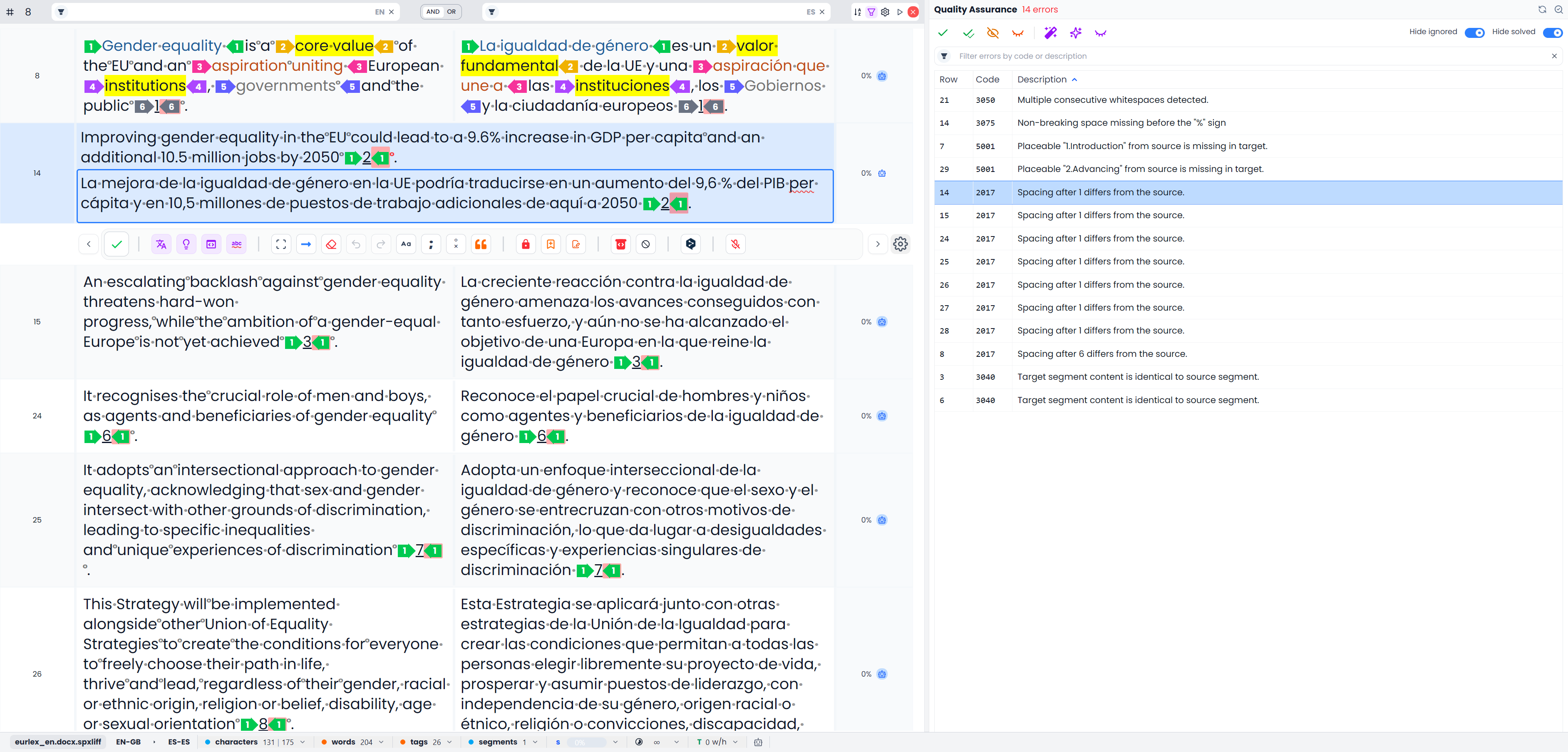
The QA panel has its own result list. Selecting a finding in that list is different from selecting segment rows in the editor.
Open the results
- Open the file or View you want to check.
- Click Quality Assurance in the side-panel toolbar.
- Select the intended profile and choose Run QA, or inspect the results already restored for this file.
The profile run checks unlocked segments across the whole open file or View. Selecting a few document rows or filtering the table does not narrow that run. If the restored results predate your corrections, use Recheck QA before relying on them.
Read a result row
| Column | What it tells you | What clicking does |
|---|---|---|
| Row | The affected segment's displayed number | Selects the segment and filters the document table to selected content |
| Code | The rule that reported the issue | Filters document segments associated with that rule among the current QA results |
| Description | The particular finding, including relevant wording where available | Filters document segments associated with that specific message |
For example, clicking a spacing code can help you review that type of problem together. Clicking a particular description can narrow the investigation further. The affected wording is highlighted where the finding supplies a position; not every finding can point to one precise character range.
Inconsistent-translation findings have special grouping: the table can include the related target variants for that source group so you can compare them before choosing a preferred translation.
Filter and sort the result list
Use Filter errors by code or description to narrow the QA list. A description search matches the message; a code search can match the start of a rule code. The field also supports negating the search.
Click the Row, Code, or Description column heading to sort. Click again to reverse the direction. Use Hide ignored and Hide solved to decide whether completed decisions should remain visible.
These are QA-list controls. The document table has its own source/target searches and filters. Clicking a QA result can apply a document filter as described above; merely seeing a short QA list does not prove that the file contains only those segments.
New, Ignored, and Solved results
| State | Meaning |
|---|---|
| New | The reported issue still needs a decision or correction |
| Ignored | You dismissed the finding as an acceptable exception |
| Solved | The finding has been resolved during checking or correction |
Ignoring a result does not change the text
Ignored does not mean the wording was changed. Solved does not mean the whole segment or file is approved. Confirmation remains a separate translation-workflow decision.
An empty visible list can mean the QA search or hide switches excluded the results. Before interpreting “no errors,” check that the run completed, that you chose the intended profile, and that the QA list is not simply hiding the remaining findings.
Correct, ignore, or investigate
For a real error, edit the target or use a suitable fix action. For a valid exception, use Ignore. For an uncertain result, inspect neighboring content, the project instructions, or terminology before deciding.
To reconsider an ignored finding, turn off Hide ignored, select it, and use Don't Ignore or the ignore toggle. It returns to the unresolved review state without changing the text.
Check the scope of Ignore All
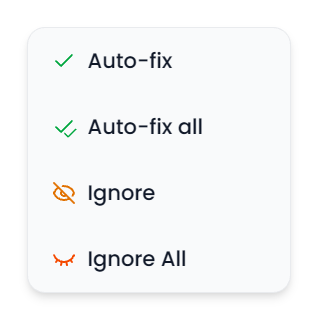
Ignore All follows the active result context:
- A row context concerns findings for that segment.
- A code context concerns findings from that rule.
- A message context concerns findings with that specific message.
- Without a matching active context, the selected finding's rule supplies the group.
This group is not restricted merely by selecting a few editor rows or hiding entries through the QA search. It can affect matching findings elsewhere in the stored QA result set. Use individual Ignore when you intend one exception.
The corresponding Don't Ignore All restores ignored findings in that context. These bulk ignore actions do not turn solved findings back into unresolved ones.
Recheck or reset
Recheck QA runs the last selected profile against the current unlocked segments in the open file or View. Use it after corrections, changed resources, or other work that makes the previous results insufficient.
Matching ignored findings can remain ignored across rechecks. A recheck is therefore different from beginning a review with no saved exception decisions. A newly detected problem is not protected simply because an earlier, different finding was ignored.
Reset QA clears the saved results and review decisions for the open file or View, then shows the profile controls again. Use it to choose another profile or start a new check. Your text corrections and saved profiles are kept.
Searchspeare can restore saved QA results when you return to the same file or View. Treat them as a previous review record until you have rechecked changed content. Some editing operations refresh affected findings during work, but a final complete recheck is still useful.
Restore the document table
After investigating a result, use the document filter bar's X labeled Clear all when you want every segment in the open file or View again. It clears searches, filter conditions, automatic result-set restrictions, and sorting.
This is different from Reset QA. Clear all restores the document's working view; Reset QA removes the QA review record. If the document is a saved View, clearing its filters still shows only that View's members.
For a complete explanation of selected, filtered, and whole-file actions, see Selecting segments and batch actions.