
Additional tool tabs
Some tabs appear after you run a command or receive a particular review result. They occupy the panel's additional-tool position. Their appearance means there is a tool or decision to work with; it does not mean its contents have been applied.
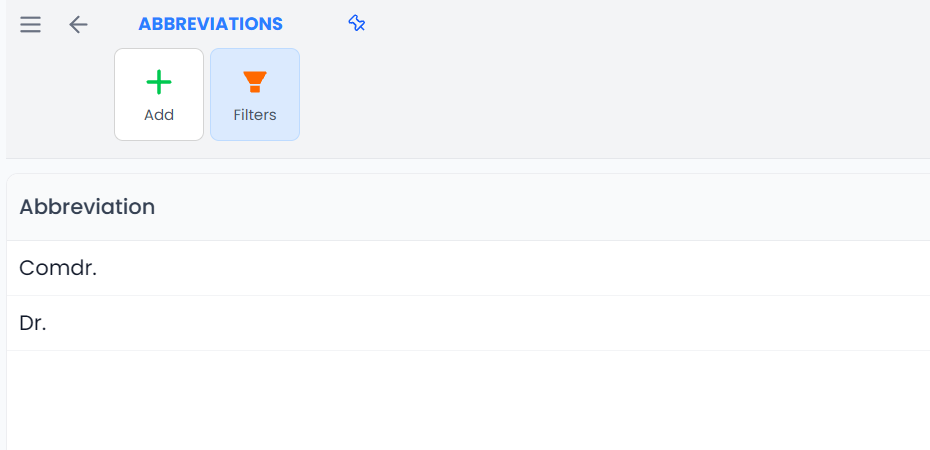
Abbreviations
Open Abbreviations through the segmentation commands. The panel opens the abbreviation controls using the current project's source language.
An abbreviation list helps sentence segmentation recognize that a full stop can belong to an expression such as a title or shortened name rather than end a sentence. It is a segmentation resource, not a text-replacement list.
Check the current project's source language, search for an abbreviation, and add missing entries. The add action accepts one abbreviation per line. Use the entry's edit controls when an existing spelling needs correction, or remove an entry that should no longer be recognized. To manage named lists and language defaults, use the separate abbreviation-list pages described in Segmentation and abbreviations.
Changing a list does not, by itself, resegment all previously imported content. Review the relevant segmentation operation before applying a new split to existing work. See Segmentation and abbreviations.
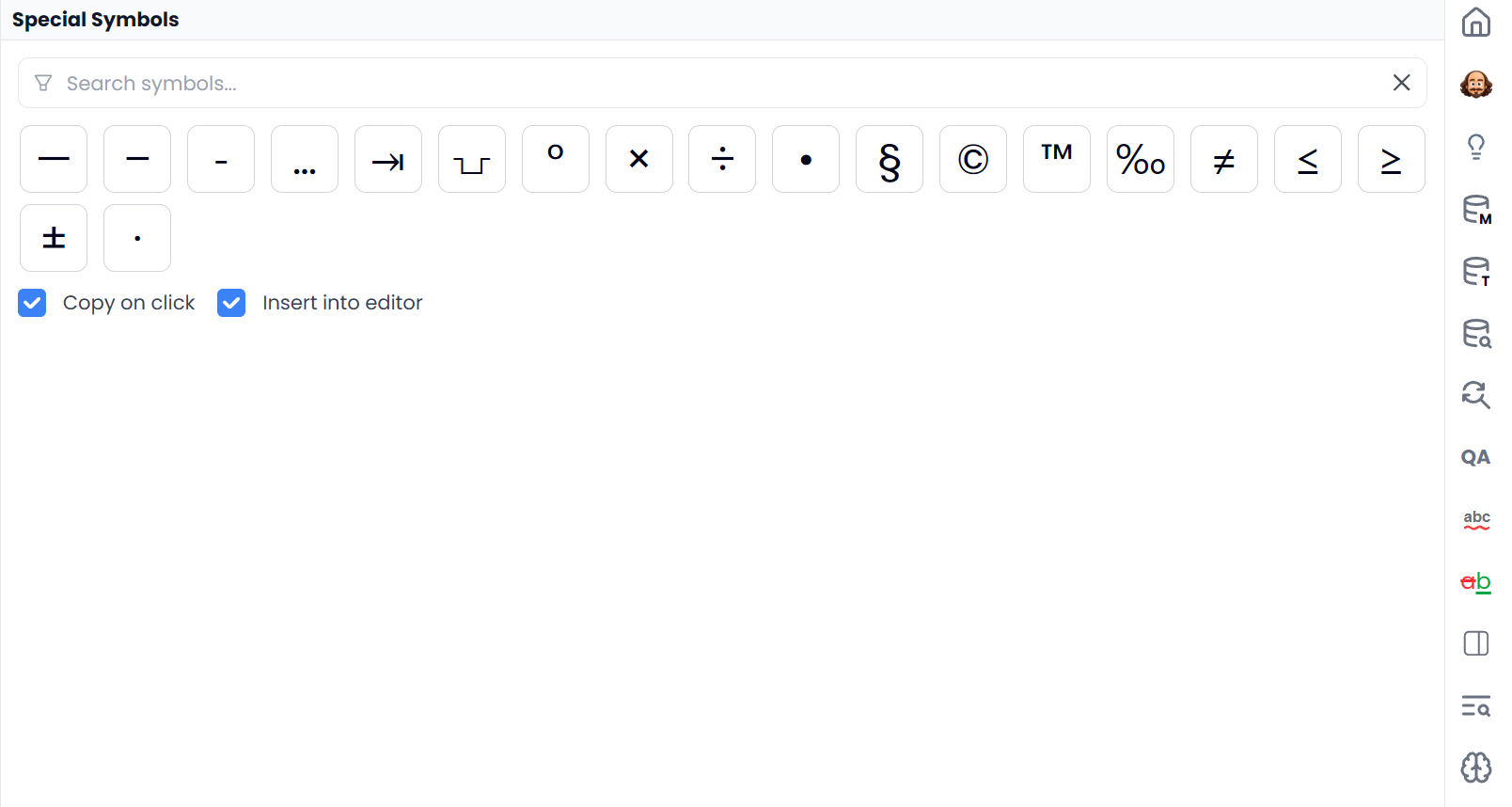
Special Symbols
Run Symbols to open Special Symbols. This tab helps you insert characters that can be difficult to type or distinguish visually, such as specialized spaces and punctuation.
- Place the caret in the target where the character belongs, or select the text to replace.
- Open the symbol tab and filter by the character's name if necessary.
- Check the copy and insert choices before clicking a symbol.
- Click the character, then inspect the target or paste the copied character as intended.
Copy places the character on the clipboard. Insert adds it to the active target editor. Both choices can be enabled together. Hover over a character for its name; supported symbol buttons also offer shortcut editing through their right-click menu.
Two spaces can look alike while behaving differently. Use non-printing-character display and tag tools when you need to inspect what is actually in the segment.
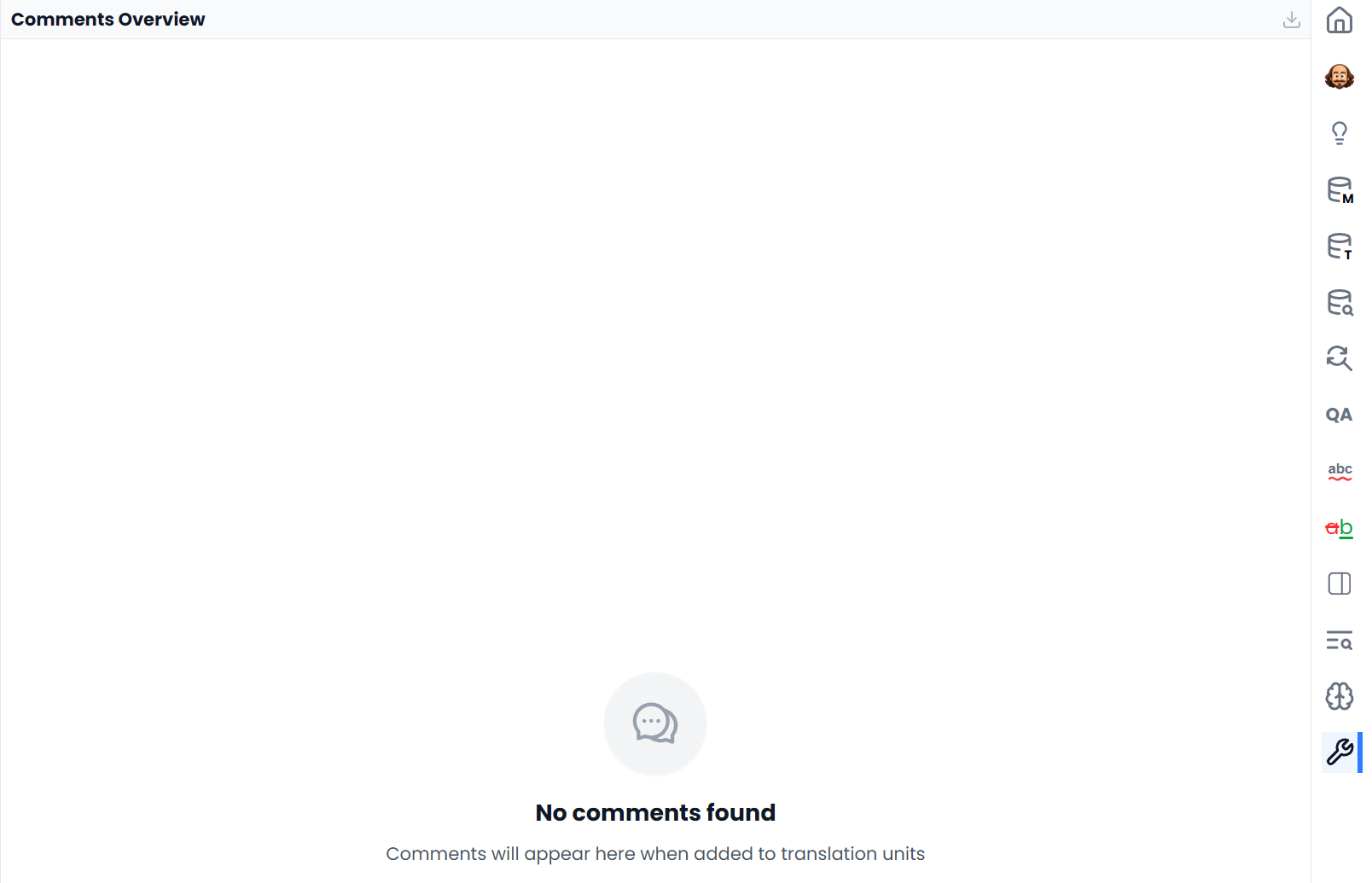
Comments Overview
Run Comments to open Comments Overview. It lists the comments in the open file or View so you can review questions across segments without visiting each row first.
- Click a comment row to select its segment in the editor.
- Search by comment wording or author to focus the list.
- Sort by segment, comment, or author using the column headings.
- Right-click a row for its available comment actions, including editing, resolving or reopening, and deletion as permitted.
- Use the download action to export a Word report of the comments matching the overview search, grouped with their segment context.
Comments Overview covers the open file or View
The overview search filters comments for inspection and the report. It does not edit their text or answer the questions they contain. If you are working in a View, remember that it may not contain every segment in the project.
Use New Comment on relevant text to create a new question or note. See Comments and tracked changes for the complete comment workflow.
XML
Select the segment, then choose Tags → XLIFF in the ribbon to open the XML tab, headed XLIFF Code. It shows the selected segment's source and target markup as read-only text. Use it to inspect the exact tags when the editor's tag display does not show enough detail.

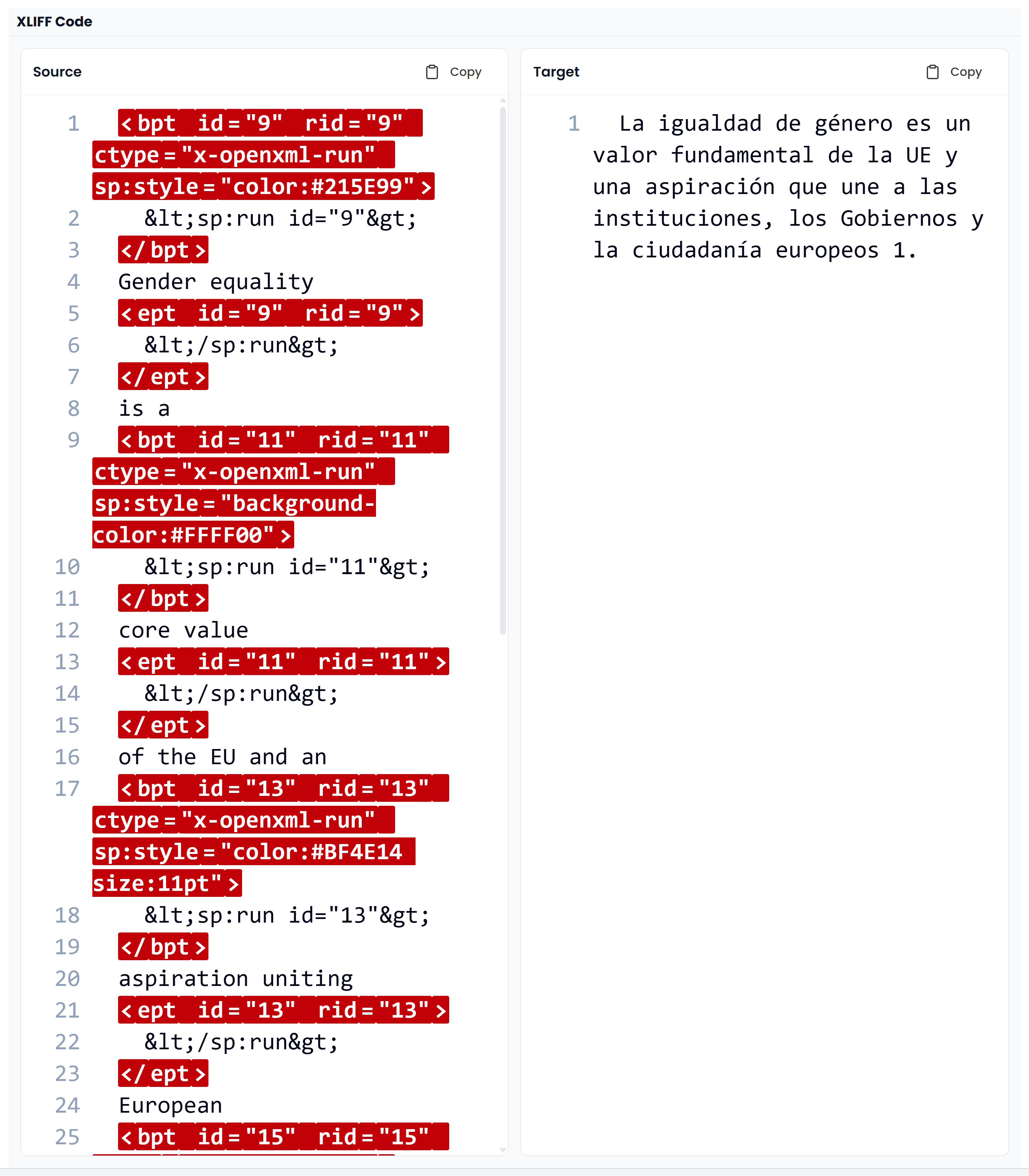
The source and target areas include highlighted tag differences, line numbers, and separate copy actions. In a narrow panel they stack vertically; a wider panel can show them side by side.
You do not need to learn this notation for everyday translation. Start with the normal tag display and Handling tags. If a particular tag problem needs investigation, select the affected segment, open XML, compare the tag information, and copy the relevant side when you need to share a precise example.
This tab is an inspector. Make supported corrections through the editor or tag-repair tools; copying the displayed markup does not change the segment.
Changes preview
Changes preview appears when an operation supplies proposed text changes for review. It lets you compare current and proposed wording before deciding what to apply.
- Read the request or operation that produced the proposals.
- Inspect the affected rows and their differences.
- Check meaning, terms, numbers, tags, and surrounding grammar.
- Use the available individual-difference, row, or batch controls for the changes you want.
- Inspect the resulting working text in the editor.
Some previews let you leave individual differences out. Use this when one proposal contains a useful correction alongside an unwanted rewrite. A row-acceptance preference can also confirm the segment after an individual row is applied; check that preference before equating acceptance with a provisional edit.
Changing tabs or closing the panel does not accept its proposals. The editor's tracked changes are a separate record, managed in the Review tab. See Review proposed AI changes for a detailed decision process.
QA false positives
This tab appears after QA false-positive detection has identified reported issues that may not be actual errors. A false positive is a warning triggered by a valid part of the text.
See QA fixes and false positives for how to start this assessment, its eligible findings, and how it differs from requesting a text correction.
Click an issue's segment number or description to inspect the corresponding segment. Check the source, target, and requirement before dismissing it. Use the row's ignore action for an individual issue, or select the intended rows and use the bulk ignore action for that selection.
Review the row selection carefully: candidates initially start selected. Cancel returns to QA without applying the pending bulk selection. Issues you already ignored individually remain decisions you have made.
Ignoring a QA issue changes its review state. It does not rewrite the sentence or repair a real error. Leave doubtful cases for investigation in the Quality Assurance tab.
Searchspeare-discarded spelling errors
This tab lets you review dictionary spelling reports that Searchspeare identified as likely false positives. The name describes an AI assessment, not a guarantee that each word is correct.
Searchspeare spelling assistance explains how to enable this assessment, the separate AI correction workflow, and the candidate actions.
Click a word to filter the editor to its target occurrences and inspect them. Then choose the appropriate action:
| Action | Result |
|---|---|
| Keep as a spelling error | Remove the word from this dismissal review while leaving it available as an error |
| Ignore | Dismiss the corresponding spelling reports without changing the word |
| Add to dictionary | Save the valid spelling and dismiss corresponding reports |
| Ignore all | Dismiss the remaining candidate reports |
| Add all to dictionary | Try to save all remaining candidate words as valid spellings |
Bulk dictionary addition is appropriate only after you have checked the words. A misspelling added as valid vocabulary can stop being reported. If some words cannot be saved, Searchspeare reports the problem and keeps the unsuccessful items available for review.
An accepted spelling is not a maintained bilingual term pair. Use glossary tools for translation terminology and return to Spellcheck to continue the spelling pass.