
Reviewing spelling results
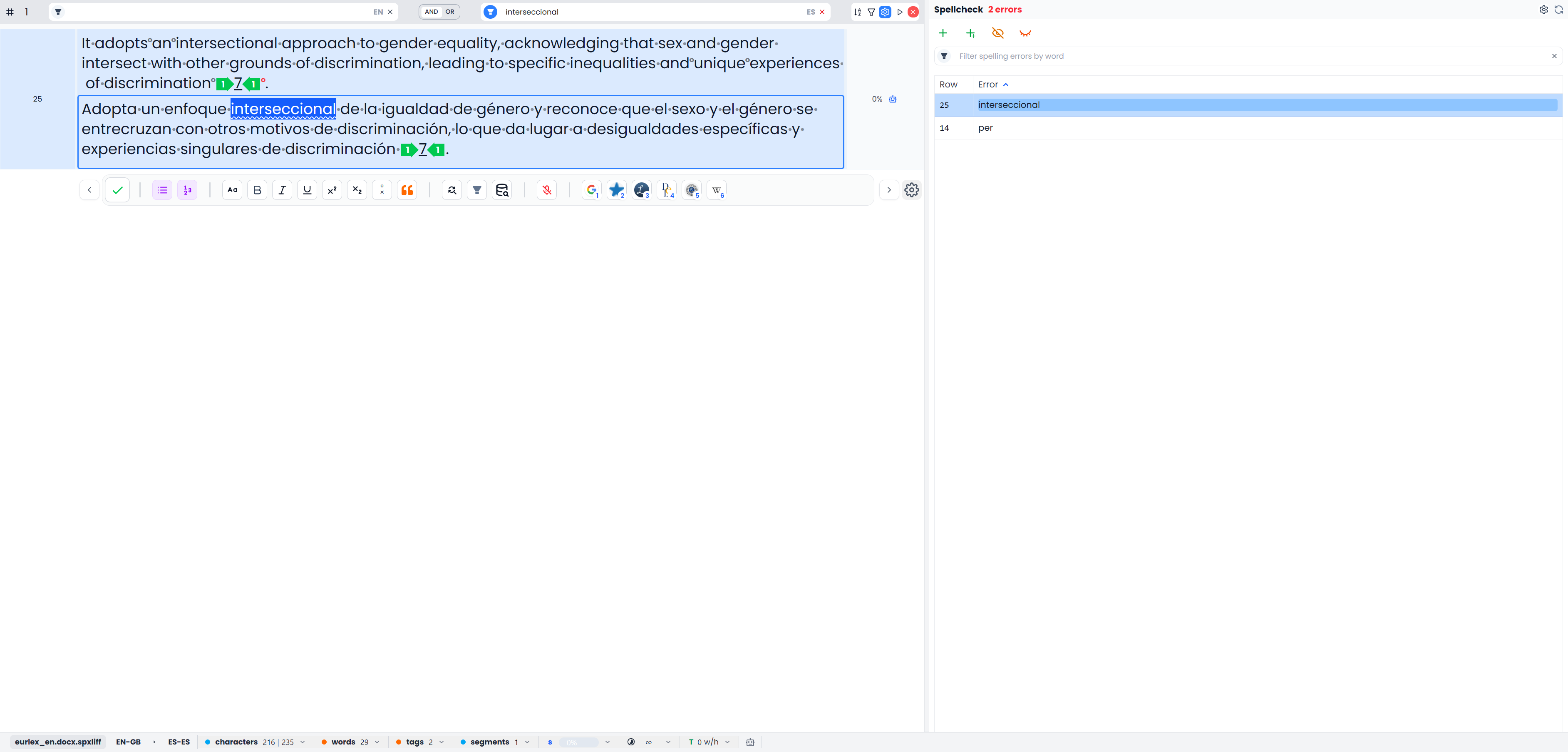
After a dictionary pass, the Spellcheck tab lists unresolved reports with a segment Row and the reported word under Error. Use the list to investigate occurrences in context rather than treating every unknown word as a mistake.
The spelling-result selection, the document's row selection, and the document's filters are separate things. Clicking a result connects them for an inspection task, as explained below.
Open dictionary results
- Open the file or View and set the document filters for the text you intend to check.
- Open Spellcheck in the side-panel toolbar.
- Select an installed Hunspell dictionary, leave Spellcheck with Searchspeare off, and choose Run spellcheck.
If no dictionary is installed, follow Dictionaries and installation first. The dictionary pass checks eligible filtered, unlocked target segments. Opening an old result list or clicking one of its words does not run a fresh pass.
What happens when you click a misspelling
Click the word, its row number, or the spelling-result row. Searchspeare:
- Selects the affected segment and prepares the target occurrence for inspection.
- Clears the document's source search.
- Sets the document's target search to the reported word.
- Uses literal, whole-word, case-insensitive matching.
- Clears other document filter conditions so the word's occurrences can be shown.
For example, clicking a report for “recieve” shows target segments containing that whole word. It does not show only the one row you clicked, and it does not search for a correct alternative such as “receive.”
This is a word-occurrence view, not a new spelling pass. If you originally checked a restricted set, the word search can show occurrences elsewhere in the loaded file or View too. Those additional occurrences were not necessarily part of the earlier check.
Other segments have not disappeared from the file. The document table is filtered for the current investigation.
Filter the result list separately
Use Filter spelling errors by word to narrow the Spellcheck list. Its search is case-insensitive and can be negated. Click the Row or Error heading to sort the findings, and click again to reverse the order.
The result search only filters existing reports
This field filters reports already returned. It does not retrieve new spelling findings and is different from the target search applied to the document table. Clearing it does not clear all document filters.
The current result list shows unresolved findings, rather than exposing the QA panel's Hide ignored/Hide solved switches. A short or empty list can therefore reflect prior review decisions or the result-list search. Run a new pass when you need a fresh assessment.
Correct a reported occurrence
- Click the report to bring its segment into context.
- Right-click the report to open its available correction suggestions and actions.
- Read the complete target sentence and compare the source where relevant.
- Choose the correct suggestion, or edit the target manually if none is suitable.
- Inspect the sentence after the change.
A suggestion changes the reported occurrence; it is not a replace-all action across every segment containing the word. Use Find and replace for a deliberate repeated correction, with its own scope controls.
If the target changed after the report was produced, or the occurrence cannot be corrected directly in its current state, refresh the spelling pass or edit manually. Do not repeatedly choose a stale suggestion assuming it must still refer to the same characters.
Corrections can advance the review to another unresolved item and change the word-occurrence filter to that next item. Check the current target search before starting an unrelated operation.
Choose between Ignore and Ignore all
| Result-list action | Effect |
|---|---|
| Ignore | Dismisses the selected occurrence from the current review |
| Ignore all | Dismisses reports for the selected word across the current spelling result set |
Ignore all groups the word without distinguishing letter case. It does not mean “ignore every different word currently visible,” and selecting a few document rows does not limit its group.
Ignoring a result does not add the word to the dictionary, so a later pass can report it again. Use Add to the dictionary for a valid spelling you want recognized beyond this review.
Add valid words to the dictionary
Use Add to the dictionary when the spelling is valid for the relevant language dictionary, such as a verified specialist term or name. Searchspeare saves the accepted word for that dictionary and dismisses corresponding word reports from the list.
The Add all action is much broader: it accepts the unresolved words across the spelling result set, not just the selected occurrence or the reports visible through the result-list search. Use it only after inspecting that full set. Adding a typo can cause later dictionary checks to accept it.
Accepted spellings are not bilingual terminology. To require a particular translation or forbid a term in a project, maintain a glossary or the relevant terminology QA requirements.
Use the editor's spelling menu
With an installed Hunspell dictionary active, right-click an underlined word in the target editor. The spelling part of the context menu can offer suggestions, Ignore All, and Add to dictionary.
The editor's Ignore All is different from the result-list action: it saves that word as an accepted spelling exception for the active dictionary. It can affect future dictionary recognition. Use it only for a deliberate reusable exception, rather than a one-off decision about one occurrence.
Browser-native feedback does not supply Searchspeare's Hunspell suggestion and vocabulary actions. Select an installed Hunspell dictionary when you want to use those controls. Browser spelling preferences and Searchspeare's accepted Hunspell words are separate.
Show every segment again
Use the X labeled Clear all in the document filter bar. This clears source/target searches, other conditions, automatic result-set restrictions, and sorting. It restores the normal order of all segments in the open file or View.
It does not delete the spelling reports, accepted words, or translations. A saved View still contains only its saved members; open the original file when you need content outside that View.
Some explicit close or reset actions can restore the searches that were active before a word inspection. That can leave the document filtered again. Use Clear all whenever your intention is the full table, and check it again after resetting the Spellcheck tab.
To check that full table afresh, reset and rerun the pass after clearing filters. Simply showing more document rows does not add new findings to an existing spelling result list.