
The right-side panel
The right-side panel keeps project information, translation resources, and review tools beside the text you are editing. Switch between its tabs as your task changes: look up a term, inspect a previous translation, ask a question, or work through quality results without repeatedly opening a dialog over the document.
Key points
Hover over a tab icon to read its name, then click to open the tool beside your document. Use the panel divider to resize it and the tab-visibility controls to choose which tabs appear. Available tabs depend on the workspace and project type.
Side-panel toolbar
The side-panel toolbar is the vertical bar of icons at the right edge of the editor. Each icon opens a different tool. Hover over an icon, or focus it with the keyboard, to see its name and any assigned shortcut. On a short screen, scroll within the toolbar to reach the remaining icons.

The two controls above the tool icons expand the panel and hide or reopen it. The blue marker beside an icon identifies the tool that is open. The tab guides below explain each tool.
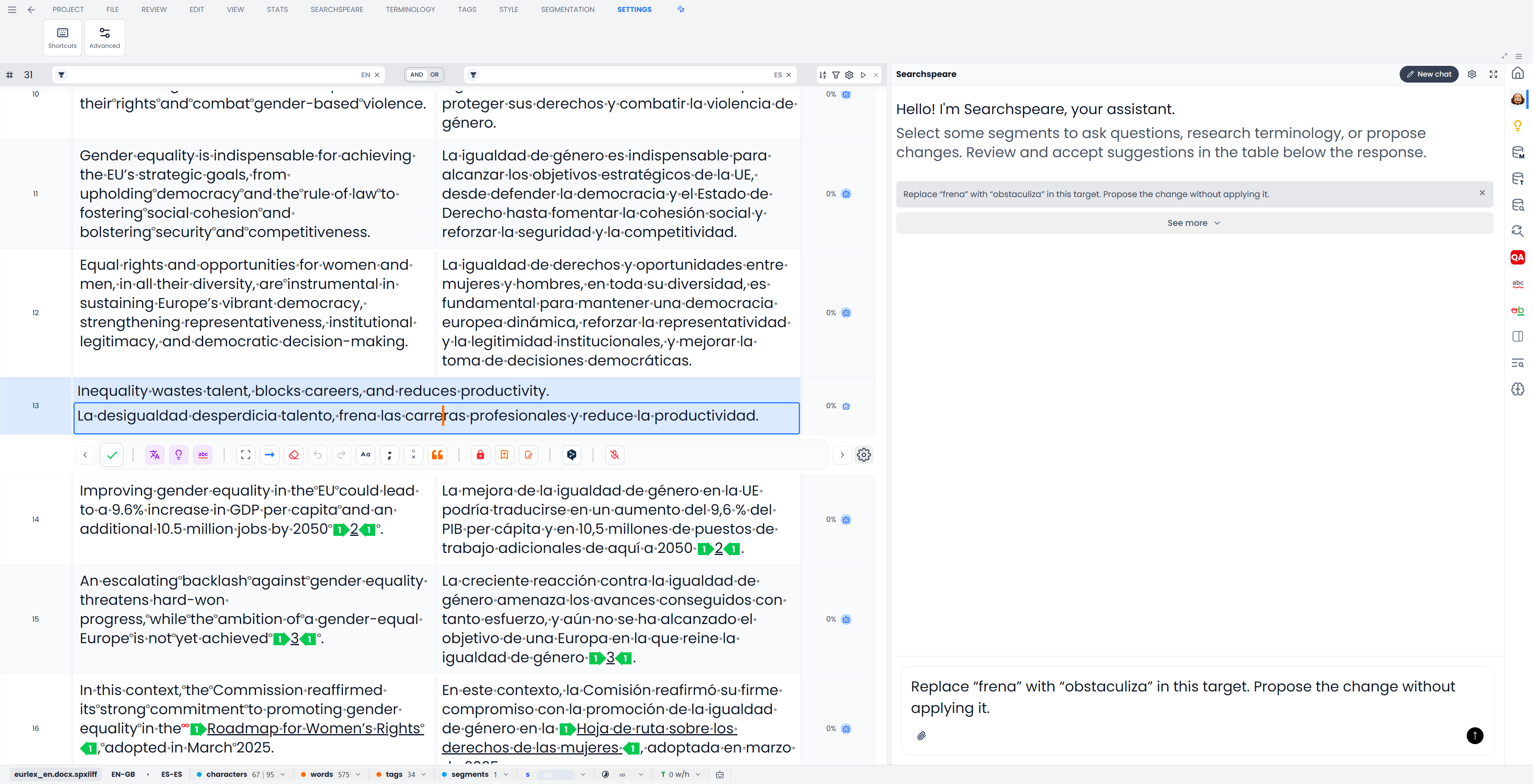
Open, switch, and close the panel
- Select the segment you want to work on.
- Click a tab icon to open its tool beside the editor.
- Click another icon to switch tools. Many tabs update to follow the selected segment.
- Use the panel toggle above the toolbar icons to hide or reopen the active panel on desktop.
You can also open a tool through its ribbon command or assigned shortcut. The panel is the place where the tool appears; the ribbon is another way to reach it. Some actions still use a dialog for a specific choice or confirmation, such as choosing a resource or editing a term.
Opening a tab does not apply its suggestions. The action inside the tab determines what happens. For example, clicking a memory match selects it; double-clicking it inserts its translation. Clicking an Adaptive Learning pair sets filters. Read the tab's guide before treating similar-looking lists as interchangeable.
Some tab actions filter the table to show relevant passages. Use the table filter bar's Clear all control to return to all segments in the open file or View. Before a batch operation, distinguish those filtered rows from the rows you have selected; Selecting segments and batch actions explains which scope each command uses.
Resize, expand, or detach
Drag the divider between the editor and panel to give either area more room. Searchspeare remembers the panel size. Use the expand control on desktop when a long result or conversation needs the available workspace, then restore it to return to the split view.
The editor also has a panel-layout preference for placing the tools beside or below the text. This guide calls it the right-side panel because that is the side-by-side arrangement; its tools still have the same purposes in the other layout.
Some tools, including Matches, Concordance, and Preview, offer their own detached-window action. This differs from expanding the panel: it opens a companion window that you can place on another screen. Keep the main workspace open. With detached Matches open, the inline matches area can show a notice directing you to that window; close the detached window to bring matches back.
Choose which tabs to show
Right-click an empty part of the side-panel toolbar to open the visibility menu. Tick the tabs you want and untick those you rarely use. These preferences are remembered for the workspace.
Right-clicking an individual tab instead opens its command shortcut controls where supported. See Keyboard shortcuts for assigning a shortcut.
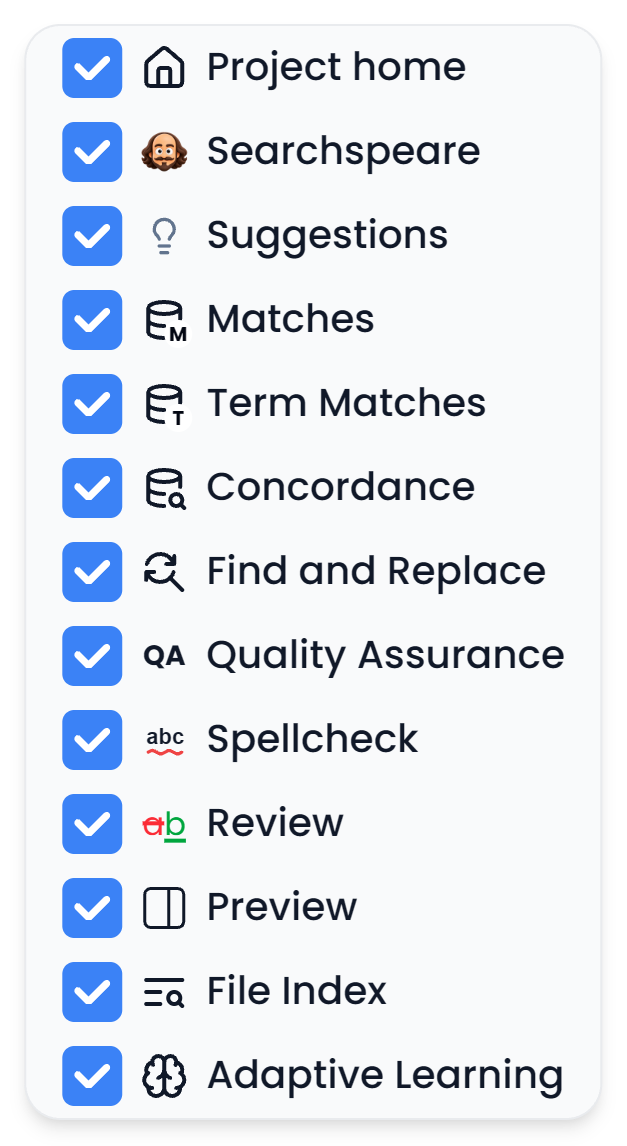
A hidden tab and an unavailable tool are different. The visibility menu can restore a tab supported by the current workspace. It cannot add bilingual resources to a single-language review or make an unsupported file preview available. AI settings also affect the availability of Chat and Suggestions.
Translation and review tabs
Each tab has a dedicated guide:
| Tab | Use it to |
|---|---|
| Project home | Read the brief and manage the current project's files, Views, and resources |
| Searchspeare: Chat | Ask questions and discuss or request changes with selected context |
| Suggestions | Assess translation and review proposals for the active segment |
| Matches | Compare and insert previous translations from attached memories |
| Term Matches | Check relevant glossary entries and insert preferred target terms |
| Concordance | Research a word or phrase in previous translations |
| Find and Replace | Find occurrences and change matching wording within a deliberate scope |
| Quality Assurance | Run checks and investigate their results |
| Spellcheck | Check spelling and decide how to handle reported words |
| Review | Navigate, accept, or reject recorded tracked changes |
| Preview | Read supported content in a document-oriented view |
| File Index | Inspect recurring source terms and investigate their translations |
| Adaptive Learning | Inspect technical term pairs extracted from confirmed translations |
Not every tab appears in every job. In particular, single-language review omits bilingual memory matching, terminology lookup, concordance, and the file index. Project-linked tools need a project context. An empty list may simply mean that the current segment has no relevant results.
Tabs opened by a particular action
Some commands open an additional tool tab: Abbreviations, Special Symbols, Comments Overview, XML, Changes preview, QA false positives, or Searchspeare-discarded spelling errors. These are explained individually in Additional tool tabs.
These tools use a shared tab position, so opening another tool can replace the additional tab. Apply or reject pending proposals before switching tools if you need to resolve them. Hiding the panel leaves proposals unapplied.
Panels in other workspaces
The memory editor, glossary editor, and alignment workspace have their own tab sets. For example, glossary Properties edits terminology, while translation Matches Properties describes a saved translation. See Tabs in other workspaces for a dedicated explanation of each.