
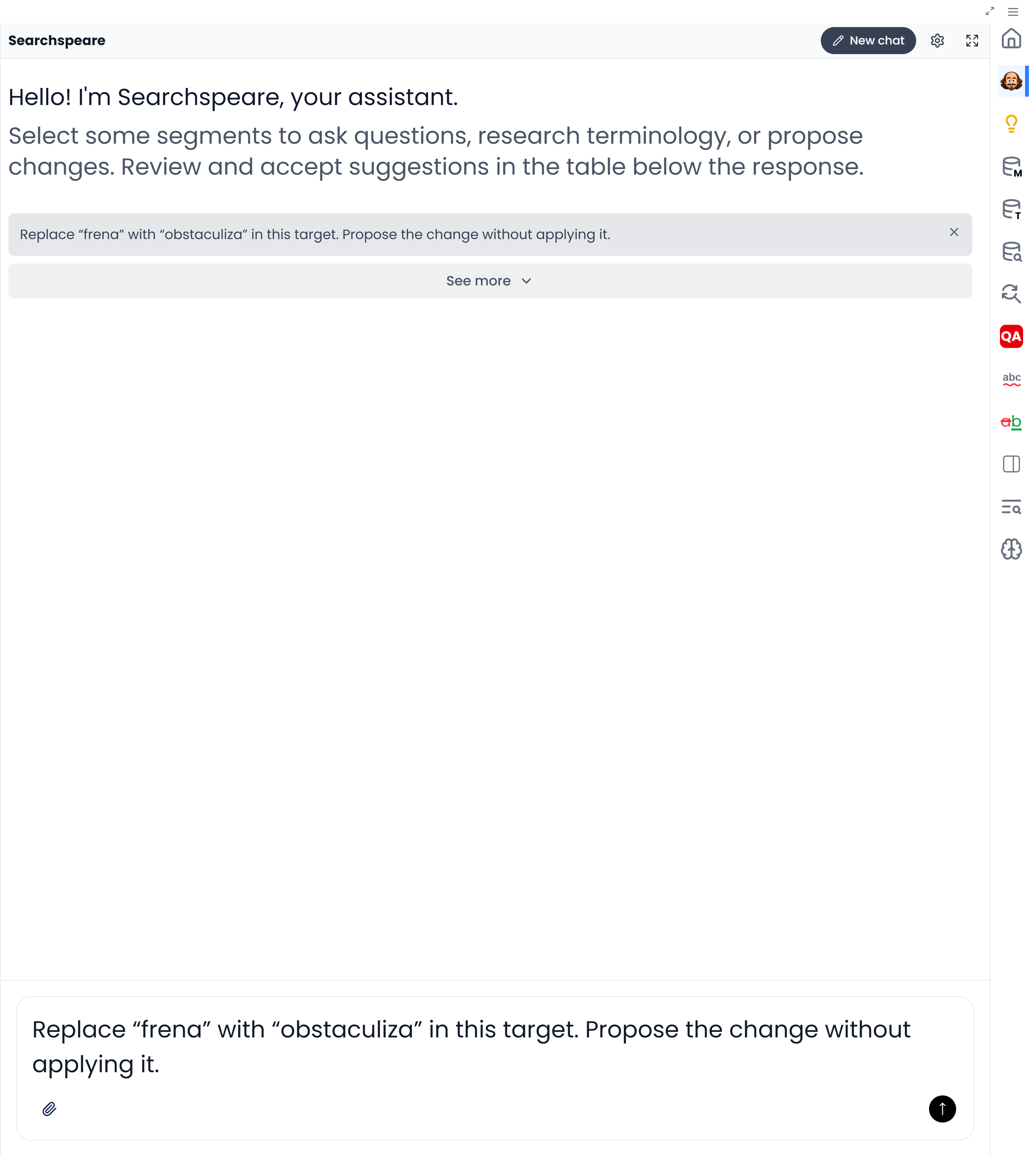
Chat with Searchspeare
Use chat to ask about a sentence, request specific edits, or discuss a terminology choice. Select the relevant segments so Searchspeare can use them in the conversation.
Quick steps
Select the segments, open Searchspeare, and choose what to include through Attachments. Ask a question or describe the edits you need. Review proposals before applying them; confirm the resulting segments separately.
To check translations against saved AI rules, leave the chat's AI rules attachment on. See Reviewing against rules for the steps.
An answer in chat is not automatically a change to the file. Searchspeare can answer a question, propose text changes, or propose glossary entries. Inspect which result you received.
Select the segments to discuss
Select the segment or segments you want to discuss, then open the Searchspeare (Chat) tab in the right-side panel, or use the corresponding AI or segment command. You can keep chat beside the text, expand it, or use its other display options when available.
In a glossary, chat uses the selected terms and their examples. In a project file, it uses the selected segments and the information you include through the attachment menu.
Choose what to include in the chat
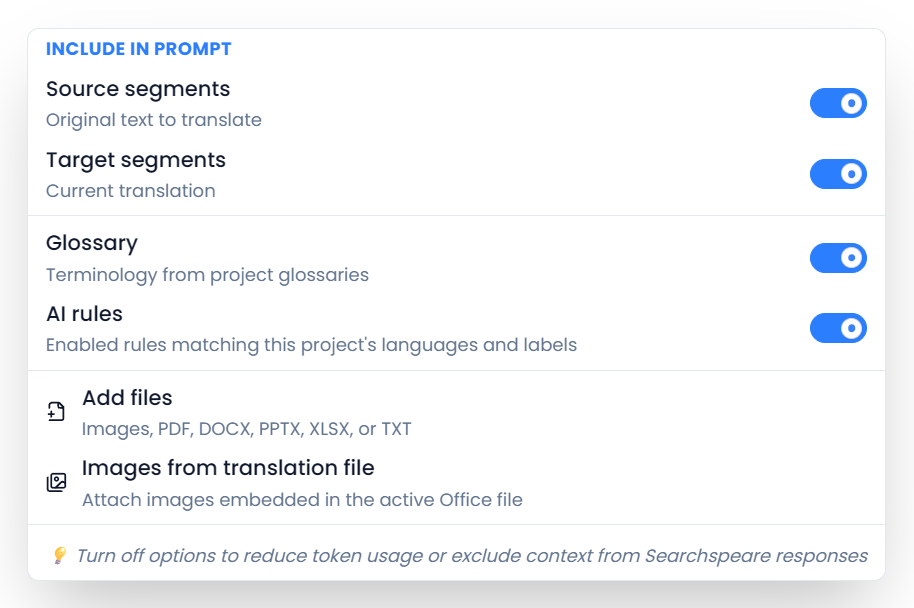
Open Attachments and check the Include in prompt choices. For translation work, these include:
| Choice | What it includes |
|---|---|
| Source segments | The original text |
| Target segments | The current translation |
| Glossary | Terminology from the project's glossaries |
| AI rules | Enabled rules matching the project's languages and labels |
| Add files | Files you choose to attach, when the selected AI option supports them |
| Images from translation file | Images embedded in the active Office file, when available |
In a glossary, Source context and Target context supply examples for the selected terms. The available choices depend on the workspace and selected AI option.
Include the material needed to answer the question. If the question concerns an illustration, text alone may be insufficient. If it concerns the target's tone, include that target wording and explain the intended audience.
A single-language review supplies its working text rather than a separate source and target translation pair. Bilingual glossary controls are not part of that review workflow.
Describe the change or question
Say what to change, which segments to use, and what must stay unchanged. For example:
In the selected segments, replace the repeated phrase with a more natural equivalent. Keep the technical terms, numbers, and meaning unchanged. Explain any case where no change is needed.
For a question, ask for information rather than an edit:
Explain the ambiguity in the second sentence. What should I ask the client before translating it?
For terminology:
Identify recurring component names in this selection and propose useful source and target term pairs with context.
A narrow request is easier to assess than “make everything better”. If the result misses the point, clarify the requirement and examples.
Review proposals before applying them
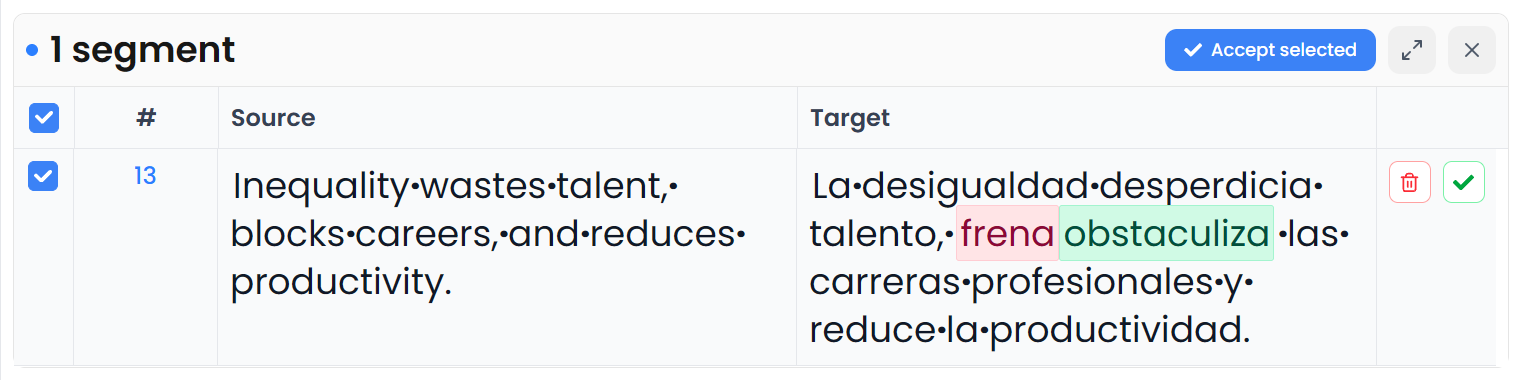
Read the explanation, then inspect each proposed difference against the source and brief. Apply useful changes or leave unwanted proposals unapplied. Glossary proposals have their own selection and add-to-glossary action.
Applying a proposal changes the working content. Confirmation is a separate step unless Confirm segment after applying all row changes is enabled and you apply a complete preview row.
If a proposal is mostly useful but one change is wrong, use the available detailed preview controls or refine the request rather than accepting a whole batch without inspection. See Review proposed changes.
Start a new conversation
Click New chat to clear the current conversation and start another request. Check any information you need from the current messages before clearing them.
Change the assistant's response style
- Open Chat settings using the gear button.
- Choose Agent personality to select a saved response style.
- To create one, click New, enter a Name and Instructions, then click Create.
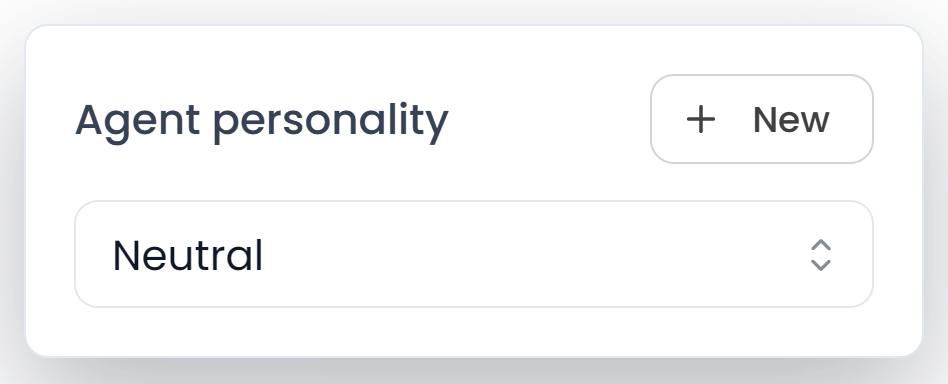
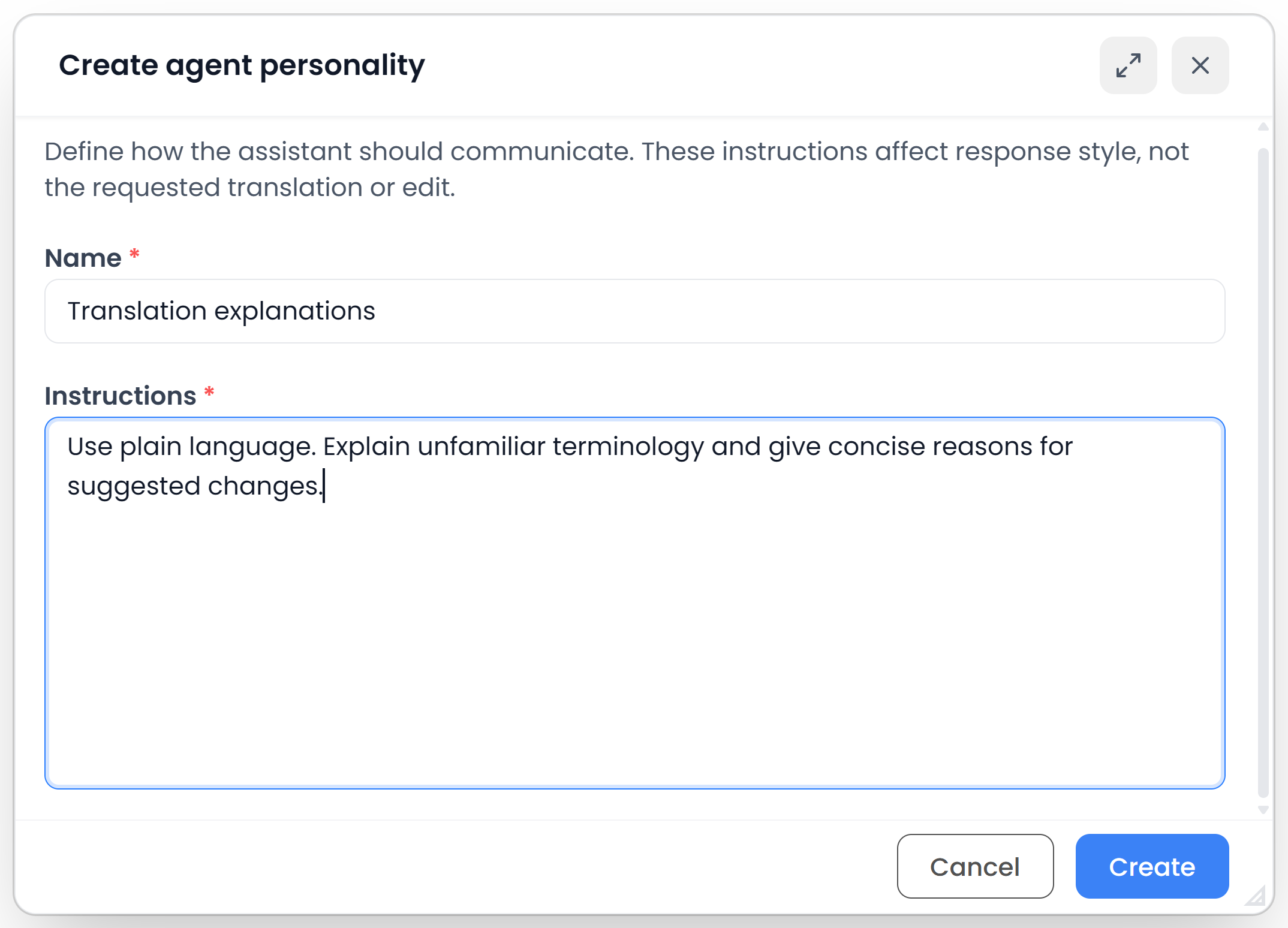
When a custom personality is selected, its Edit and Delete controls are available beside the selector. These instructions change the assistant's response style. Keep translation requirements in project instructions, AI rules, or a glossary.
Recover from an interrupted response
If the response fails, read the error and use Retry where offered. A retry asks the service again; the result may differ. Inspect retained proposals and the working targets before accepting or re-running a request.
Check the selected service and available allowance if repeated requests fail. You can continue editing manually while AI assistance is unavailable.