
Spellcheck
Spellcheck helps you find possible spelling mistakes in the target text. It can underline words while you edit, produce a list for a review pass, or ask Searchspeare for proposed language corrections.
Quick steps
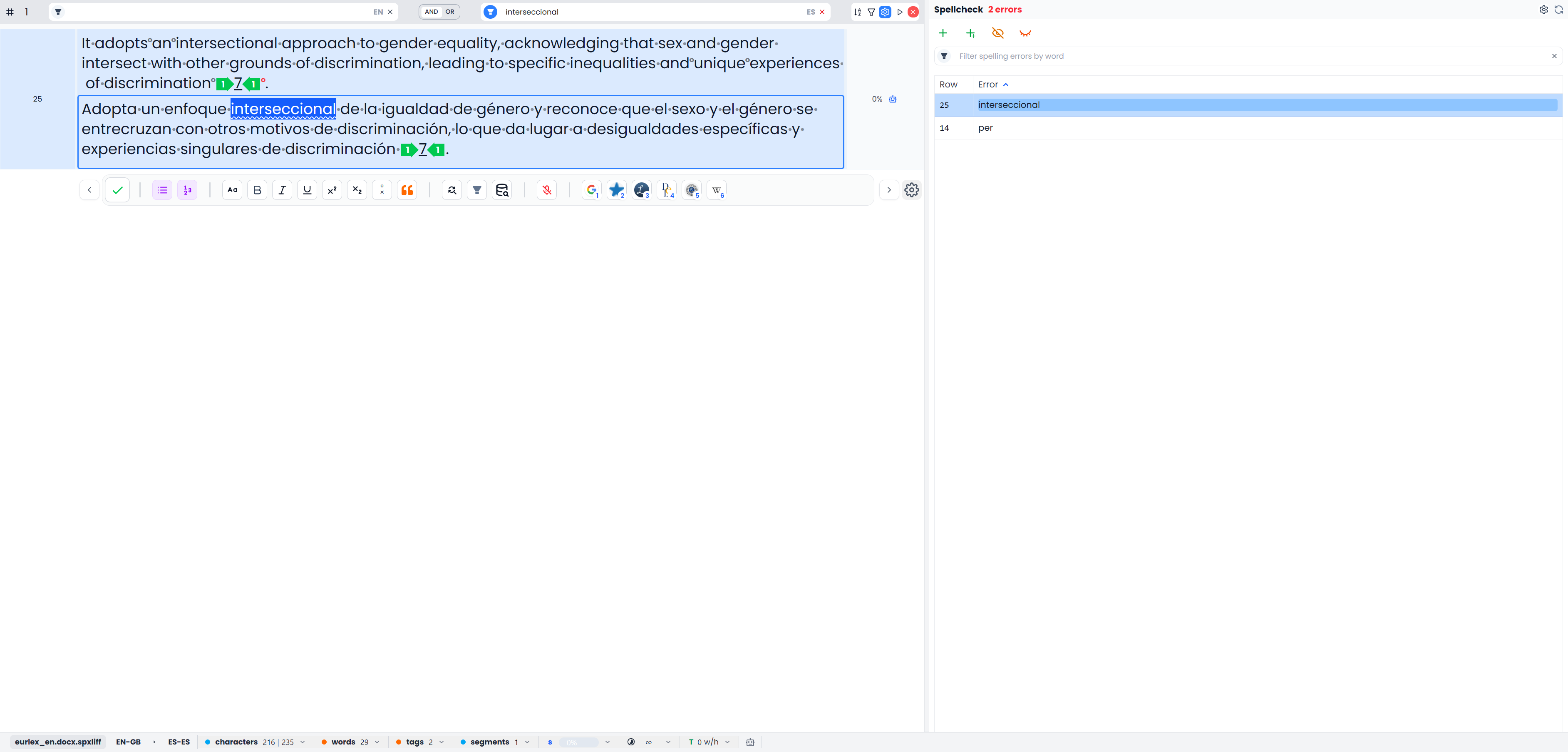
Install and select a Hunspell dictionary, set the spelling options, and run spellcheck. Click a reported word to filter its target occurrences. Use the document filter bar's Clear all before a full-file pass or when returning to all segments.
A reported word is something to investigate. A dictionary may not know a valid specialist term, and a dictionary-approved word can still be the wrong word for the sentence.
Choose the workflow you need
| Workflow | What it does | Where you work with the result |
|---|---|---|
| Browser native spelling | Uses the browser's spelling support while you edit | Spelling feedback in the target editor |
| Hunspell dictionary checking | Uses an installed language dictionary for editor checking and a spelling pass | Underlined words and the Spellcheck result list |
| Hunspell with Searchspeare false-positive filtering | Checks with the dictionary, then assesses likely valid exceptions | Dictionary results and a separate discarded-word review |
| Spellcheck with Searchspeare | Requests proposed corrections to the working target text | Changes preview |
The last two choices use AI assistance for different purposes. Filtering dictionary false positives helps decide which reports need attention. Spellcheck with Searchspeare can propose wording changes. One is not a substitute for understanding the other.
Spellcheck guides
| Task | Guide |
|---|---|
| Install and select a Hunspell dictionary | Dictionaries and installation |
| Decide which kinds of words are checked | Spelling options |
| Correct, ignore, or accept reported words and understand automatic filtering | Reviewing spelling results |
| Use the two Searchspeare-assisted workflows | Searchspeare spelling assistance |
| Find commands, clear filters, rerun a pass, or troubleshoot | Commands and troubleshooting |
The Spellcheck tab guide explains where these controls appear in the right-side panel.
Run your first dictionary pass
- Open the file or View you want to check.
- Use the document filter bar's X labeled Clear all if you want the complete open file or View included.
- Open Spellcheck, or press F6 if you use the default shortcut.
- Install the appropriate dictionary if prompted.
- Choose the installed Hunspell dictionary under Spellcheck engine.
- For a dictionary-only pass, leave Spellcheck with Searchspeare and Filter false positives with Searchspeare off.
- Inspect the word-type options and choose Run spellcheck.
- Review each finding in its sentence and make a deliberate correction or exception decision.
Installing a dictionary does not itself check the whole file. Opening the tab does not start a pass either. Use Run spellcheck when the intended engine, options, and scope are ready.
Which segments Spellcheck checks
Both the dictionary pass and Spellcheck with Searchspeare use eligible text in the filtered unlocked segments of the open file or View. Merely selecting five rows does not limit these passes to those five rows. Matching rows outside the visible screen can be included.
The dictionary pass checks nonempty target text for supported languages with an available dictionary. Locked rows are excluded. Inspect language and dictionary availability when the pass does not cover the content you expected.
This differs from a QA profile, which checks unlocked content across the whole loaded file or View regardless of table filters. Selecting segments and batch actions compares these scopes.
Click a misspelling to filter the table
Clicking a spelling-result row selects its segment and filters the document table to target occurrences of that word. The word search is literal, whole-word, and case-insensitive. It can show several segments, rather than only the occurrence you clicked.
Those filters have not deleted the remaining text. Use the table filter bar's Clear all when you want all segments in the open file or View again. The search inside the Spellcheck panel only narrows its result list; clearing that search does not provide a full document-filter reset.
Finish the pass
Inspect corrections in context, including any tracked changes. Clear document filters and rerun a complete dictionary pass after the final edits. Check other files outside the current loaded scope separately.
Confirming a segment is still your approval step. Neither accepting a spelling suggestion nor adding a word to a dictionary certifies the segment's meaning. Continue with Quality assurance and a final reading of the exported deliverable.