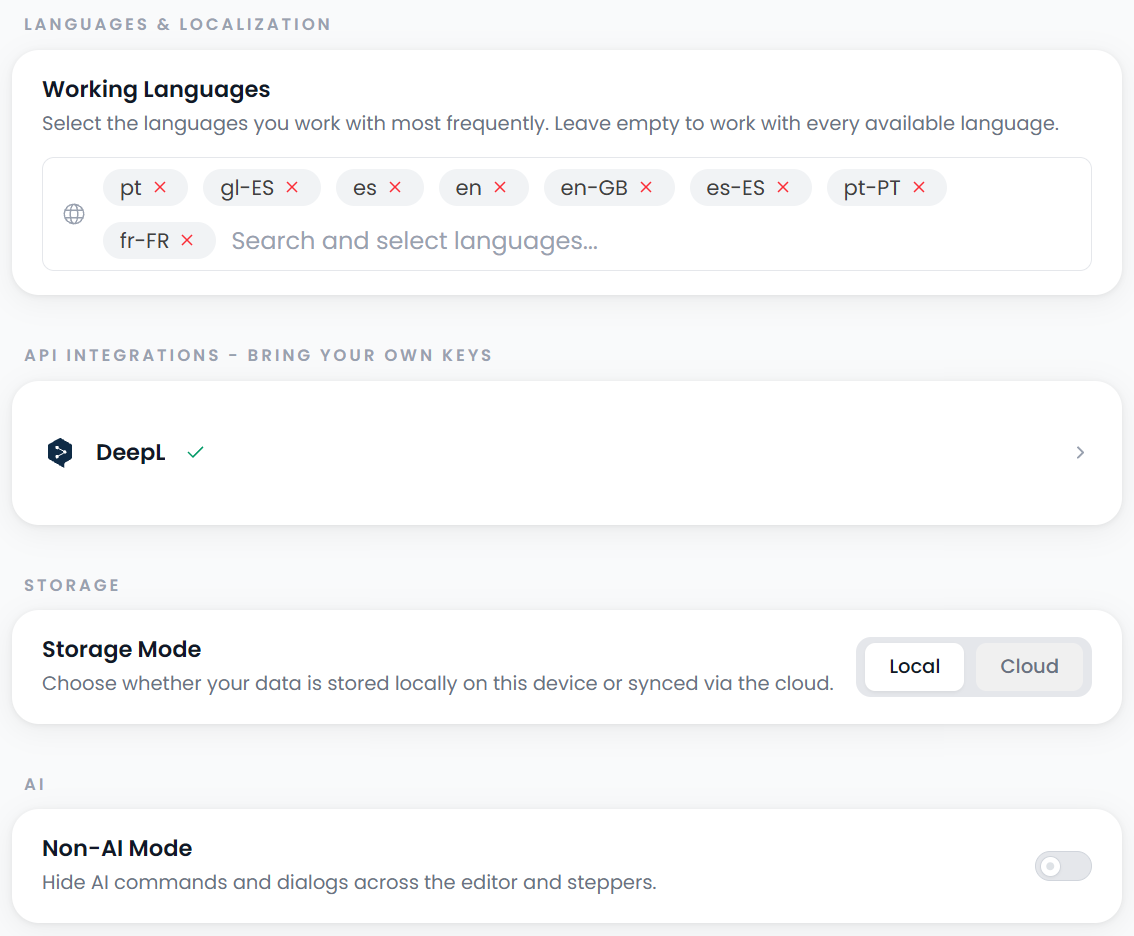
General preferences
Open Settings → Preferences for the app-wide choices on this page. Editor display, automatic suggestions, and toolbar behavior have their own editor preferences.
Working languages
Select the languages and regional varieties you work with. These choices supply language selectors and can affect whether a detected file language is accepted during setup.
Choose a regional variety when the distinction matters to the job. A file can specify a variety more precisely than its base language, so check the actual project or file direction as well.
Changes are applied locally and the app attempts to save the language choices to your account. If it reports that the account update could not finish, the local selection can still have changed. New working languages also trigger loading of their available abbreviation resources; read any partial-download warning.
Working languages control language choices during setup. They do not change an existing project's language pair or the app's interface language.
API integrations
Expand a connection offered on the page to inspect its configured state, enter a key, and use its Save or Delete action. A masked field indicates a stored connection; the mask is not a new key to copy and resubmit.
Configure DeepL through its separate account controls. In the desktop app, you can also configure your own AI-service connection; those AI key controls are unavailable in the browser app. Searchspeare-hosted AI uses your Searchspeare account and needs no separate AI-service key.
Feature availability depends on the current plan and installation. A configured connection and the model chosen for an editor action are separate settings. Check the editor's actual selection before assuming an operation will use a newly saved connection.
Deleting a connection asks for confirmation and removes its saved key. If it supplied the current own-service AI choice, the app can return that choice to the Searchspeare default. This does not erase translations previously produced with that connection.
If connection information cannot be loaded, retry that loading state before treating it as unconfigured. Read Save/Delete errors and check the resulting status before repeating a change.
Storage
Local selects the current device/browser installation's workspace. Cloud is offered when the account supports it. Changing the choice reloads the app to use the selected workspace.
Changing workspace does not upload local projects
This choice does not upload every existing local project or merge all device data. Use Storage, synchronization, and backups for explicit project synchronization and local backup transfer. Check for pending save errors before changing workspaces.
Non-AI mode
Enable Non-AI mode when you want the manual and non-AI tools without the applicable AI controls or automatic assistance. Disable it to make those controls available again where the account and workspace support them.
The switch does not delete AI-generated text, undo earlier changes, or confirm existing proposals. Check current targets and statuses separately.
Where to change other settings
| What you need | Location |
|---|---|
| Fonts, layout, whitespace markers, and scrolling | View ribbon |
| Automatic suggestions, Segment Menu, caret, and workspace tools | Settings → Advanced |
| Spelling mode, dictionaries, and word-type exclusions | Spellcheck |
| Speech-model installation and recording test in the desktop app | Dictation |
| Reusable translation requirements | AI rules |
| Sentence boundaries and exceptions | Rules and abbreviations |
| Candidate-term position rules | Stopwords |
| Seller identity, password, and account removal | Profile and account |