
Clients, quotations, and planning
Searchspeare's business tools connect your translation jobs with the records around them. Keep the project, client, price, currency, and status accurate so later documents and statistics describe the same work.
Create a client record
Open Business → Clients and choose the new-client action. Enter the client's name and the relevant contact, address, business, and available billing details. Save, then select that client when creating or editing a project.
Use one consistent client record for the same customer rather than creating slightly different versions for every job. Open the client details to inspect associated work before making changes.
A project reference can hold the client's job identifier. It is different from the client's name and helps distinguish several jobs for the same organization.
Follow Client records for every field, required information, duplicate checks, saving, recent work, and the difference between current details and information captured in a quotation.
Prepare a quotation
Open Business → New Quotation to prepare an offer from files. Open Business → Quotations to find saved offers, inspect their documents, and record responses.
The dedicated Quotations section explains the complete process:
| Task | Guide |
|---|---|
| Complete the five-step wizard | Create a quotation |
| Set weights and rates and understand the total | Analysis and pricing |
| Filter the list, select records, and update status | Manage quotations and statuses |
| Export DOCX, print/save PDF, and change document wording or images | Export and document appearance |
| Understand existing projects, acceptance, and corrections | Quotations and translation projects |
A quotation and a project are separate records
New Quotation starts a fresh file-based setup. It does not convert selected existing projects into an offer. Accepting a saved quotation changes its status; it does not automatically create a translation project.
Download or print the quotation and deliver it through your usual communication channel. Mark as Sent records delivery; it does not send the document itself.
Plan work with tasks and calendar
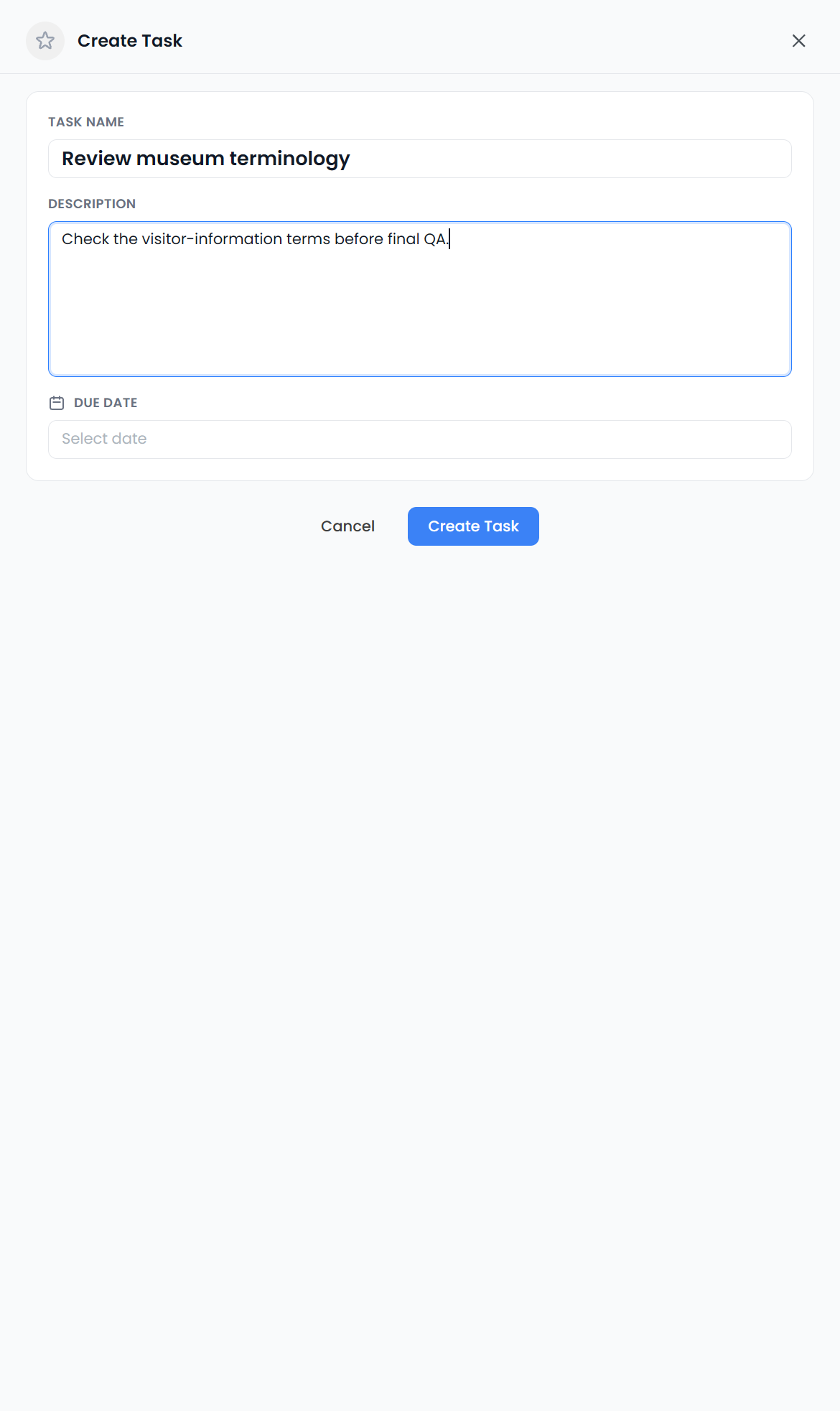
Open Dashboard → Tasks to create a task with a name, description, optional due date, and importance. Existing task labels can be displayed and used for filtering, but the current drawer does not assign new labels. Use the table or drawer to mark a task complete or reopen it.
Open a task to inspect or edit its details. Mark it complete when the task is done; this is separate from confirming translation segments or finishing an entire project.
Dashboard → Calendar brings dated tasks and projects into a calendar view. Open a project entry to return to the job, or open a task to inspect it. Create a task from a chosen date when you want that deadline prefilled.
The calendar is a planning view of the records you maintain. Check that project deadlines and task dates are accurate before treating an empty day as available capacity.
The dedicated Tasks guide explains creation versus existing-task saving, all active filters, completion, importance, and deletion. Calendar explains project spans, task dates, month navigation, day drawers, dated task creation, and the current loaded date window.