Autocomplete while typing
Intellisense suggestions offer words, phrases, and values such as numbers while you type in the target editor. It is different from an AI draft for a complete segment and from a spelling-error list.
Quick steps
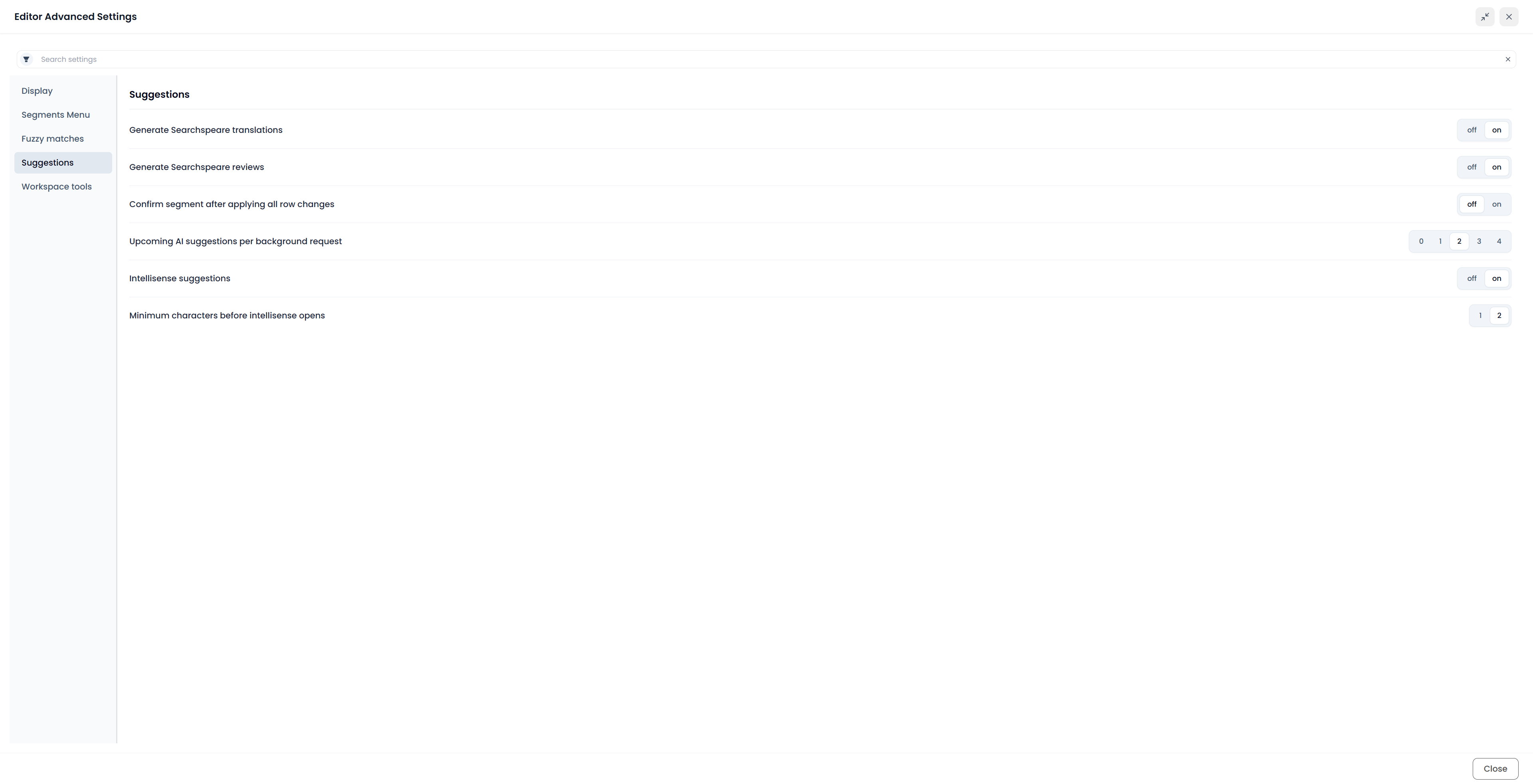
Enable Intellisense suggestions in Settings → Advanced → Suggestions. Use Up/Down to choose a completion, Enter/Tab to insert it, and Escape or Left/Right to dismiss the list.
Turn on Intellisense suggestions
Open Settings → Advanced → Suggestions and enable Intellisense suggestions. Choose Minimum characters before intellisense opens: one or two characters.
The list can also open for a single numeric character when a corresponding number suggestion is available. The minimum-character choice is not a guarantee that every prefix will produce a result.
Where completions come from
Available candidates can include recognized target terms, supported numbers and other values from the source, and source wording marked by quotation or italics. The current prefix and neighboring wording help select matching completions.
Check that the inserted term fits the sentence, that numbers use the required format, and that tags are in the correct places.
For example, start typing the target equivalent of a recognized glossary term and inspect the offered completion instead of retyping the whole expression. If the expression is unsuitable here, dismiss the list and continue writing.
Choose or dismiss a completion
While the completion list has control:
- Use Up and Down to move through its available choices.
- Use Enter or Tab to accept the active completion. These keys act on the suggestion while the list is open, rather than necessarily performing normal segment navigation.
- Use Escape to dismiss it. Left or Right also dismisses the current completion list.
Clicking a completion also inserts the chosen wording. Inspect the text around the cursor after accepting, particularly when you began inside an existing word or selected a phrase that includes preceding context.
The insertion can complete the typed prefix, replace the corresponding current word, or replace the matching phrase context. It is not always an unconditional append at the end of a sentence. Use Undo if the inserted text is not the change you intended.
Autocomplete, translation suggestions, and spelling
| Tool | Purpose |
|---|---|
| Intellisense | Offers a completion while typing |
| Suggestions tab | Shows applicable translation drafts, adapted matches, or reviews |
| Matches | Shows saved translation-memory pairs |
| Term Matches | Shows recognized glossary entries |
| Spellcheck | Investigates reported spelling or proposed language corrections |
The tags dropdown can also show text completions alongside tags. Inserting a completion changes the target text; confirmation and adding a glossary entry are separate actions.
Press and release Ctrl in the target editor, or Command on macOS, to open that combined insertion list. It can offer tags even when no typing completion matches. This is separate from Intellisense opening automatically for a typed prefix. See Insert a missing tag for its actual dropdown and insertion steps.
If no completion appears
Check that Intellisense is enabled, the target editor has focus, the cell is editable, the typed prefix meets the threshold, and there is a suitable candidate. Use the separate terminology and spelling tools to check the segment.
Use Term Matches, Suggestions, or Spellcheck when you need those separate operations.