
Working in the editor
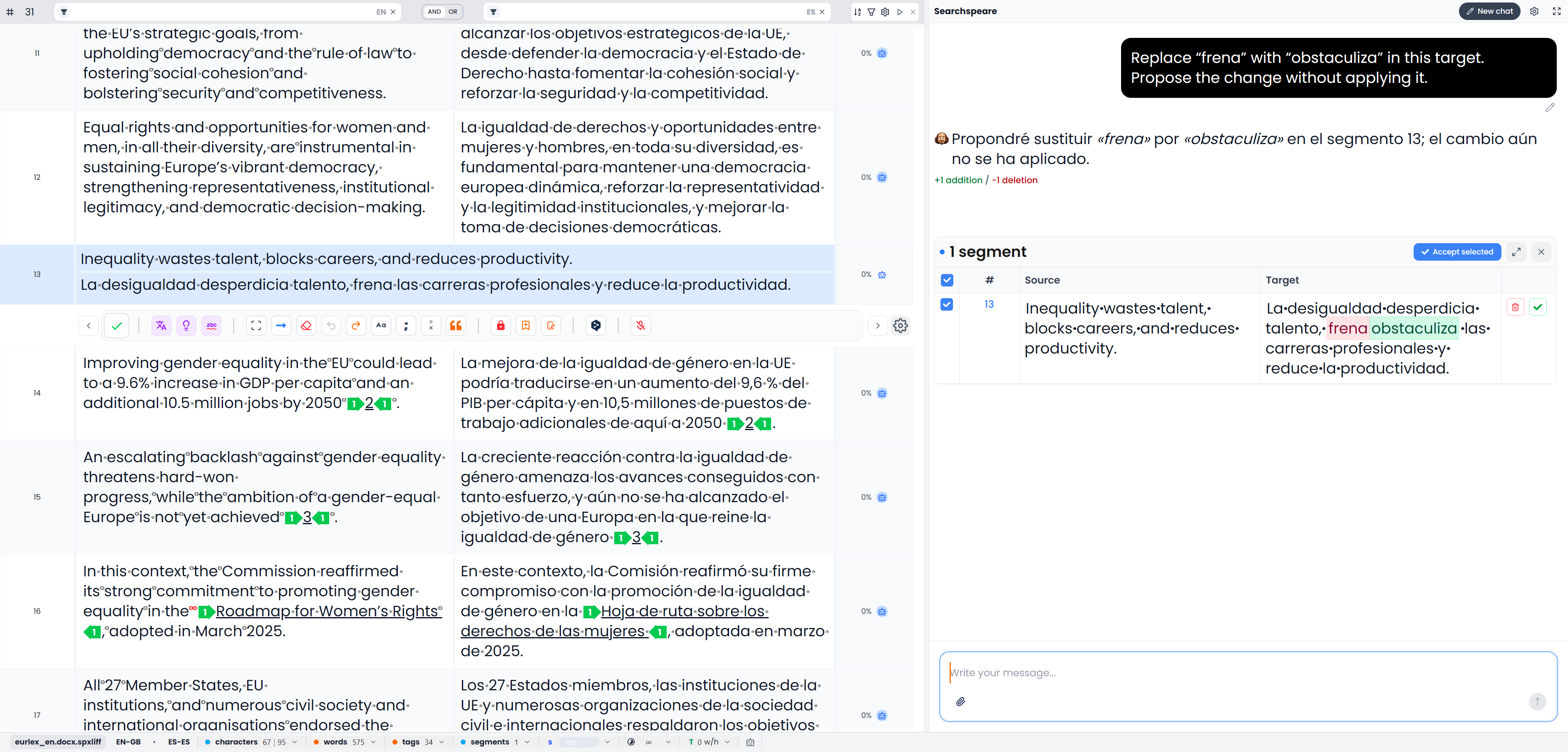
Open a file from Project Home to enter the translation workspace. The center contains the text you are working on. The ribbon provides commands; the side panels provide resources, review results, and assistance.
Quick steps
Open a file, click a target cell, and translate the segment. Check the source, tags, numbers, and terminology before Confirm. Use the right-side tabs for matches, terminology, QA, spelling, and review.
Identify the source, target, and active row
In a bilingual job, each row contains a source and a target. Click a row to make it active, then click the target to begin writing. The active row is where text commands run; selecting several rows gives supported commands a larger scope.
In a single-language review, the document text is already present in one working column. See Review projects for the different tools available there.
Translate and confirm a segment
- Read the source and at least the neighboring rows needed to understand it.
- Check for tags, numbers, names, and terms that require special treatment.
- Write the target or insert a useful memory suggestion.
- Adapt the wording to the current sentence and audience.
- Compare the completed target with the source.
- Confirm when you approve it.
A suggestion appearing in a panel has not necessarily changed the target. Inspect the target after inserting or applying anything.
Edits are saved as you work. Confirm adds a separate approval step and, in a bilingual project, updates the attached memories. If the app reports a save problem, resolve it before closing. See Storage and backups.
That paragraph describes project-file editing. The memory editor and termbase editor require you to unlock entries, edit them, and confirm the corrections. Typing in those editors leaves changes pending until confirmation.
Use Save and confirm translations for the complete procedure, batch confirmation, later repetitions, and the difference between approval, status, locks, and export.
Use the right-side panel
Use the side-panel toolbar at the right edge to keep a tool beside the text. Hover over an icon to see its name, then click to switch to that tab. The corresponding ribbon commands and shortcuts also open these tools.
The dedicated Right-side panel section explains the panel controls and gives each translation and review tab its own guide. Start there for Project home, Chat, Suggestions, Matches, Term Matches, Concordance, Find and Replace, Quality Assurance, Spellcheck, Review, Preview, File Index, and Adaptive Learning.
The section also covers additional tool tabs, including comments and change previews, and the different tabs in memories, glossaries, and alignment.
Select text for a precise action
Select the word or phrase you want to work on before invoking a text-dependent command. You can search a reference website, create a glossary term, ask for synonyms, or format the selection.
A text selection and a row selection are different. Selecting a word tells a command which wording interests you; selecting rows tells a supported batch command which segments to process. Before running a large action, check both.
Selecting segments and batch actions explains Shift-click, Ctrl-click, Select all, and which operations use selected rows, filtered rows, or the whole open file or View. It also explains how to clear filters applied automatically by other tools.
The segment toolbar places common commands near the active text. Its contents are configurable, so use the ribbon or command search if a tool is not shown there.
Work with formatting and tags
Use the formatting commands for emphasis where appropriate. Keep required tags around the text they belong to. In a translated sentence, the correct position can differ from the source word order.
You can enlarge or temporarily hide tags to make the text easier to inspect. Hiding them changes the display, not the document. Handling tags explains insertion, missing-tag indicators, and repair.
Move between segments
Use the previous and next segment commands, Go to, or the next unconfirmed segment command for targeted navigation. In the bilingual editor, Tab moves between the source and target editing areas.
Return to the active row
The active-row scroll setting lets you keep the selected row near the top, in the center, or allow freer scrolling. If you scroll away from the active row, Escape returns you to it when the editor's navigation handler has focus; an open menu or dialog may use Escape to close first.
Adjust the editor display
Use editor settings for font size and family, row layout, non-printing characters, tag display, and the segment toolbar. Reading mode helps you concentrate on the text during a readability pass.
Use Undo and Redo for editing history. Undo is not a replacement for keeping a backup or an export before a major import or extraction change.
For completions that appear while typing, see Autocomplete.
For a repeatable review sequence, follow A translation and review workflow. For missing commands, selection problems, or empty panels, see Troubleshooting.