Manage quotations and statuses
Open Business → Quotations. This page lists saved offers. The quotation record, its exported document, and your communication with the client are separate: saving a record or changing its status does not deliver a document.
Find a quotation
Show the page's filters when they are hidden. You can combine:
| Filter | What it searches or selects |
|---|---|
| Search | The quotation number, including a partial number |
| Status | Draft, Sent, Accepted, Rejected, Expired, or all statuses |
| Client | The selected client record |
| Issue Date | The date the quotation was issued, rather than its validity deadline or a response date |
Use the period controls or individual dates to set the issue-date range. Clear filters when you need the complete list again. If no results match, the empty state offers Clear All Filters.
Read the page number and page size. A result can be on another page. Sort by the relevant column to compare numbers, clients, job names, amounts, dates, or statuses.
The Project column shows the job information saved with the quotation. Creating a quotation does not create a translation project. The Words column shows weighted words; use the quotation analysis when you need the raw source-word count.
Open the document or client
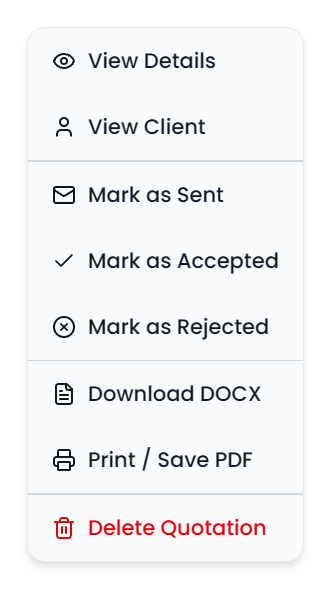
Open the quotation number or use View Details from the row's context menu. Inspect the saved seller, client, languages, job description, dates, and amounts. View Client opens the current client record, which can differ from the copy captured in the quotation.
For document language, wording, images, download, and printing, see Export and document appearance.
Record the status
| Status | What the record means |
|---|---|
| Draft | Newly created offer, before you record it as sent |
| Sent | You have recorded that the offer was delivered |
| Accepted | You have recorded the client's acceptance |
| Rejected | You have recorded the client's rejection |
| Expired | The record carries an expired status; also inspect Valid Until when checking whether an offer is still within its validity period |
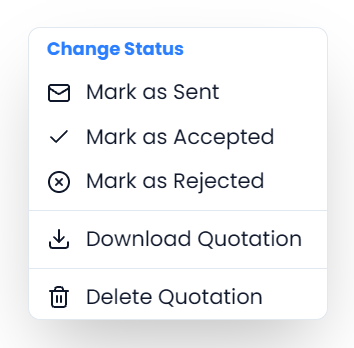
Click the row's Status to open its action menu, or use the row's context menu. The available status actions are Mark as Sent, Mark as Accepted, and Mark as Rejected.
Marking Sent does not send the document
Choose the action that reflects the actual exchange with the client. Sent does not send email. Accepted does not create a translation project or change the status of another project. Download and print actions do not change the quotation status either.
The status menu does not offer a return-to-Draft or manual Mark Expired action. It is not a fixed sequence that requires every earlier status: the available actions can record a response directly or correct a recorded response.
Check the validity date
The list emphasizes Valid Until when the date has passed and the quotation is not accepted or rejected. This date indication and the stored status are separate. A quotation can still be labeled Draft or Sent after its validity date; opening the list does not automatically change every such record to Expired.
The Expired filter selects records whose status is Expired. Do not use that filter alone as a complete list of every offer whose validity date has passed. Compare the date and status together.
Work with several quotations
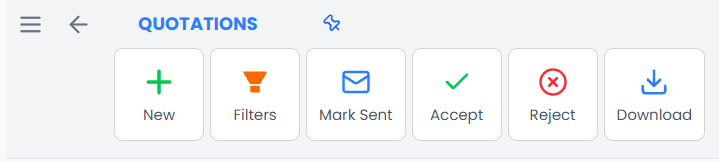
Select the intended rows, then use the Quotations ribbon:
| Command | Effect |
|---|---|
| Mark Sent | Records Sent for selected quotations |
| Accept | Records Accepted for selected quotations |
| Reject | Records Rejected for selected quotations |
| Download | Downloads the selected quotations available on the current result page as individual DOCX files |
Filtering the table does not select all matching quotations. Check the actual selection before a group action. Work one result page at a time for bulk downloads; the download action does not create a combined document or an archive of every filtered result.
Batch status updates ask you to confirm the selected group. Successful updates clear the selection. If a message reports partial completion, inspect the records before repeating the action. If it reports that changes were saved but the list could not refresh, reopen the page to see their current state.
Delete a record
Use the row's Delete Quotation action and read the confirmation before proceeding. Deletion has no quotation restore action.
Deleting a record does not withdraw a document already delivered to a client or remove copies you previously downloaded. Keep the documents and correspondence you need before removing the record.