
Tabs in other workspaces
The side panel follows the work you are doing. Translation files have resource and quality tabs; memories, alignments, and glossaries have tabs suited to their own content. Use the same side-panel toolbar to switch tools and the visibility menu to show or hide supported tabs.
The explanations below identify each workspace explicitly. A glossary Properties tab edits term data; a translation match's Properties area describes the saved translation you selected.
Memory: Details
The memory editor's Details tab shows the memory name, language pair, and available creation and update information. Select a memory unit to see its available author and date information too.
Use this tab to check which resource you are maintaining and the history information available for the selected pair. If a name or date is missing, that information is unavailable for the pair.
Edit source or target text in the memory table after unlocking the relevant units, then confirm the corrections. Details is an information panel. The dedicated memory editor and lock/save guide explain individual and group maintenance. See Translation memories for creation and project use.
Memory: Searchspeare (Chat)
The Searchspeare tab opens Chat in the memory-editing context. Select the relevant memory units, check the supplied source and target context, and state the question or change precisely.
For example, ask whether the selected pairs use a term consistently before requesting a correction. Inspect any proposed changes before applying them: editing a reusable memory can affect later translation decisions that draw on it.
See Chat for conversation and proposal controls. Availability depends on the assistance settings.
Applied wording changes in the memory workspace remain pending until you confirm the edited units. A proposal or conversation does not save the reusable pair by itself.
Memory: Find and Replace
Find and Replace opens the replacement tool beside memory units. Check the source or target choice and the filtered memory units before changing repeated wording.
Unlock the units you want to change. Test Replace on one occurrence before using Replace all, which can affect other filtered units. Confirm the edited memory units to save them. See Memory maintenance and Find and replace for scope, options, and saved setups.
Alignment: Home
The alignment Home tab identifies the source and target input files and languages. When the alignment came from entered text, it indicates that instead of listing filenames.
It also explains that the alignment is temporary and offers Save to memory. After checking the pairing in the alignment table, use that action to choose a translation memory and save the usable pairs.
Keeping the workspace open is not the same as saving its result into a reusable memory. See Alignment for reviewing pairings, handling mismatches, and exporting.
Alignment: Searchspeare (Chat)
The alignment Searchspeare tab lets you discuss selected source–target pairs through Chat. Check the selection before asking about meaning, wording, or whether the passages correspond.
A conversational answer does not realign all the surrounding rows. Continue checking the structural pairings in the alignment table and save reviewed pairs through the alignment workflow.
Alignment: Find and Replace
Use this tab to find or correct repeated text in the open alignment. Check the language side and current scope, then test one replacement before a bulk change.
Text replacement and realignment solve different problems. If one source passage is paired with the wrong target passage, correct the pairing using the alignment tools.
Glossary: Details
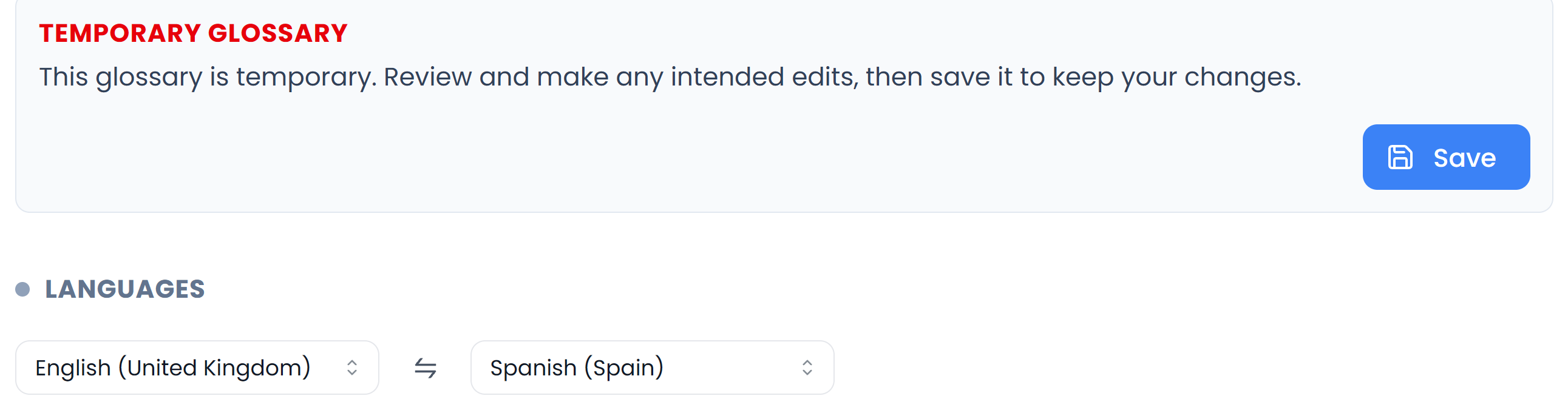
Details shows information about the current glossary and the selected term, including creation and update dates when available. Its language controls let you choose the displayed language pair or swap its direction among available languages.
Choosing a language pair changes which sides of the multilingual resource you are working with; it does not translate the entries into a new language for you.
For a temporary glossary, this tab also shows the temporary-work warning and an action to save into a glossary. Use it after reviewing extracted or proposed entries that you want to retain. See Glossaries and terms.
Glossary: Concordance
Select a term and open Concordance to look for examples of that source and target wording in translation-memory content. The lookup follows the selected term and language pair.
It searches the available memory content for that pair using both the source and target term. It does not use a translation project's attached-memory list to restrict this glossary lookup.
Read the source and target of the examples together. Use the result filters to narrow the returned list. No result does not prove that the term is invalid; suitable memory examples may simply be unavailable.
This is a lookup for usage evidence. Use Properties when you want to edit the term or its stored example.
Glossary: Context
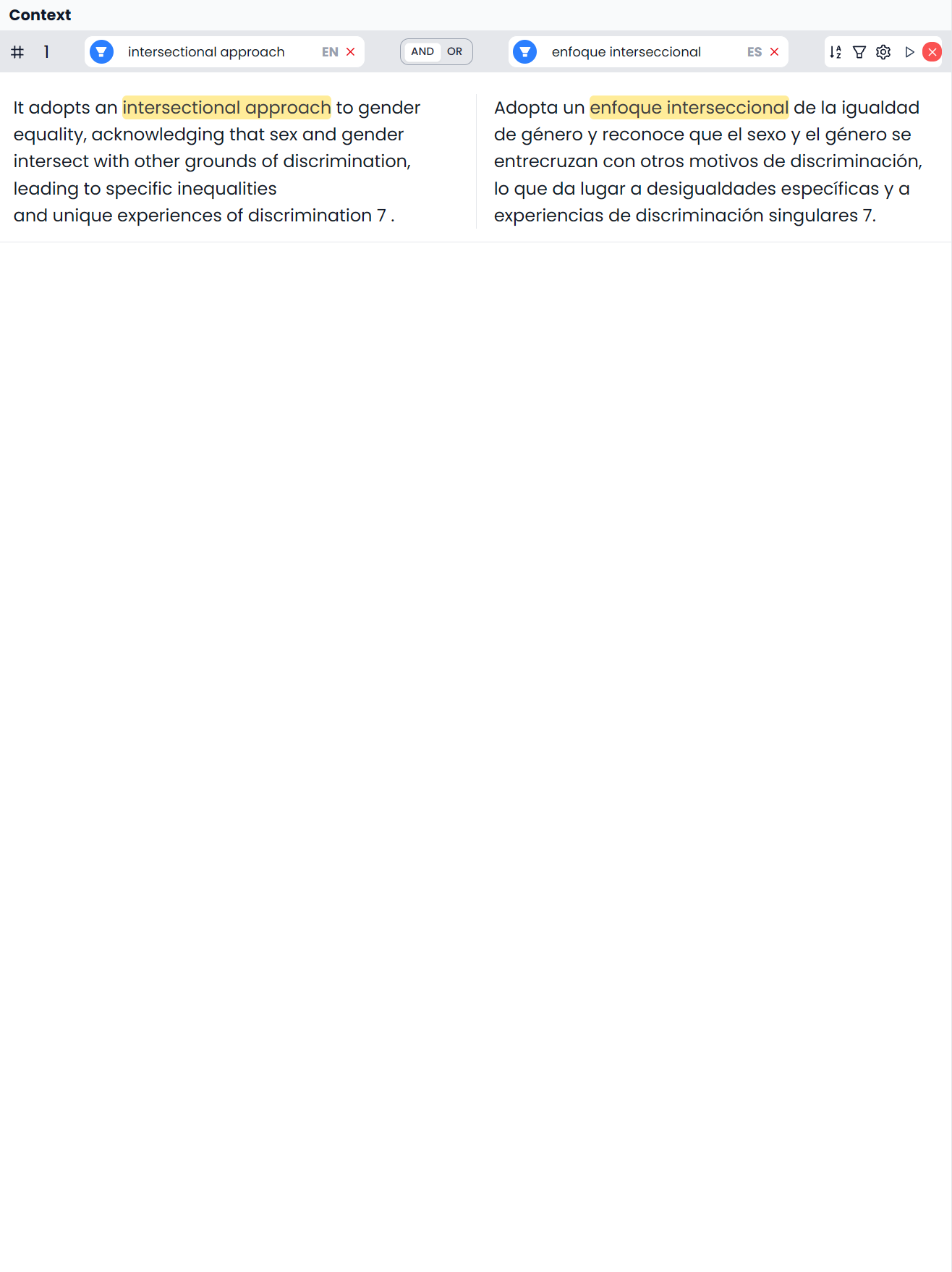
Context displays the example segment pairs available with the glossary's working material. Use it to inspect the sentences behind the terminology rather than judging entries as isolated words.
Context and Concordance are different sources of evidence: Context presents the available example material, while Concordance performs a memory lookup for the selected term. For entries extracted from documents, context can help you decide whether two apparently similar expressions refer to the same concept.
Glossary: Searchspeare (Chat)
The glossary Searchspeare tab uses terminology context. Select the relevant term entries, inspect the supplied context, and describe the question or correction.
You can ask about ambiguous concepts, inconsistent pairs, or examples. Inspect proposals before applying them and check which glossary they will affect. A response in the conversation does not, by itself, save the proposed terminology.
Glossary: Find and Replace Terms
The glossary replacement tab works on terminology rather than the translation-file target. Check which term side and scope its controls identify before running a change.
Use it for a deliberate repeated wording correction. A broad replacement can alter valid entries with a different meaning, so first inspect a sample occurrence. For a single concept's wording or matching settings, Properties is usually more direct.
Glossary: Properties
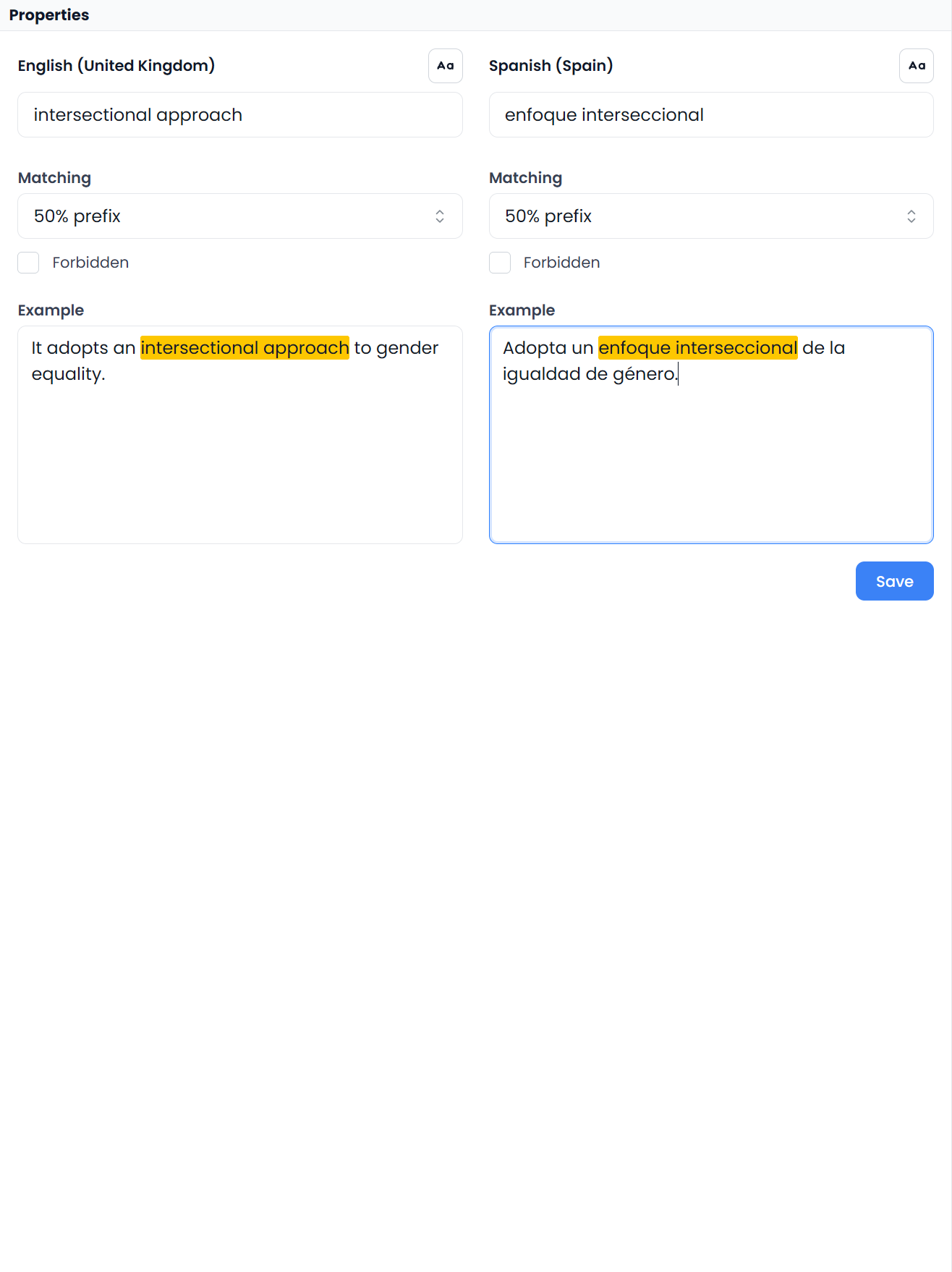
Properties is an editing panel for selected term entries. It includes source and target wording, matching controls, Forbidden choices, and examples.
- Select the entry you intend to maintain.
- Inspect its source and target wording and language direction.
- Change only the fields that need updating.
- Check matching behavior and any Forbidden setting on each side.
- Supply examples containing the corresponding terms.
- Use Save to apply the edits.
- Review and Confirm the changed term rows to save the pending resource corrections.
Properties can change several selected entries
With several entries selected, the panel displays the first entry's values. Edited fields apply across that selection; fields you have not edited are preserved individually. A displayed setting does not mean that all entries already share it. Follow Apply properties to several entries before making a group change.
Saving a property change can unlock the affected entries and put the changes in the working editor. Confirm the edited entries to save the pending corrections to the glossary. See Term locks and saving.
If an example fails validation, make sure it contains the corresponding term rather than an unrelated sentence. Glossaries and terms explains matching modes, examples, and forbidden terminology in detail.
Glossary: Changes preview
Glossary operations can open a Changes preview tab for proposed term edits. Compare the old and proposed terminology and apply only the changes you want. This preview concerns term entries; it is separate from the tracked-change review controls for translation documents.
Applied additions and wording changes remain pending for term confirmation. Accepted removal proposals can delete records directly. Review the action and scope as described in Glossary maintenance.
In memory and alignment work, commands can also open the additional tool tabs supported by that workspace. A tab is available only when its operation and required context are available.