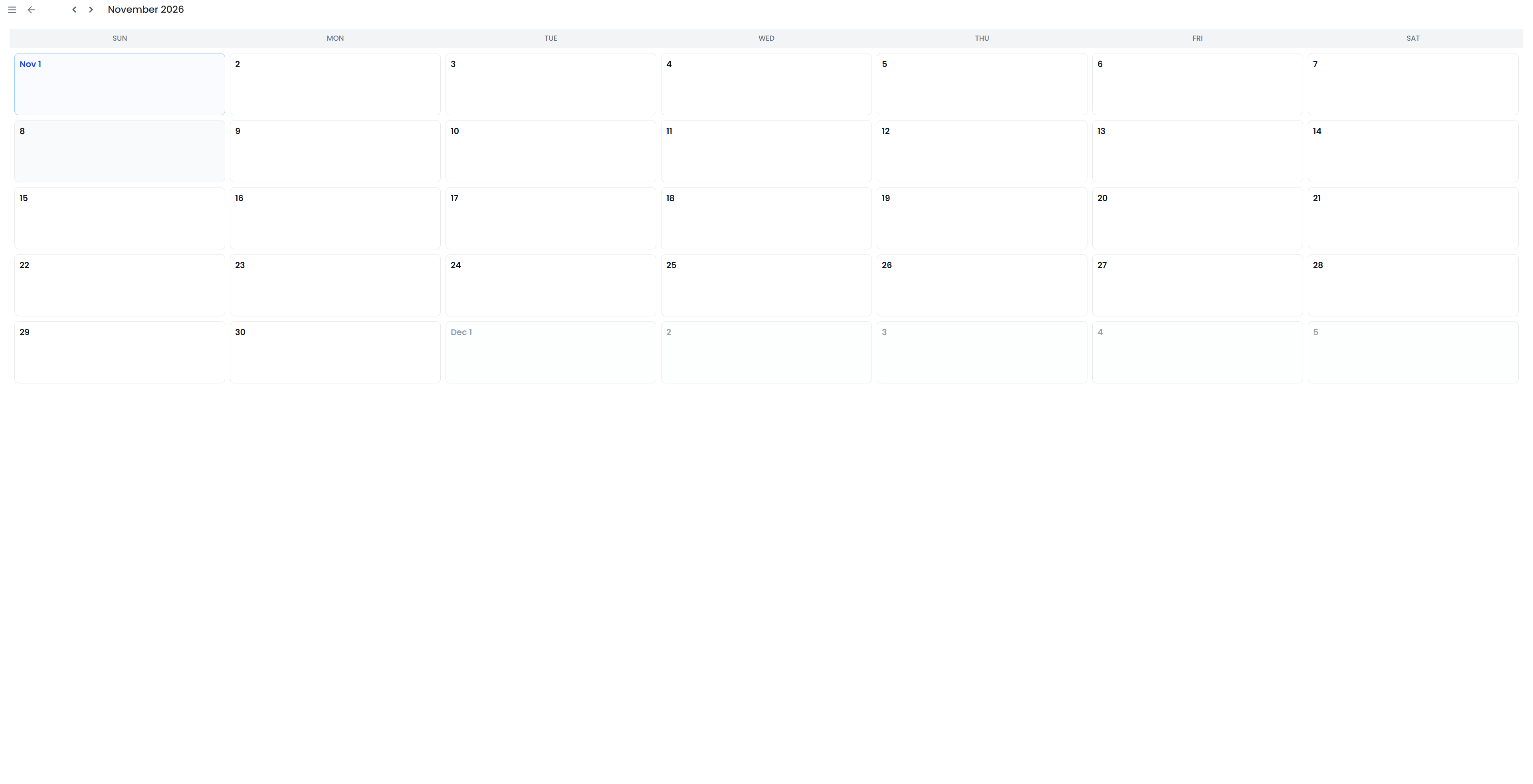
Calendar
Open Dashboard → Calendar to see task dates and project deadlines. Select a day to open its tasks and projects.
Key points
Tasks appear on their due date, or creation date when undated. Projects can appear on every day from creation through their deadline. Select an entry to open its task details or Project Home.
Move through months
Use the previous and next arrows beside the month heading. On a touch screen, a horizontal swipe moves between months. The calendar includes adjacent-month days to complete the weeks around the current month.
The current page loads a date window of approximately six months before and six months after today. Moving the month display does not request an unlimited archive of older or future records. Use the full task and project lists if you need work outside that loaded window.
Which dates are used for tasks and projects
| Item | Calendar placement |
|---|---|
| Task with a due date | On its due date |
| Task without a due date | On its creation date |
| Project with a usable creation-to-deadline span | On each displayed day from creation through its deadline |
A project can therefore appear on many days. The repeated entries all open the same project. They show its creation-to-deadline span, rather than days on which you recorded work. Its deadline entry is emphasized separately.
Cancelled projects are excluded. Completed items can still appear with their completion indication. A project without a usable deadline span may not appear even though it exists in the project list.
For example, a project created on Monday and due Friday can appear across that five-day span. A task to check its glossary on Wednesday appears on Wednesday according to its own due date.
Open the work for a day
Select a day containing items to open its list in a drawer. Read the task or project names, descriptions, labels where present, and completion or importance indications.
- Select a project to open its Project Home.
- Select a task to open its editable task details.
- Use a task's completion control to mark it complete or reopen it without completing a project.
The number shown on a day counts displayed items for that day. It is not a total of translation segments or available working hours.
Create a task from a date
For today or a future date in the displayed month, select an empty day to open a new task with that due date prefilled. On a day that already contains items, use the day's task list and its Add task action. A supported day's context menu also offers a new-task action.
Enter the name and any description, check the prefilled date, set importance if needed, and choose Create. See Tasks for field-by-field instructions and saving behavior.
The day-cell creation actions are unavailable for past dates. You can still inspect past items; use the task form when you need to maintain a task's date directly.
Change a task date or project deadline
Changing a task's due date moves its calendar placement after the update. A project entry opens the project so you can maintain its dates or status there. The calendar's task controls do not change the project's deadline or complete its translation.
To reschedule an item, open the task or project and edit its date. The calendar does not support dragging items to another date.
Why a task or project is missing
If an item is missing, check its due date, the displayed month, and the loaded date window. Also check the project status and your current account and storage workspace.
This calendar differs from Your Week, which has its own seven-day summary and preview lists, and from Statistics, which measures recorded activity over a selected period.