Tasks
Open Dashboard → Tasks to record work you need to do. Each task has its own description, due date, importance, and completion state.
Key points
Create a task with a name, optional description, due date, and importance star. Existing name and description edits save when you leave the field; due-date, completion, and importance changes save directly.
Create a task
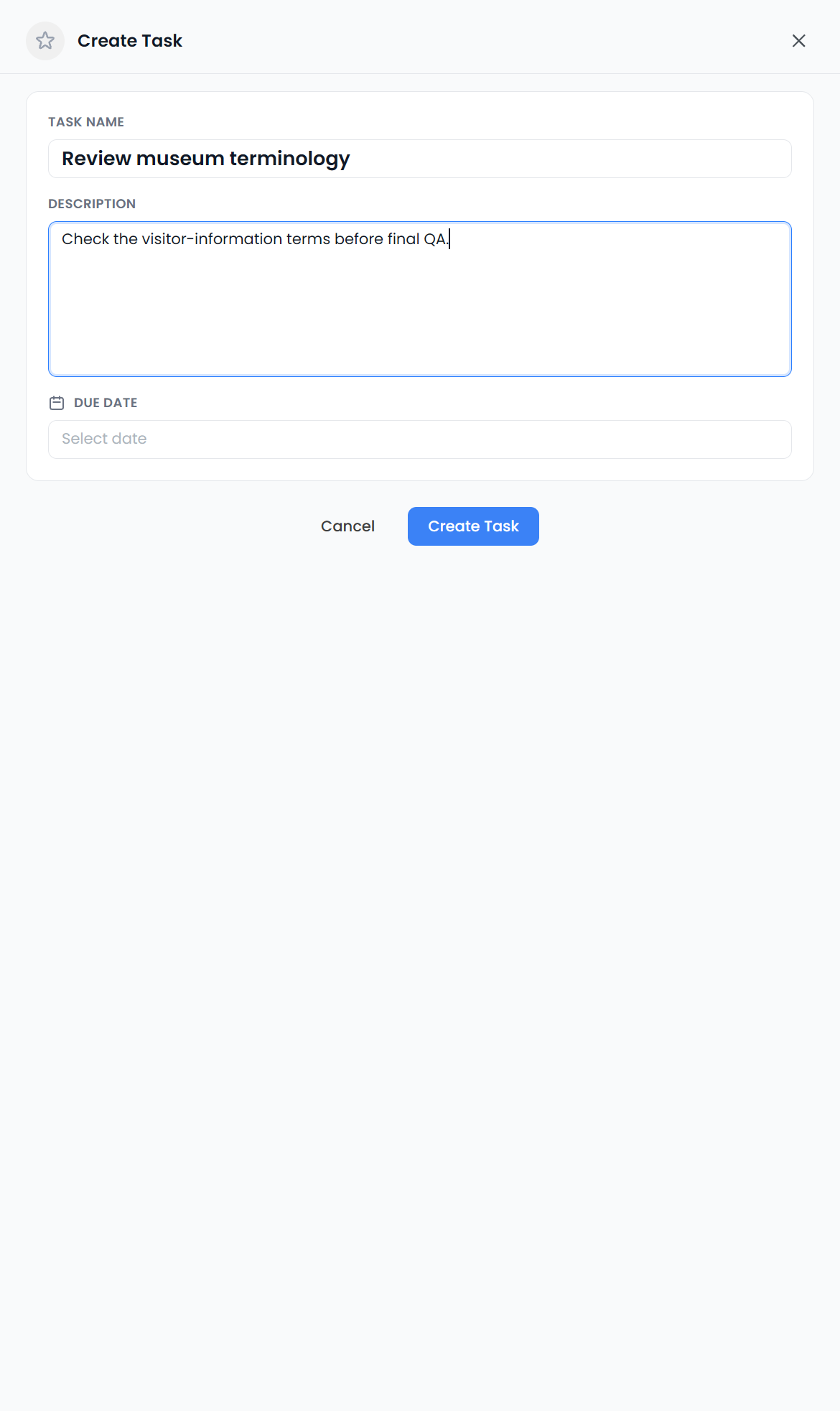
- Choose New to open the task drawer.
- Enter a Name that identifies the action, such as “Check component names in chapter 3.” A name containing only spaces cannot be saved.
- Add a Description when you need instructions or context.
- Choose a Due date, or leave it empty for a task without a deadline.
- Use the star in the drawer heading to mark it important if needed.
- Choose Create. Cancel closes the unsaved draft.
A new task starts as To do. Use the star to distinguish important tasks. The drawer has no recurring-task or label-assignment controls.
Edit an existing task
Click the task name or description, or use Open or Edit from its context menu. The right-side task drawer is separate from the translation editor's tabbed resource panel.
The current drawer saves existing details as follows:
| Action | Saving behavior |
|---|---|
| Change the name | Saves when you leave the field; an empty name reverts to the existing name |
| Change the description | Saves when you leave the field; clearing it removes the description |
| Choose a due date | Saves the date change directly |
| Click the completion control | Toggles completion directly |
| Click the star | Toggles importance directly |
Leave a text field to submit its edit and watch for the saving state or an error before closing. An existing task does not use the same final Create button as a new task draft.
The drawer also shows creation and update dates, and a completion date when available. Existing labels are displayed for reference; this drawer does not provide controls to assign or edit them.
Complete or reopen a task
Use the completion control in the table or drawer, or Mark Complete from the context menu. Use Mark Incomplete to reopen it. The star marks importance independently: an important task can be unfinished or completed.
If a task disappears immediately after an update, check the active filters. For example, a To do filter excludes a newly completed task. Reopening the task also changes whether it belongs in that filtered list.
Find the tasks you need
Choose Filters when the filter controls are hidden. The page offers:
| Control | Use |
|---|---|
| Search | Narrow tasks by the entered wording |
| To do / Completed | Include the selected task statuses; clear the status selection to remove that restriction |
| Existing label buttons | Filter by the selected recorded labels |
| Due today | Restrict the list to the corresponding due-date condition |
| Overdue | Restrict the list to the overdue condition |
| Important | Restrict the list to starred tasks |
| More-options menu | Set a due-date range, choose sorting, or clear filters |
Check all active conditions when a result seems missing. Status, labels, due-date choices, and importance can restrict the same search. Due-date filters do not provide a list of undated work.
Sorting can use creation date, name, or due date. Check the selected page and page size; the table is paginated. Changing a filter or sort returns to the first page.
Some status, label, quick-filter, sorting, and pagination choices are remembered when you return. Hiding Filters does not remove its conditions. Clear filters resets the search, status and label selections, due-date range, quick filters, sort, and page number.
Use the calendar and dashboard
Calendar shows tasks by due date, or by creation date when no due date exists. Creating a task from a calendar date prefills its due date. The Your Week task preview has a narrower date window than the full task list; use Tasks to investigate overdue or undated records.
Where a project appears as a planning entry, open it to change the project itself. Task completion and importance controls do not change a project record.
Delete a task
Use the task row's Delete context action only when you intend to remove the record. The current task handler deletes directly; it does not provide a task trash or a restore action. Mark completed work complete when you want to keep its record.
If a change reports partial completion or a refresh problem, reopen the task and inspect the saved state before repeating it. See Storage and backups if the work appears in a different workspace.