
Style ribbon
Changing a preference leaves existing targets unchanged
The Style tab contains choices about formality and text conventions. A preference influences the relevant future typing or assistance; it does not automatically rewrite every existing target.

Language Formality
Choose formal or informal for the project's translation formality. This choice is saved with the current project and supplied to applicable translation requests.
Choose according to the intended audience and brief. Use a scoped AI rule for a more specific requirement or exception, and inspect the result where several instructions interact.
Quotes Type
Choose the appropriate quotation-mark style from the offered forms, such as curly, angle, low/high, single curly, or straight quotes. The control shows the effective preference used for quotation handling.
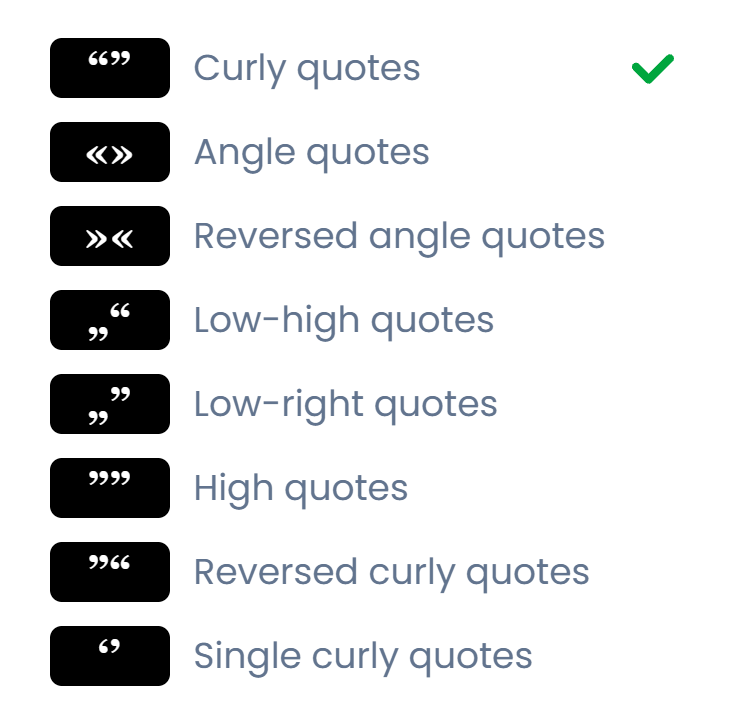
To normalize existing selected targets, use Edit → fix quotations. Choosing a quote style and running an editing command are separate steps. Check nested quotations, apostrophes, and language conventions in the result.
Smart Space
Smart Space → on enables the supported insertion of a non-breaking space after a number while typing. A non-breaking space keeps neighboring text together, which can be useful for a number and its unit.
Turn on View → Whitespace when inspecting the result. Smart Space is a typing behavior, rather than a document-wide replacement for all existing spaces.
Check existing translations
Changing a style preference leaves existing translations unchanged. Check them and use editing or QA checks to correct wording that does not follow the new choice.