
Pretranslation
Pretranslation fills segments before you work through them individually. Searchspeare can look in the project's memories and optionally request AI drafts where a suitable memory translation is not available.
Quick steps
Attach the memories you want to use, open Pretranslate, choose selected or filtered segments, and set the minimum match score. Searchspeare tries memories first; the optional AI stage handles remaining segments. Check the targets and confirmation settings.
Use it to prepare a first pass, then review the resulting targets. A populated target and an approved translation are not always the same thing.
Prepare the project
Attach the memories you trust for this language pair and subject. Check that the correct files or View are open. For an important file with existing work, export a working copy before running a broad population operation.
If you only want to fill blank targets, filter for Empty before choosing an all-units scope. Do not assume that the word “pretranslation” by itself restricts an action to empty segments.
Run pretranslation in the editor
- Open Pretranslate.
- Choose All units or Selected units.
- Set the Minimum match score (%).
- Decide whether to enable Translate with Searchspeare when no TM match.
- Choose Run and let the operation finish.
- Inspect the targets, statuses, and any warnings.
All units means all segments that pass the current filters in the open file or View. Use Selected units to process the rows you selected.
For row-selection gestures and a comparison with document translation, see Selecting segments and batch actions. The ribbon's document Translate choices use a different scope from Pretranslate → All units.

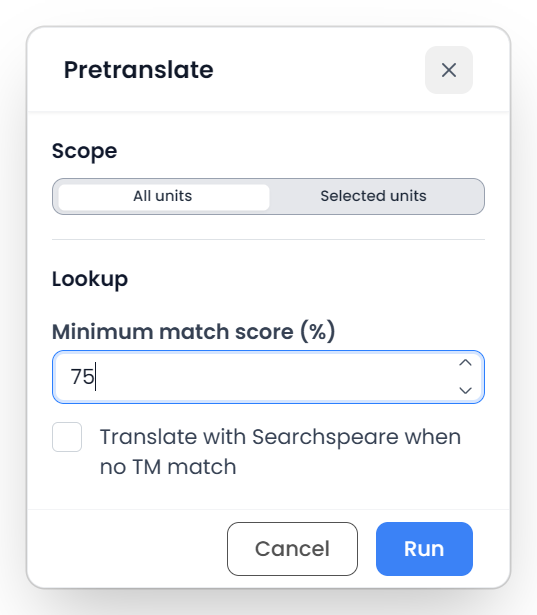
Set the minimum memory-match score
A higher minimum score gives you closer memory matches and leaves more unmatched work. A lower score supplies more starting points, but you must make more changes yourself.
The dialog starts at 75 and allows a range from 70 to 102. Scores above 100 represent enhanced match context, rather than greater-than-perfect linguistic quality. A score is still a reason to inspect a result, not a guarantee.
Matches of 100 or above can be marked confirmed automatically during memory population. Lower accepted matches are marked pre-translated. Review these results against the new context, especially numbers and repeated content.
Use AI when no memory match qualifies
The memory stage runs first. With AI fallback enabled, eligible segments still left as new after memory population can be sent for translation. Existing usable memory results are therefore a different source of content from the generated drafts.
This stage requires the selected AI service to be available. Searchspeare-hosted assistance uses your account's available allowance. When the allowance is exhausted, hosted AI work stops; manually editing and using memories remain separate activities.
For a controlled start, run a few selected segments first. Read the AI result with the same attention you would give any unreviewed translation.
Pretranslate while creating a project
The final Settings step of project creation offers memory population and optional Searchspeare translation when no memory match is available. Set these before choosing Create project.
This is convenient for familiar jobs. If you need to inspect extraction or segment boundaries first, create the project without automatic translation, inspect the file, and run pretranslation afterward.
Check the result
Use status and empty-target filters to see what happened. Compare a sample of strong memory matches, inspect fuzzy matches carefully, and review AI drafts. Check tags before confirming or exporting.
For the full approval behavior, read Translation memories. For AI-specific review, read AI assistance.