
File Index tab
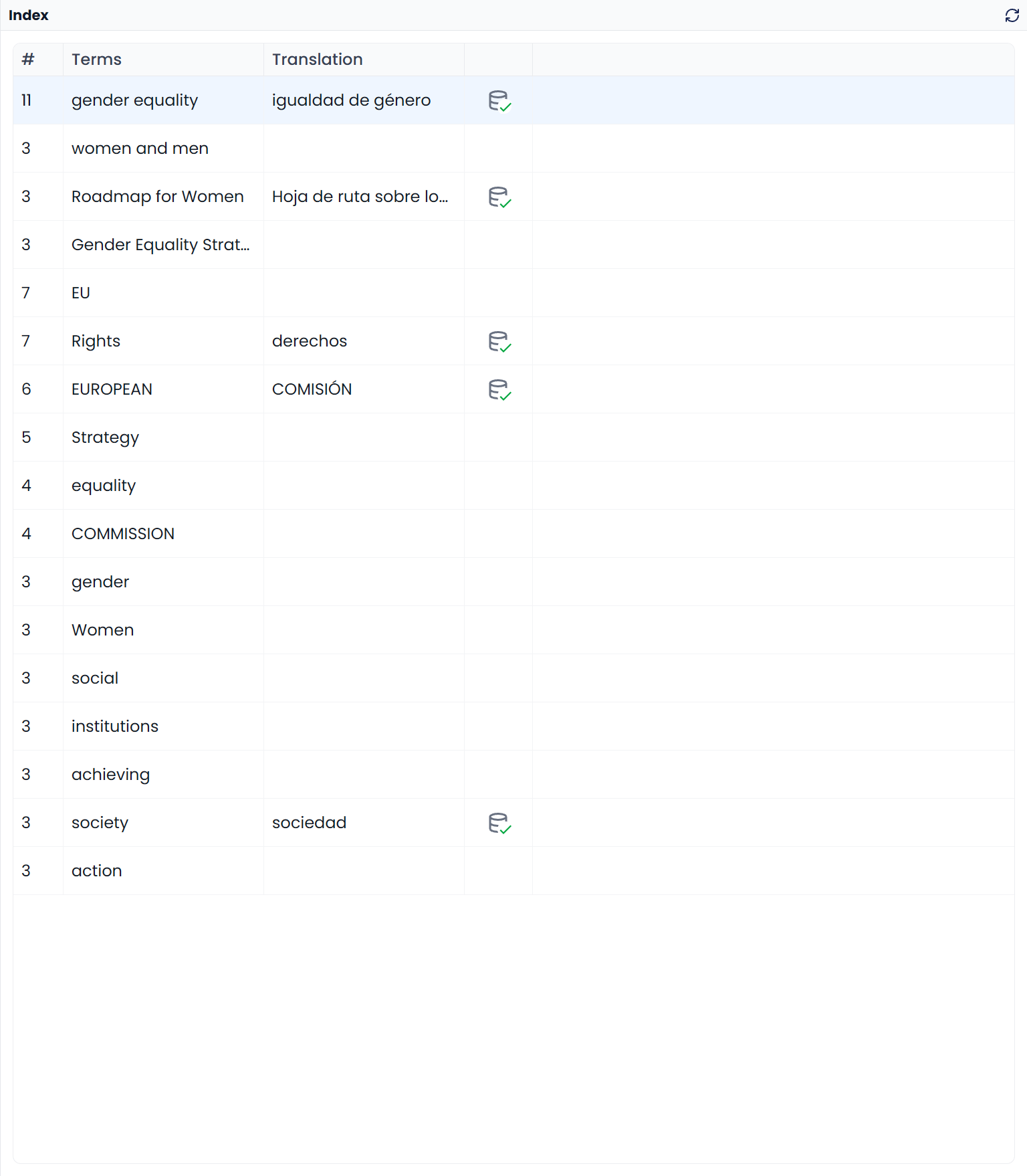
File Index opens a table of recurring source terms for the current file. The panel heading is Index. Use it for a terminology or consistency pass: choose an expression, inspect where it occurs, and investigate how it is translated.
Key points
The Index lists repeated source terms from the current file. Click a term to filter its segments and compare translations. Editing its Index translation saves that entry; it does not replace wording throughout the document.
The index is tied to a file within the project. It is not a search across every document in your library, and its entries are not automatically approved glossary terms.
Find repeated source terms
The Index lists repeated words and phrases from the file's source text. Click an entry to show the segments containing it.
For example, a technical file may repeat pressure relief valve. The Index can help you gather those passages and compare their translations. You can decide whether all occurrences describe the same component, whether different target wording is justified, and whether the agreed pair belongs in a glossary.
It is a terminology and consistency aid. It is not the document's table of contents, a list of QA errors, or a list of translation-memory matches.
Open File Index for the current file
Open File Index in the right-side panel, or use its default F9 shortcut in the translation workspace. You can change that shortcut; the assigned one appears in the command's description.
The tab is available when the workspace can identify a supported project file. A combined View without an associated individual source file may not offer it. If a supported tab was hidden, use the side-panel tab-visibility controls described in the panel overview.
When a file has no saved index, opening the panel starts creating one. The list is built from the currently loaded source segments belonging to that file, rather than the current row selection or just the rows passing the document filters. You can use it while translation is still in progress; you do not have to confirm every target first.
How the list is built
Searchspeare looks for recurring source words and phrases, groups related word forms where supported, and reduces overlap between shorter expressions and longer expressions containing them. Common language words are screened out according to the language's available word lists.
To choose or edit the common-word list used for this language, see Manage stopword lists.
The current extraction looks for wording recurring at least three times and considers phrases up to eight words long. These are automatic extraction rules, not controls in the panel. They help keep the list useful, but they do not make it a complete vocabulary list or a reliable glossary by themselves.
As a result:
- A useful term appearing only once can be absent. Add it through the normal terminology tools if you need it.
- Related forms can share one entry.
- A short word contained in a longer repeated expression can have a lower recorded count than a literal search for that word.
- A short or unusual file can produce an empty list without there being a problem with its translation.
Read the columns
| Column | Meaning |
|---|---|
| # | The recorded occurrence count after the Index's grouping and overlap reduction |
| Terms | The source term or grouped source forms |
| Translation | A saved or suggested target expression for that entry |
| Add action | Add a complete pair to the selected glossary |
The occurrence count helps prioritize repeated wording. It is not a segment count or a measure of translation quality: one segment can contain several occurrences, and grouped or overlapping expressions affect the recorded count. A target candidate also needs checking in the actual sentences.
Investigate an entry
- Use the editor filter bar's Clear all if you want to start the investigation without earlier restrictions.
- Open File Index for the file you are reviewing.
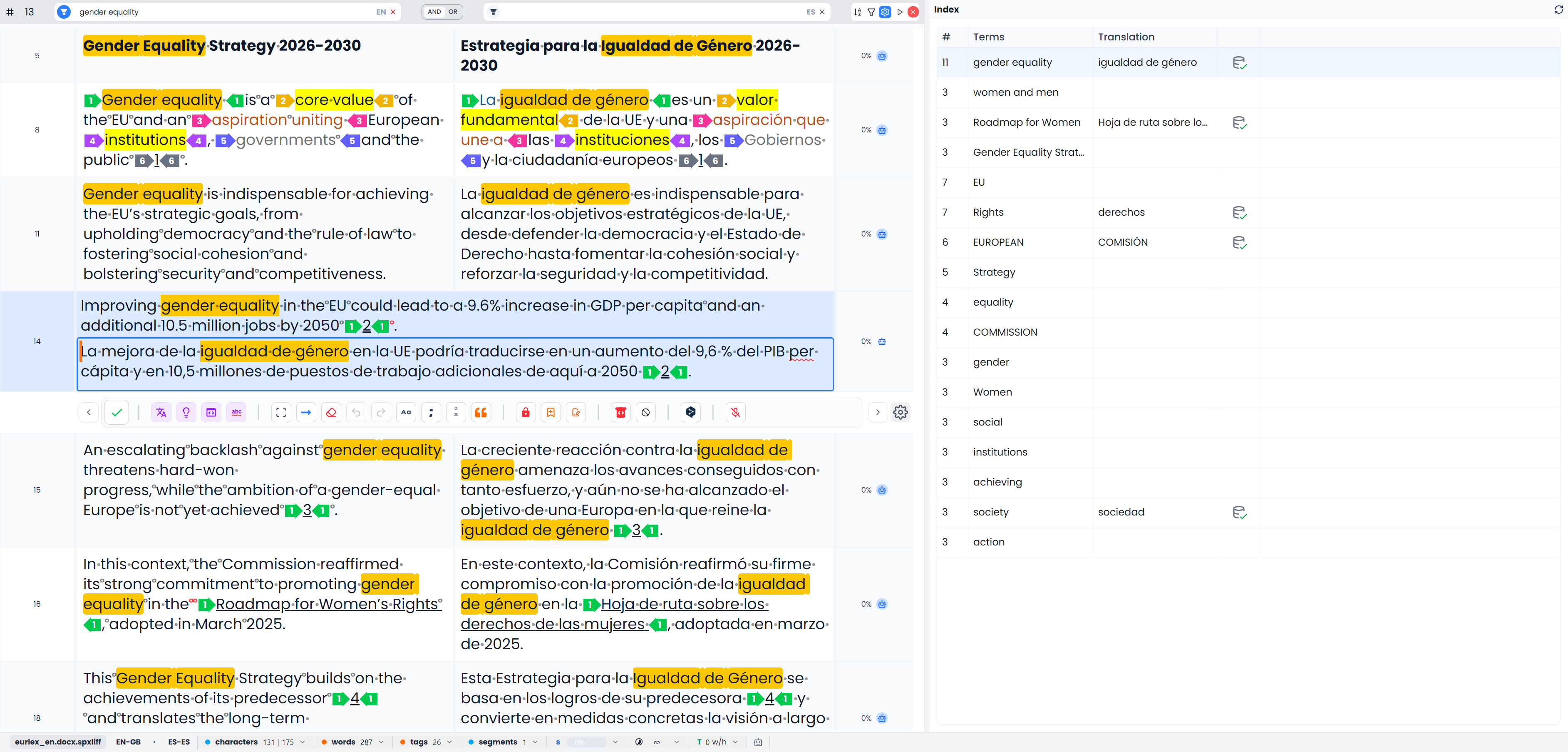
- Click a source entry in Terms.
- Inspect the editor rows shown by the resulting source filter.
- Read the occurrences to decide whether they represent the same concept.
- Compare their target wording and any highlighted candidate translation.
Selecting an entry fills the document's source filter. A single listed form uses whole-word matching; grouped forms use an alternative-form search. This is an automatic table filter, not a replacement and not a row-selection command.
An existing target search or other table conditions can still narrow the result. If you see fewer passages than expected, use Clear all, then click the Index entry again. The recorded occurrence count is not a promise that the table will display that many rows.
Where no target has been saved, Searchspeare can try to infer a candidate by comparing recurring wording in the file's source and existing translations. It can save that candidate in the Index and highlight it in the target text when the corresponding filter is in place. A blank target can simply mean there is not enough useful evidence yet. The action does not translate empty document targets.
Read the sentences yourself. Wording that repeatedly occurs beside a source term is not necessarily its correct translation, and one source expression can need different translations in different contexts.
Return to all segments
Click the document filter bar's X labeled Clear all when you finish investigating the expression. This clears the source/target searches, conditions, options, Index highlighting, and sorting so the full loaded table is available again.
Closing File Index, clicking a different panel tab, or editing an Index translation is not the same as clearing the document filters. Clearing only the source search may also leave other restrictions in place. See Filtering.
Edit an Index translation and add it to a glossary
Click the editable Translation cell to correct the target expression. Finish the edit by leaving the field, or press Enter. This saves the Index entry; it does not replace that expression throughout the document or update a glossary entry you already added.

Once the source and target pair is suitable, use the row's Add term pair to the selected glossary action. Check the glossary choice when prompted. The action uses available segment context for the term examples.
Saving a target in the index and adding a pair to a glossary are separate actions. The Term Matches tab is where you consult recognized glossary terminology during translation.
The add action appears when both source and target wording are available. It uses the entry's first source form and the saved target wording, with available segment context as examples. Check grouped forms and inferred targets before adding a pair. A glossary entry should express a terminology decision you want to reuse, rather than every variation found in the file.
Check that a term is translated consistently
- Start with a repeated expression whose meaning you understand in the source.
- Click it to gather its passages in the editor.
- Compare each translation with the source, including any cases where the candidate is absent.
- Decide on the appropriate target wording for each context.
- Edit the document targets directly, or prepare a controlled Find and Replace operation. Check that panel's side and scope before applying it.
- Correct the Index's Translation value if you want it to record your preferred candidate.
- Add a suitable reusable pair to the intended glossary.
- Use Clear all and continue with the next expression or the full document.
Editing an Index translation saves it in this list. To change document translations, edit the segments. To reuse a term in other jobs, add the pair to a glossary.
Recreate the index
Use Recreate file index in the header when you want a fresh list from the file's currently loaded source segments. This rebuilds the file's entire Index, regardless of the selected rows or current document filters.
Recreation replaces the previous Index list, including translations saved in its entries. Preserve useful terminology in a glossary before recreating it. Rebuilding the Index does not itself replace document translations or remove terms already saved to a glossary.
The Index is a saved list, not a continuously updated report of every edit. Recreate it when you need the source list recalculated, then review any new candidate translations again.
For term pairs extracted from confirmed bilingual work, see Adaptive Learning. That tab has a different source and different click behavior.
Choose between related tools
| Tool | What you are examining |
|---|---|
| File Index | Recurring wording extracted from this file's source, with editable target candidates |
| Term Matches | Recognized terminology from project glossaries for the current segment |
| Adaptive Learning | Learned term pairs from confirmed bilingual work |
| Concordance | Saved source–target examples in translation memories |
| QA | Possible rule violations that need a decision |
Use the Index to discover repeated wording, a glossary to maintain agreed terminology, and QA to check the translation against applicable requirements.