
Project home tab
The Project home tab opens the current project's information inside the side panel. Use it to check instructions, inspect attached resources, or open another project file without leaving for the separate Project Home page.
This tab shows the current project
This is the project you are currently working in. Opening this tab does not create a project or show a list of all your projects. The project name in the panel header helps you check the context.
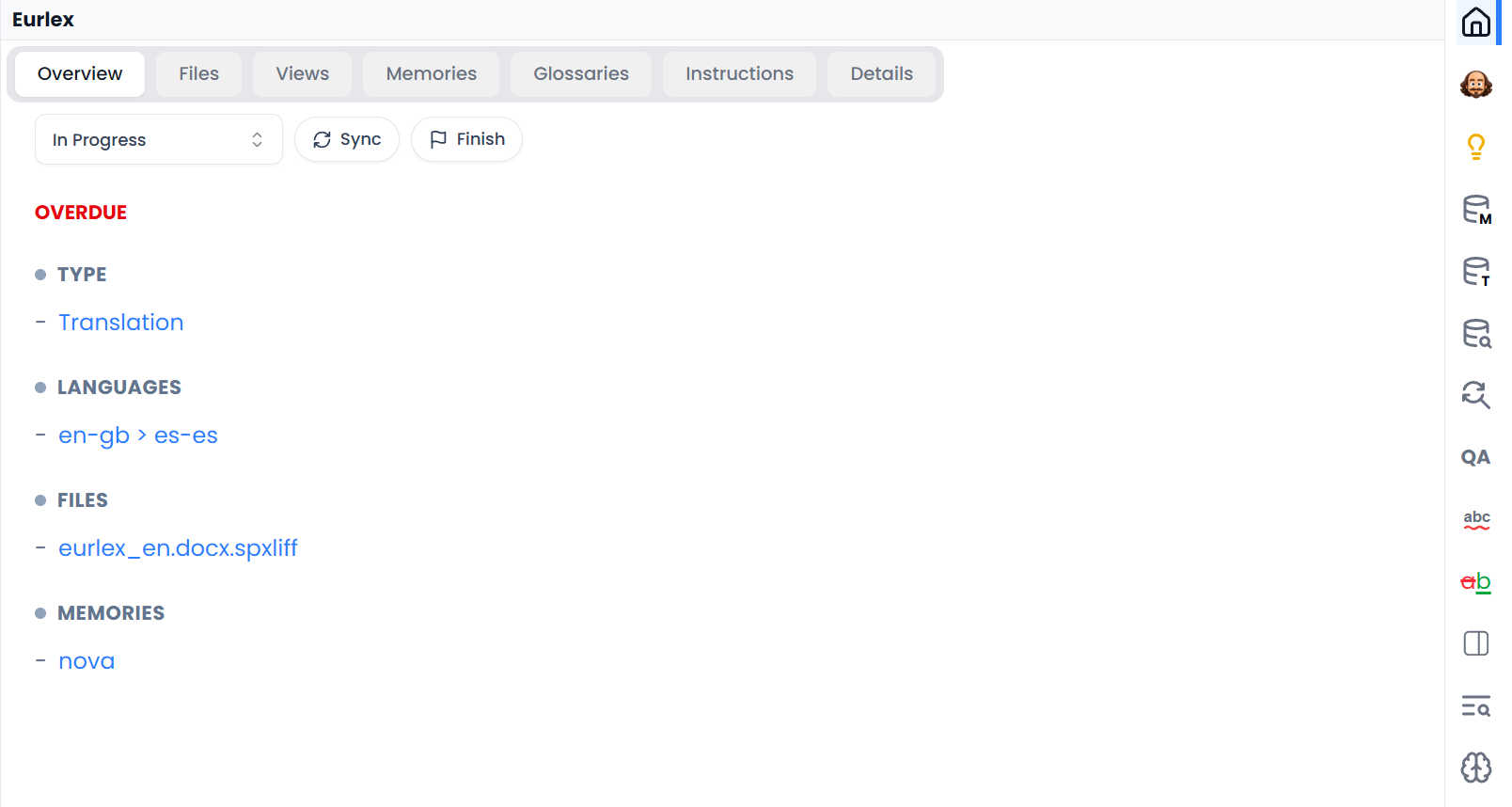
Use the sections inside Project home
Project home has its own sections within the panel:
| Section | What you can do |
|---|---|
| Overview | Check the project's summary and progress information |
| Files | Inspect project files and use the available file actions |
| Views | Open or manage saved selections of segments |
| Memories | Check and manage the translation memories attached to a bilingual project |
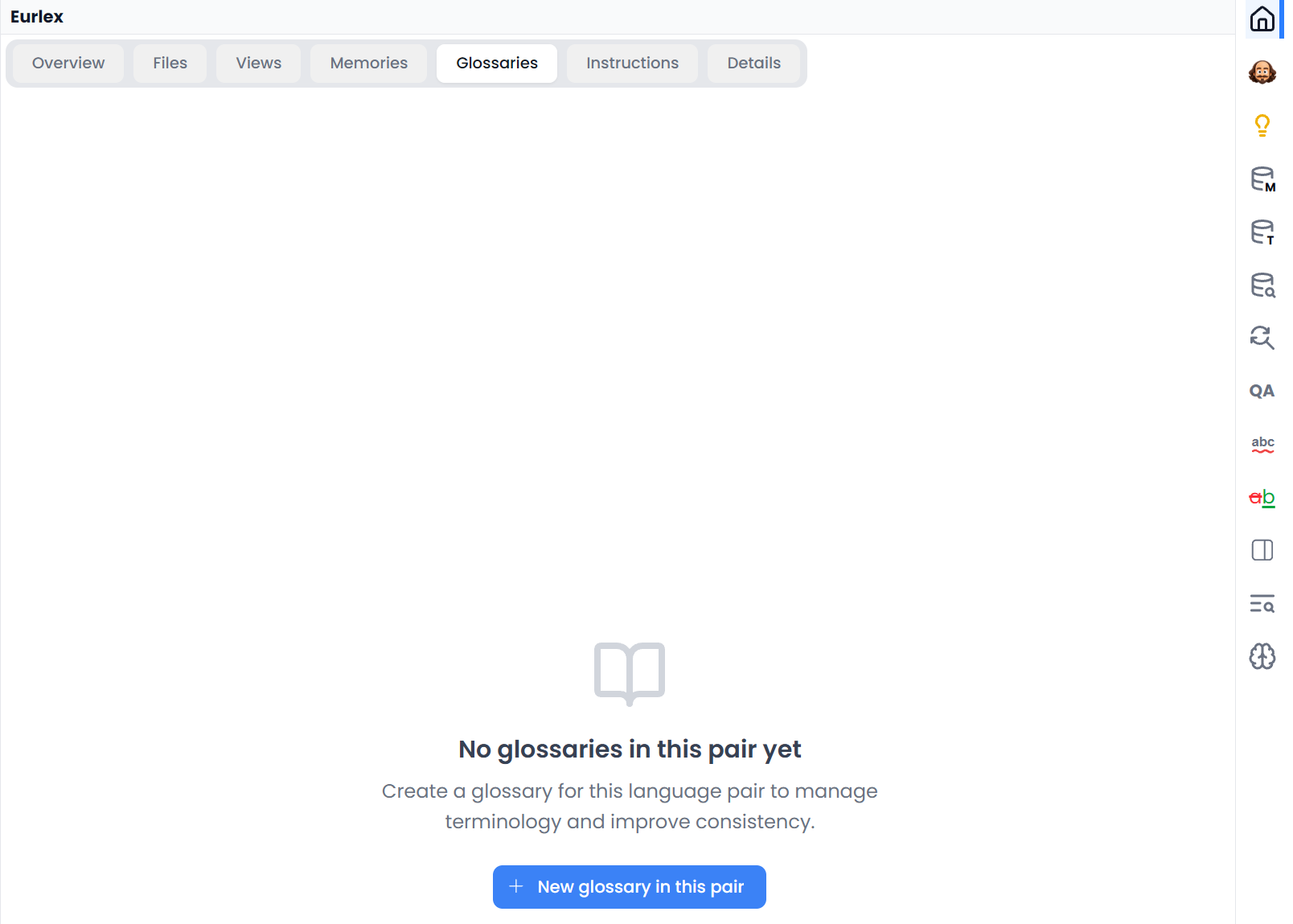
| Glossaries | Check and manage the project's attached glossaries |
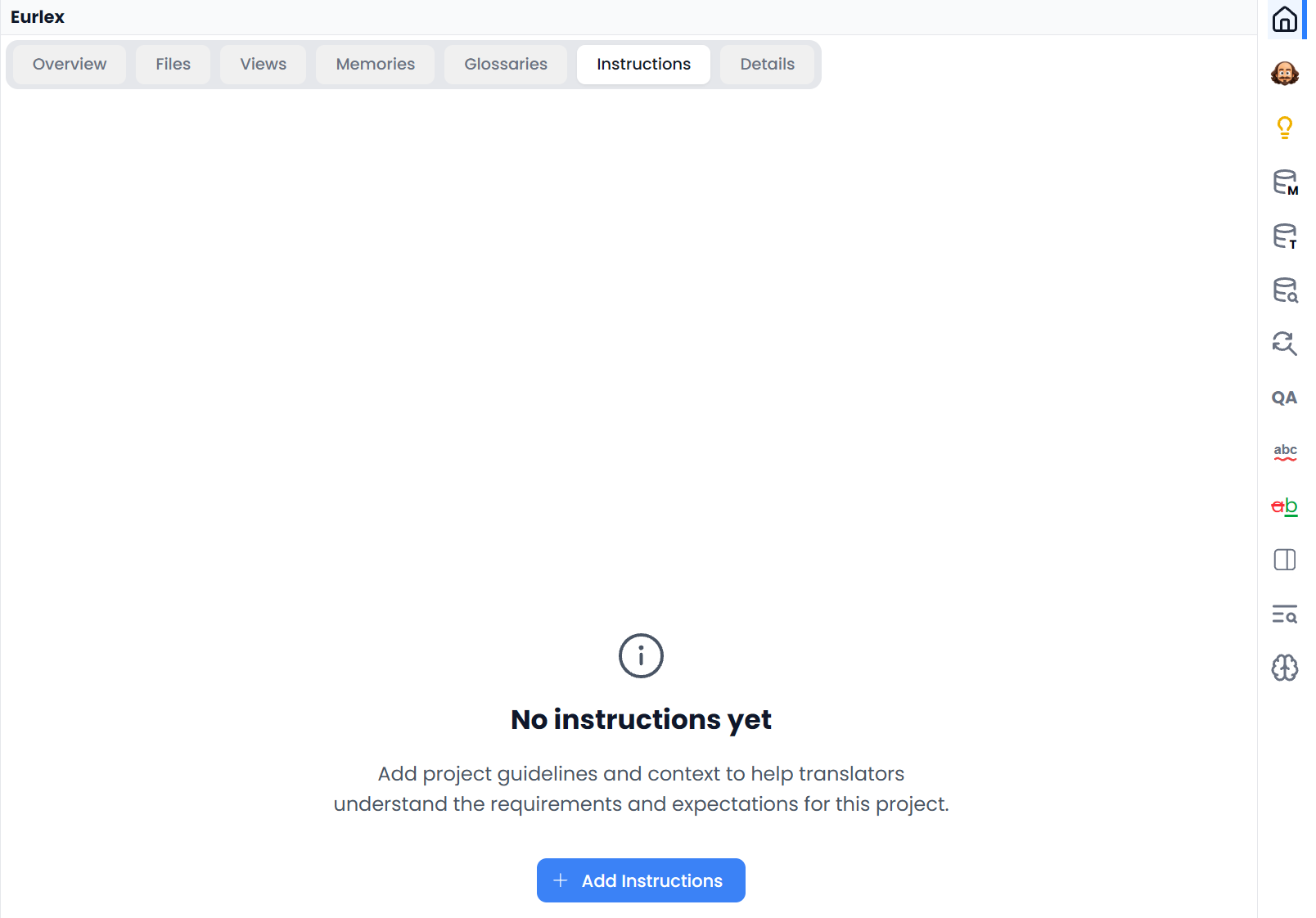
| Instructions | Read or maintain the project's translation requirements |
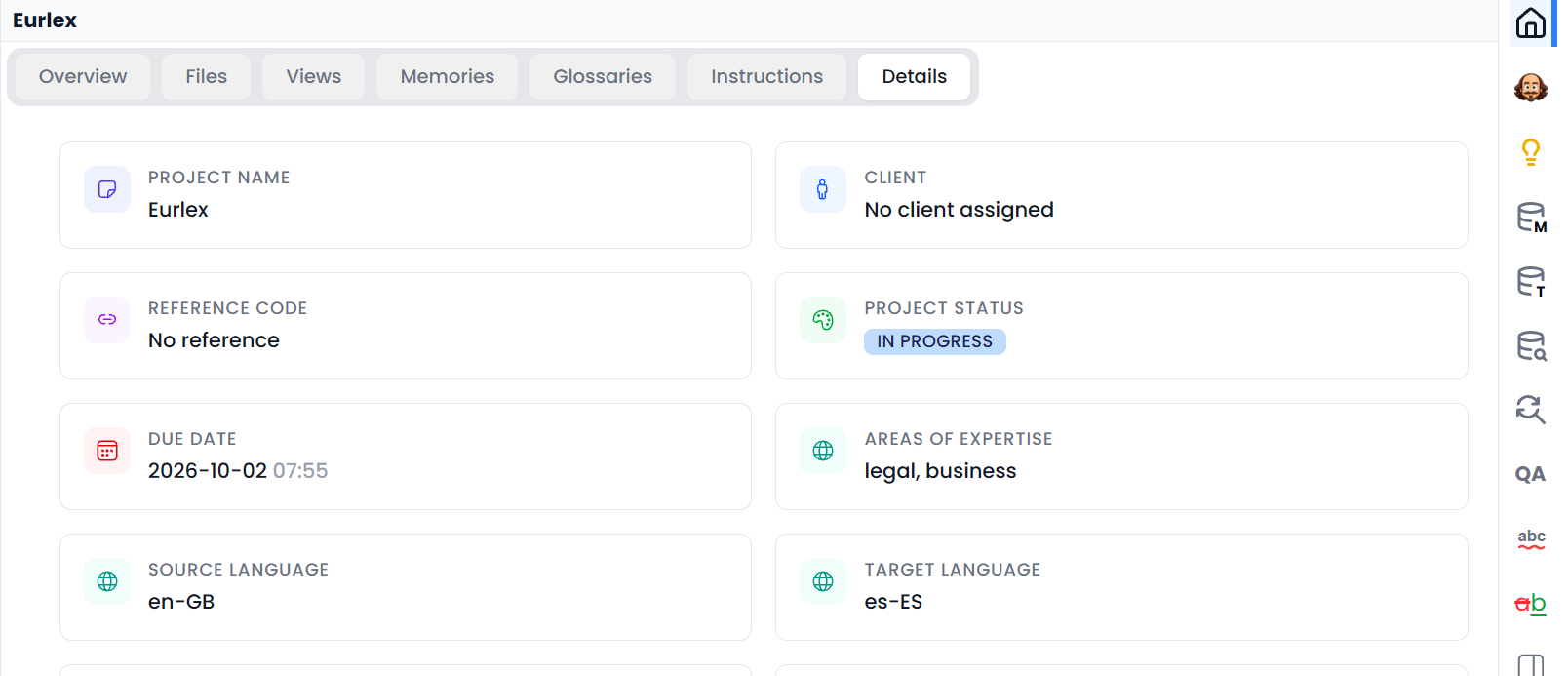
| Details | Inspect or edit the available project information |
The sections depend on the project type. Single-language review omits the bilingual resource sections. The fuller Project Home guide explains the controls in each section.
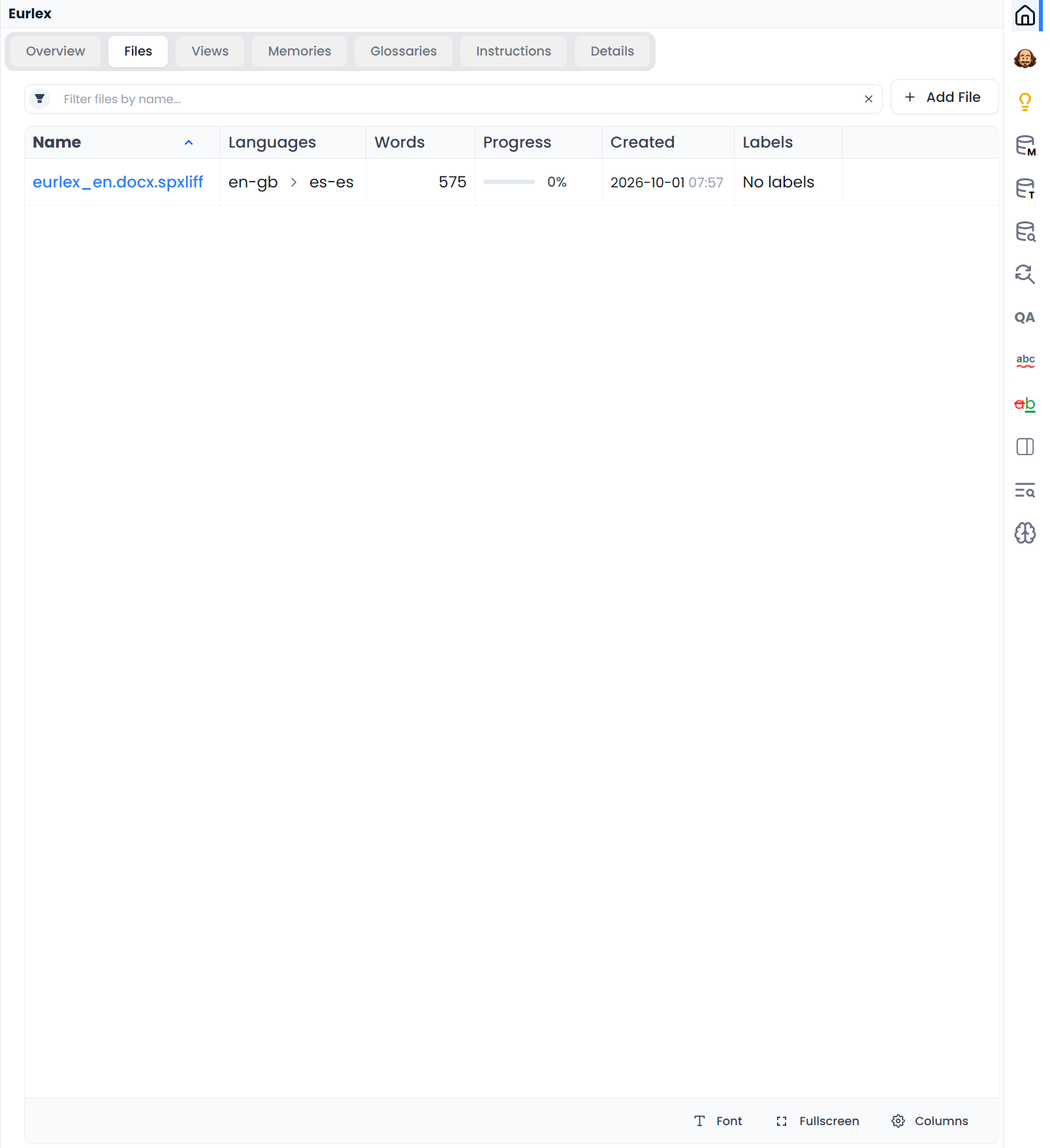
Files and Views
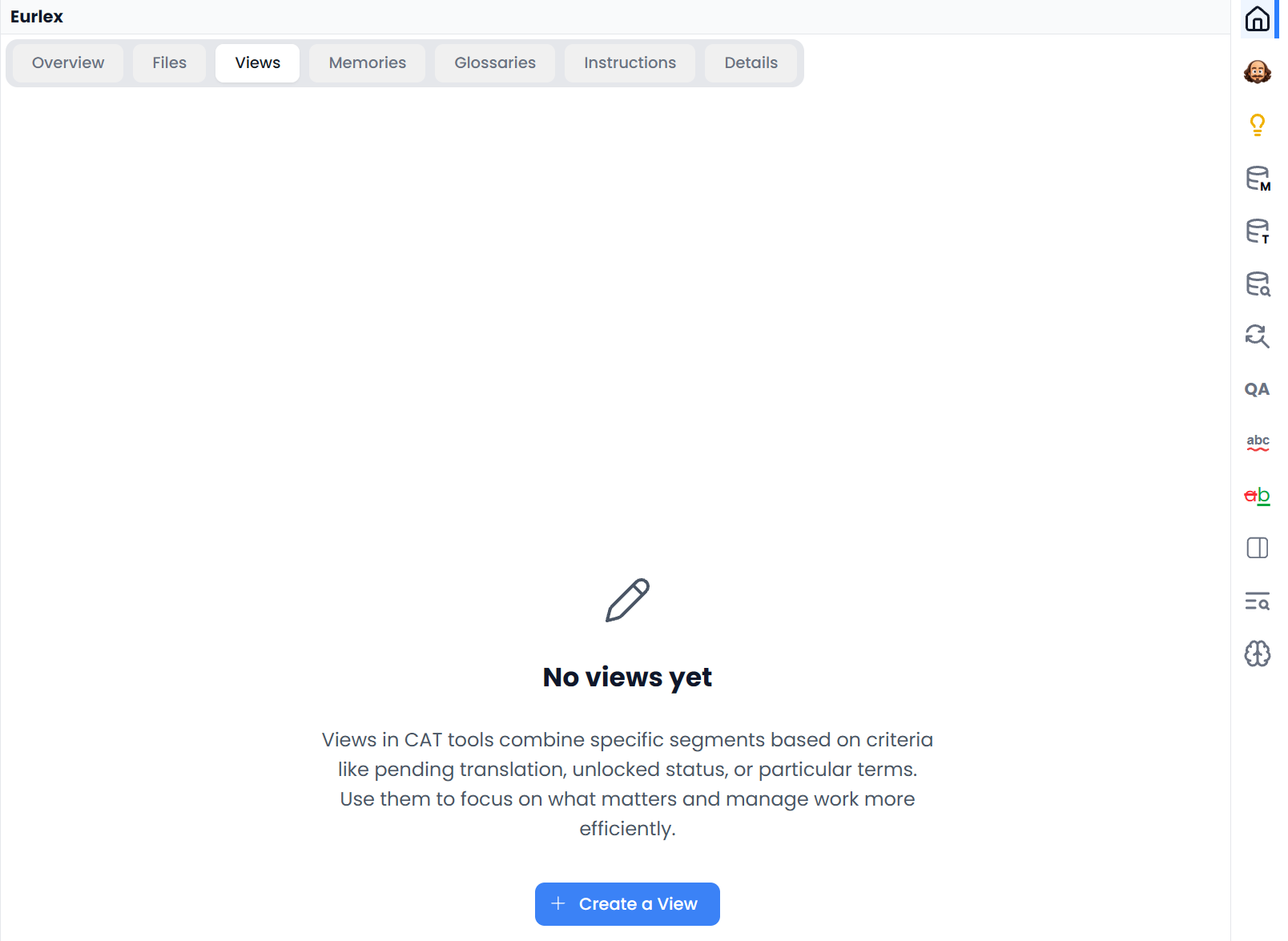
Open Files to find another file in this project. A file's context menu provides its available file actions. Open Views for saved groups of segments. Click a file or View name to open that material in the editor.
Memories and Glossaries
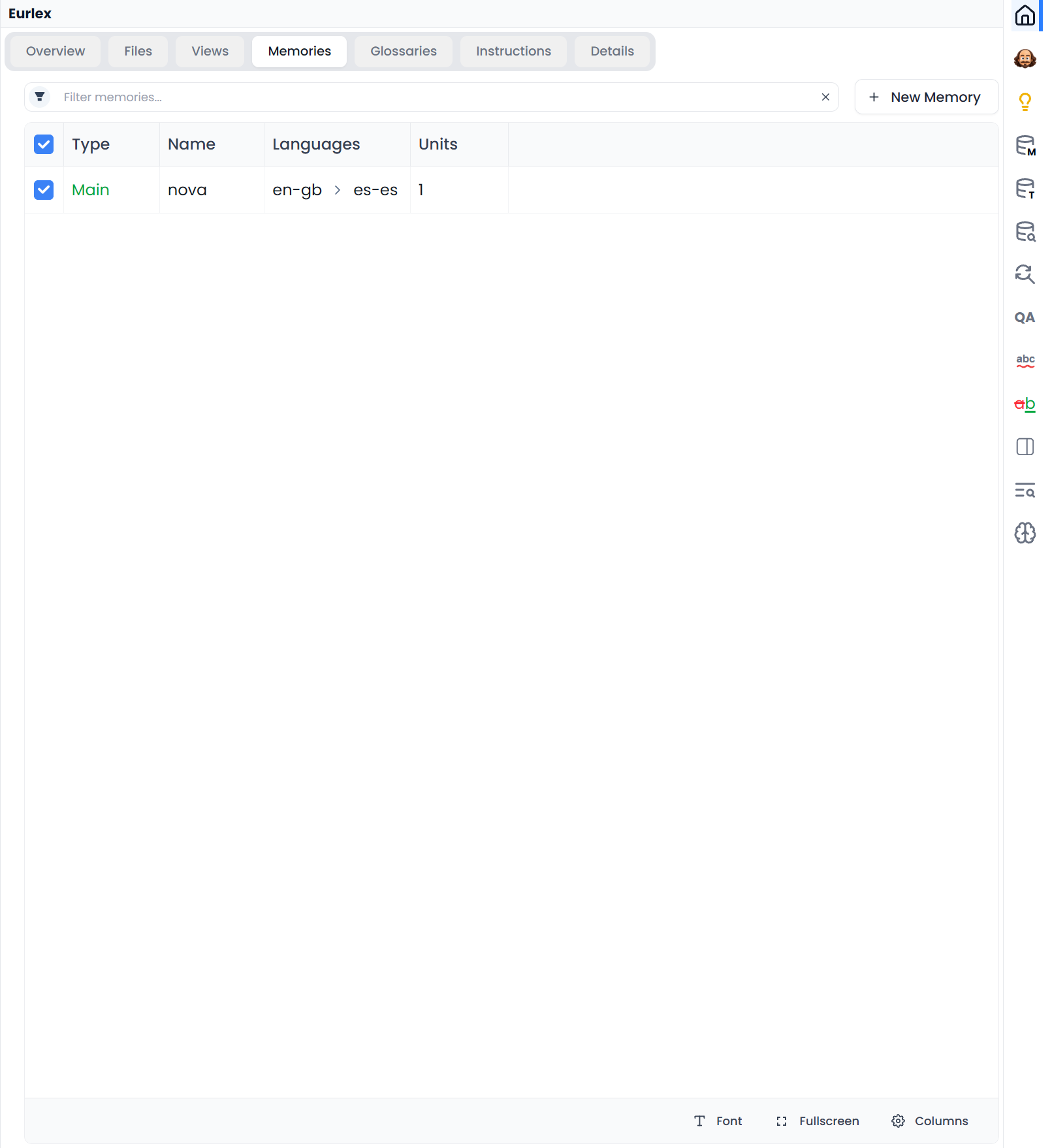
Open Memories or Glossaries to inspect the resources attached to this project. Check the language pair and attachment before investigating an empty Matches or Term Matches tab.
Instructions and Details
Open Instructions to read or maintain the project requirements. Details contains the available project information. Check the project name above these sections before changing anything.
Check the brief during translation
- Select Project home in the side-panel toolbar.
- Open Instructions inside the panel.
- Check the requirement relevant to your current decision, such as audience, preferred wording, or tone.
- Return to Matches, Terms, or Suggestions when you need evidence or assistance for that decision.
Save the project brief here so it is available while you work. AI rules provide a separate way to maintain reusable guidance for AI actions.
Check why resources are missing
If Matches or Term Matches is unexpectedly empty, inspect Memories or Glossaries here. A resource in your library is not automatically attached to this project. Check both the attachment and the language pair before changing lookup settings.
Move to another file or View
Use Files or Views to open the material you intend to edit. Opening another file changes the editor's working context; it is more than selecting an item for inspection.
A View shows the group of segments saved when it was created. To review the rest of the project, open its other files or Views. See Project Home and Filtering.