
Terminology checks
Terminology QA compares translations with the glossaries attached to the project. The results depend on their entries, languages, and matching settings. Add missing terms to a glossary when you need them checked.

Prepare the attached glossaries
- Open Project home → Glossaries and check the attached resources.
- Verify that their source and target languages fit the job.
- Review relevant term pairs and their examples.
- Check each term's matching behavior and Forbidden status.
- Check the Override match type preference if you have used it in Term Matches.
A glossary elsewhere in the library is not automatically attached to this project. A valid source entry paired with an incorrect target can also produce misleading guidance; maintain the resource before repeatedly fixing the document to match it.
See Glossaries and terms and Term Matches for editing and recognition controls.
Run Check Terms or a QA profile
Use Check Terms for the dedicated terminology pass, or enable the glossary terminology rule in a broader QA profile. The dedicated action uses the terminology check and retains other existing QA findings for the same scope while refreshing terminology results.
Terminology QA also checks rows hidden by filters
Like a normal QA profile run, this checks applicable unlocked segments across the whole open file or View. Selecting several rows or filtering the table does not limit the run to those rows.
Investigate a missing target term
A glossary-based terminology result can mean that recognized source terminology does not have an acceptable target term in the translation. Check:
- Whether the source occurrence represents the glossary concept in this context.
- Whether the target uses an allowed form and the intended matching settings.
- Whether the glossary entry itself is correct for this client and job.
- Whether a broader matching override is responsible for an unexpected lookup.
Exact, initial-half, fuzzy, and explicitly marked forms recognize content differently. A fuzzy result appearing in Term Matches does not by itself establish that the literal stored source term occurs in the segment for highlighting or QA. Inspect the actual source wording before treating every suggested match as a mandatory insertion.
If the concept is correct, revise the target with the required term and adapt surrounding grammar. If the resource is wrong, maintain the entry. Use Ignore for a justified exception rather than changing valid wording solely to remove a warning.
Investigate forbidden glossary wording
A Forbidden target entry identifies wording that should not be used. The glossary terminology check can report forbidden wording as well as missing preferred terminology.
Do not insert the forbidden form to satisfy a missing-term interpretation. Read the message and the entry's flags. Keep preferred and forbidden entries clear, with examples that explain their intended use.
Use a profile-specific forbidden word list
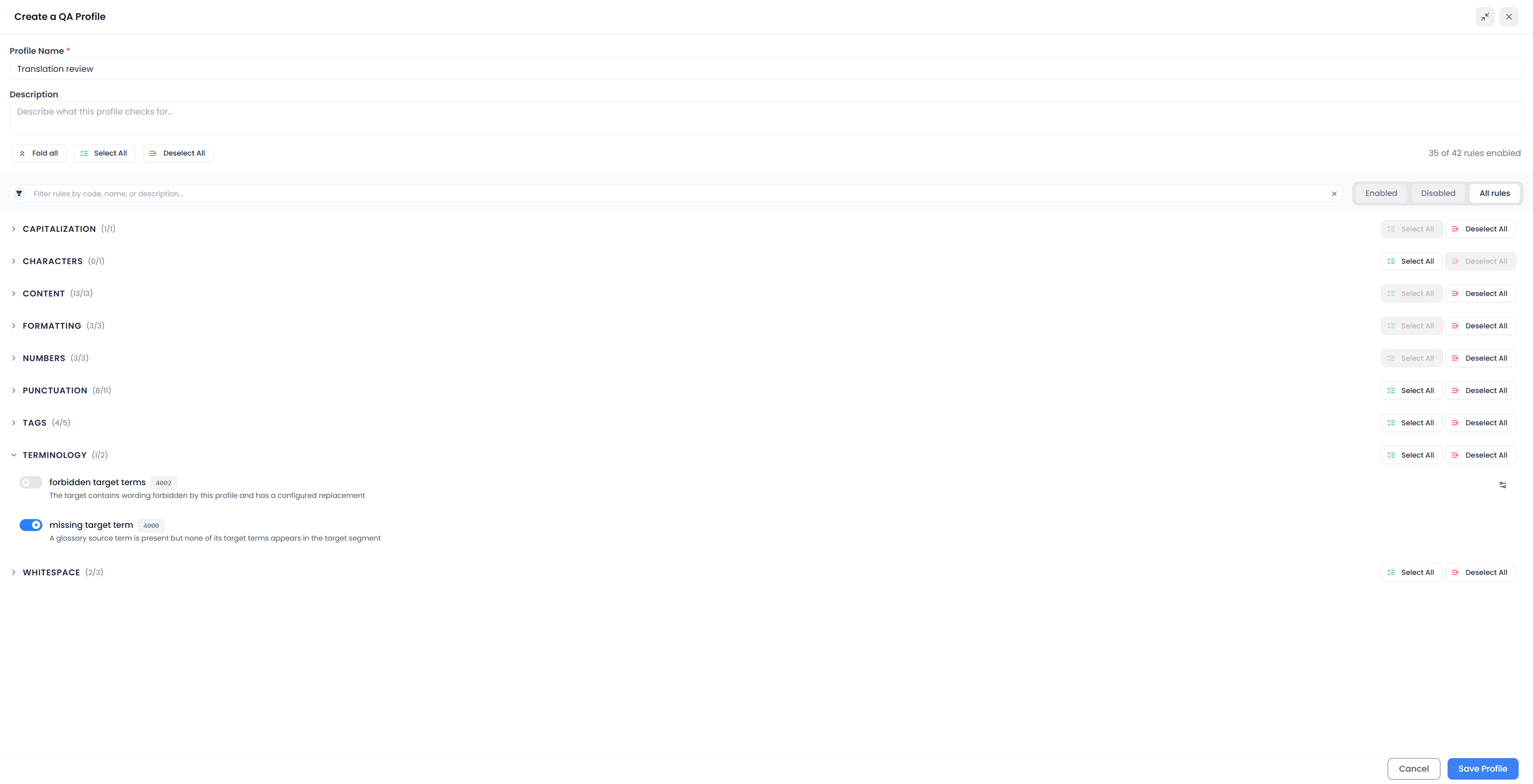
The separate Forbidden target terms check uses replacement pairs saved in the QA profile. Each pair has a forbidden word or phrase and a preferred replacement. Matching is case-sensitive and checks whole words or phrases.
For example, a client can forbid one product label in favor of another. Add the exact forms you intend to flag, save the profile, and test the result. Enabling the check without configured pairs does not create a word list.
| Resource | Best use |
|---|---|
| Attached glossary | Maintained concepts, source–target terminology, examples, matching, and forbidden terminology |
| Profile replacement pairs | A specific set of target wording restrictions for the jobs using that profile |
| Custom QA rule | An additional condition or source–target relationship not covered by those controls |
Do not assume that editing one of these automatically updates the others. QA profiles explains the replacement-pair settings.
Recheck after a terminology decision
Run the terminology pass again after changing the relevant text, attachment, or entries. Inspect unexpected findings rather than ignoring a recurring resource error in every file.
Before delivery, check files outside the current loaded scope and read the result in context. A sentence can contain every required term and still express the wrong relationship between them.