
Segmentation rules and abbreviations
Segmentation rules decide where text can break into working segments. Abbreviations protect familiar full stops that should not normally end a sentence. A custom rule handles a more specific boundary pattern.
These are separate from AI translation instructions and QA rules. A segmentation rule changes where text is divided; it does not instruct Searchspeare how to translate it or create a QA finding.
Prevent a break after an abbreviation
Open Segmentation → Abbrev. in the file editor to work with the source language's abbreviations. The right-side Abbreviations tool lets you inspect and maintain that language's entries. Settings → Abbreviations provides the resource-management pages.
- Check the language.
- Search for the abbreviation before adding another entry.
- Add or correct the actual abbreviation text.
- Save through the editor's controls.
- Test a sentence containing it and a normal sentence ending.
Abbreviations are saved by language and checked before the sentence-splitting rules. Add an abbreviation to the source language's list when its full stop is causing an unwanted break.
Create a custom boundary rule
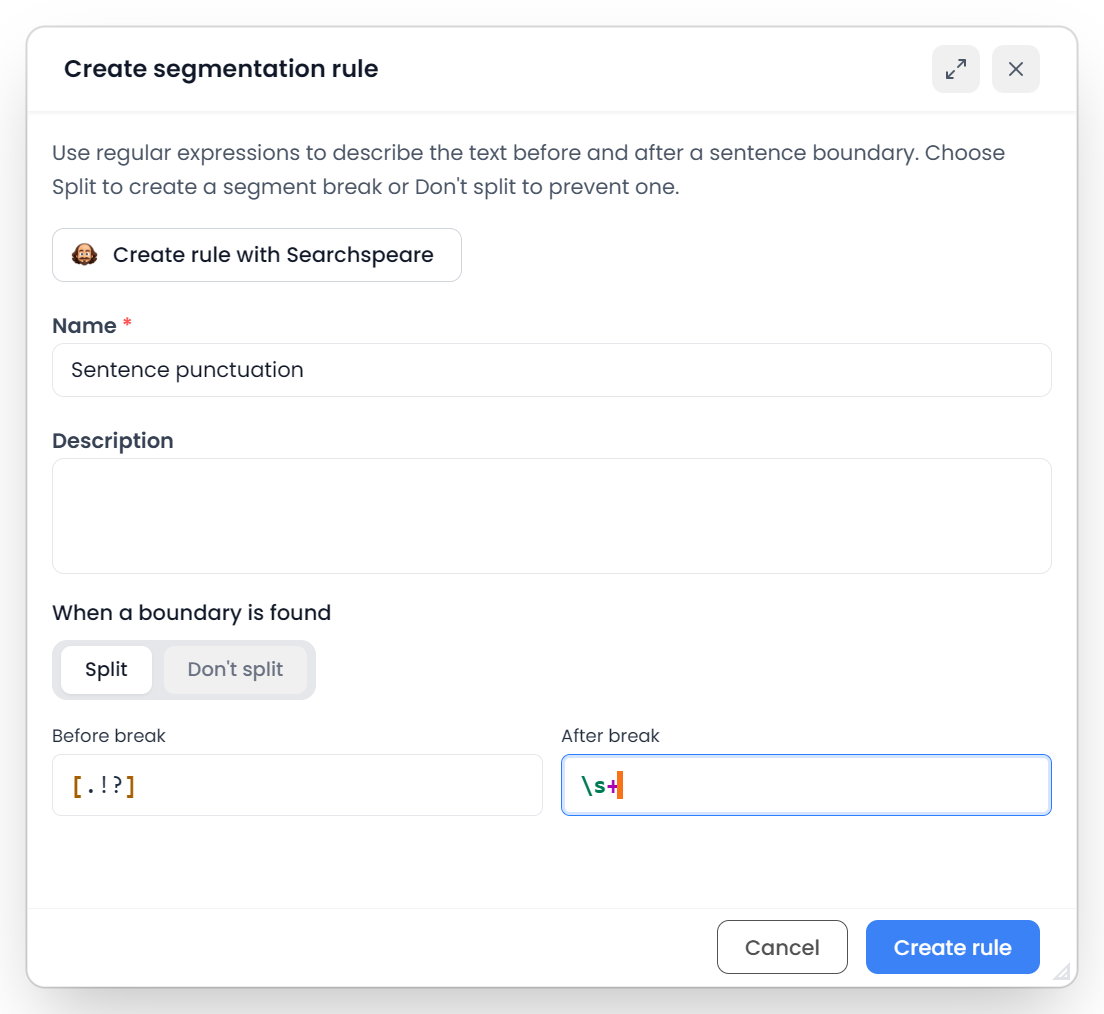
Open Segmentation → Rules. Choose New rule and complete the rule form:

| Field | Purpose |
|---|---|
| Name | Identify the boundary condition you are handling |
| Description | Explain its purpose and any relevant exception |
| Split / Don't split | Decide whether a matching boundary should break the text or remain inside a segment |
| Before break | A pattern for the text immediately before the possible boundary |
| After break | A pattern for the text immediately after the possible boundary |
The name and a usable expression are required. Both expressions describe one boundary: the before expression ends there, and the after expression begins there. You do not enter a replacement translation.
For example, an exception for an illustrative abbreviation RefX. could use:
Name: Keep RefX. with its reference
Behavior: Don't split
Before break: RefX\.
After break: \s+
Here, \. means a literal full stop and \s+ means following whitespace. Test See RefX. 42 for details. alongside First instruction. Second instruction. so the exception does not accidentally prevent ordinary sentence breaks. For a simple abbreviation, adding the abbreviation itself to the language list is usually the more direct approach.
The form also offers Searchspeare assistance for drafting a rule. Describe the wanted boundary and examples, inspect the generated expressions, and save only after they represent your intended condition. An assisted draft still needs testing.
Ask Searchspeare to draft a boundary rule
Click Create rule with Searchspeare in the new or edit rule form. Describe a boundary that should split or stay together, and provide a contrasting example where ordinary sentence splitting must still work.

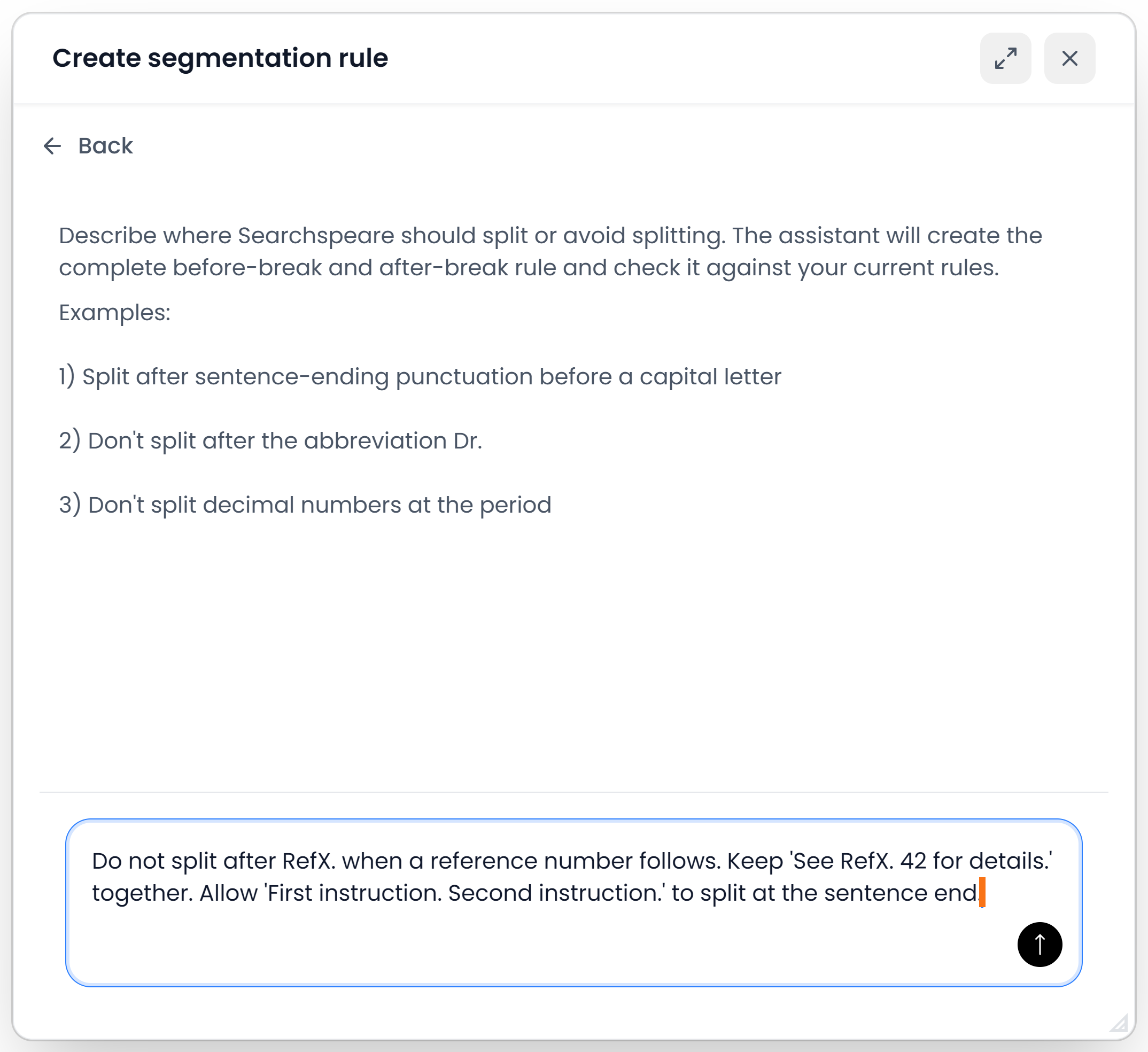
Send the request, read the proposed rule, and ask for a revision if needed. Accept copies the proposal into the form. Check its Split / Don't split choice and both patterns before saving it. Saving does not resegment the open file; that is a separate action.
See Create rules with Searchspeare for the step-by-step workflow and how to review or stop a request.
Save the rules and resegment the file
Saving a rule enables it for the source language
The editor's Rules manager saves custom rules for the current source language. New and edited rules become active custom rules when saved. Its table search narrows the displayed list; it does not disable hidden rules.
Rules are evaluated in their stored order, and the first matching decision at a boundary matters. Keep overlapping conditions deliberate. The current manager offers creation, editing, deletion, search, and import; do not confuse sorting a displayed table with changing the order in which rules run.
If Searchspeare asks whether wildcard dots should be escaped, choose according to the expression you intend. A plain . can match any character; \. matches a full stop. Replacing wildcard dots is inappropriate if you need a wildcard.
Saving a rule does not restructure existing work. Use Segmentation → Resegment for that explicit file-wide operation, or test through an appropriate new import. Resegment an existing file explains scope and protected units.
Import rules
Use Import in the Rules manager for a supported .srx or .mqres resource. The importer selects compatible rules and can report skipped incompatible expressions. Larger imports ask for confirmation.
Import replaces the current custom-rule list with the imported compatible rules; it is not an automatic append to every rule already there. Review the imported list, language, Split / Don't split behavior, and expressions before applying it to work.
The language's native segmentation and abbreviation protection are distinct from the custom-rule list you are editing. Deleting a custom rule is therefore different from removing every segmentation behavior.
Check the resulting segments
A valid expression can still describe the wrong boundary. Test examples that should split, examples that should stay together, abbreviations, numbers, tags, and sentence punctuation used by your documents.
Use a small sample file for the first resegmentation test. Table filters do not restrict Resegment to your visible examples. Review both the new source boundaries and the resulting target correspondence before applying the rule more widely.