
QA fixes and false positives
A fix changes the text. Ignoring a false positive changes a QA finding's review state. Start by deciding which of those outcomes the sentence needs.
A false positive is a valid piece of text that triggered a warning. For example, an unchanged name may be correct even though an untranslated-text check asks you to inspect it.
Correct the target yourself
Select the QA finding, read the sentence, and edit the target. This is often the clearest approach when the correction depends on meaning or surrounding grammar.
Check the result and recheck the relevant content afterward. A manually edited sentence can fix one problem while introducing a new spacing, number, or terminology issue.
Use an available Auto-fix
Select a finding and inspect whether Auto-fix is available. The action is offered only when a supported correction can be constructed for the current text. The result's right-click menu can also expose the available fix actions.
- Read the description and affected wording.
- Compare the proposed type of correction with the sentence's requirements.
- Choose Auto-fix, or choose the required alternative if a menu opens.
- Inspect the target afterward, including its tags and any tracked changes.
Some punctuation and spacing findings have direct corrections. Other findings require a decision, such as which translation to reuse or how many dots the punctuation needs. An unavailable Auto-fix does not mean the finding is unimportant; it may need manual editing or a different tool.
Choose which translation to copy
For an inconsistent-translation finding, the fix controls can offer existing segment variants as the baseline. Read those variants in context and choose the segment whose wording should be reused.
Do not choose a baseline simply because it is first in the list. If the same source has legitimately different meanings in context, forcing all variants to agree can introduce an error. If none is suitable, correct the text manually first.
Choose the intended punctuation
For supported multiple-dot findings, the controls can offer Add dot or Suppress dot. These represent different corrections. Decide whether the context needs an ellipsis or an ordinary full stop before applying either choice, particularly in a batch.
Which results Auto-fix all changes
Auto-fix all uses the selected message group
Auto-fix all applies supported fixes to unresolved findings with the same message as the selected finding across the QA result set. It is not “fix every kind of QA problem,” and it is not limited to the editor rows you selected.
The result-list search is not the boundary for this action: matching findings outside that visible search can be included. Locked content and findings without a valid supported fix are excluded. Test and inspect one correction before using the broader action.
Request fixes with Searchspeare
The QA toolbar offers two different AI-assisted correction scopes:
| Action | Scope |
|---|---|
| Fix filtered errors with Searchspeare | Unresolved findings in the visible QA list matching the selected code or message context; without that context, the selected rule is used |
| Fix ALL errors with Searchspeare | Unresolved findings across the current QA result set, excluding locked content |
Here “filtered” concerns the QA findings and their active context. It is not a promise to process only the selected rows of the translation table.
Run the intended action, then inspect the explanation and Changes preview when corrections are proposed. Apply only changes that fix the reported issue while preserving meaning, terms, numbers, tags, and necessary wording. Opening the preview does not itself apply the corrections.
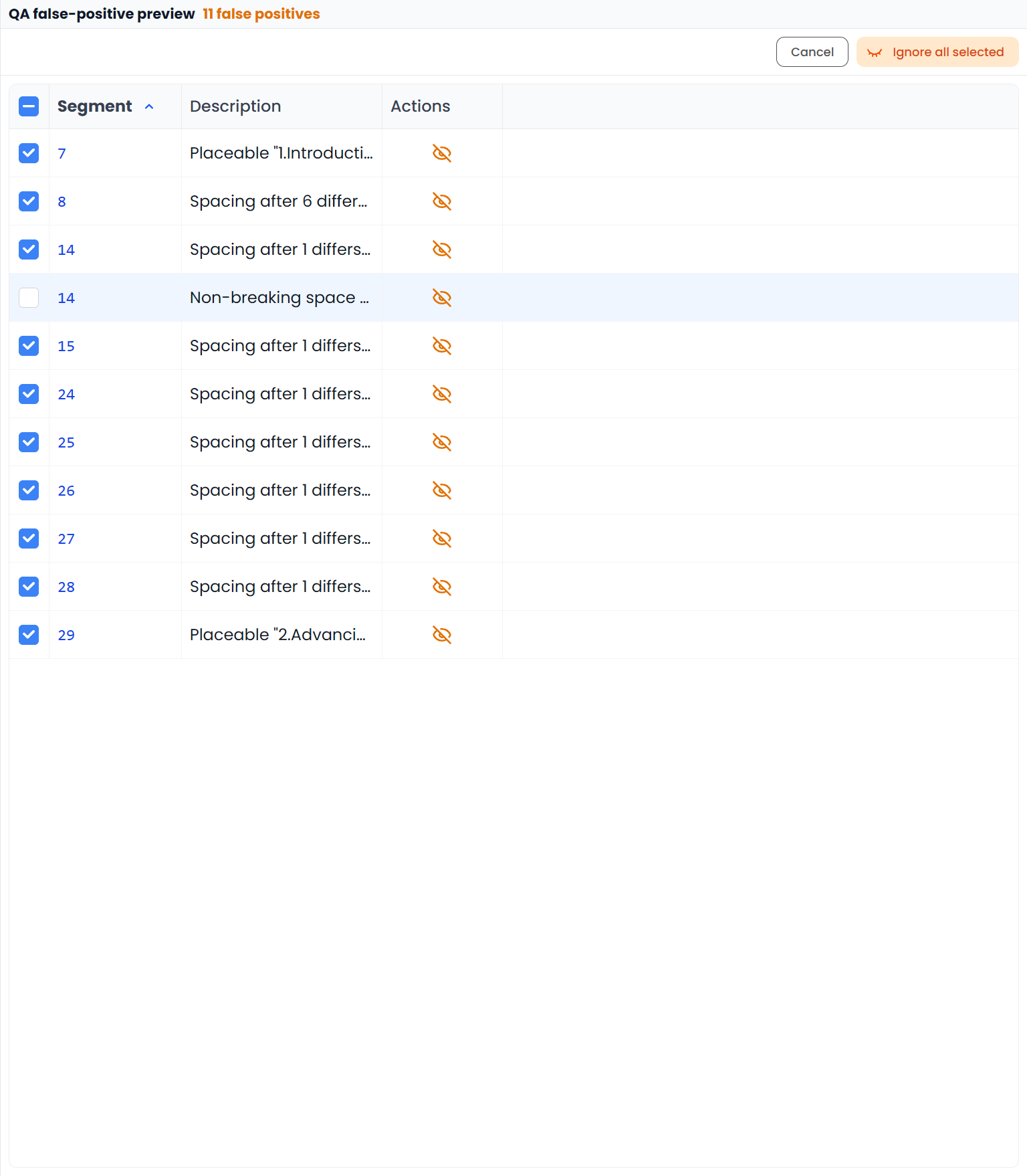
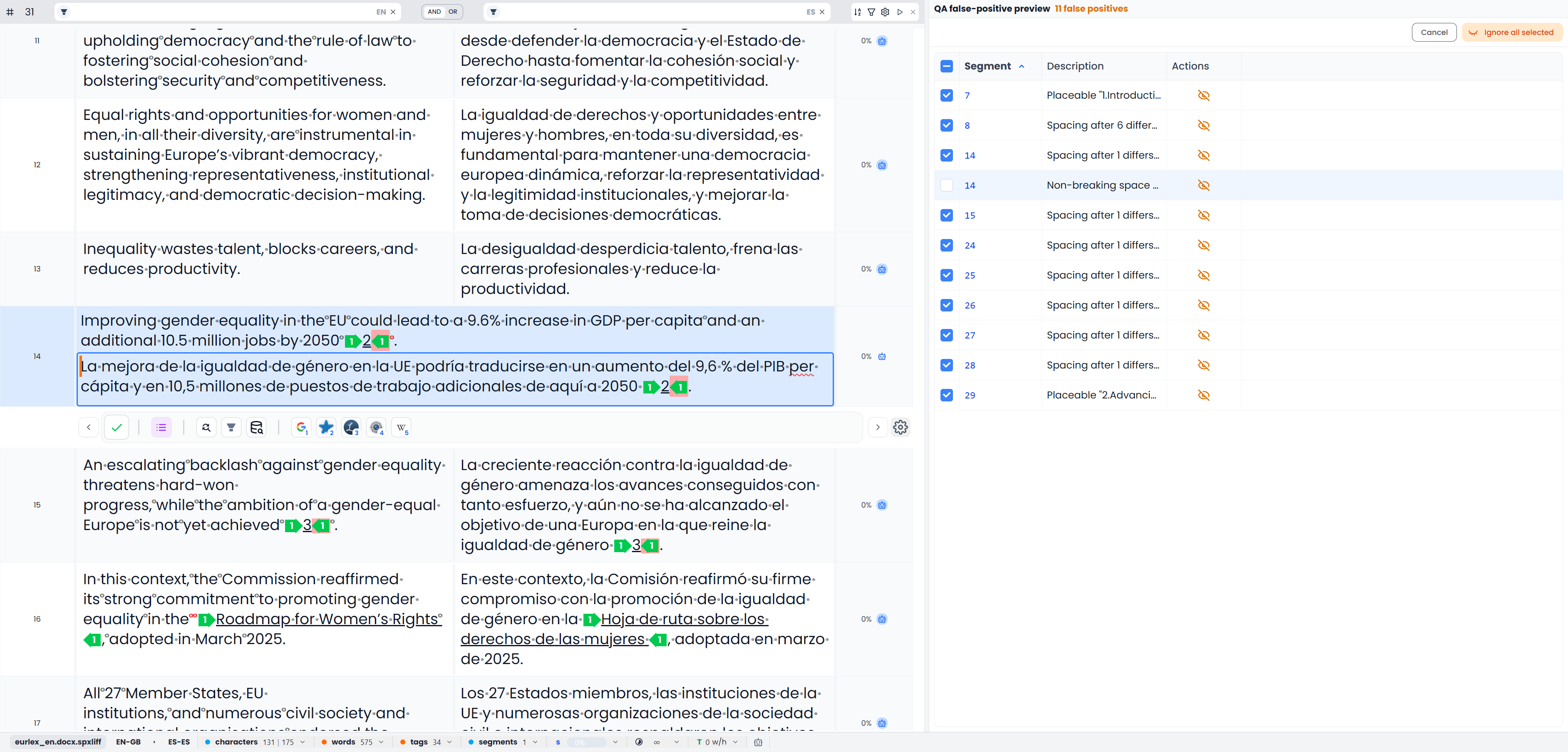
If the correction assessment instead identifies the reported items as false positives, Searchspeare can open an explanation and review dialog. Inspect the listed segments and explicitly choose which findings to ignore. Cancelling does not approve the pending bulk dismissal.
AI correction needs available assistance. A failed or incomplete request is not evidence that the target is correct. Inspect retained proposals and current text before retrying.
Detect false positives without rewriting
Use Detect and ignore QA false positives with Searchspeare to assess eligible unresolved findings. The action can open the QA false positives tab with candidates for your review.
- Click a candidate's segment or description to inspect the text.
- Decide whether the warning is a real error or an acceptable exception.
- Use an individual ignore action for a confirmed exception.
- Adjust the row selection before Ignore all selected.
- Return to QA and continue with the remaining issues.
Candidate rows initially start selected. Cancel leaves the pending bulk selection unapplied; findings you already ignored individually remain ignored.
Not every rule is eligible for this automatic dismissal assessment. Missing-tag, empty-target, unchanged-source, and inconsistent-translation findings are excluded from that candidate process. You can still investigate them yourself and make an appropriate manual review decision.
Finish the correction pass
Recheck QA after applying changes. If Track Changes is enabled, inspect the recorded revisions as well as the final reading view. Applying a QA proposal, accepting a tracked change, and confirming a segment are separate decisions.
Turn off Hide ignored or Hide solved when you need to audit earlier decisions. Use the document filter bar's Clear all before leaving a focused inspection set. Reviewing QA results explains rechecks, resets, and restoring hidden rows.