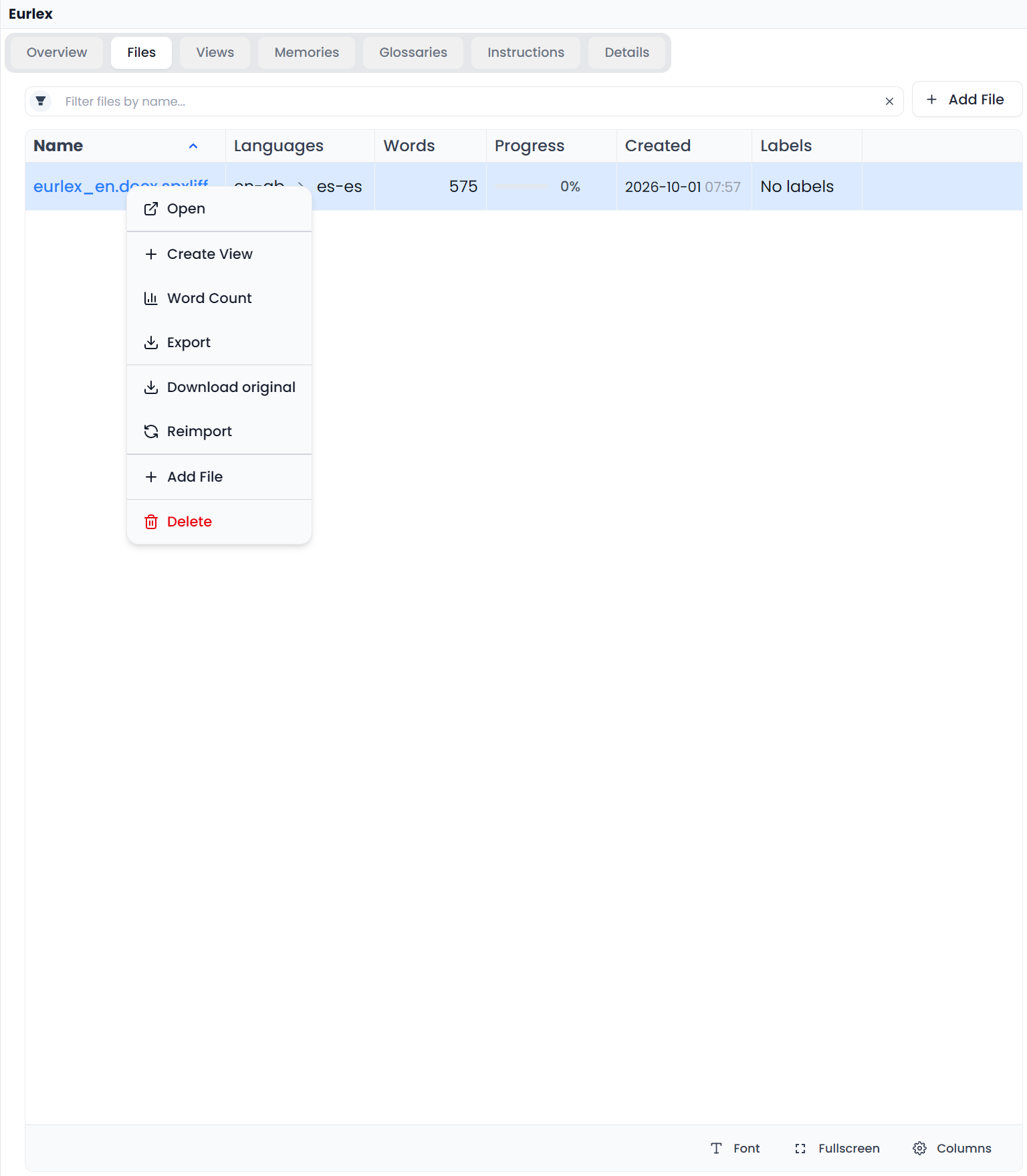
Reimport a project file
Reimport rebuilds a project's working file from its stored original. It does not ask you to choose a new version from your computer, and it is not a routine refresh of the current editor.
Before using Reimport
Reimport rebuilds the working file from its stored original and replaces the current segments. Export your current work first. To return reviewed targets from a bilingual copy, use File → Import instead.
Use it to import the stored original again with the project's import settings. For returned bilingual corrections, use Bilingual export and corrections instead.
What Reimport deletes and rebuilds
The operation prepares the stored original again, replaces the file's working record and units, and saves the rebuilt units. Existing labels and file identity are retained where the workflow supports them, but the current working text is not merged into a new source automatically.
If you imported an untranslated source document and translated it afterward, the original document does not contain those later translations. Reimport is therefore not a way to preserve all current targets, comments, status, or manual segmentation. A stored bilingual original can supply the translations and state present in that original itself.
In single-language review, the rebuilt document is initialized again for that review mode. Later revisions still need their own saved export if you want to retain them.
Export your current work first
- Export a bilingual working copy and any translated document you need to retain.
- Save a local backup when that workspace contains important work you may need to restore.
- Check the project, file names, and recorded extraction choices.
- Distinguish a segmentation problem from an extraction problem. Use Resegment for the supported boundary workflow when that is the intended change.
Reimport uses the project's recorded Office or IDML extraction settings and current applicable native-filter rules. The action itself does not present the creation wizard's full extraction-option editor.
Run Reimport
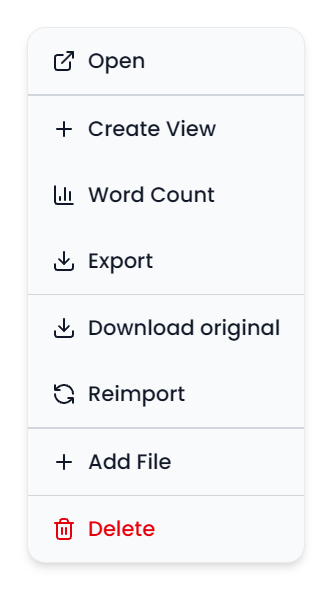
Open Project Home → Files, use the intended file's Reimport action, and read the confirmation and listed names. Confirm only when those are the files you intend to rebuild.
Wait for processing to finish. Cancellation is available during applicable preparation stages, but can be disabled while a file's saved working content is being replaced. With several files, earlier files can have completed before a later failure or cancellation.
If processing reports a missing stored original, unavailable data, invalid input, or a conversion problem, resolve that message before repeating it. Do not assume the whole batch was unchanged merely because one file failed.
Inspect the rebuilt file
Open it and check the languages, source content, target initialization, protected text, word count, tags, and segmentation. Inspect any saved Views that referred to the old working units and recreate them if necessary.
After reimporting, you can use the project's memories and Pretranslation to recover saved translations. Review the results: Reimport itself does not reapply your previous targets.
See Translate DOCX, PPTX, and XLSX files and IDML extraction for the choices made during project setup.