
File ribbon
The translation editor's File tab contains file operations and document-wide translation/review actions. A command's scope comes from that action, not from how few rows you can currently see.

Commands and the segments they use
| Command | Purpose and scope |
|---|---|
| Import | Imports an edited Searchspeare bilingual XLIFF back into the current file. This round-trip action is unavailable in a combined View. |
| Export | Exports the current file, or the files represented by the current View. It is separate from Project → Export. |
| Translate | Runs the document translation workflow, with menu choices for All empty segments and All unconfirmed segments |
| Review | Runs the target-text review workflow, with different whole-document and filtered-set choices |
| Pretranslate | Opens the memory-first pretranslation workflow and its scope/settings choices |
| Images, when available | Opens images extracted from a file that contains supported image material |
Translate a document
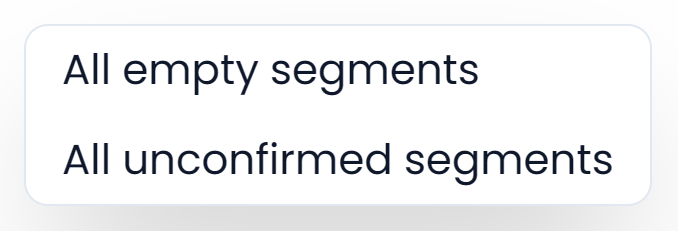
File Translate also uses rows hidden by filters
All empty segments and All unconfirmed segments use the whole loaded file or View, including hidden rows, with the operation's lock and eligibility checks. They do not become selected-row actions because you selected a small example first.
To translate selected rows, use Translate in the segment toolbar. It uses selected rows that remain visible after filtering and skips rows it cannot edit. Matching enabled AI rules are included in Searchspeare translation requests.
Review drafts before confirming them. Changing an AI rule or translation preference does not by itself rerun the file.
Review the whole file or filtered segments
| Review choice | Scope |
|---|---|
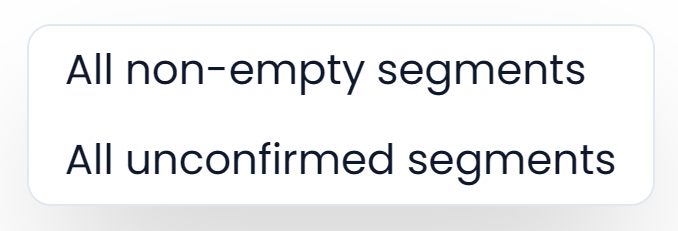
| Main Review action / All unconfirmed segments | Whole open file or View, using the status and target-text checks below |
| All non-empty segments | Filtered rows with target text to review; this can include confirmed rows |
| Segment-toolbar Review | Selected rows that pass the current filters and the target-text checks below |
All Review choices skip locked rows, empty targets, targets with unresolved tracked changes, and targets containing only numbers or addresses such as emails and URLs. The main action and All unconfirmed segments also require new, edited, AI translated, or AI edited status. All non-empty segments can include other statuses, including confirmed text. See Selection and scope for the full distinctions.
The current File review checks target wording without loading saved AI translation rules. To review explicitly against those rules, use translation chat with AI Rules included.
Export a bilingual file or import reviewed targets
Open Export and choose the offered format for your purpose: a translated document, bilingual working file, memory exchange, or original input. The menu reflects the file's supported formats; it is not a universal conversion menu.
Use Import for the corresponding edited bilingual-file round trip. Check language pair, identifiers, tags, comments, and revisions as described in Files and export. To add another document to the project, use Project Home's file-management workflow instead.
Pretranslate and view extracted images
Pretranslate first attempts reuse from the relevant saved resources according to its settings; optional assistance can handle eligible remaining work. Read Pretranslation before starting a large batch.
Images opens the available extracted material for reference. Its absence can mean the file has no supported extracted images. It is different from editing an image or replacing the document's page layout.