
Document tools
Open Documents in the sidebar to search previous documents, count words, or clean up formatting before creating a translation project.
| Task | Detailed guide |
|---|---|
| Find an earlier file from saved translation wording | Document search |
| Count supplied files or existing project content and export a report | Word counts and analysis reports |
| Choose and understand every format-cleanup option | Clean up document formatting |
Search saved document content
Open Documents → Search, enter a meaningful phrase, and submit the search. Results identify matching files and show excerpts to help you recognize the material. Open a result to enter that file's workspace.
Document search starts from saved memory wording
This search starts from source and target wording saved in translation memories and identifies associated project files. It does not inspect every draft in every imported document. Use a distinctive phrase when the document name is unknown. If nothing appears, try a shorter phrase and check saved memory content and the current storage workspace.
For a phrase search within attached translation memories, use Concordance. For the currently open file only, use Filtering.
Analyze word counts
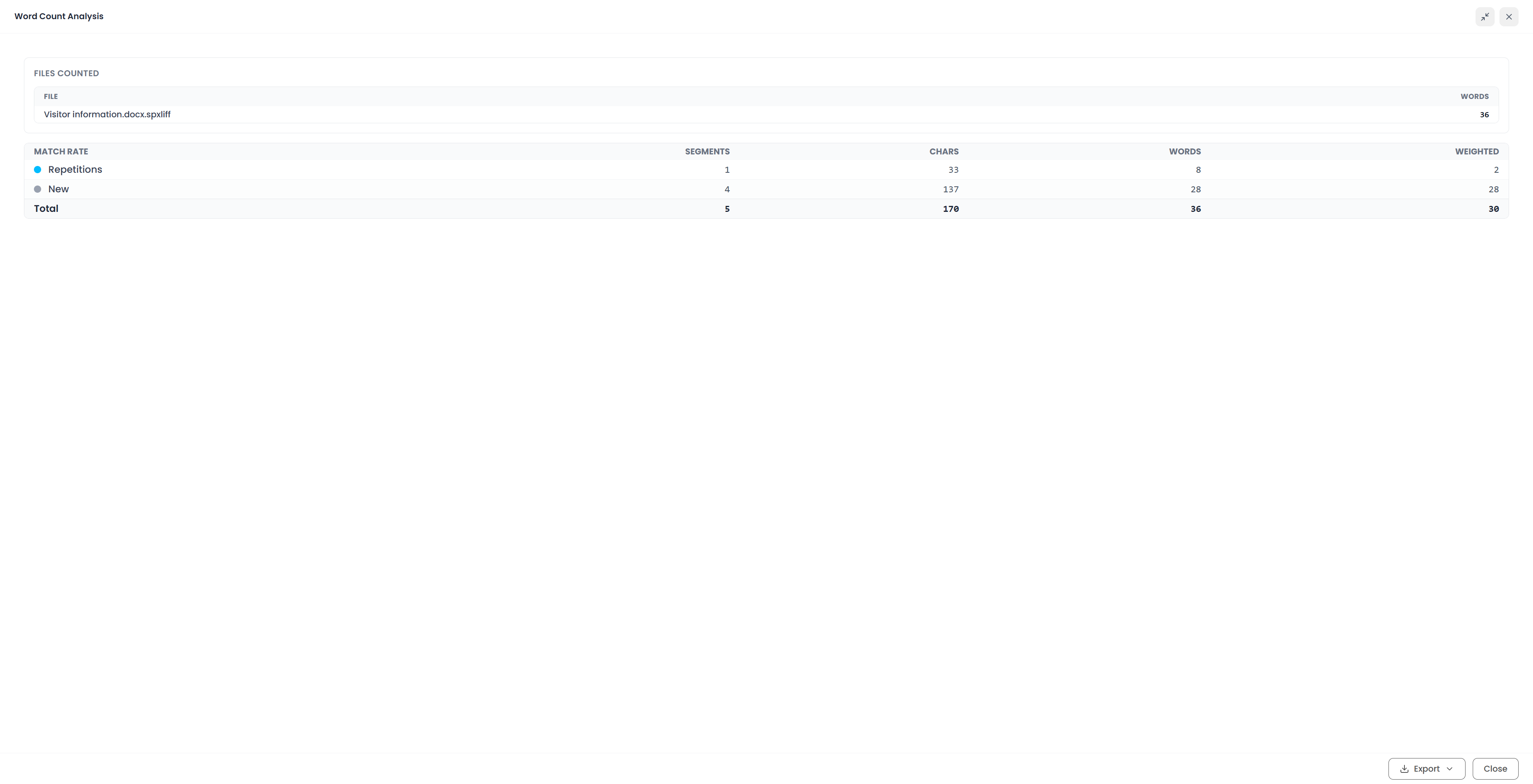
Open Documents → Word count and follow the file-and-language setup. Its memory step offers single-memory selection. Run the count and inspect the result. The detailed guide explains the standalone language choices and the different editor, project, file-list, and View scopes.
The result can distinguish repeated text and memory-match bands. These help estimate the work, but they measure textual reuse rather than the difficulty of understanding and reviewing each passage.
Weighted words apply configured weights to categories. For example, if a category contains 1,000 words and its weight is 20%, it contributes 200 weighted words. That number is a calculation using your settings, not a claim that the file contains only 200 actual words.
Check weights, languages, and selected memories before comparing reports or using the result in a quotation. Keep raw words and weighted words clearly distinguished when discussing the scope of a job.
You can also run word-count actions from projects and file lists for work already in Searchspeare.
Clean up formatting before import
Open Documents → Clean Format to process supported DOCX, PPTX, or XLSX files. Add the files, review the available options, run processing, and download the prepared copies.
This is useful when a document contains many unnecessary formatting changes that would make the translation view difficult to read. Options can merge compatible text runs, normalize fonts or colors, adjust spacing, and perform other format-specific cleanup.
Some options can change visible text or presentation, such as collapsing spaces or removing superscript and subscript. Choose only the changes that suit the document. A scientific formula and a simple product brochure need different treatment.
The output uses a new prepared filename. Keep the original, open the prepared copy, and compare important content before importing it as the translation source.
Create a project from the prepared file
After finding a file, resume its project. After counting a prospective job, create a quotation or project if needed. After preparing a document, create a translation project from the checked prepared copy.
See Files and export for the formats accepted by translation projects and the output choices available at delivery.