Translate IDML files
When you create a project from an IDML file, you can choose which text Searchspeare imports for translation. The choices include text on hidden layers, text outside the pages, notes, and hyperlink addresses.
Quick steps
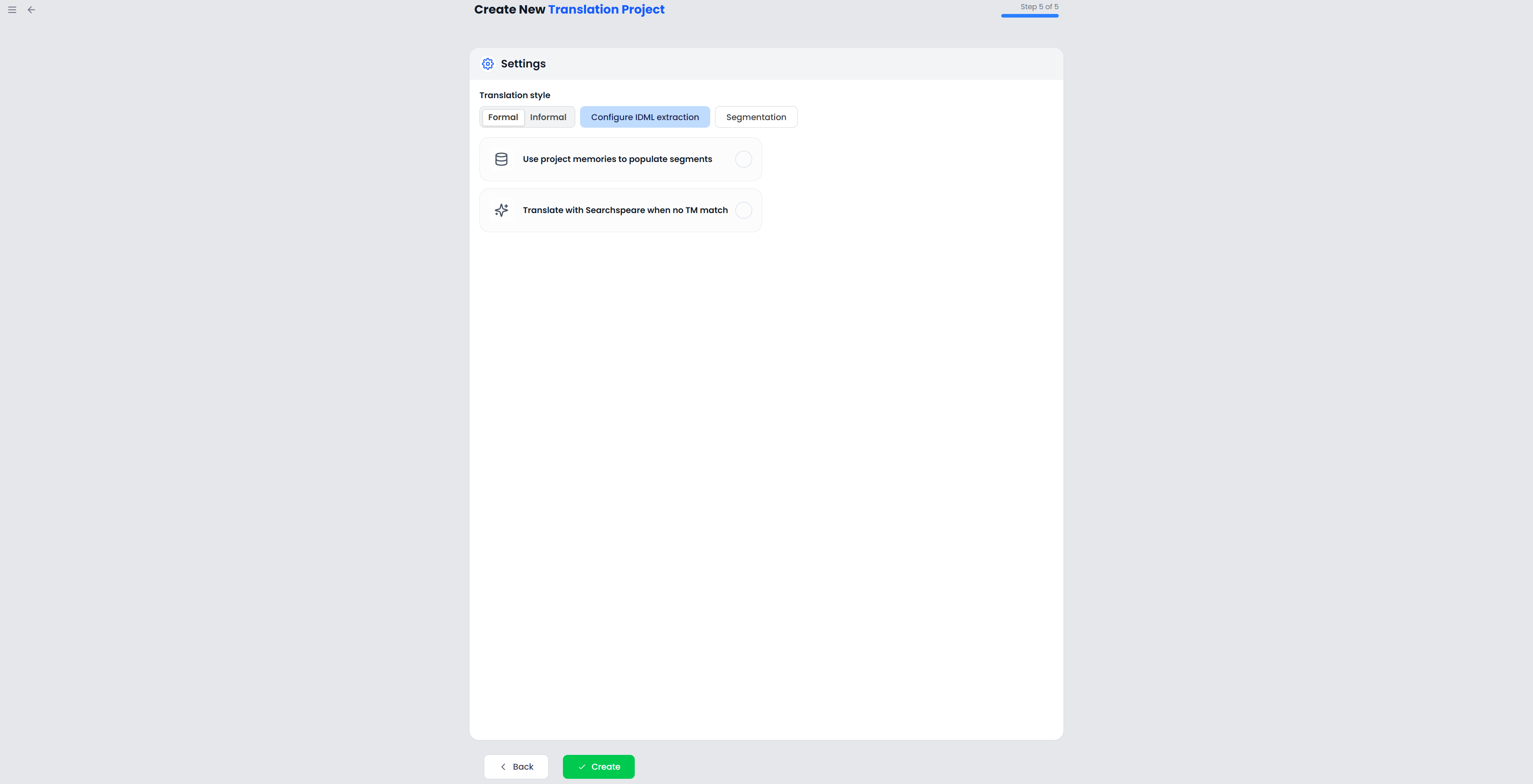
Add an IDML file, then open Configure IDML extraction in the project's Settings step. Choose which text to include and which styles to protect, save the options, and check examples after import.
Open the IDML settings
- Start a new project and add an
.idmlfile in the Files step. - Continue to the Settings step.
- Click Configure IDML extraction. This button appears when the project includes an IDML file.
- Choose the options below, then click Save options and finish creating the project.
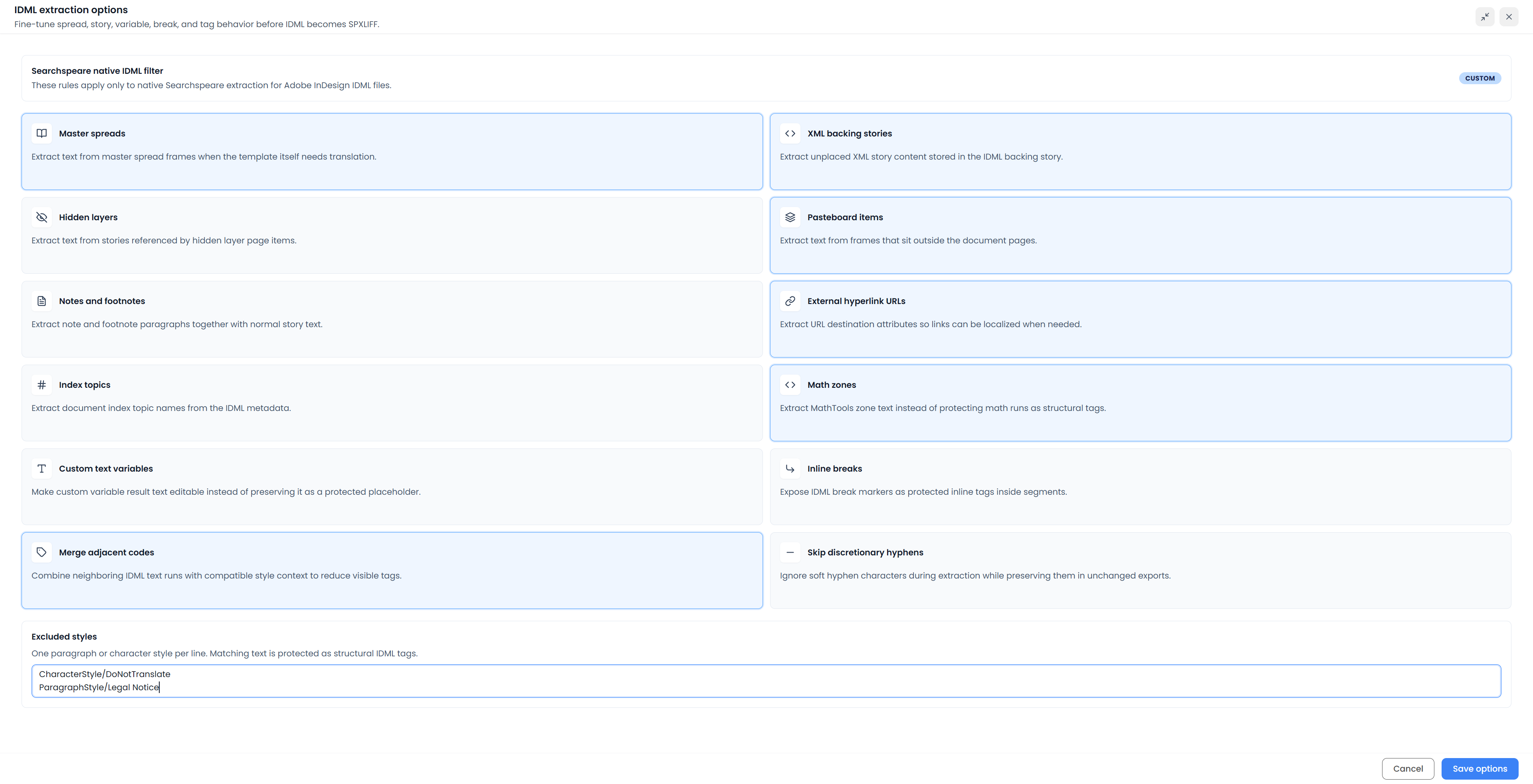
Here, extraction means reading text from the IDML file and turning it into segments you can translate. Choose the text requested in the translation brief.
Choose content to include
| Option | Meaning | Initial choice |
|---|---|---|
| Master spreads | Text in master-spread frames, used as page templates | On |
| XML backing stories | Text stored in the document's XML content that has not been placed in page frames | On |
| Hidden layers | Text in frames on hidden layers | Off |
| Pasteboard items | Text in frames outside the document pages | On |
| Notes and footnotes | Text in notes and footnotes | Off |
| External hyperlink URLs | The addresses that external links open | On |
| Index topics | Document index-topic names | Off |
| Math zones | Text in supported math zones; when off, those zones are protected as tags | On |
| Custom text variables | The displayed text of custom variables; when off, it is protected as a placeholder | Off |
Set the break, tag, and hyphen options
| Option | Effect | Initial choice |
|---|---|---|
| Inline breaks | Shows IDML break markers as protected tags inside segments | Off |
| Merge adjacent codes | Combines neighboring text runs with compatible formatting to reduce the number of tags | On |
| Skip discretionary hyphens | Leaves soft hyphens out of the imported text while preserving them in unchanged exported text | Off |
Merge adjacent codes reduces tags without merging paragraphs. A discretionary hyphen, also called a soft hyphen, marks a place where a word may break at the end of a line.
Protect text with a particular style
Enter one paragraph or character style per line in Excluded styles. The dialog provides examples such as CharacterStyle/DoNotTranslate and ParagraphStyle/Legal Notice.
Text using those styles becomes protected tags. Use the exact style names from the source document. After import, check a segment containing the styled text to confirm that it is protected.
Check the imported text
Save options applies your choices to the project setup. Cancel closes the dialog without applying changes made there.
Open the imported file and check examples of the text you chose to include, such as a note or a frame outside a page. If text is missing, check the corresponding import option. Keep protected tags with the text they belong to while translating.
These options are applied when the file is imported. See Reimport before rebuilding a file that you have already started translating.
Export and check the IDML file
Export the Translation and open the IDML in the publishing application. Check whether the translated text fits its frames. Also check any notes, master-spread text, variables, hyperlinks, and index entries you translated.
The segment editor changes text. Page layout must be checked in the publishing application, where longer translations may need larger frames or other layout changes.
For continued review, keep a bilingual working copy as described in Bilingual export and corrections.