
Export quotations and change document appearance
Open Business → Quotations, then open a quotation number or use View Details. The document page shows the saved offer and provides its appearance and export controls.
Review the saved information
Check the quotation number, issue date, validity date, seller and client details, job description, language pair, weighted words, currency, and totals. The seller, client, and job details are copies captured when the quotation was created.
Client changes do not rewrite saved quotations
Editing the current client or your profile does not replace those saved copies. The document page is not an editor for the quotation's saved price or job details. See Quotations and translation projects when an offer needs a correction.
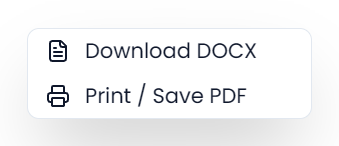
Download DOCX
- Open Export → Download DOCX on the document page, or use Download DOCX from the quotation row's context menu.
- Wait for the file to download. Its filename contains the quotation number and client name.
- Open the document and check its content and layout.
- Deliver the checked file through your usual communication channel.
The DOCX includes the quotation information, amounts, and available word-analysis and file details. It does not bundle the original source files with the offer.
You can edit a downloaded DOCX in a compatible word processor. Those edits affect that downloaded copy; they do not change the saved quotation in Searchspeare. A later download is generated from the saved record and current document appearance settings.
If you used custom pricing weights, read the saved-breakdown limitation. The DOCX's fixed weight labels can differ from the weights used for its saved totals.
Print or save PDF
Choose Export → Print / Save PDF, or the same action from a quotation row's context menu. Searchspeare opens a separate print view and requests the print dialog.
Choose the printer or an available PDF destination, inspect the preview, and finish printing or saving. PDF destinations depend on your browser or operating system. This action does not download a PDF automatically.
If the print view is blocked, allow the requested window and run the print action again. If an incomplete view appears, wait for preparation to finish before judging the output.
The print view and DOCX are different document presentations. Check the output you intend to send, particularly whether it contains the analysis details you need; the printed summary does not reproduce the DOCX's detailed word-analysis table.
Choose the document language
The language selector on the document page selects an existing saved document-language version. It controls document wording and the formatting of dates and amounts. It does not change the source and target languages of the quoted translation.
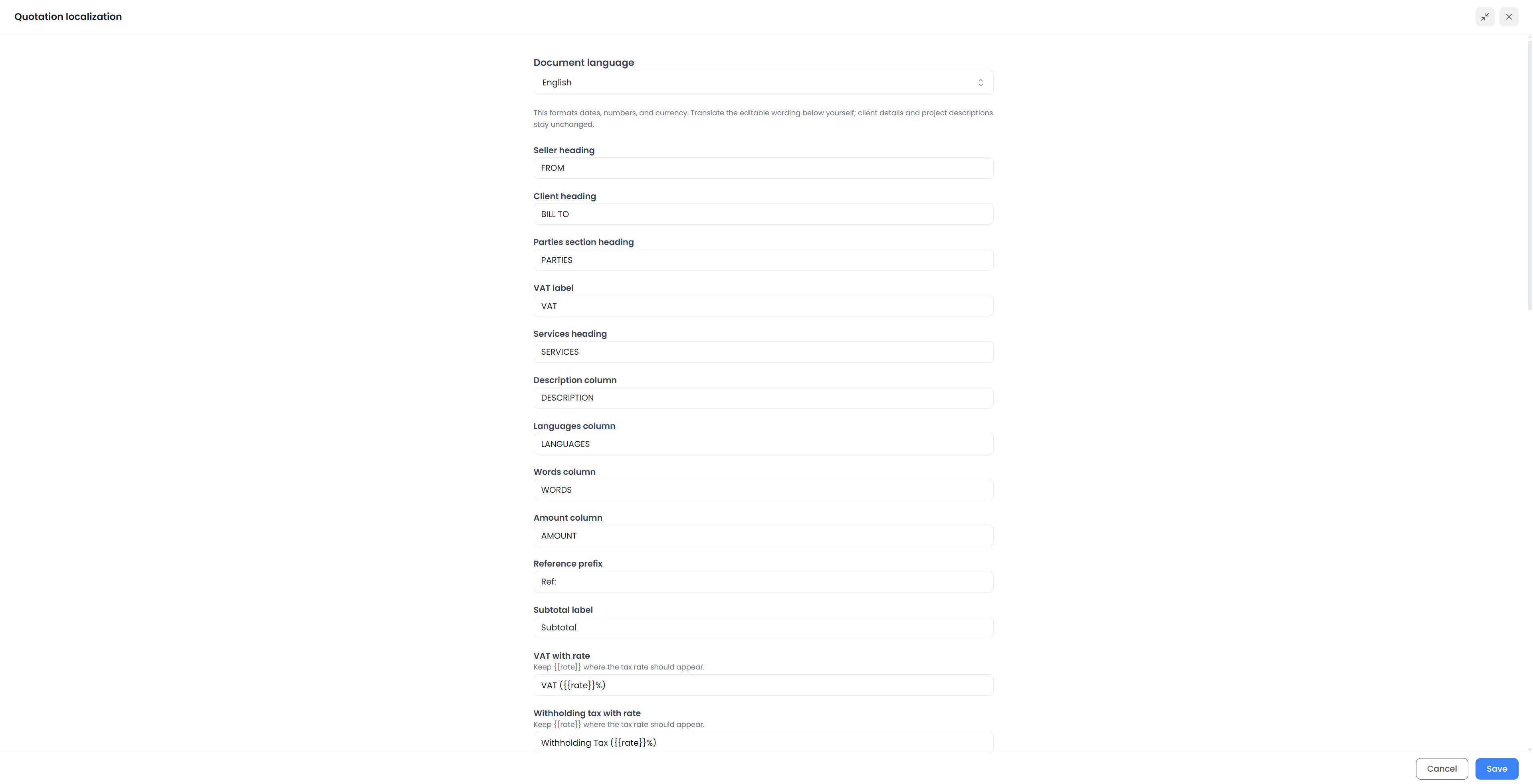
Use Localize to prepare or edit a wording version:
- Select the language in the localization dialog.
- Enter the wording for the shared document labels, such as From, Description, Words, Amount, Reference, Date, and Subtotal.
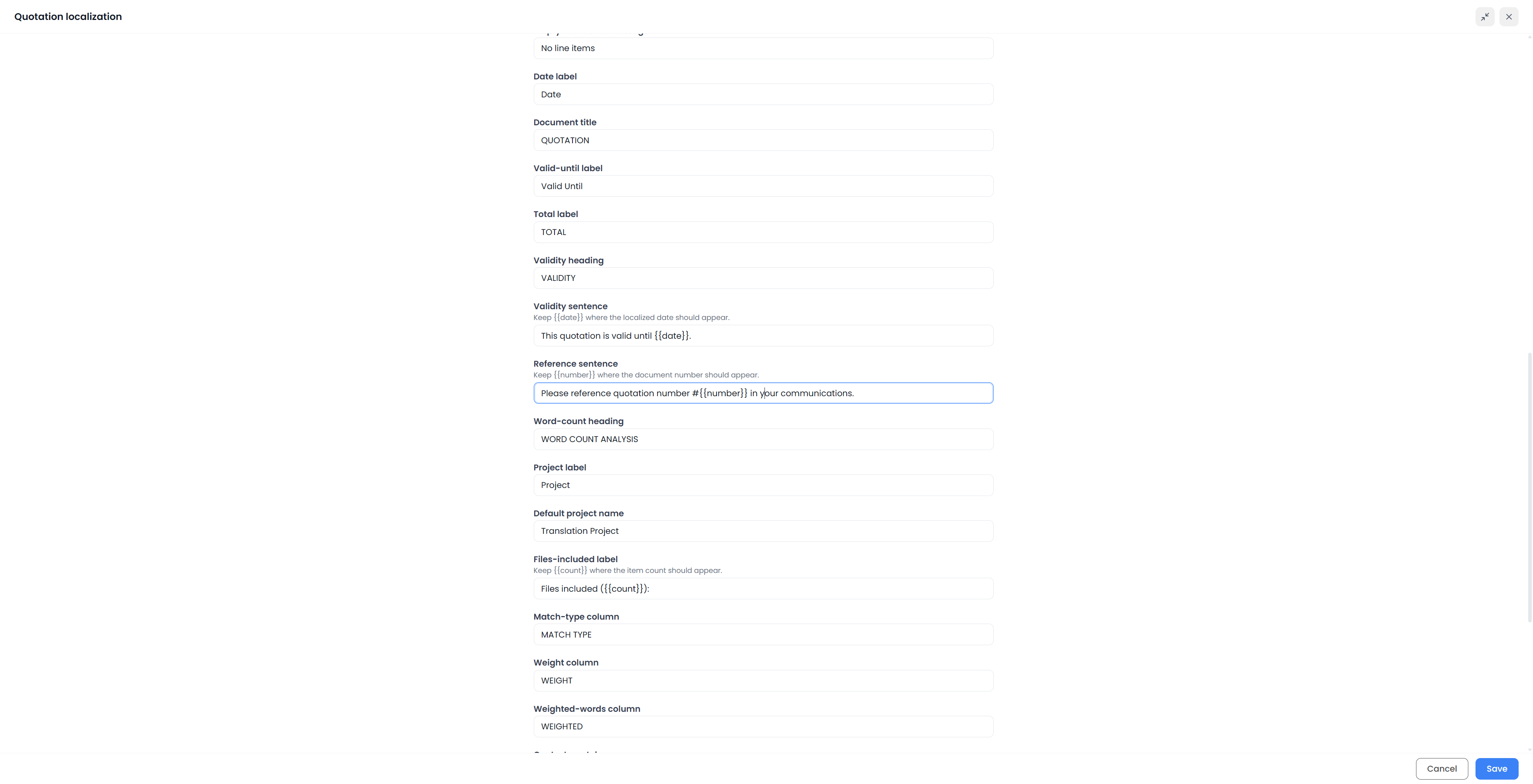
- Enter the quotation-specific wording, including its title, Valid Until, Total, validity text, reference text, and analysis labels.
- Save the version, then inspect the document in that language.
Selecting a new language does not automatically translate all the labels. A new version can begin with default English wording until you supply the text. Saved versions remain available through the language selector.
Keep substitution markers in the fields that use them:
| Marker | What Searchspeare inserts |
|---|---|
{{date}} | The formatted validity date |
{{number}} | The quotation number |
{{count}} | The file count in the corresponding file-description text |
{{rate}} | The rate in a rate-dependent label, such as VAT |
Translate the surrounding sentence while preserving the marker itself. For example, a validity sentence can use {{date}} wherever the date belongs in that language.
These are shared document settings, not a wording override attached only to the open quotation. Changing them can change later previews and exports of other quotations. It does not rewrite copies already downloaded.
Add a logo or signature image
Use the logo image control near the top of the document or the signature image control near its end. Choose an image and wait for it to save. Click the existing image to replace it, or use its remove button to remove the saved image.
The images are shared document appearance settings. They are included in generated output where applicable and can affect other quotation previews and later exports. A signature image is simply an image placed on the document; adding it does not record client acceptance.


Mark the quotation Sent after sending it
Downloading, printing, or changing appearance does not mark the offer as sent. Deliver it first, then use Mark as Sent when that accurately describes the record. See Manage quotations and statuses.