
Term locks and saving changes
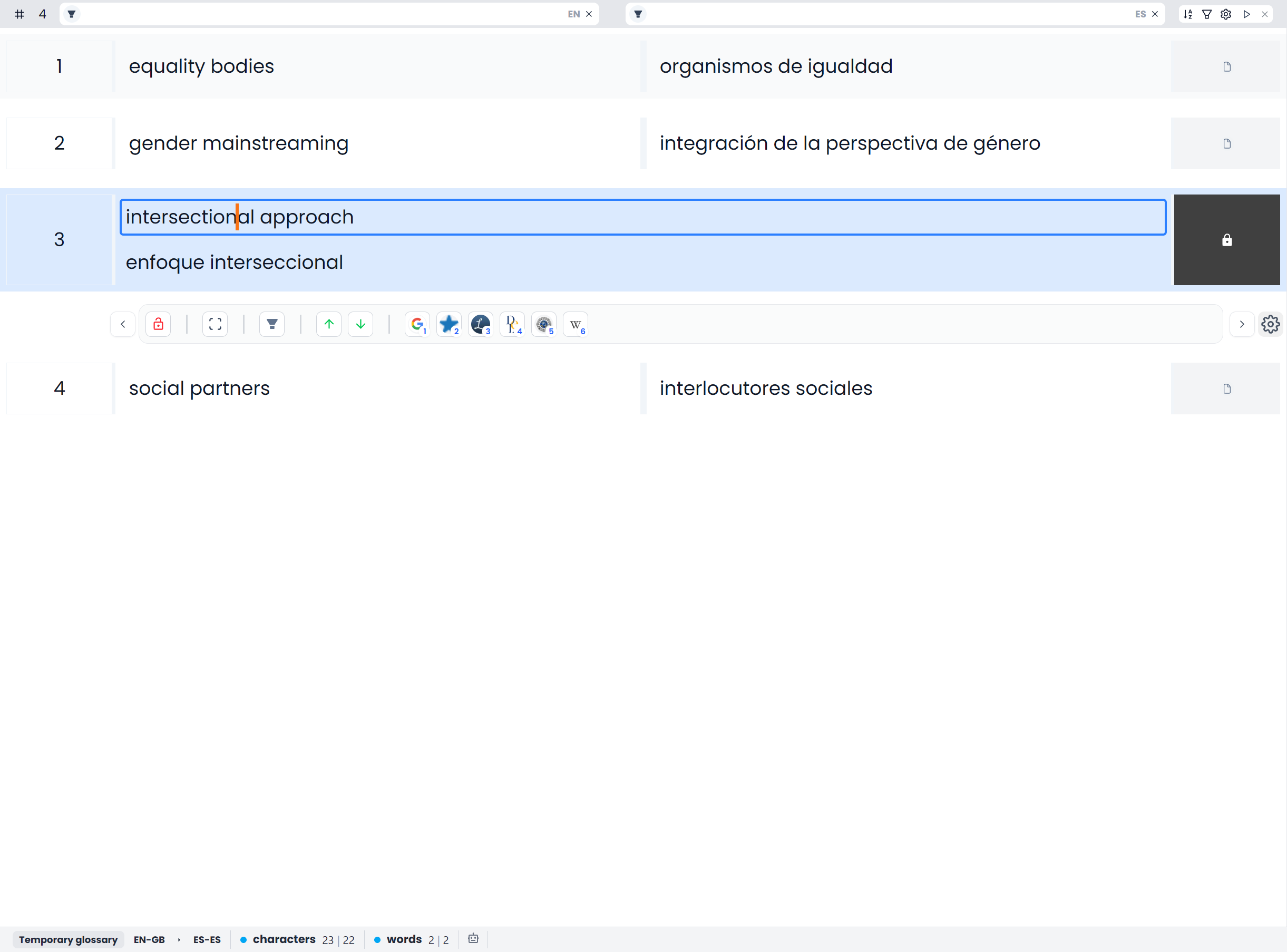
Saved glossary entries normally open confirmed and locked. The lock protects established terminology from accidental typing and from editing operations that require an unlocked entry.
Locking does not disable terminology lookup in your projects. A confirmed locked term can still supply a glossary match or terminology requirement. The lock protects maintenance work in the glossary editor.
Unlock an individual entry
Click the intended row so it is the only selected entry, then click its lock control. Both source and target cells can then be edited.
Confirm wording and property changes
Unlocking alone does not rewrite the saved terms. After changing a word, example, matching mode, or Forbidden setting, inspect the pending entry and use Confirm to keep the correction.
Unlock a group
- Set the filters for the entries you want to maintain.
- Select rows with Shift-click, Ctrl/Command-click, or Select all for the filtered set.
- Use the selected entries' Unlock command.
- Check the lock indicators and selected rows before running a bulk edit.
The glossary's selection lock control unlocks the selected group when any selected entries are locked. This differs from the memory editor's mixed-selection behavior. Use the workspace's actual command and check the result rather than assuming every editor handles mixed locks identically.
Use Confirm to save pending text edits. Toggling a lock does not save them.
Which edits need confirmation
| Action | What it does |
|---|---|
| Type in an unlocked source or target cell | Changes the working entry; confirmation is still needed |
| Save an edit in the Properties tab | Applies the changed fields to working entries and can unlock them; confirmation is still needed |
| Apply a proposed term addition or wording change | Updates the working entries; review and confirm the resulting rows |
| Confirm | Saves the pending selected entries and locks them |
| Clear all in the term filter bar | Resets the working view; it does not save or discard entries |
Deliberate removal actions have their own behavior. The Delete command, duplicate cleanup, or accepting a removal proposal can delete records directly. Do not treat the pending-edit workflow as an undo period for every maintenance action. See Maintenance.
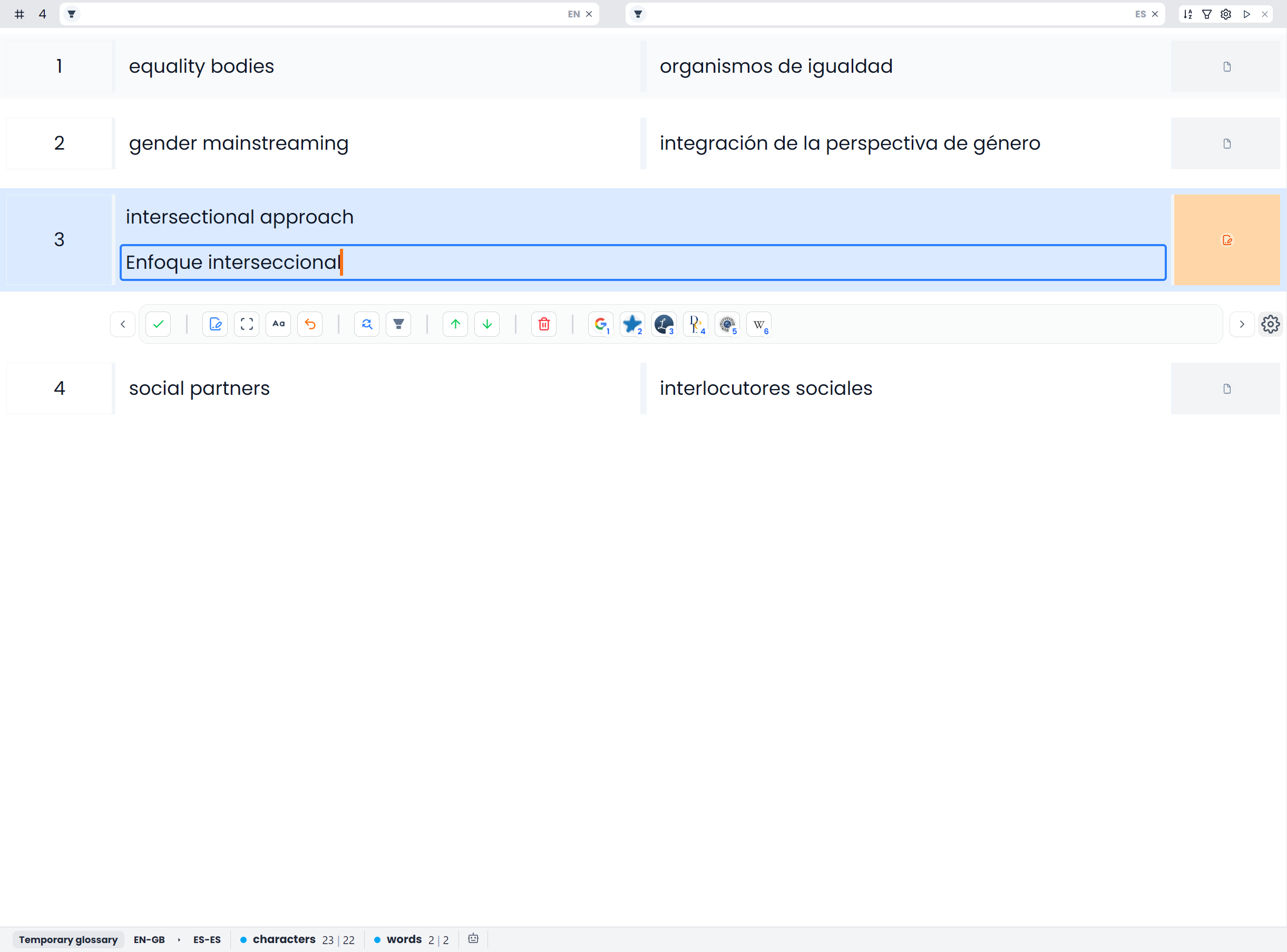
Confirm edited entries
Select the entries whose current content you approve and run Confirm. The supplied glossary-editor shortcut is Ctrl+Enter, unless you changed it. The command saves the pending selected entries and returns successfully confirmed entries to a locked state.
Check the actual result after a failure message or an interrupted operation. If you continue editing while a save is running, inspect what remains pending before leaving; do not infer that a changing row has necessarily reached its final saved version.
An unchanged confirmed entry that you unlocked can also be relocked through confirmation. For an edited entry, use Confirm to save the correction. Changing the lock alone does not save it.
Clearing both term fields on a pending row can mark it for deletion when confirmed. To remove a concept intentionally, use the appropriate deletion workflow and inspect its scope. Do not clear both fields merely to hide an unwanted row.
Leave with pending changes
When navigating away with changed term entries, Searchspeare offers Confirm changes or Discard changes.
- Confirm changes attempts to save the pending changed entries before leaving, including changes beyond the currently selected rows.
- Discard changes leaves without committing those pending corrections.
- Dismissing the prompt lets you continue reviewing in the editor.
The leave check detects pending content changes, including changes in locked rows. Resolve those changes before leaving. A browser-close warning does not save them.
Temporary glossaries and saved termbases
Extracted or proposed terminology can be opened as temporary work, with new or unconfirmed rows. Those rows do not necessarily start in the same state as established entries loaded from a saved glossary.
Review and confirm the useful entries, then use the temporary glossary's save action to choose a maintained destination when needed. Confirming the temporary working rows is not the same as attaching a permanent glossary to a project.
Use corrected terms in other projects
Saving glossary corrections updates the terminology resource for later lookup and checking. It does not automatically rewrite existing target sentences that used the earlier wording. Check affected projects and rerun relevant terminology QA when the requirement changes.
Likewise, an accepted spelling-dictionary word is separate from a saved glossary entry. Use the glossary for concepts and translations, and the spelling dictionary for valid word recognition.