
Shortcuts
Keyboard shortcuts let you run commands without leaving the keyboard.
They’re great for repetitive actions like confirming segments, jumping between fields, opening QA, or triggering frequently used tools.
Where to find shortcuts
To browse and customize key bindings, go to Settings > Shortcuts. There you’ll find the full list of commands and their current shortcuts.
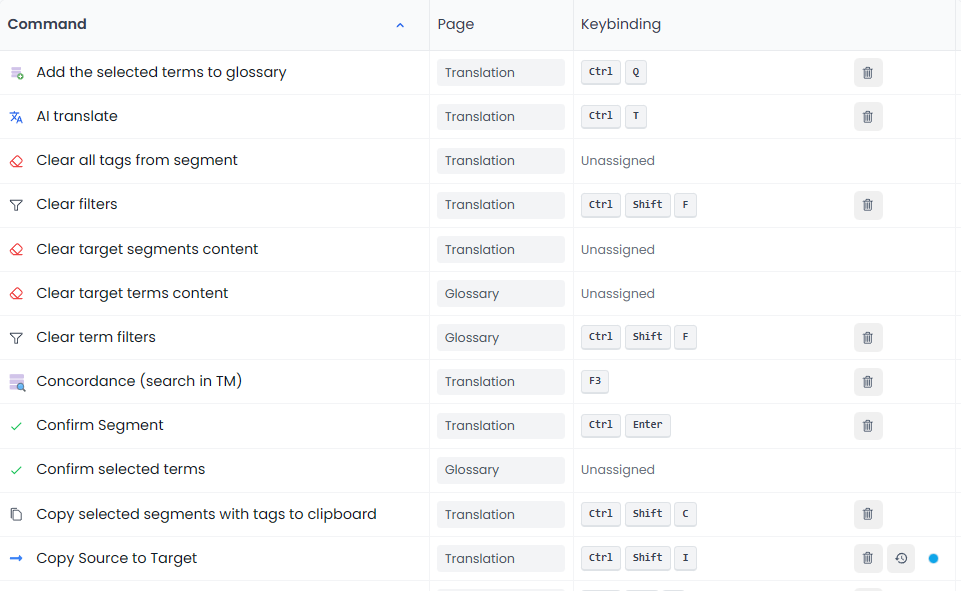
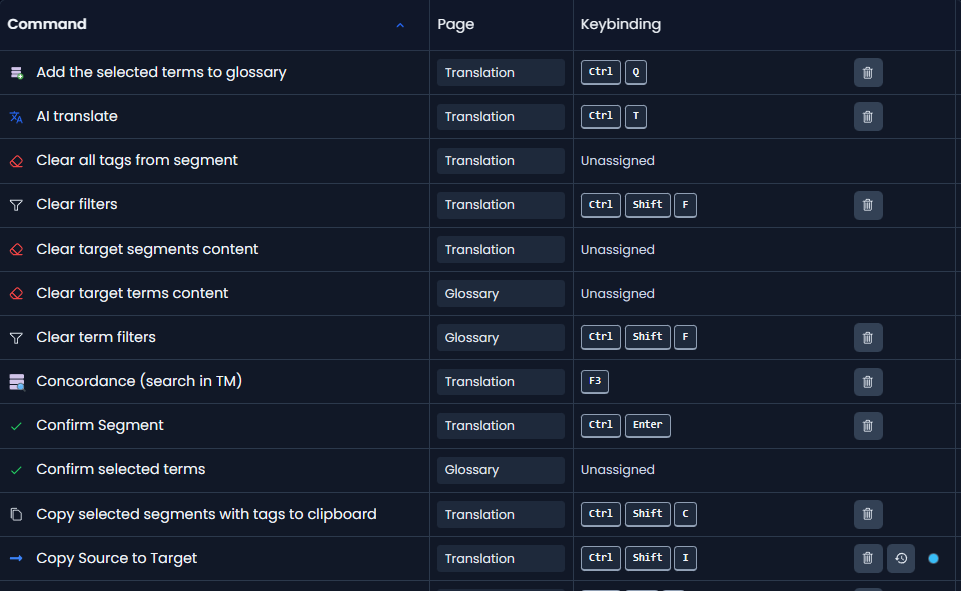
Customize a shortcut
To change a key binding:
- Find the command you want.
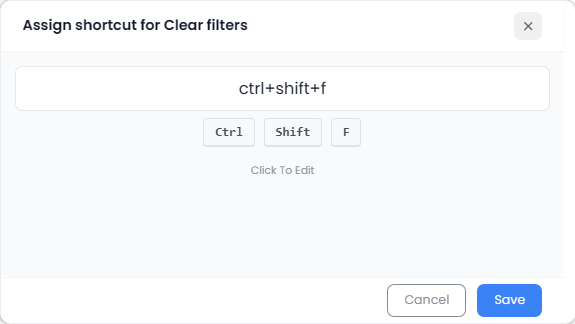
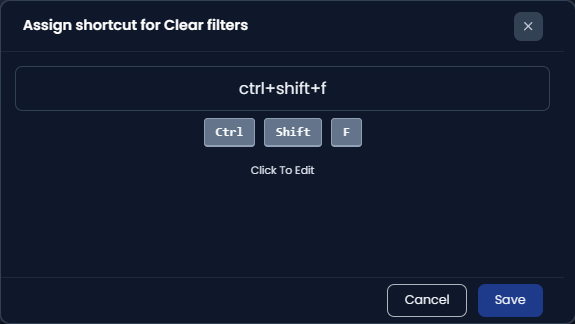
- Click the shortcut field.
- Press the key combination you want to assign.
You can also clear a binding to disable it, or reset it back to the default.
Tips for choosing good key combinations
- Prefer combinations that are easy to hit repeatedly (for example: Alt+Shift+… or Ctrl+Alt+…).
- Avoid keys you use for text editing in your language (especially if you rely on an IME).
- If something feels “randomly ignored”, it’s usually being intercepted by the browser or OS.
ⓘ Info
Some key combinations are reserved by your browser (or your operating system), so Searchspeare can’t reliably use them for custom shortcuts.
This varies by browser and OS, but on Windows/Linux it commonly includes:
- Ctrl+L, Alt+D, F6 — focus the address bar
- Ctrl+T — new tab
- Ctrl+N — new window
- Ctrl+W / Ctrl+F4 — close tab
- Ctrl+Shift+T — reopen last closed tab
- Ctrl+R / F5 — reload
- Ctrl+Shift+R / Ctrl+F5 — hard reload / reload bypassing cache
- Ctrl+Tab / Ctrl+Shift+Tab — switch tabs
- Alt+← / Alt+→ — back / forward
- F11 — toggle fullscreen
- F12 and often Ctrl+Shift+I — developer tools
If a shortcut doesn’t “stick”, choose a different combination that doesn’t overlap with browser navigation.