Extract a Glossary
If you’ve translated similar content before, you already have the best glossary source: your own past bilingual material.
Searchspeare can extract terminology pairs and turn them into a glossary, using:
- previous bilingual files (source + target)
- two files that need alignment (Searchspeare aligns them first)
- two texts (copied from anywhere—including the internet)
- mixed text (both languages interleaved in one blob; Searchspeare figures it out)
Two ways to extract terms (statistical vs AI)
Searchspeare supports two extraction approaches:
- Statistical (brute force): a fast, deterministic method based on Searchspeare’s own algorithms. This is great when your source/target content is already clean and well-aligned.
- Assisted by AI: uses an LLM to improve alignment and term selection. This is best for messy inputs (web text, mixed-language content, imperfect alignment, inconsistent formatting).
In the wizard, the Assisted by AI option controls which approach is used.
Where to start (from the ribbon)
There are also one-click ways to extract a glossary when Searchspeare already has all the context (languages + content):
- In the Editor: open the Terminology tab and click Extract Glossary


- On the Translation Memories page: open the TMs tab and click Extract Glossary
These buttons do not open the wizard. They extract terms immediately (skipping setup) because Searchspeare already knows the languages and what content to use.
From the wizzard
If you need to extract from custom files/text (including mixed text), use the Terminology → Extract Glossary page and follow the wizard below.
The flow is a simple wizard:
- Choose input type and options
- Provide files/text
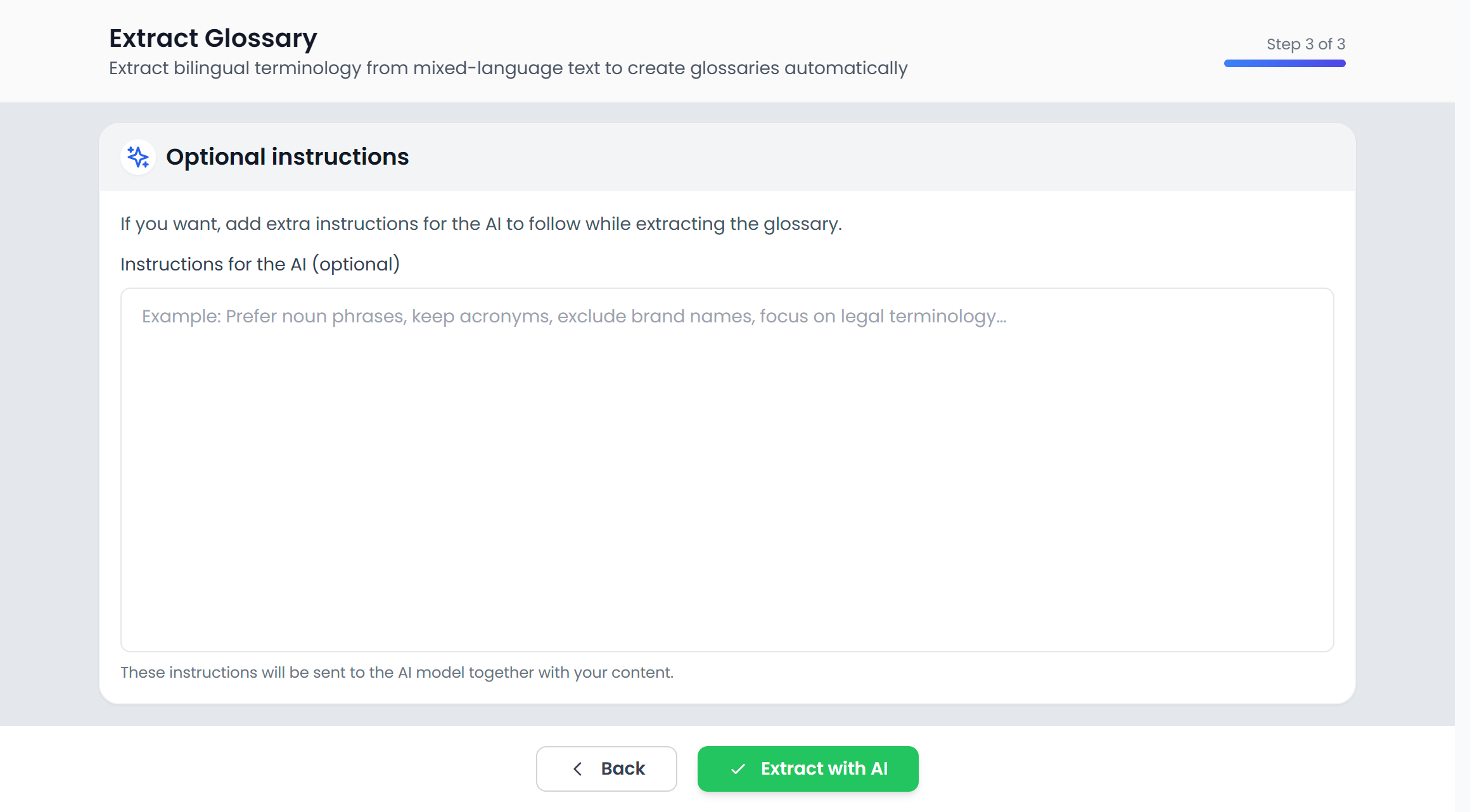
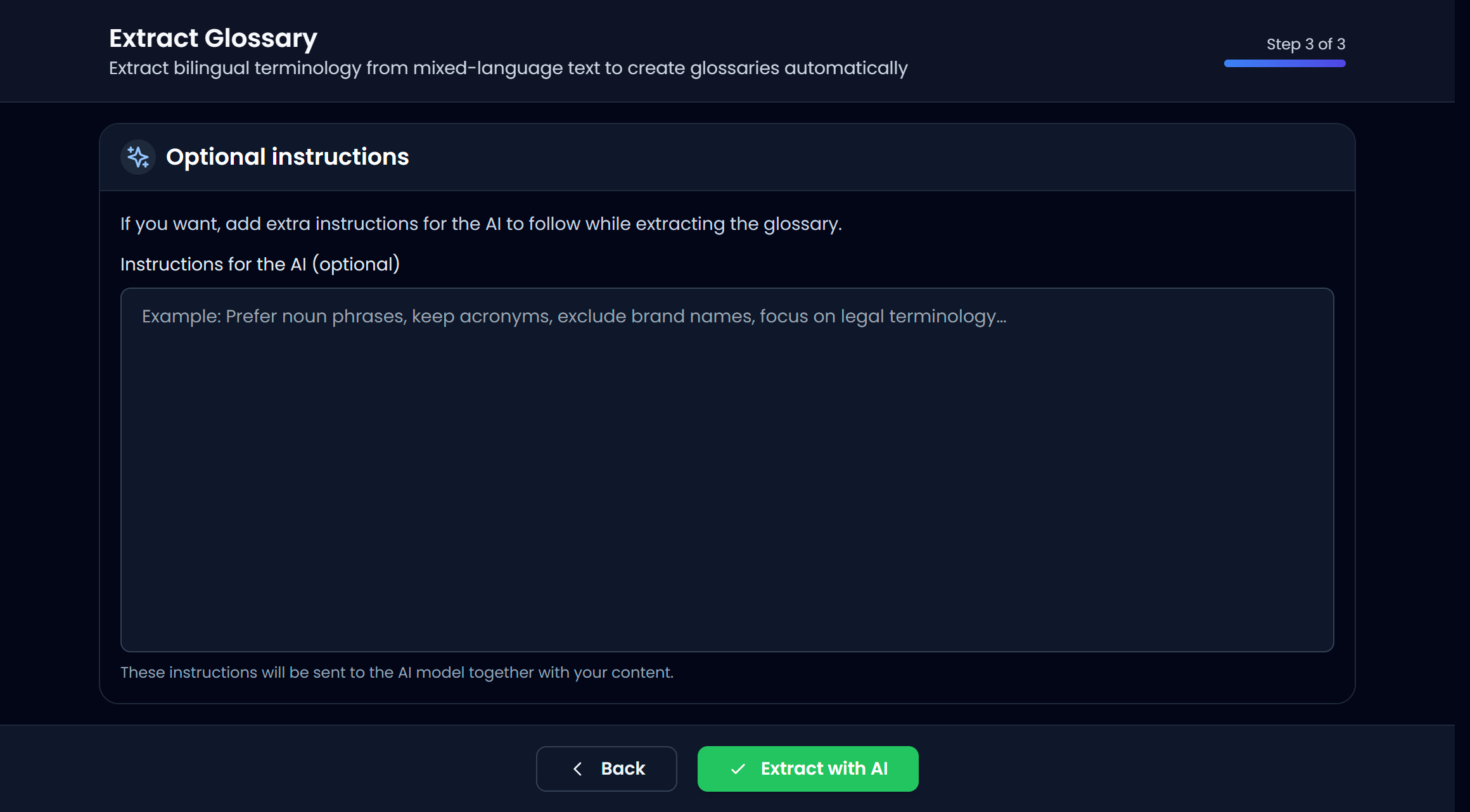
- (Optional) add custom AI instructions
- Review extracted terms, then save them into a glossary
Step 1 — Choose options
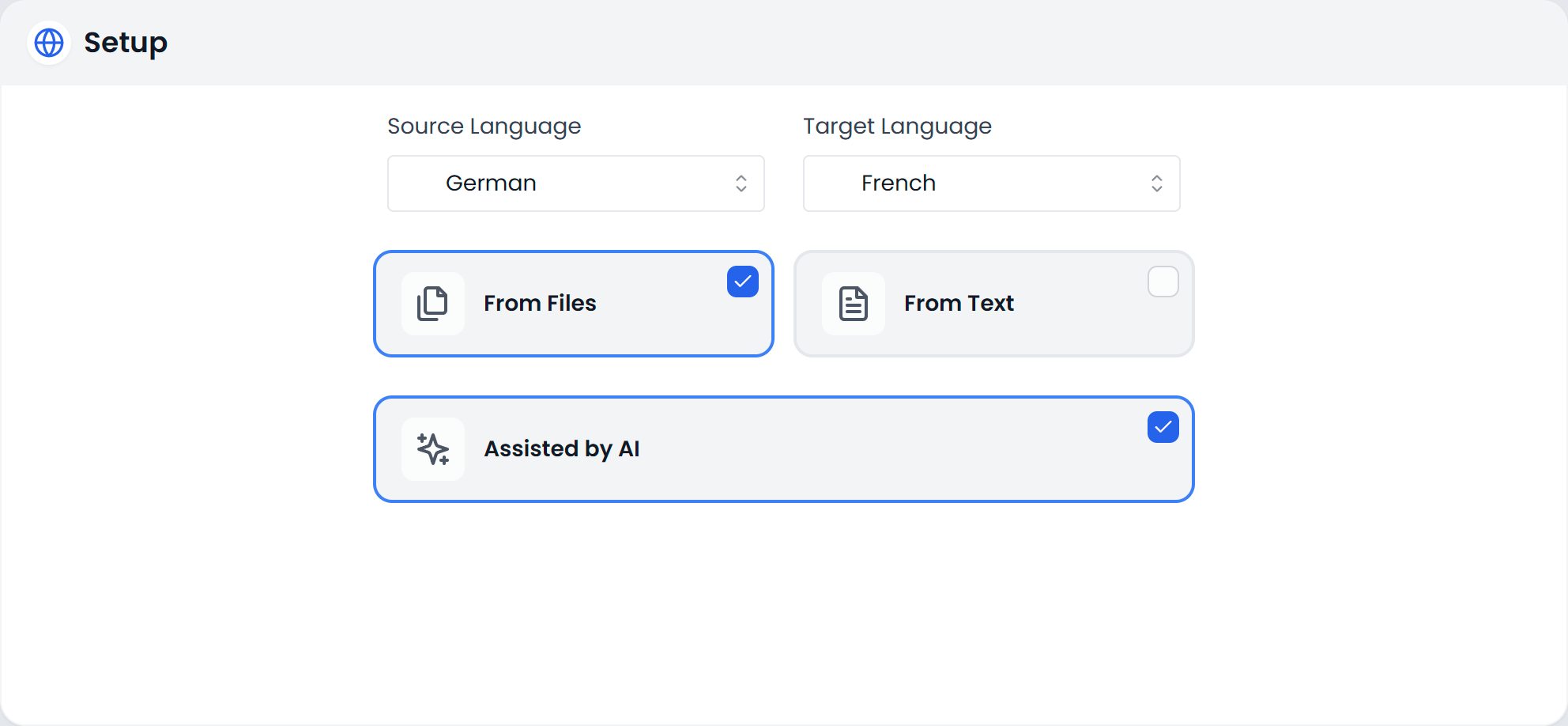
Pick your source and target languages, then choose how you want to provide the content.
- From Files: use two documents (source + target)
- From Text: paste text directly (either bilingual in two boxes, or mixed)
You can also enable Assisted by AI to use an LLM for extraction/alignment (otherwise Searchspeare uses the statistical/brute-force method).
Step 2 — Provide files or text
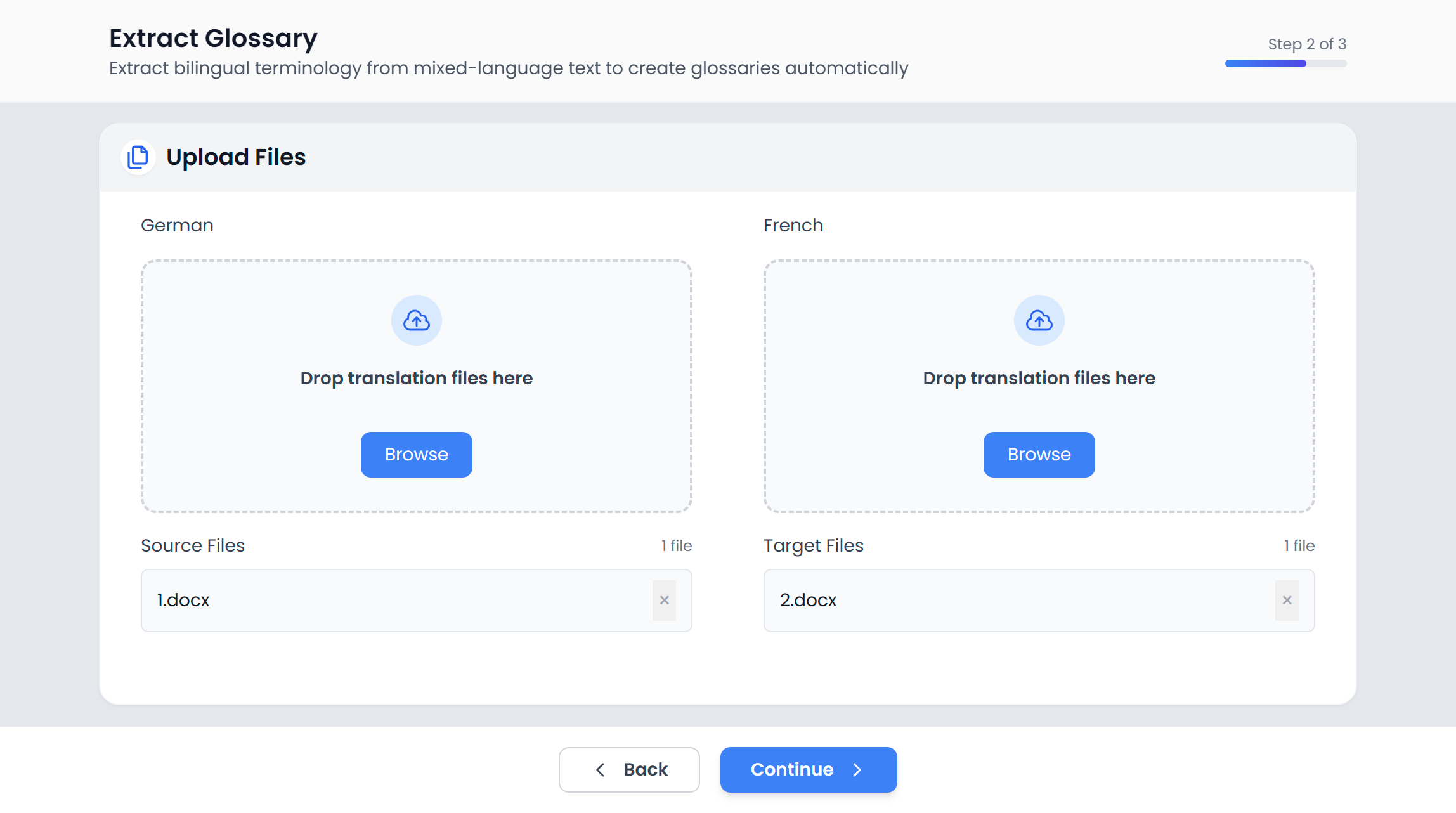
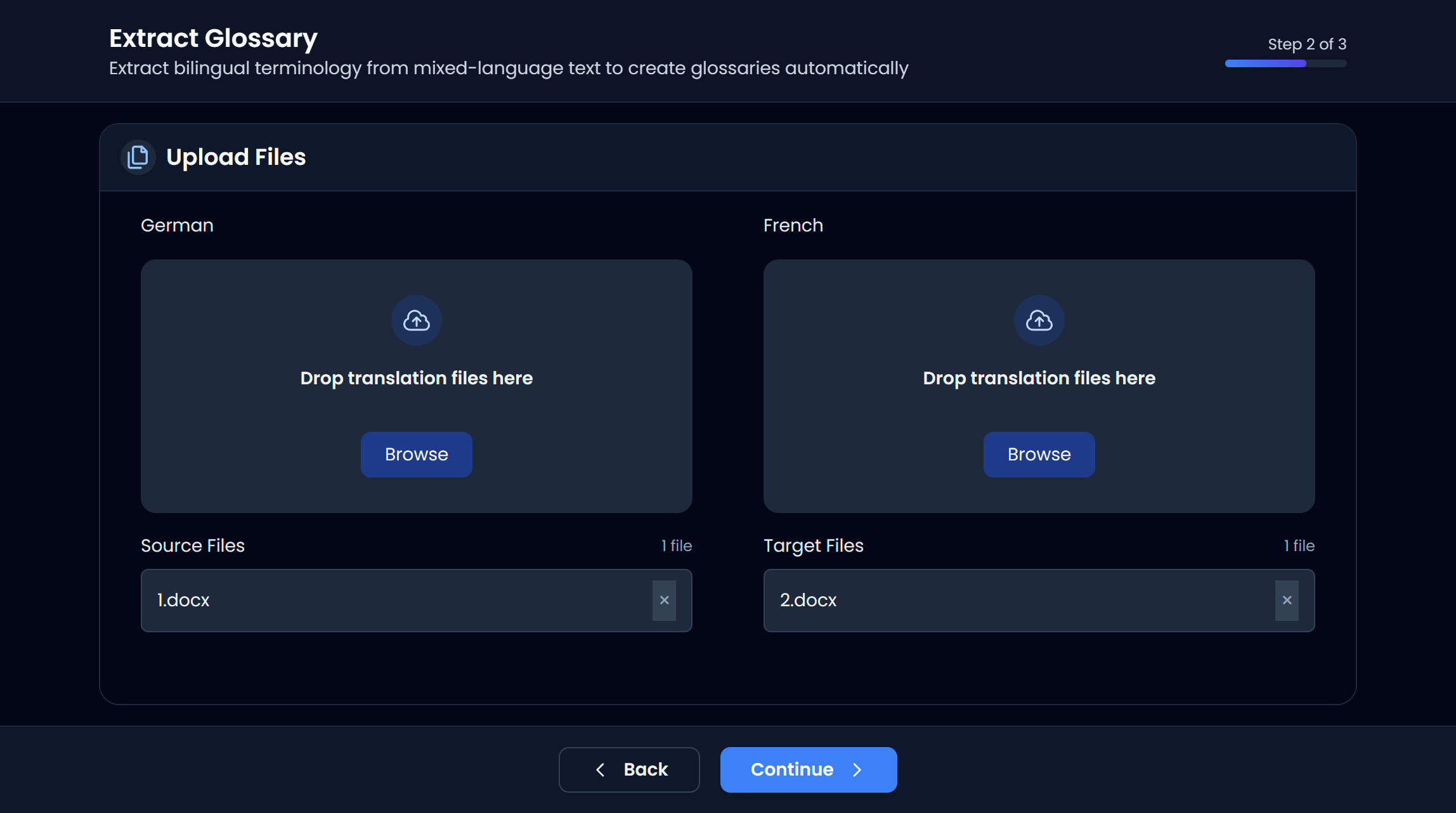
Option A: From files (source + target)
Upload your source-language file on the left and your target-language file on the right.
Searchspeare will:
- read both files,
- align content when needed,
- and extract terminology pairs.
Option B: From text (bilingual or mixed)
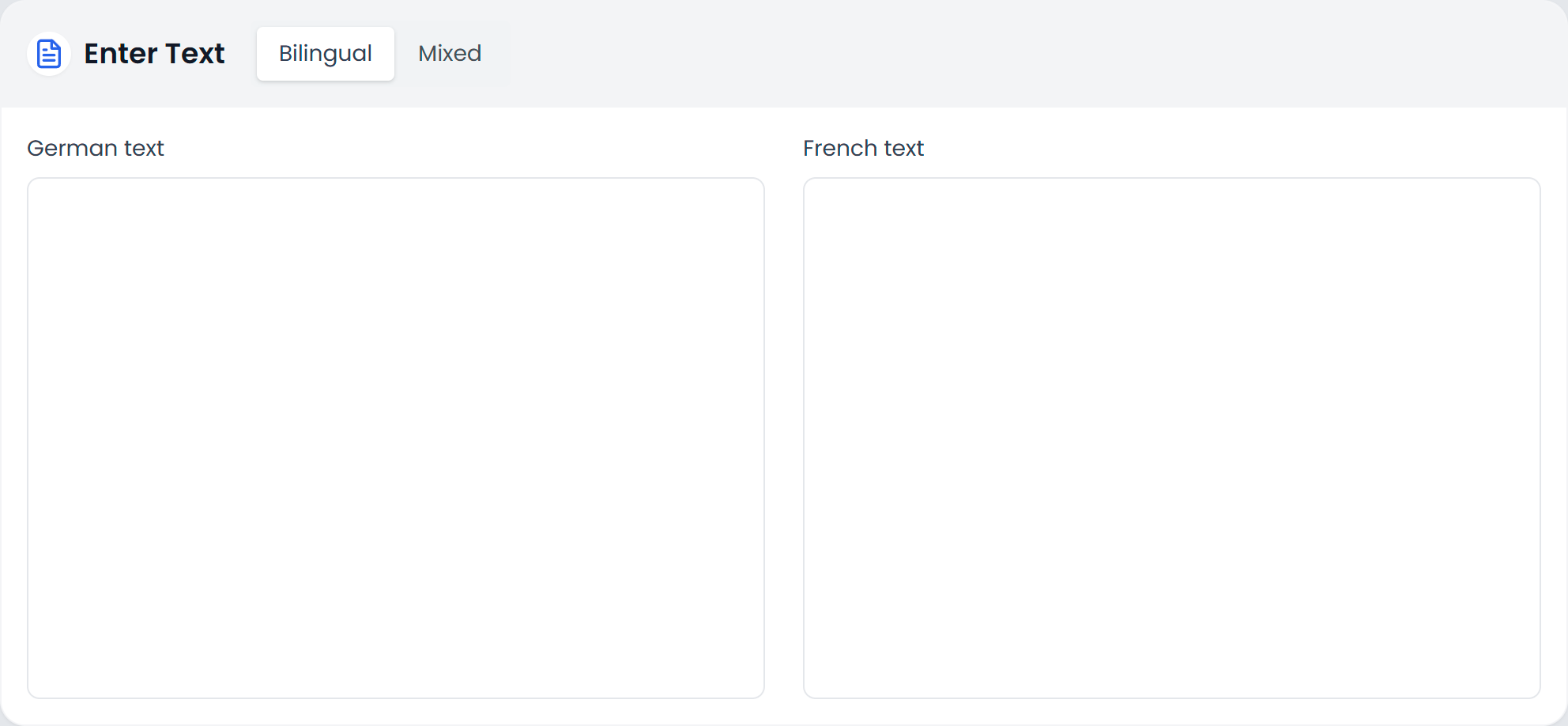
If your content is not in files, you can paste it.
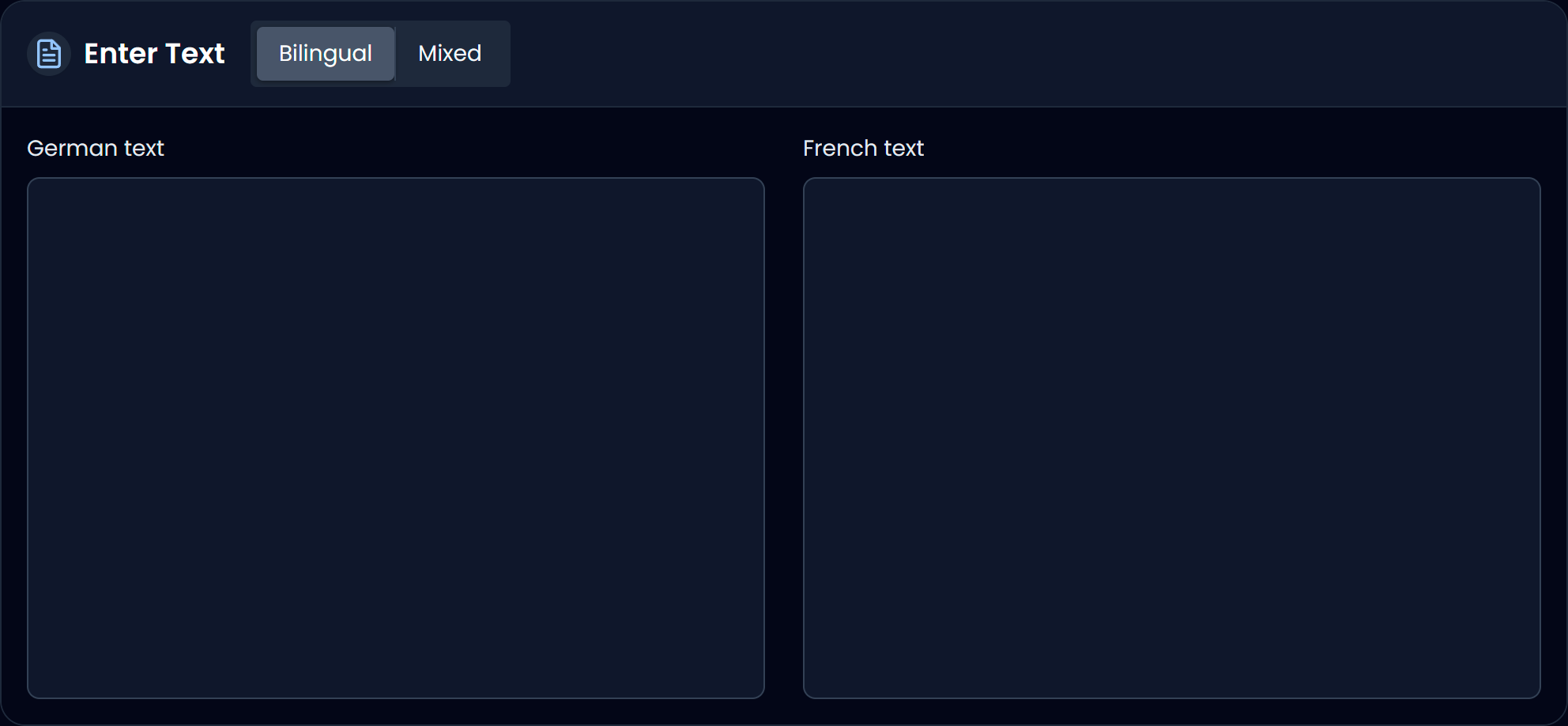
- Bilingual: paste source text on the left and target text on the right
- Mixed: paste everything together (both languages mixed), and Searchspeare will detect and separate them
Step 3 — Optional custom instructions for the AI
If you want, you can add extra instructions for the model while it extracts terminology.
Good uses for this field:
- prefer noun phrases and multi-word terms
- keep acronyms as-is
- exclude brand names
- focus on a domain (legal, medical, software UI, etc.)
Review extracted terms (preview modal)
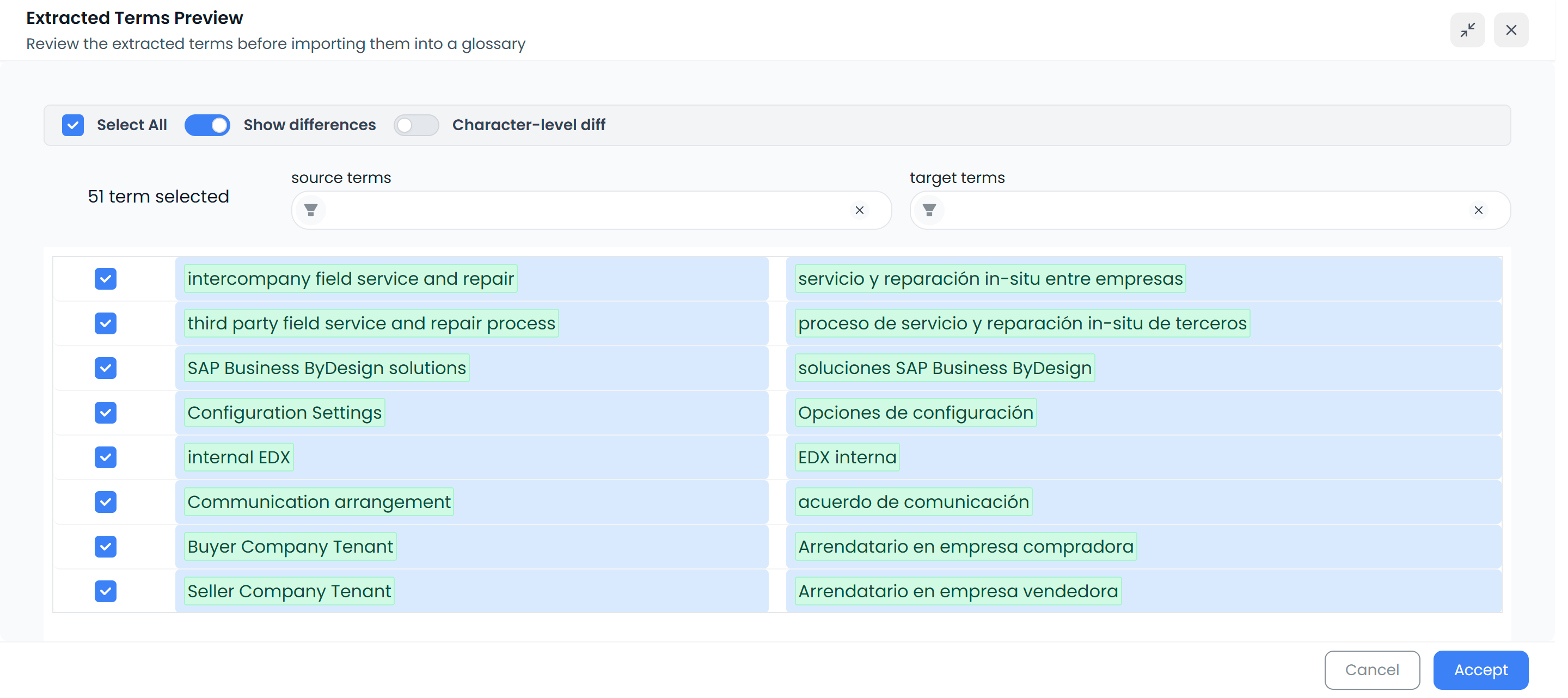
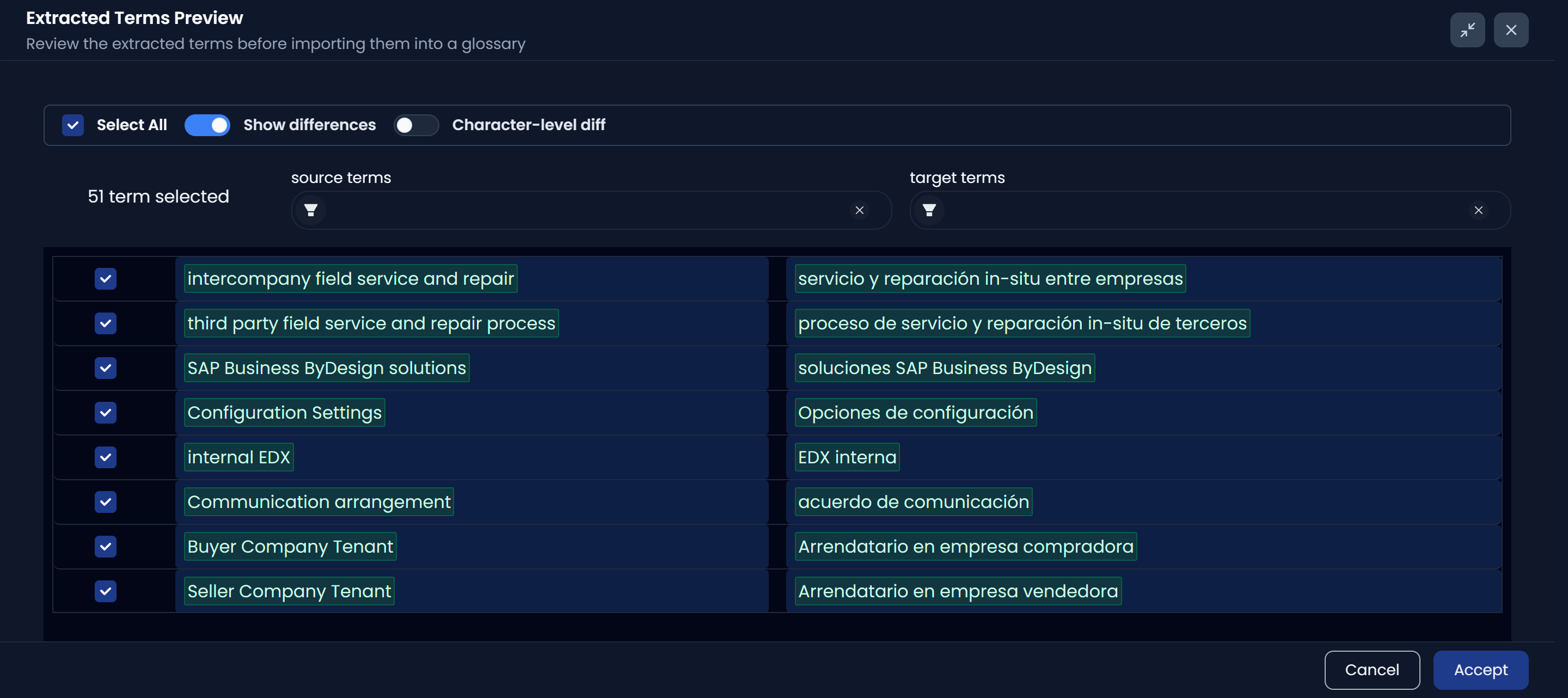
After extraction, Searchspeare opens a preview where you can review and curate the term pairs before importing them.
In the preview you can:
- Select all or deselect items
- Filter by source/target
- Toggle Show differences and Character-level diff to spot small mismatches
When you’re happy, click Accept.
Save to a glossary
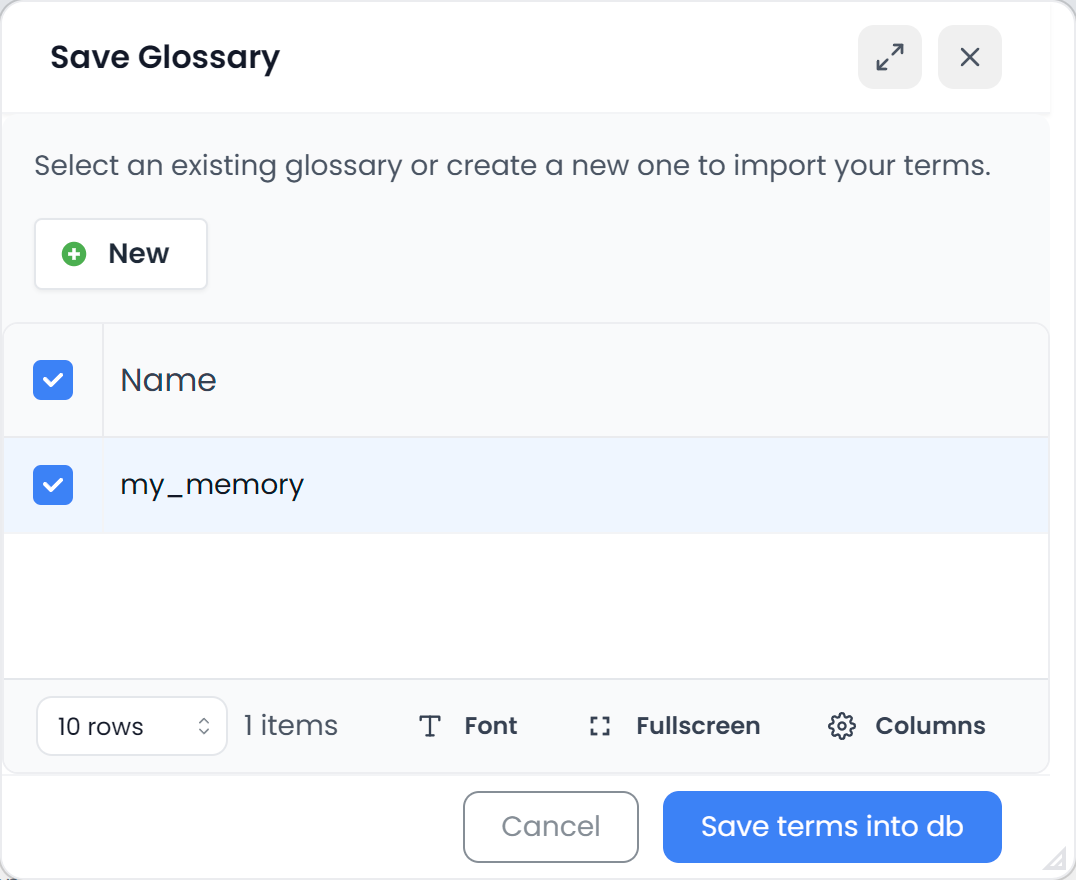
Finally, choose where to save the extracted terms:
- select an existing glossary, or
- click New to create a new glossary
Then click Save terms into db.