
Files, import, and export
Choose files according to the job and the output you need. A source document, a bilingual exchange file, and a translation memory file contain different kinds of information and are used in different workflows.
Choose the output you need
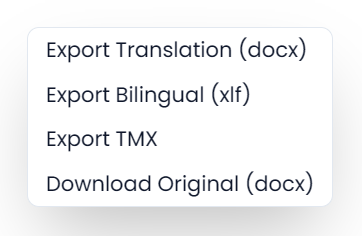
Use Translation for the translated document, Bilingual XLIFF for continued translation or review, Original for the stored input, and TMX for reusable translation pairs. Check the offered extension and open the downloaded file before delivery.
| Material or operation | Detailed guide |
|---|---|
| Hidden and highlighted text in DOCX/PPTX/XLSX | Translate DOCX, PPTX, and XLSX files |
| IDML import settings and protected styles | Translate IDML files |
| TXT/CSV settings and what becomes editable in JSON, XML, HTML, Markdown, EPUB, and SRT | Translate text files, web pages, books, and subtitles |
| Continue review elsewhere and return compatible corrections | Bilingual export and corrections |
| Rebuild working extraction from the saved original | Reimport |
File formats you can add to a project
The translation-project file chooser accepts these source formats:
| Material | Extensions |
|---|---|
| Office documents | DOCX, PPTX, XLSX |
| Publishing and books | IDML, EPUB |
| Web and formatted text | HTML, HTM, Markdown and its supported filename variants |
| Plain or structured text | TXT, CSV, JSON, XML |
| Subtitles | SRT |
| Bilingual exchange | XLF, XLIFF, SPXLIFF, SDLXLIFF, MQXLIFF, MXLIFF |
PDF, older DOC/XLS/PPT files, and generic ZIP files are not listed as translation-project inputs. Convert an older Office file to DOCX, XLSX, or PPTX in its original application before adding it.
For a bilingual review, use supported bilingual exchange files. For a single-language review, use supported source documents. Keep the two review types in separate projects.
Choose which text becomes editable
For a source document, Searchspeare prepares translatable text while keeping the information needed to reconstruct the supported document format. You work with segments rather than editing the page layout directly.
Before creation, use the available extraction options for the file type. In supported office files, hidden text or text in chosen highlight colors can be translated normally or protected. An entirely protected segment can remain visible but locked; protected text inside a segment can appear as a tag.
For IDML, open Configure IDML extraction in the project's Settings step. You can include or exclude text on master spreads, hidden layers, and outside the pages, as well as notes and other content. The IDML guide explains each option.
These options are applied during import. Reimport replaces the working segments from the stored original, so export your current work before using it.
Check text files and subtitles
For TXT, inspect encoding when accented characters are wrong. For CSV, check the delimiter. For structured files such as JSON and XML, preserve identifiers and protected content, and verify the exported file in its intended use.
Subtitle text is only part of subtitle delivery: inspect timing, line lengths, and reading flow in a subtitle-aware application after export.
Choose an export format
| Export | Use it for |
|---|---|
| Translation | A translated or revised document in the supported original format, or the appropriate bilingual output for an imported exchange file |
| Bilingual XLIFF | Continued translation, external review, or a working exchange copy containing source and target |
| Original | Downloading the stored original rather than a translated deliverable |
| TMX | Reusing translation pairs in a memory workflow |
The available export labels show the expected extension when Searchspeare can determine it. Check that label before downloading. An exported bilingual file is not the same as a finished DOCX, and a TMX file is not a document-layout backup.
For supported source documents, translated output is reconstructed from the original document information and your translations. For bilingual files supplied by another tool, Searchspeare exports through the applicable bilingual format; final document generation may belong to the tool that supplied that file.

Check the exported translation
- Confirm the intended segments and inspect any locked exclusions.
- Run QA and check missing or malformed tags.
- Decide how to handle comments and tracked revisions.
- Choose the required export and wait for completion.
- Open the downloaded file in its normal application.
- Compare important layout and protected content with the original.
If Searchspeare cannot rebuild the translated document, read the export error. It may offer a bilingual file to preserve your work or an error report to help investigate. Check which file was downloaded before delivering it.
Import corrections from a bilingual file
Use File → Import to bring reviewed targets back into the same project file. The returned bilingual file must retain Searchspeare's project, file, and segment identifiers. See Export a bilingual file and import corrections for the steps and exactly what is updated.
Export a working copy before an import that can change translations. After importing, check the affected text, statuses, tags, and comments. See Troubleshooting if the file is rejected or the resulting content is unexpected.