
Filtering segments
Filtering changes which segments you see. It does not delete the hidden text. Use it to make a focused review pass, such as checking every segment containing a number or returning to bookmarked questions.
Show all segments again
Click the filter bar's Clear all X to remove source and target searches, conditions, automatic result restrictions, and sorting. Closing a tool tab does not clear the filters it applied.
Filters matter beyond the display: some commands use the segments that pass the current filters. Pretranslate → All units, Replace All, and dictionary Spellcheck are examples. QA profiles and document translation have different scopes and can include hidden rows. See Selecting segments and batch actions for an operation-by-operation comparison.
Find the filtering controls
The source and target search fields are above the translation table. The controls beside them open sorting, Filters, and Filter Settings, followed by Apply filters and Clear all.

- Enter wording in a source or target field, then press Enter or click the triangle-shaped Apply filters button.
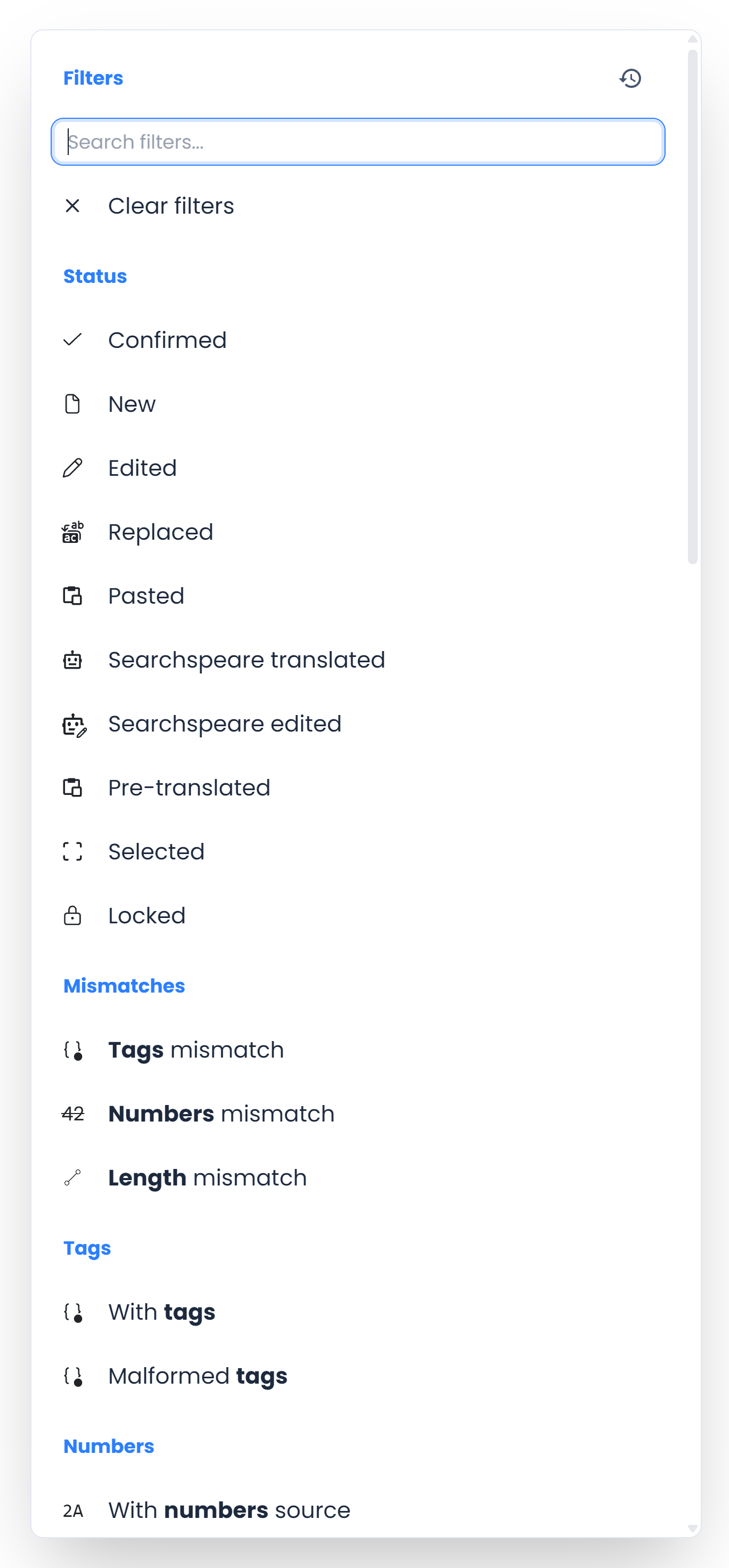
- Open the funnel-shaped Filters menu for conditions such as Confirmed, With tags, or Bookmarked. Choosing a condition applies it immediately.
- Open the gear-shaped Filter Settings menu for text-matching options. Its changes apply immediately. Filter Settings explains every choice.
The Search filters field inside the menu searches the list of available conditions. It does not search your document. Clear it to see the full menu, then scroll to the remaining sections.
Include, exclude, and inactive: the three filter states
Tri-state means a condition has three possible states. In the Filters menu, clicking the same condition cycles through inactive → included → excluded → inactive.
| State | Appearance | Effect |
|---|---|---|
| Inactive | Neutral icon | This condition does not restrict the rows |
| Included or enabled | Blue icon | Keep rows that meet the condition |
| Excluded or negated | Red icon; the label can change to its opposite | Keep rows that do not meet the condition |
For example, With tags has these states:
Inactive: tagged and untagged rows can remain, subject to your other filters.

Included: keep rows with visible source tags.

Excluded: the label becomes No tags. Keep rows without visible source tags.

Click the red condition once more to turn it off. Turning one condition off does not clear your other conditions or source/target searches. An empty result can simply mean that no segment meets their combination.
Include or negate a source or target search
Each text field has its own funnel button. The field is inactive when its search text is empty. With wording entered, a blue funnel means contains this wording, and a red funnel means does not contain this wording.
Inactive: the source field is empty, so it contributes no text condition.

Included: enter blocks and apply the filter to find source occurrences.

Negated: click that field’s funnel to find sources that do not contain blocks.

Unlike a menu condition, the input’s funnel switches between include and exclude; it does not use a three-click cycle. Clear the field with its X to make that text search inactive. An empty field contributes no text condition even if its negation preference is still on. Use Clear all to reset both fields and all other filtering choices together.
Example: find a source word without an expected target word
Suppose you want to inspect translations of the English word blocks that do not use the Spanish word obstaculiza.
- Open the file or View and click Clear all to start without other restrictions.
- Enter
blocksin the source field. Leave its funnel blue, meaning included. - Enter
obstaculizain the target field. - Click the target field’s funnel so it becomes red, meaning negated.
- Select AND between the fields.
- Press Enter or click Apply filters.
- Read the returned targets. After the check, click Clear all to restore all segments in the open file or View.

The result identifies missing wording, not necessarily a wrong translation: frena can be a valid alternative. Use this search when a client requires a particular equivalent or you want to investigate inconsistent terminology. Turn on Whole words in Filter Settings when you need whole-word matching instead of occurrences inside longer words.
Use AND for this missing-equivalent check
With AND, both requirements must hold: the source contains the term and the target lacks the expected wording. OR can also include rows merely because they lack that target word, even when the source term is absent.
Every Filters menu option
The translation editor’s menu has 55 standard options in eight sections. Each reference below shows every individual option enabled, explains what it finds and when to use it, and gives an example. Single-language review offers the conditions appropriate to its working text. An additional result-set restriction can appear after another tool filters the table, as explained under automatic filters.
Combine source, target, and condition filters
The AND / OR control combines the source and target text searches. AND requires both active text searches to match; OR accepts either active text search.
Most Filters menu conditions further restrict that text-search result. OR does not turn the whole menu into an “any condition” search. For example, enabling both With numbers source and With numbers target requires digits on both sides.
Status choices have a useful special behavior: including several statuses lets you see rows with any of those statuses. Excluded statuses are removed. For example, a pass over both new and edited text does not require a segment to have two statuses at once.
When a combination produces no results, remove conditions one at a time. A source search, target exclusion, status restriction, and match range can together be narrower than you expect.
Understand length and content checks
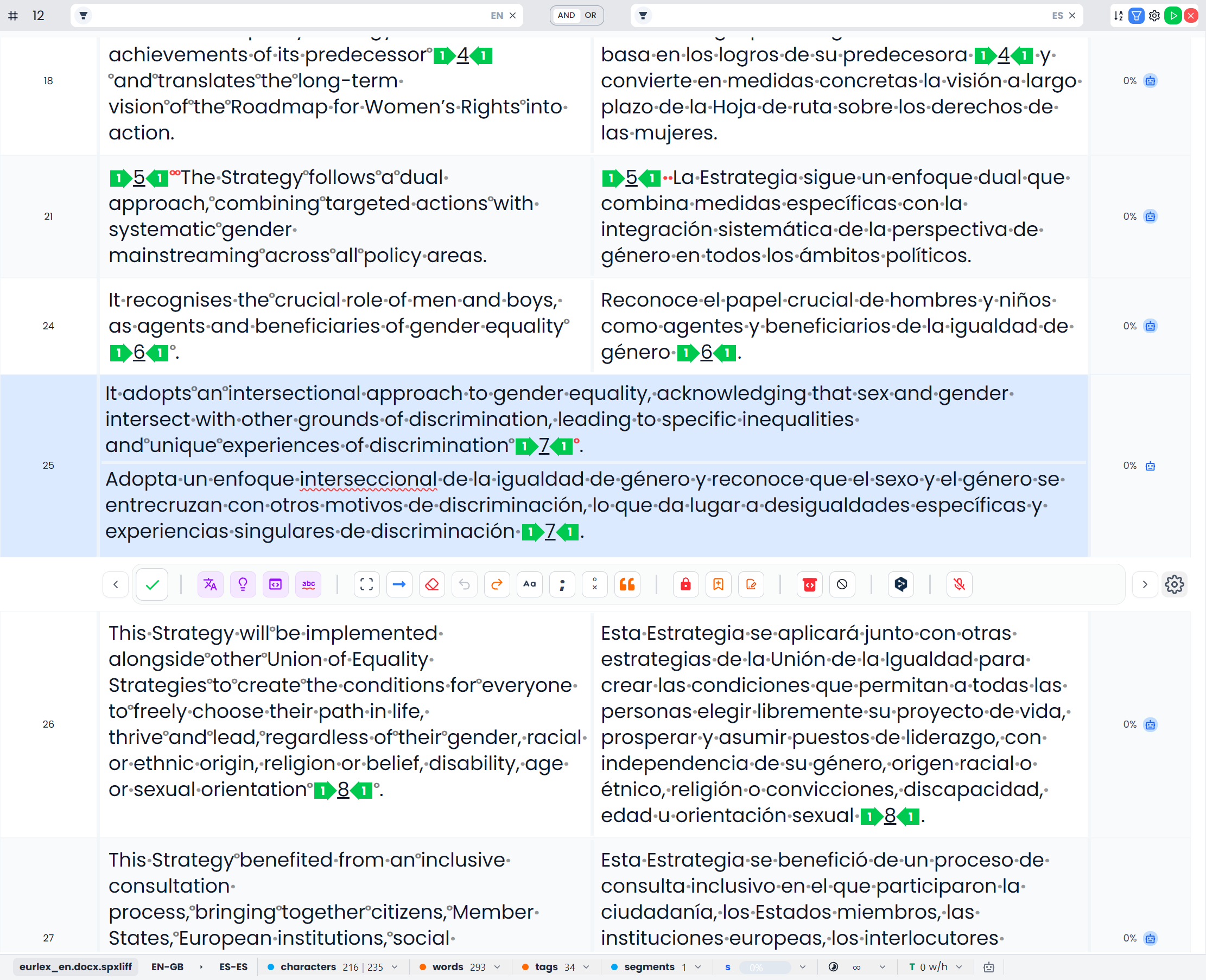
A length mismatch is a character-length comparison with configurable thresholds and a minimum word count. It is a clue to investigate omissions or excessive expansion. Empty segments are excluded from that check; use the empty-target filter for them.
A number mismatch is also a review clue. A legitimate translation can change number formatting, and a numerically similar sentence can still contain a wrong value. Read the actual source and target.
Certain recognized-content filters highlight the material they found, such as numbers, dates, links, measurements, or line-break markers. Highlighting helps locate the relevant part of the segment; it does not edit it.
Find and combine filter conditions
Search the menu by condition name. Pin frequently used conditions near the top, or drag items to an order that suits your work. Use the restore action if the arrangement becomes confusing.
For a pattern that is difficult to express through a ready-made condition, enable Regex and use a regular expression. Keep the pattern as narrow as the task requires.
The Selected condition lets you inspect the selected rows; Not selected shows the opposite set. Filtering to a selection and selecting rows are still different actions. In particular, these conditions do not change a whole-file command into a selected-row command.
Ask Searchspeare to help build a filter
The Searchspeare filter assistant accepts a description of what you want to see. A request may become ordinary filter settings or a meaning-based selection of segments.
For example, ask for segments that discuss payment obligations. Inspect the returned set and the assistant's explanation; a meaning-based result needs judgment, just like any other AI result.
This tool selects content for inspection. It does not rewrite the targets. It also needs the chosen AI service to be available.
The assistant works with the open file or View and applies the returned filter plan. A meaning-based result can appear as Filtered by Searchspeare in the Filters menu. Empty source and target search fields do not necessarily mean that the full table is showing: a result-set restriction can still be active.
Recognize filters applied by another tool
Some tools change the table filters to take you directly to the relevant passages:
| Tool or action | Filter effect |
|---|---|
| Filter a selected phrase | Searches for that wording on the selected source or target side |
| File Index | Clicking a source entry filters for its indexed wording or grouped forms |
| Adaptive Learning | Clicking a pair sets both source and target conditions, with literal whole-word matching and AND |
| QA results | Clicking Row, Code, or Description shows segments related to that segment, rule, or message |
| Spelling results | Clicking a reported word or its row clears the source search and other conditions, then searches whole-word target occurrences; spelling results explains the actions |
| Discarded-spelling review | Clicking a word filters its target occurrences for inspection |
| Certain export tag-problem workflows | Shows the affected segment set for investigation or repair |
The other segments remain in the file. Closing the tool is not a general command to restore the full table. Check the current filters before moving to a different task or running a command that uses filtered segments.
The additional result-set filter

Filtered by Searchspeare identifies an active restriction to a particular group of segments. It can appear after a meaning-based filter or another result action; for example, clicking a QA rule code can restrict the table to that code's segments and show this label.
Use it to recognize why the table remains restricted even when the source and target search fields are empty. This extra condition is not one of the standard three-state choices: clicking it removes that result-set restriction. Other searches and conditions can still apply. Use Clear all for a complete reset.
A click can also leave you with a narrower question than you intended. For example, an Adaptive Learning pair finds segments containing both the source and its recorded target. If you want to investigate different translations of that source, change or clear the target condition.
Filters can also change which rows remain visible as you edit. A row can leave a status or text-based result set when its content or status no longer matches. Clear the filters to find it in the full open file or View again.
Clear filters to show all segments
Use the filter bar's X control labeled Clear all for a complete reset. It clears source and target searches, filter conditions, automatic result-set restrictions, filter options, associated term highlighting, and sorting. It restores the normal segment order without deleting translations.
The clear action inside the Filters menu clears that menu's conditions. Clearing an individual search field only clears that field. Neither is the same as the filter bar's complete Clear all action.
After clearing, inspect the returned rows and the open file or View. Clearing filters in a saved View shows that View's members; open the original file to work beyond them. Make a fresh selection before the next selected-segment operation.
If you want to keep a particular selection of segments for later, create a View. A saved View stores its segment membership at creation; it is different from continuously rerunning a filter.